Using Salesloft with Influ2
Last updated: July 24, 2026
Connecting Salesloft to Influ2 keeps marketing and sales efforts closely aligned. You can enroll targets in cadences automatically as they move through a journey, route journeys based on real cadence activity instead of ad engagement alone, and use Salesloft cadences as an audience source when building cohorts.
Getting started
If you haven't connected yet, start with How to integrate Influ2 with Salesloft, which covers prerequisites, connection steps, and notification setup. This article picks up from there — expanding on use cases and showing the full picture of what Influ2 reads and writes in your Salesloft instance.
Terms to know
There are three terms used throughout this article to get familiar with:
A Prospect is the Salesloft object — a person record.
A Cadence is the Salesloft object — a sequence of steps a Prospect moves through.
A Journey is an Influ2 concept — a configurable sequence of stages and conditions that move audience members through a Program, and can trigger actions in connected tools like Salesloft.
How the Influ2 Salesloft integration works
The integration is two-way. Each direction does a different job, so it helps to stay familiar with both. Let’s break them down:
Influ2 → Salesloft
Influ2 writes ad engagement notifications to a Prospect's profile in Salesloft (set up in the Notifications tab of your connection). Influ2 can also enroll Prospects in a cadence automatically when a target hits a stage in a Program journey, and can create a Prospect record if one doesn't exist yet (if you choose to enable that).
Salesloft → Influ2
Influ2 pulls Prospect records and cadence activity from Salesloft. This powers two important parts of the product:
Journey routing: Cadence activity drives journey conditions like Day in cadence— so targets move through stages based on real sales effort, not just ad engagement.
Audience creation: Salesloft cadences can be used as an audience source for Cohorts.
Using Salesloft with Programs
Programs let you trigger a Salesloft action automatically as targets move through a journey. The most common action is enrolling a Prospect in a cadence the moment they hit a specific stage — so sales effort lines up with the marketing motion without a manual handoff.
Adding a Prospect to a cadence
When you configure an Add to cadence action on a journey stage, three settings control how it behaves:
Cadence. The Salesloft cadence to enroll the Prospect in.
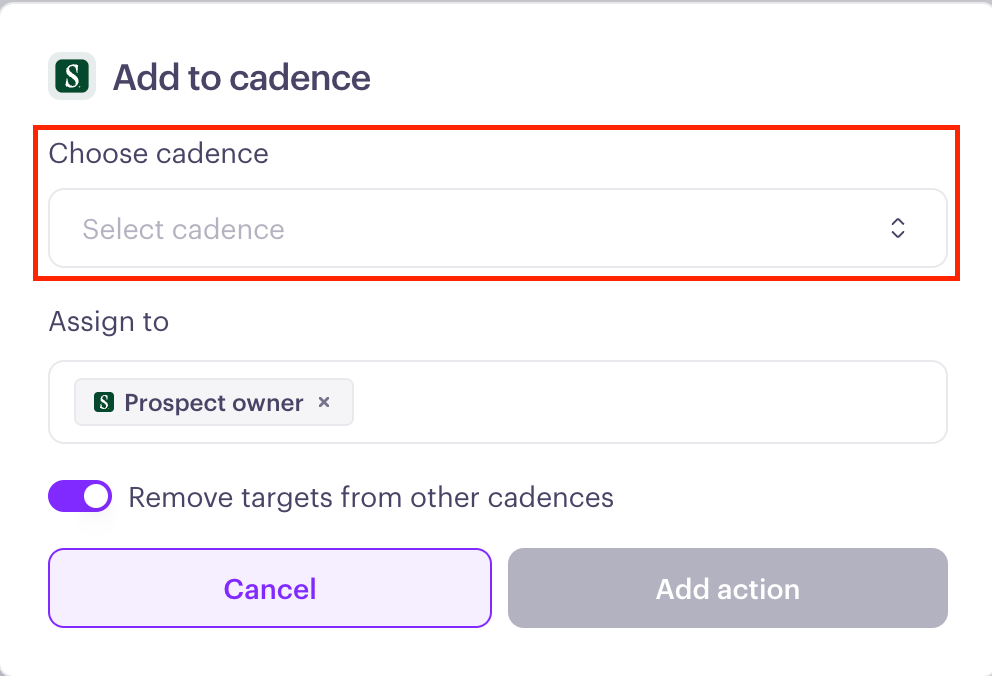
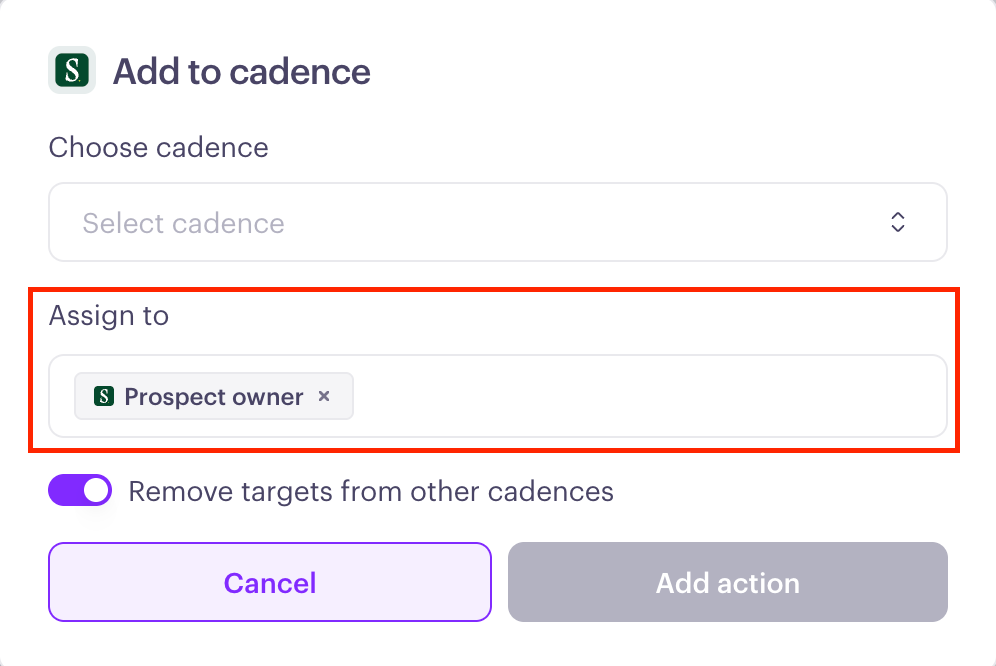
Assign to. Who the enrollment is performed on behalf of. You can turn on Prospect owner, enter a specific user's email, or both — at least one is required, or Influ2 blocks saving the action.
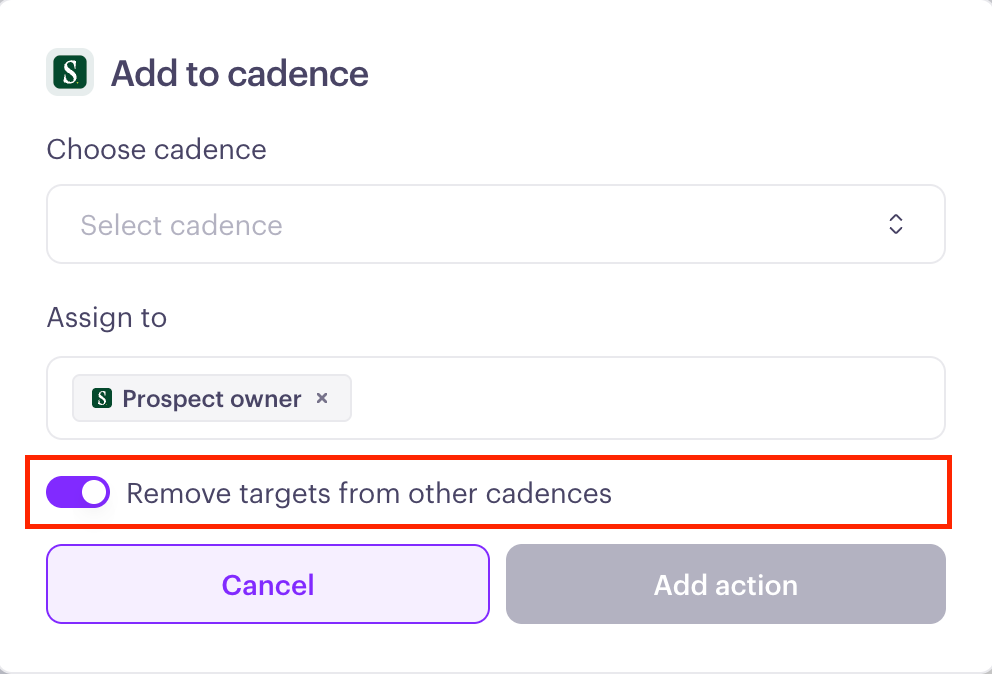
Remove targets from other cadences. On by default. When on, a Prospect is taken out of any cadence they're actively enrolled in before being added to the new one. Turn it off to leave existing cadence memberships alone.
Keep in mind: You can't add the same Salesloft cadence to a stage or step twice. If a Prospect is already actively enrolled in the cadence an action targets, Influ2 counts that as a successful run with no changes made — "active" means currently enrolled, so a Prospect who previously finished the cadence is treated as not active and gets enrolled again.
Auto-create Prospect
If a target reaches a stage with an Add to cadence action and no matching Prospect exists in Salesloft, Influ2 can create one first so the action still runs. This toggle lives under Settings → Integrations → Salesloft → Contacts and is covered in more detail in How to integrate Influ2 with Salesloft.
Journey conditions that use Salesloft data
Cadence activity also drives how targets move through a journey. When you build or edit a journey, you can route targets based on real sales effort instead of ad engagement alone:
Day in cadence — routes targets based on which day they're on in a specific Salesloft cadence.
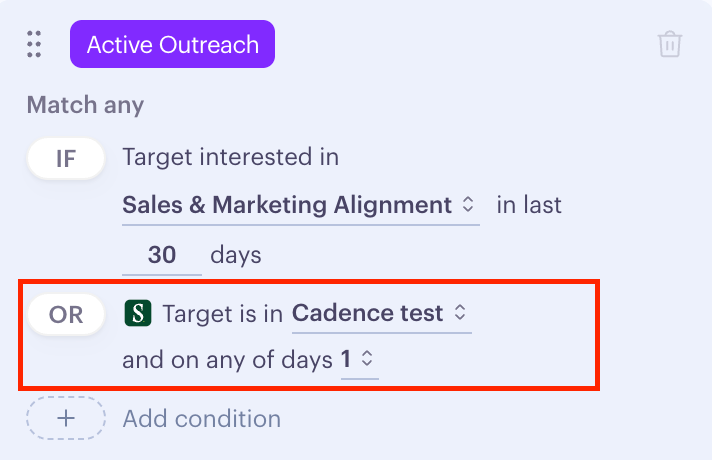
These conditions work the same way for Salesloft cadences and Outreach sequences — Influ2 normalizes the data so you build journeys identically regardless of which tool your team uses.
Using Salesloft as an audience source
Salesloft cadences aren't just a destination for Programs actions — they're also a source you can pull from when building a cohort. In the cohort designer's Include or Exclude block, select Salesloft from the list of available integrations, then choose one or more cadences. Each selected cadence becomes a chip; targets from any of the selected cadences are pulled into the segment.
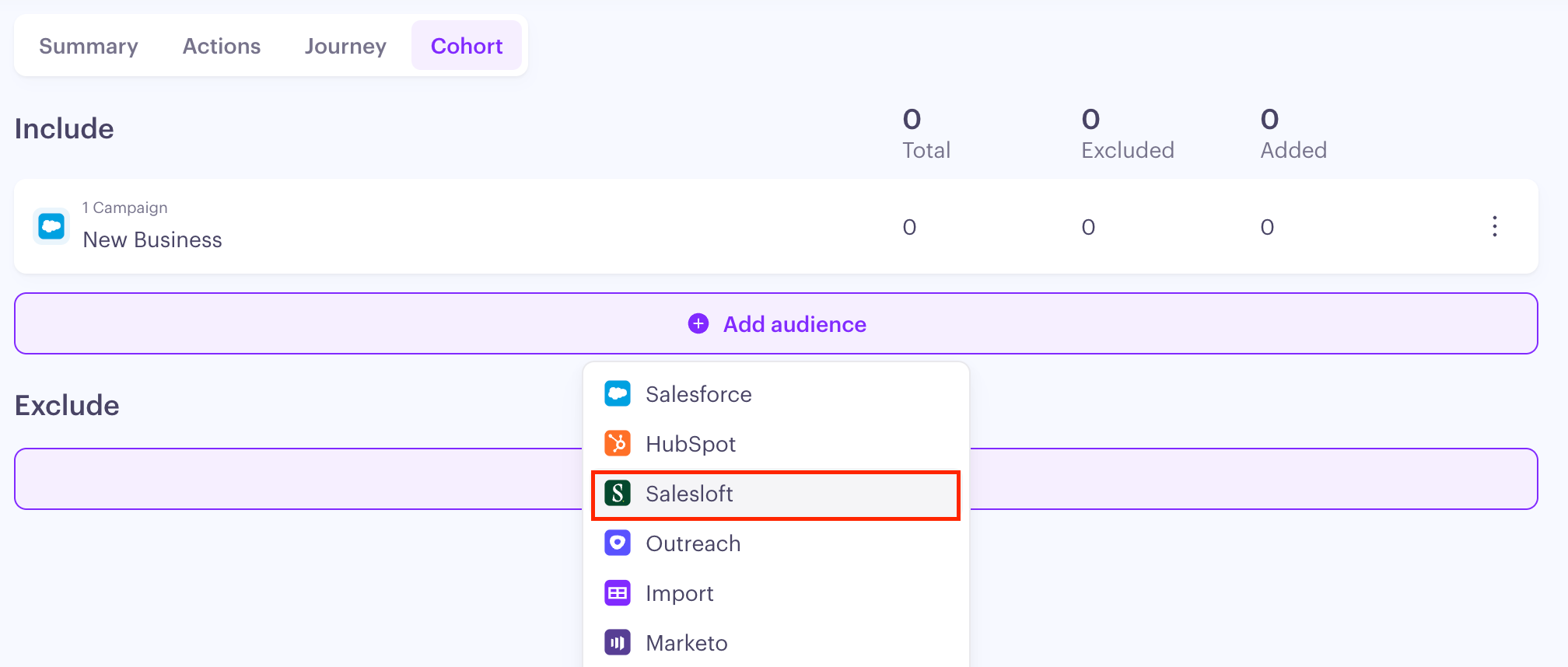
This works well alongside your other audience sources — combine a Salesloft cadence segment with a Salesforce or HubSpot segment in the same cohort, or use it in the Exclude block to keep targets already being worked in a cadence out of a new campaign.
What Influ2 reads and writes in your Salesloft instance
This section is written for sales operations or IT teams reviewing the integration before rollout.
Access requested
When you connect Influ2 to Salesloft, you authorize access to the following object types under the connecting admin's account. Influ2 doesn't request access to anything outside this list — no email content, no call notes, no templates, no snippets.
Object | Access | Purpose |
Prospects | Read + Write | Read for target matching, write for auto-create |
Cadences | Read | Populate cadence dropdowns in journey configuration |
Cadence Memberships | Read + Write | Read enrollment status, write to add and remove prospects |
Users | Read | Resolve assignee identity and ownership |
Accounts | Read | Link prospects to their company record |
What gets written, and when
Three things, each independently controllable from inside Influ2:
Engagement notifications. Written to a Prospect's profile in Salesloft. Triggered by ad engagement. Default state on connection: all off.
Prospect records. Written only when Auto-create is enabled and a journey action runs for a target with no matching Prospect. Fields written: email, first name, last name, company. Default state on connection: off.
Cadence memberships. Influ2 adds prospects to a cadence (and optionally removes them from active ones) when a journey stage runs an Add to cadence action. Cadence content itself is never modified.
What stays under your control
Even with the integration connected, these areas are never touched by Influ2:
Cadence content (steps, templates, schedules, archival status) is never modified or deleted.
Prospect ownership isn't changed after creation — once an owner is set, Influ2 doesn't rewrite it.
Existing Prospects aren't bulk-modified — the only Prospect write is the per-target auto-create.
Salesloft users, roles, and permissions are never created or modified.
API limits and monitoring
Two distinct limits apply to Salesloft API usage.
The Salesloft platform ceiling. Salesloft enforces a hard cap of 250,000 requests per day per integration. This is set by Salesloft and can't be exceeded.
Your Influ2 cap. Influ2 maintains its own configurable cap on top of that ceiling — you set it under the Connection tab, defaulting to 250,000. Most teams set it lower to reserve headroom for other Salesloft integrations or manual use.
Daily usage against your Influ2 cap is visible under Settings → Integrations → Salesloft → Connection.
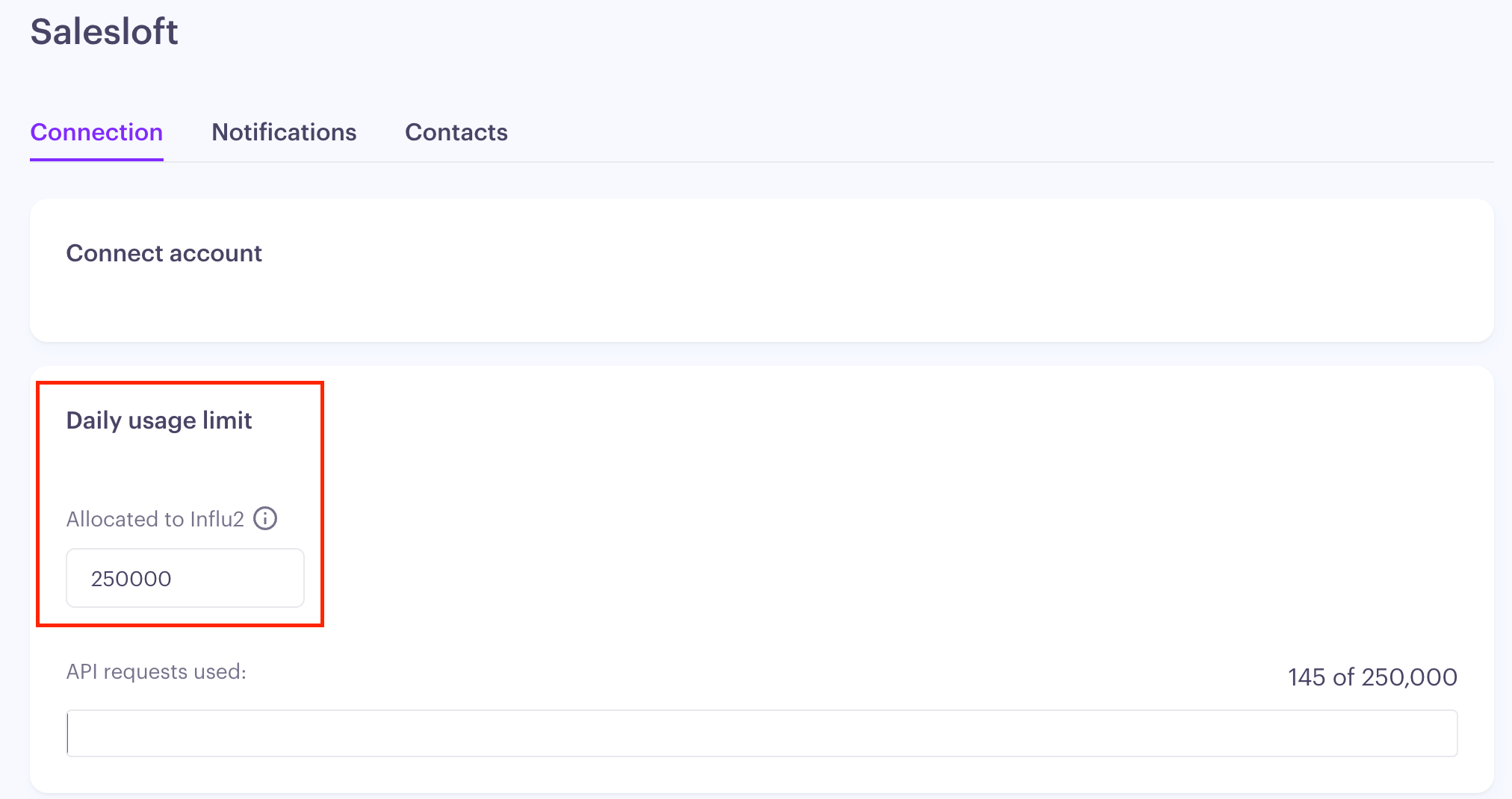
If the cap is reached, further requests to Salesloft are blocked until the next daily reset. Blocked requests are logged inside Influ2's system logs. Email or in-product alerts to administrators when the cap is hit aren't part of the integration today — monitor the Connection tab proactively, or contact Influ2 customer success to be looped in when alerts fire.
Authority and Audit
Writes performed by Influ2 appear in Salesloft under the user who connected the integration, unless the Assign to setting on an action specifies otherwise. Enrollments performed on behalf of a specific user appear under that user's name, matching standard Salesloft behavior. All writes are visible in standard Salesloft audit logs.
Data refresh frequency
Reads from Salesloft run on a recurring schedule managed inside Influ2. The interval isn't customer-configurable; expect data freshness on the order of hours, not minutes. Real-time checks — like verifying cadence enrollment immediately before a journey action runs — happen at the moment of the action and don't depend on the scheduled sync.
Disconnecting and data retention
You can disconnect the integration from either side at any time. From Influ2: Settings → Integrations → Salesloft → Disconnect. From Salesloft: revoke the Influ2 OAuth grant. Either way, Influ2 immediately stops reading from and writing to Salesloft.
Prospects, cadences, and cadence memberships previously created or modified by Influ2 stay in place — Influ2 doesn't roll back its writes. Data Influ2 has copied from Salesloft (Prospect records, cadence enrollment state, user references) continues to exist in Influ2's storage after disconnection. Specific retention durations and deletion procedures are governed by Influ2's data retention policy — if you have specific retention or deletion requirements, request the current policy from Influ2 customer success.
Keep in mind: Program action cards for Add to cadence don't disappear when Salesloft disconnects. They render greyed out with the enrollment count still visible, and the only option left in the card menu is Delete. Reconnecting Salesloft automatically restores the card to normal.