Microsoft Teams Permissions and Access
Last updated: May 26, 2026
Connecting Microsoft Teams to Influ2 lets your team see signal notifications directly in the channels and DMs they already work in. If you’re going through a security review before turning the integration on — or just want to understand what’s happening behind the consent screen — this article walks through exactly what Influ2 requests, what it can do once connected, and what stays out of reach.
For the setup steps themselves, see How to configure target followers and notifications. This article is a deeper dive on the permission and access side.
How the connection works
Influ2 connects to Microsoft Teams using OAuth 2.0 through the Microsoft Identity platform (Azure AD / OpenID Connect). When you click Connect Microsoft Teams in Account Setup, you’ll be redirected to Microsoft to sign in, review the permissions Influ2 is requesting, and approve the connection.
Influ2 never sees your Microsoft password — only a secure access token issued by Microsoft after you grant consent. The connection is established at the tenant level, so depending on your organization’s admin consent policies, a Microsoft Teams administrator may need to approve it the first time.
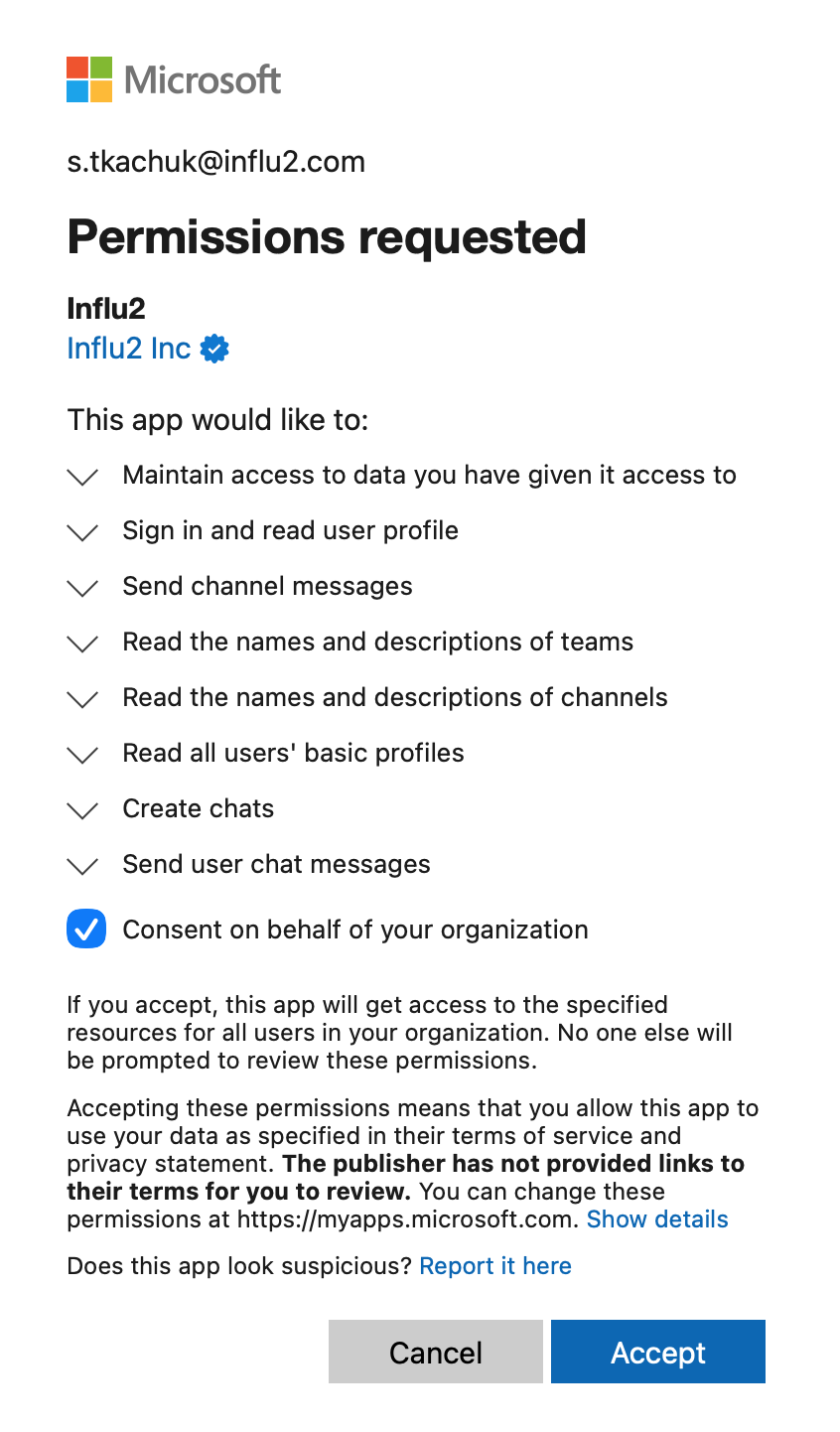
Permissions Influ2 requests
During the connection, Microsoft displays a consent screen listing every permission Influ2 needs. These are the standard Microsoft Graph permissions required to deliver signal notifications to your followers.
Read the list of Teams and channels in your tenant — so you can pick where notifications should land. The corresponding Microsoft Graph scopes are
Team.ReadBasic.AllandChannel.ReadBasic.All.Read the list of users in your tenant — so Influ2 can route direct messages and @mentions to the right people. Microsoft Graph scope:
User.ReadBasic.AllandUser.Read.Post messages to channels you’ve selected — to deliver signal notifications to the channels you choose. Microsoft Graph scope:
ChannelMessage.Send.Send private messages and create chats — to deliver direct notifications and @mention followers. Microsoft Graph scopes:
Chat.CreateandChatMessage.Send.Sign you in and read your basic profile — standard OpenID Connect scopes used to identify the connecting user. Scopes: openid, profile, email, offline_access.
Keep in mind: The exact wording of each permission on the Microsoft consent screen comes from Microsoft. The list above maps Influ2’s needs to the Microsoft Graph permissions that appear during the connection.
What Influ2 can do once connected
After you grant consent, Influ2 can:
See the list of Teams, channels, and users in your tenant (read-only) so you can configure where notifications go.
Post new messages to the channels you’ve explicitly selected as notification destinations.
Send direct messages to followers identified by their email address, including @mentions when that option is turned on.
That’s it. Influ2 only touches data that’s directly required to deliver a signal notification.
What Influ2 cannot do
Influ2 doesn’t request, store, or have access to:
Existing messages, conversations, or chat history in any Team, channel, or DM.
Files, recordings, or any other content stored in Teams or SharePoint.
Calendars, meetings, calls, or any data outside Teams messaging.
The ability to edit or delete messages — Influ2 only posts new notifications.
Any tenant data that isn’t directly required to deliver a signal notification.
If your security team needs to confirm any of these boundaries against your tenant audit logs, the only Microsoft Graph endpoints Influ2 calls are the ones tied to the permissions listed above.
Who can connect Teams from inside Influ2
On the Influ2 side, only users with the teams_connect.create permission can connect or change the Microsoft Teams integration from Account Setup. This is typically reserved for workspace admins, so a regular user can’t connect, disconnect, or reconfigure Teams without admin or manager rights.
How notifications are delivered
When a new signal arrives, Influ2 resolves the relevant followers using your base rules and cohort rules (cohort rules take priority), then sends one notification per selected Teams channel. Each notification is rendered as an Adaptive Card (v1.4) using Microsoft’s standard notification format. If the @mention follower option is turned on, all resolved followers are @mentioned inside the card so they get a direct ping.
Keep in mind: Notifications only flow for signals received after the Teams configuration is saved. Earlier signals aren’t back-filled.