Syncing Company Changes to Salesforce
Last updated: August 26, 2026
When a prospect changes jobs or companies, keeping your CRM up-to-date is crucial. Influ2 can automatically sync company changes to Salesforce, creating or updating records based on rules you define.
Why this matters
Automatic company change syncing ensures:
Your audience targeting stays accurate
Sales teams work with current contact data
You maintain clean, actionable records in your CRM
Before you start
You'll need:
The Admin or Manager role in Influ2, with Audienscope enabled
Permission to create or edit Salesforce contacts and leads
Understanding of your current account structure in Salesforce
Enable automatic company change syncing
This section covers what happens when a contact moves to a new company. To sync role changes at a contact’s current company, see “Changed Title” below.
Go to Settings > Integrations > Salesforce > Company changes tab
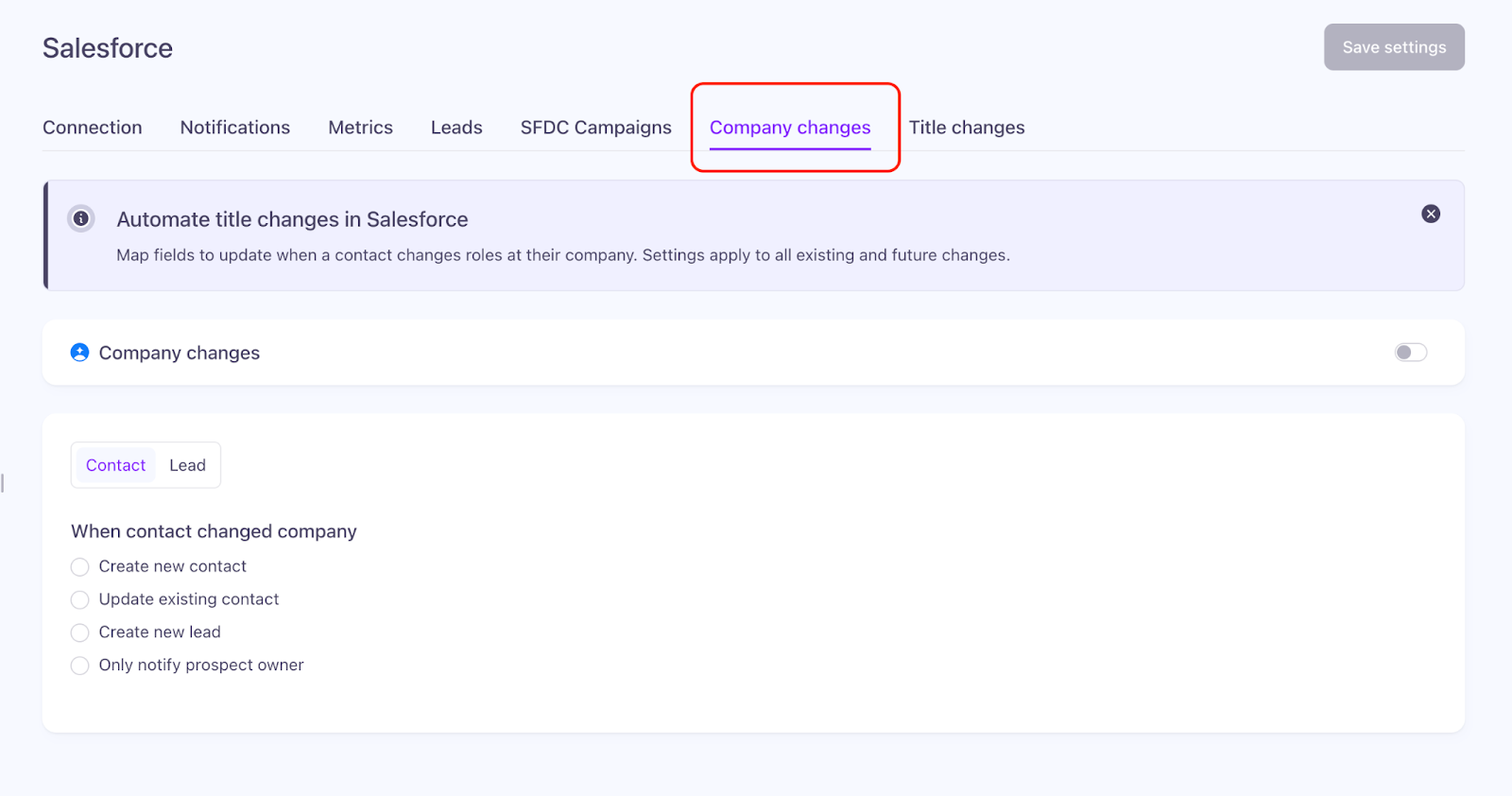
Select how Influ2 should handle job changes:

Create New Contact — Creates a new contact and associates it with the new company (if that account exists in Salesforce)
Update Existing Contact — Updates the existing contact and reassigns it to the new company (if that account exists in Salesforce)
Create New Lead — Creates a new lead associated with the new company
Configure field mapping
Define what data Influ2 sends to Salesforce when it creates or updates a record.
Map standard data from Audienscope:
First Name, Last Name
Company Name, Company Domain
LinkedIn URL
Business Email (new company email)
Start Date at Company
Start Date at Role

Map fields from the original record:
If needed, copy fields from the original Salesforce record to the new record—like personal phone number, notes, or custom fields you want to preserve.

Map static values:
Assign fixed values to fields. Example: set Lead Source to "Audienscope" for all records created this way.

Track record history:
Create a reference field on Contact or Lead (e.g., "Previous Contact ID"), then map it to "Previous Contact Link." Influ2 will populate it with the ID of the original record, letting you track the contact's history.

Define record ownership
Decide who owns new or updated records:
Assign to the Account owner
Assign to the previous Contact owner
Assign to a default user

What happens if the new account doesn't exist in Salesforce
If you selected "Create New Contact" or "Update Existing Contact," Influ2 needs the new account to already exist in Salesforce. Influ2 doesn't create accounts—only contacts and leads.
If the account isn't found, choose one of these fallbacks:
Create a Lead — Influ2 creates a lead instead, without an account association
Do not create any record — Commonly used if you only work with accounts already in Salesforce

Update outdated records
When Influ2 creates a new contact or lead, mark the original record as outdated so it doesn't clutter your targeting. Add a field or flag like "No Longer at Company" or "Start Date at New Company." You can then exclude these records from future campaigns.

Signal notifications for company changes
In addition to syncing records, Influ2 automatically creates signal notifications in Salesforce. When a prospect's company changes, a task or event appears in Salesforce for the contact owner with:
Subject: "[Influ2] Changed job"
Details about the previous and new company, new title, and a link to the target report
Configure notification preferences in Settings > CRM notifications. Notifications use your existing Salesforce integration authentication and are sent to the contact owner (or your integration user if the owner can't be found).
Syncing title changes
When a contact’s title changes but they’re still at the same company, Influ2 updates the existing Salesforce Contact or Lead instead of creating a new record. There’s no “create” option here — since the person hasn’t moved companies, a new record would only duplicate them.
To set up title change syncing, go to Settings > Integrations > Salesforce > Title changes.
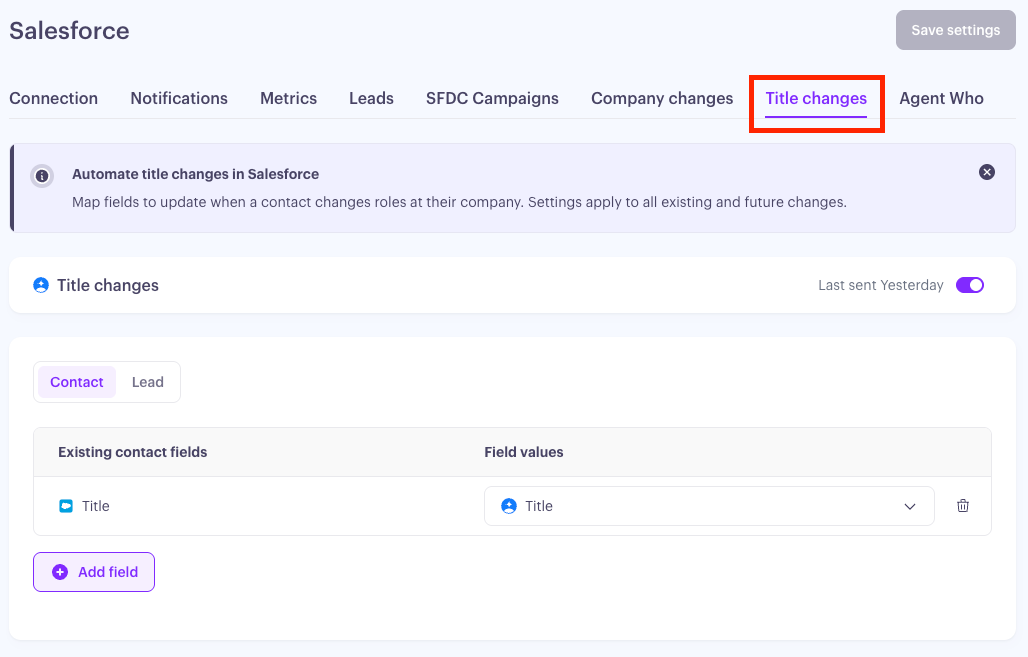
2. Configure the field mapping, then toggle the workflow on. Once it’s active, the widget shows the date of the last run.
Audienscope fields available for mapping:
Title
Seniority Level
Department
Start Date at Role
By default, Influ2 maps the Salesforce Title field to the Audienscope Title. You can add or remove any of the other fields, and map any of them to a static value if you’d rather set a fixed value than pull from Audienscope. Because the existing record is updated in place, ownership stays exactly as it was — there’s no new record to assign an owner to.
Keep in mind: You can save a partial configuration while the workflow is turned off. Once you turn it on, Influ2 checks that every selected Salesforce field has a mapping before it lets you save.
What you’ll see
With both workflows active, your Salesforce data keeps itself current. Company moves create or update records and drop a signal notification for the contact owner, while title changes update quietly in the background — no separate task or event — so your records and reports always reflect each contact’s current role. The Last run date on each tab tells you when Influ2 most recently picked up a change.