How to integrate Influ2 with Eloqua
Last updated: August 26, 2026
Connecting Influ2 to Eloqua lets you automatically sync contacts from and send campaign engagement data back to Eloqua. This keeps your marketing automation platform synchronized with what Influ2 tracks.
Before you start, you'll need:
Admin access to both your Influ2 and Eloqua accounts
API credentials from Eloqua (you'll need these during setup)
Steps
Log in to your Influ2 account and go to Settings (click your profile icon in the bottom left navigation).
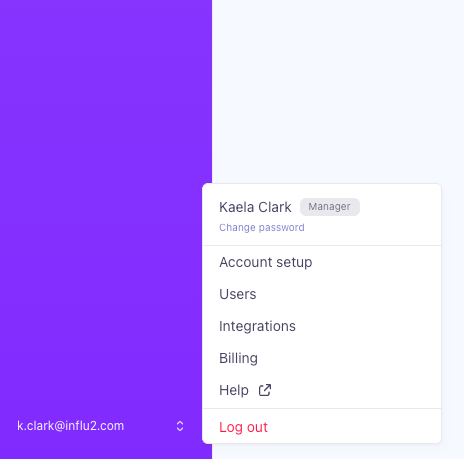
Select Integrations and find Eloqua.
Click Connect and follow the prompts.


Influ2 uses OAuth 2.0 to securely connect to your Eloqua account — you won't need to share credentials directly.
You'll be prompted to authorize Influ2 to access your Eloqua data. Review the permissions and click Allow.
Once connected, you can start building cohorts with Eloqua contacts.

Sync contacts from Eloqua
Influ2 syncs audience data from Eloqua Segments. The system retrieves segment lists and automatically pulls in segment members when you create cohorts. Contact data is matched by ID, with the sales person field used to identify contact owners.

Send data back to Eloqua
To sync Influ2 metrics back to Eloqua, work with your Customer Success Manager. This setup is customized for your account to ensure the metrics that matter most to you appear in Eloqua in the right way.
Metrics sync to Eloqua Custom Data Objects — not directly to Contact record fields — which gives you more flexibility in how you organize the data. Here's what Influ2 can send:
Total Number of Impressions (Numeric)
Total Number of Clicks (Numeric)
Total Number of Visits (Numeric)
First Impression Date (Date)
Last Impression Date (Date)
First Click Date (Date)
Last Click Date (Date)
Last Visit Date (Date)
Last Seen Creative Name (Text)
Last Seen URL (URL)
Last Clicked Creative Name (Text)
Last Clicked Creative URL (URL)
30 Days Impressions (Numeric)
API usage limits
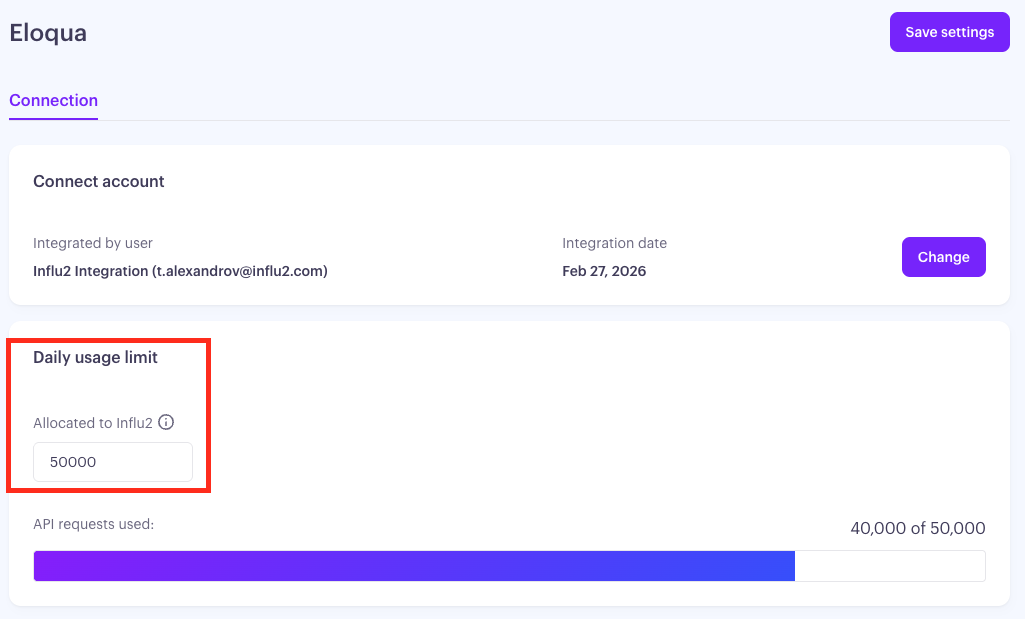
By default, Influ2 allows up to 50,000 API calls per day to your Eloqua instance to ensure optimal integration performance. Most accounts never come close to that — but high-volume accounts with large audiences can, and it's worth knowing what happens when they do.
What counts as usage
Each of these operations makes one or more calls to Eloqua's API:
Syncing contacts from Eloqua segments
Sending custom activity notifications when targets hit engagement thresholds or trigger an intent signal
Exporting daily metrics to Eloqua Custom Data Objects
Because a single target can generate both a signal notification and a metric export, accounts with large audiences use proportionally more of the daily allowance.
What happens if you reach the limit
If your account reaches its daily API limit, Influ2 pauses the affected operations until the allowance resets. Data isn't lost — syncs, notifications, and metric exports queue up and process automatically once there's room again. What you'll notice is a delay: data that would normally appear in near real time can take up to 24 hours to catch up.
You can adjust your API request limit at any time in your Eloqua integration settings.
Approved IPs
If your organization restricts API calls by IP address, add these Influ2 IPs to your approved list:
35.224.81.3
35.232.17.171