How to pass Influ2 data to Marketo
Last updated: August 25, 2026
Influ2 can send campaign engagement data to Marketo in two ways: as real-time custom activity notifications when thresholds are met, or as daily metric updates. Use both together for the most complete view.
Set up custom activity notifications
Custom activities trigger when targets reach engagement thresholds, or when an intent signal is detected. This is the best way to align Influ2 with your omni-channel marketing strategy — each action creates a record in Marketo's activity log.
In Influ2, go to Settings > Integrations > Marketo.
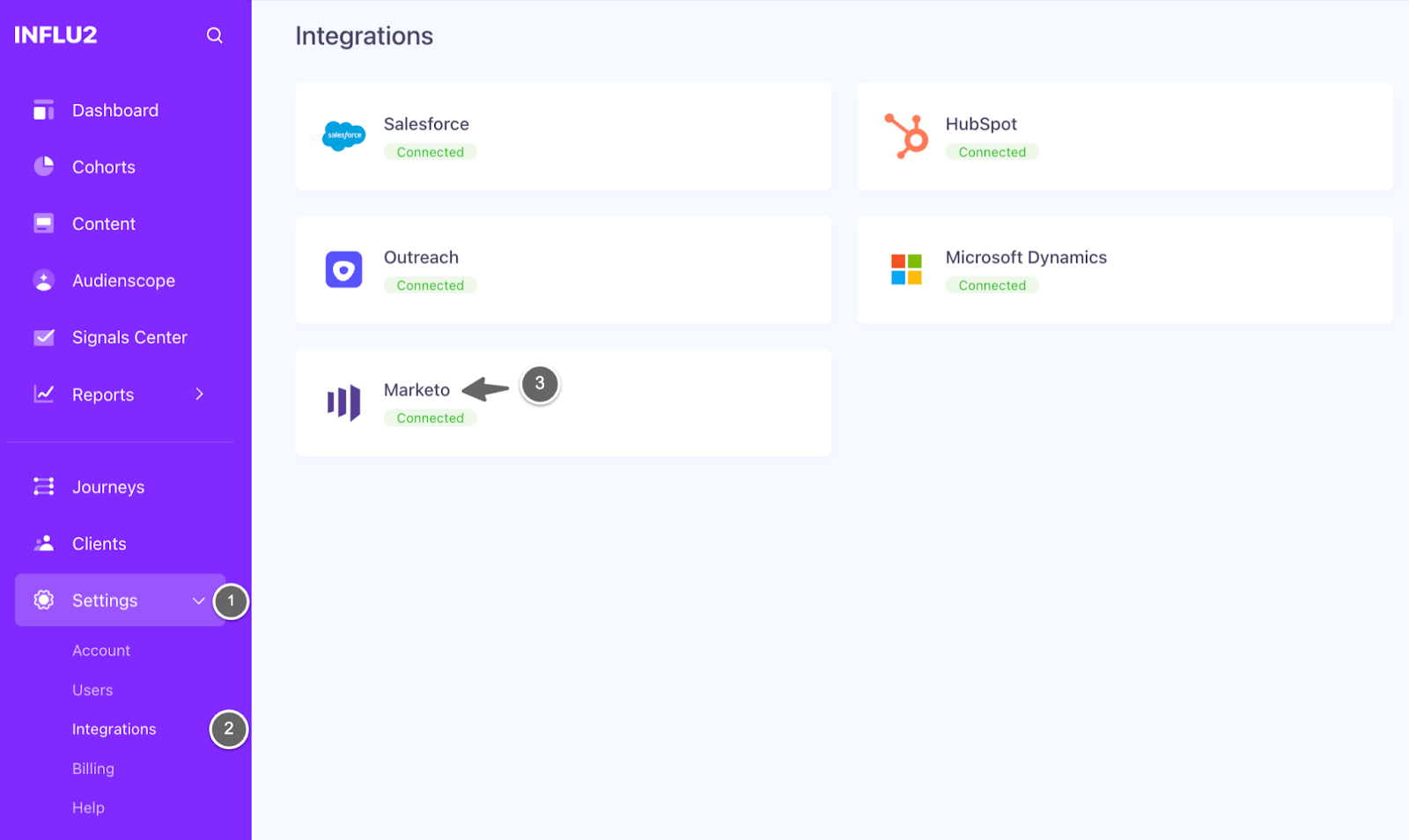
Click the Notifications tab.
Toggle Send notifications to ON.


Check the box next to each activity type you want to track:
Impressions — creates a custom activity when a target reaches the number of impressions you specify in the Threshold field
Clicks — creates a custom activity every time a target clicks an ad
Visits — creates a custom activity every time a target lands on your page after clicking
Prioritized for Sales — creates a custom activity when a target gets flagged for sales outreach during a journey
Title changes — creates a custom activity when a target's job title changes
Company changes — creates a custom activity when a target moves to a new company
LinkedIn posts — creates a custom activity when a target publishes a relevant LinkedIn post
Search intent signals — creates a custom activity when a target searches for keywords relevant to your business
Content intent signals — creates a custom activity when a target engages with relevant third-party content

Turn on the types you want, then click Save. Each type you enable is registered as a custom activity type in your Marketo instance the first time you save it.
Marketo's custom activity type limit
Marketo allows a maximum of 10 custom activity types per instance. This limit is shared across everything in your Marketo account — Influ2's activity types, any you've built yourself, and those from other connected tools.
The Notifications tab shows your current usage as "X of 10 used", pulled live from Marketo each time you open the screen, so you can see how much room you have before turning on a new type.
If you try to enable a type and your instance is already at the limit, Influ2 won't leave the toggle on in a broken state. You'll see this message instead of a generic error:
"Couldn't enable this notification. Your Marketo account has reached its limit of 10 custom activity types. Remove an unused activity type in Marketo, then try again."
To free up space, go to Marketo Admin and remove a custom activity type you no longer use, then come back and try enabling the notification again.
Set up daily metrics syncing
Metrics sync once per day to Marketo fields. This is the best way to sync data for reporting and keep your CRM current with engagement totals.
In Influ2, go to Settings > Integrations > Marketo.
Click the Metrics tab.
Check the box next to each metric you want to enable.
For each metric, use the dropdown to select the Marketo field where you want the data sent. Make sure the field type matches the metric type.


Field types required for each metric
Numeric fields (for counts):
Impressions — total impressions all-time
Clicks — total clicks all-time
Visits — total visits all-time
30 days impressions — total impressions in past 30 days
Search Intent Signals — total intent signals
Content Intent Signals — total content intent signals
LinkedIn Posts Signals — total LinkedIn signals
Goals — total goal completions
Datetime fields (for dates):
First impression date — date of first ad view
Last impression date — most recent ad view
First click date — date of first ad click
Last click date — most recent ad click
Last visit date — most recent landing page visit
Last Search Intent Date — most recent search intent signal
Last Content Intent Date — most recent content intent signal
Last Prioritization Date — most recent sales prioritization
String fields (for text):
Last seen creative name — name of most recent ad seen
Last clicked creative name — name of most recent ad clicked
Topics — comma-separated list of interest topics
Last Signal Topics — topics from most recent signal
URL fields (for links):
Last seen creative URL — link to most recent ad
Last clicked creative URL — link to most recent ad clicked
Click Save.

How notifications appear in Marketo
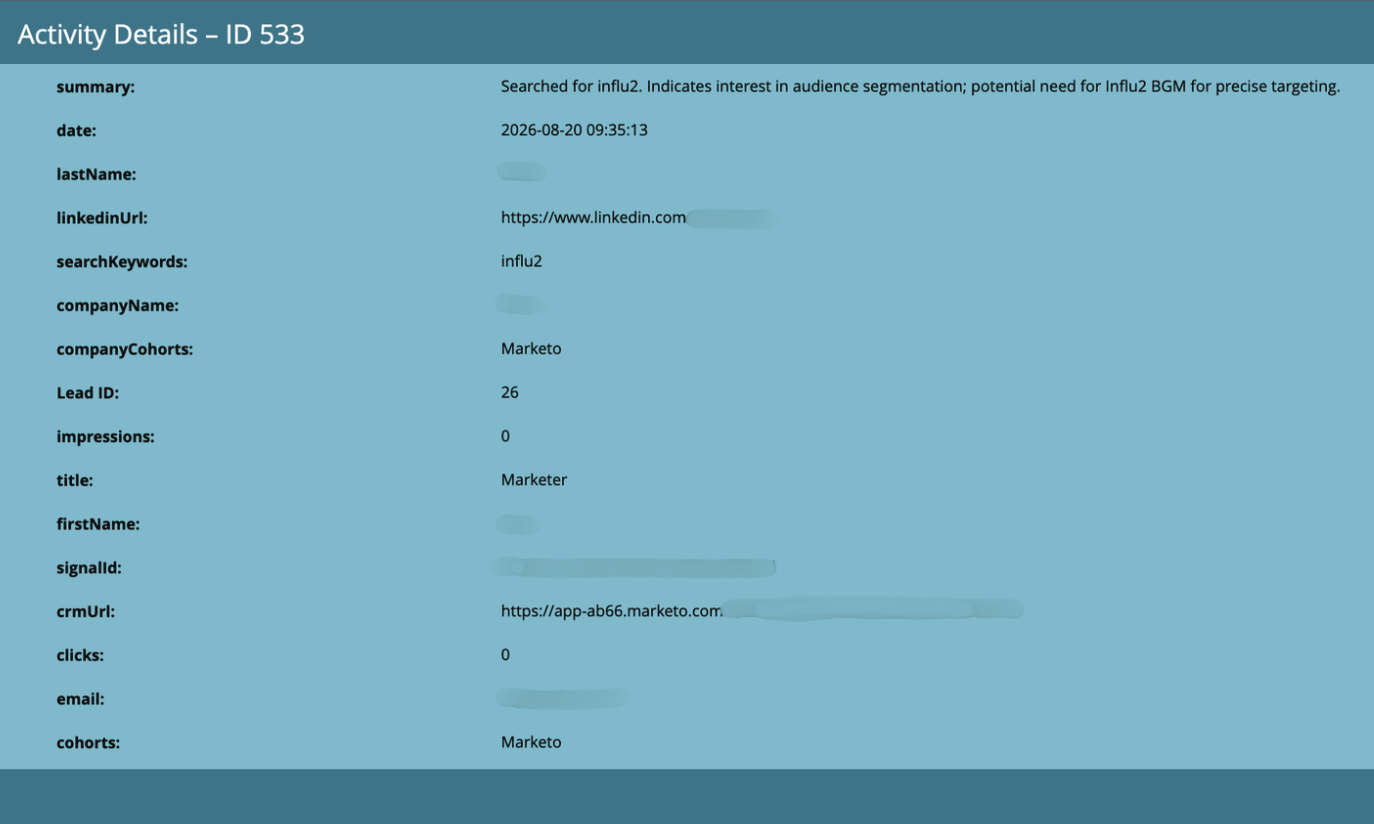
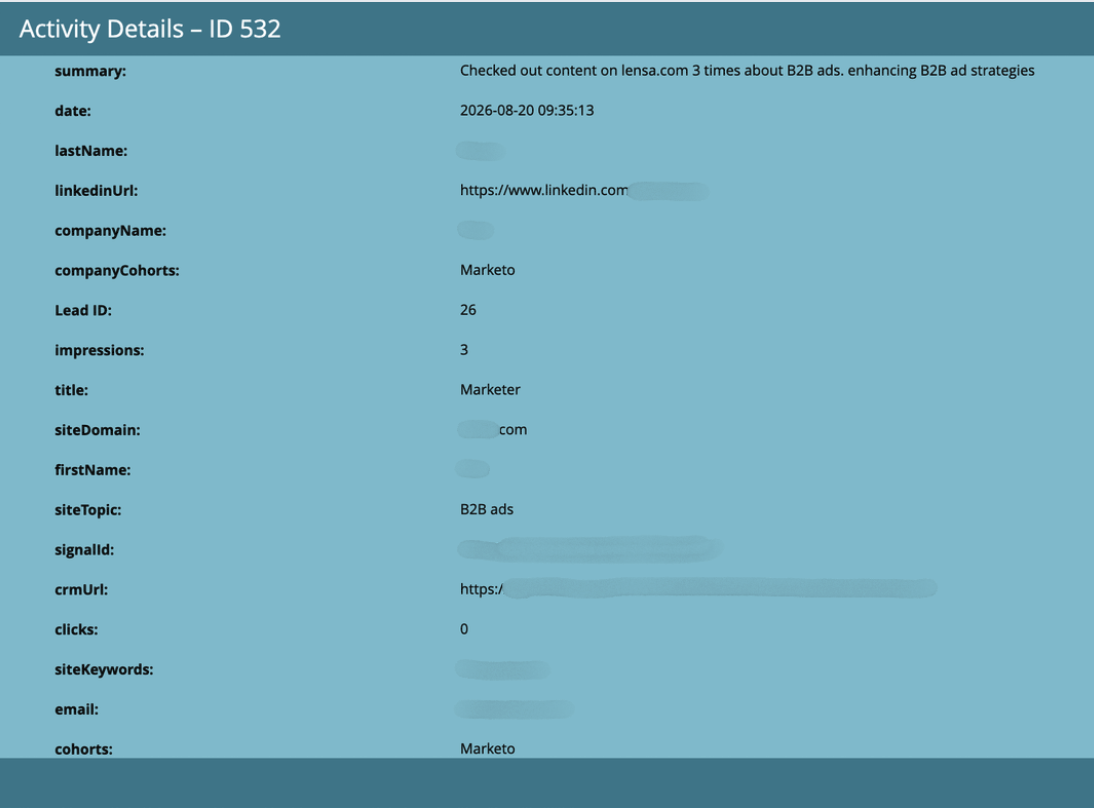
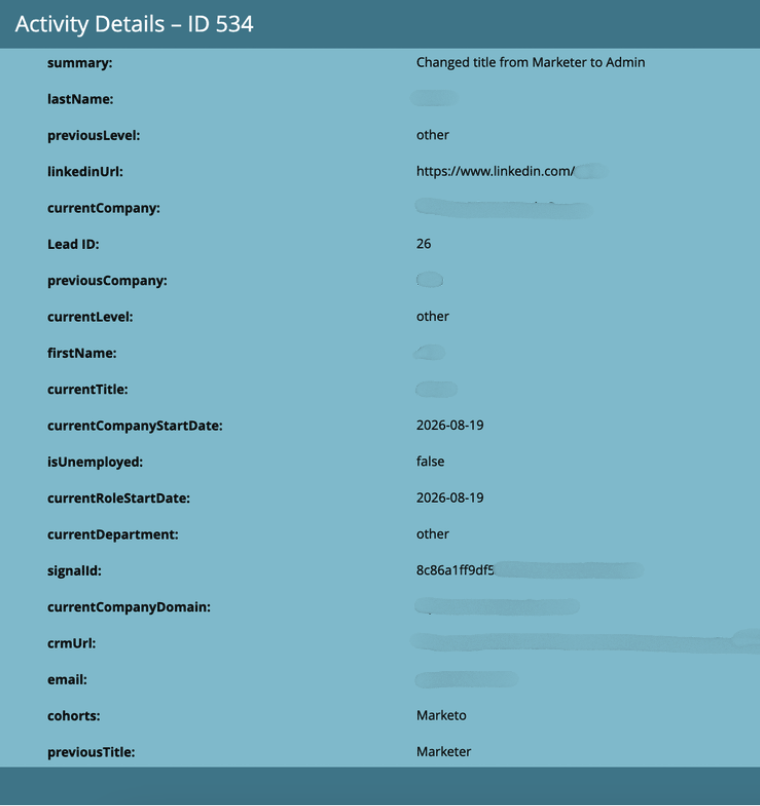
Notifications show up as entries in the activity log with a specific Activity Type. The example shows a "Change Data Value" notification.
Example Search Intent
Example Content Intent
Example Job Change
Keep in mind: Activities are updated every 4 hours, so there may be a slight delay between engagement and notification.
How metrics appear in Marketo
Metrics appear as regular fields with defined values in lead records. They update once per day via the Sync Lead API. You can track the last send date for each metric.

Both notifications and metrics are now syncing to Marketo. Use notifications for real-time alerts in your marketing automation workflows, and use metrics for reporting and lead scoring. Together, they give you complete visibility into how Influ2 campaigns influence your marketing pipeline.