How to Integrate Zoho CRM with Influ2
Last updated: May 18, 2026
Connecting Zoho CRM to Influ2 lets your team build cohorts from live Zoho data and writes engagement metrics back to Zoho so your sellers see the most relevant Influ2 context without leaving their CRM. This article walks through the setup and shows what the integration unlocks once it's live.
Before you start
You'll need the Admin role in Influ2.
You'll need a Zoho CRM user with permission to grant API access (typically a Zoho admin or CEO role).
Know which Zoho data center your CRM lives in — US, EU, India, Australia, Japan, or China. You'll see this in your Zoho CRM URL (for example, zoho.eu means the EU data center). Picking the wrong region is the most common reason a connection fails on the first try.
How to connect
In Influ2, go to Settings → Integrations → Zoho CRM.
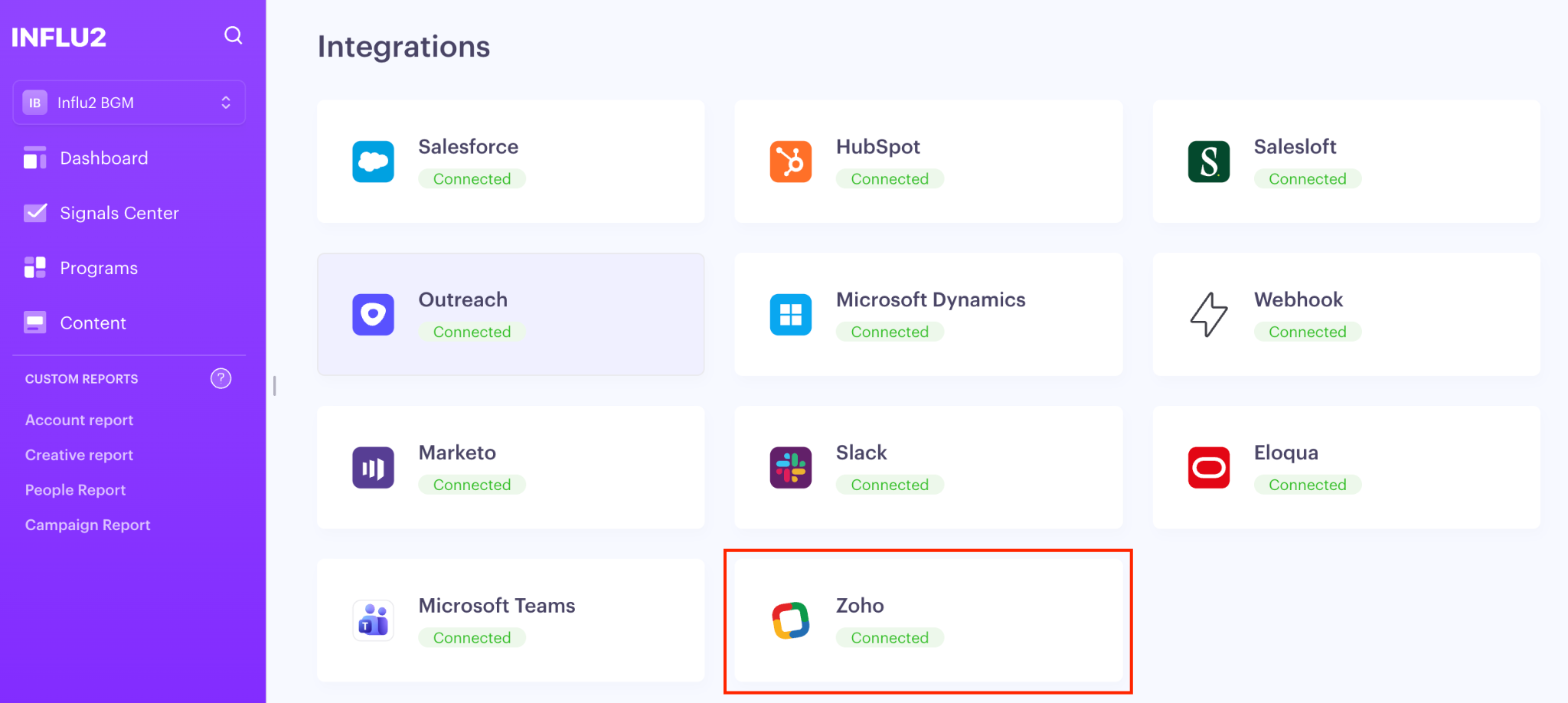
Click Connect Zoho CRM.
Choose your Zoho data center from the dropdown.
This tells Influ2 which Zoho regional endpoint to use. If you're not sure, check the domain of your Zoho CRM URL — it matches the data center.
Sign in to Zoho and grant the requested permissions.
Influ2 will request four read scopes — Modules, Settings, Users, and Org. Influ2 needs all four to sync contacts, accounts, deals, pipelines, and user data. Without them, key features like the Cohort Designer can't work.
After you accept, Zoho will redirect you back to Influ2. Your connection is live as soon as you land back on the integrations page.
What you'll see after connecting
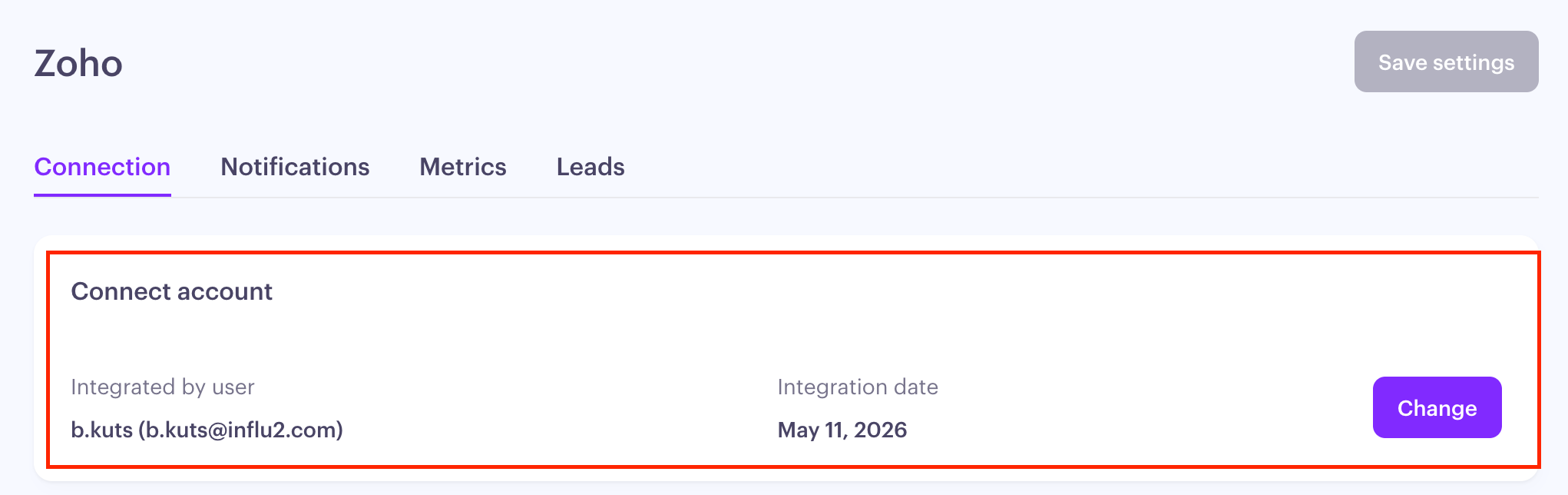
The Zoho CRM tile in Settings → Integrations will show a Connected status with the email of the Zoho user who authorized the connection. Influ2 will start its first sync right away. The initial sync can take a few minutes to a couple of hours depending on the size of your CRM.
What syncs from Zoho
Here's what comes in, and what each one unlocks.
Contacts: Every Zoho contact — name, title, email, phone, account, owner, city, country — is available in cohorts. This is what makes audience-building from live CRM data possible: instead of exporting a list to upload, you build a cohort directly from the Zoho records you already maintain.
Leads: Lead records sync alongside contacts, including company, designation, status, source, and rating. If your team works leads before conversion, you can target them at the lead stage — and Influ2 will keep up as records convert.
Accounts: Account-level data flows in so you can run account-based plays. Use it to group and map contacts, or target everyone at a specific account.
Campaigns and Campaign Members: Zoho campaigns and their members flow in so you can mirror campaign segmentation in Influ2 — or use Influ2 audiences as a starting point and let campaign membership in Zoho drive who sees what.
How it works across Influ2
Cohort Designer
Any Zoho field on a Contact, Lead, or Account is available as a filter — so you can build an audience like "all VPs of Marketing at US-based accounts in the Manufacturing industry, tagged as 'Tier 1'" without leaving Influ2. Cohorts stay live: when a record changes in Zoho, membership updates automatically.
Supported Zoho field types in the Cohort Designer: Boolean, currency, date, datetime, double, email, integer, picklist, text, textarea, and website. Lookup and reference fields aren't filterable yet — use the related record's own fields instead.
Metrics back to Zoho
Influ2 writes engagement metrics back to theTO s Zoho Contact, Account, and Deal records so your sellers see the most relevant Influ2 context without leaving their CRM. Here’s what Influ2 can send:
Last send
Modified date
Impressions
Clicks
Visits
30-day impressions
30-day clicks
30-day visits
First impression date
Last impression date
First click date
Last click date
First visit date
Last visit date
Search intent signals
30-day search intent signals
Last search intent date
Content intent signals
30-day content intent signals
Last content intent date
LinkedIn post signals
30-day LinkedIn post signals
Last prioritization date
Last signal topics
Topics
Clicks this year
Impressions this year
Visits this year
Last seen creative name
Last seen creative URL
Last clicked creative name
Last clicked creative URL
Last visited creative name
Last visited creative URL
To configure these fields, navigate to the Zoho integration and click Metrics.
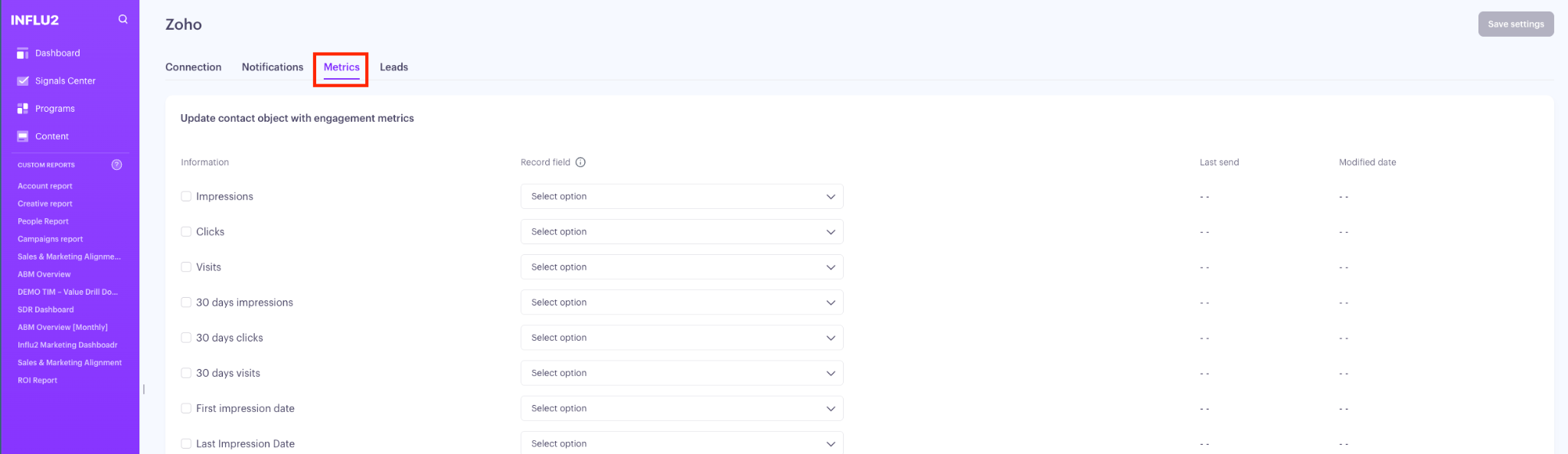
Influ2 syncs metric values to Zoho once a day. Each sync overwrites the previous day's values, so the numbers your sellers see in Zoho always reflect the most recent counts. The "last 90 days" fields are rolling windows — they shift forward each day rather than resetting on a calendar date.
How to put it to work
Start with one live cohort. Pick an audience your team usually builds by hand — a tier of accounts, a job title set, a geography — and rebuild it in the Cohort Designer using Zoho fields. The first time it updates itself after a CRM change, your team will see the value.
Surface Influ2 engagement on Zoho records. Once your metric fields are mapped, add them to your Contact, Lead, and Account page layouts in Zoho so your sellers see Influ2 engagement counts the moment they open a record.
Keep in mind
The connection is tied to the Zoho user who authorized it. If that person leaves or has their Zoho permissions changed, the sync may pause until an admin reconnects.
Changes in Zoho (a new contact, a deal stage move) flow into Influ2 automatically — no re-syncing needed.
Zoho doesn't return a LinkedIn URL field by default. If you rely on LinkedIn data in cohorts, plan to capture it through another source.
Metrics are written to Zoho once per day and overwrite the previous day's values. The "last 90 days" fields are rolling windows — they don't reset on a calendar date.