How to integrate Influ2 with Outreach
Last updated: September 2, 2026
Connecting Influ2 to Outreach aligns your marketing and sales efforts. Marketing teams can use Outreach cadences to build targeted ad cohorts, while sales reps get visibility into ad engagement (impressions, clicks, landing page visits) to personalize outreach and optimize follow-up timing.
Before you start
You'll need Admin access to both your Influ2 and Outreach accounts
Your Default Outreach profile is sufficient for the integration (no special profile is needed)
Steps to connect
Log in to Influ2 and go to Settings > Integrations.
Select Outreach from the list.
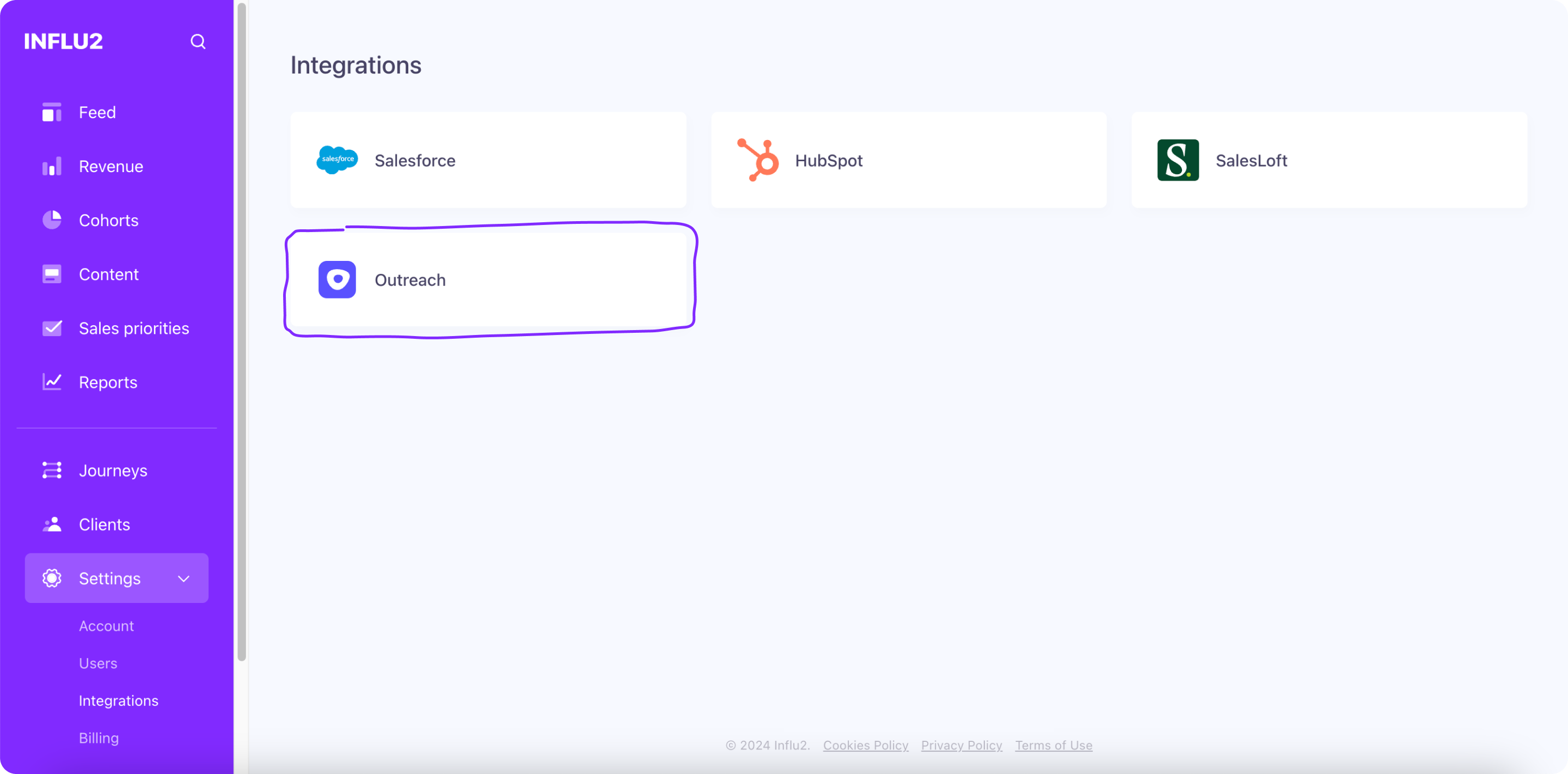
Click Connect in the Connection tab.

You'll be redirected to the Outreach login page. Enter your Outreach credentials.
Authorize Influ2 to access your Outreach data by reviewing and approving the requested permissions.


After connecting, You'll see three tabs:
Connection — shows your daily API usage. Outreach limits requests to 250,000/day. Setting an API request limit to four times the size of your audience is a good rule of thumb.
Notifications — set up engagement notifications to pass from Influ2 to Outreach.
Contacts — configure auto-create and owner assignment for Programs CRM actions.
Set up notifications
After connecting, you'll see two tabs in the Outreach integration settings: Connection and Notifications.
The Connection tab shows your daily API usage. Outreach allows 250,000 requests per day. We recommend setting an API request limit to about four times the size of your audience to ensure reliable syncing.
Notifications is where you configure which prospect engagement you want to pass from Influ2 to Outreach.
Configure which engagement triggers notifications
Go to Settings > Integrations > Outreach > Notifications.
Toggle Send notifications to ON.
Select the prospect activities you want to track:
- Impressions — Number of times a prospect views your ads (set a threshold, e.g., "every 15 impressions")
- Clicks — Every time a prospect clicks your ad (no threshold)
- Visits — Every time a prospect lands on your page after clicking (no threshold)
- Goals — Specific actions on your landing page, like form submissions (no threshold)


Set an impression threshold if you want — this determines how many times a prospect must view an ad before triggering a notification. For example, if set to 15, Outreach gets a notification after 15 impressions of the same creative.

Clicks, Visits, and Goals have no threshold — Influ2 notifies Outreach every time one of these events occurs.

View notifications in Outreach
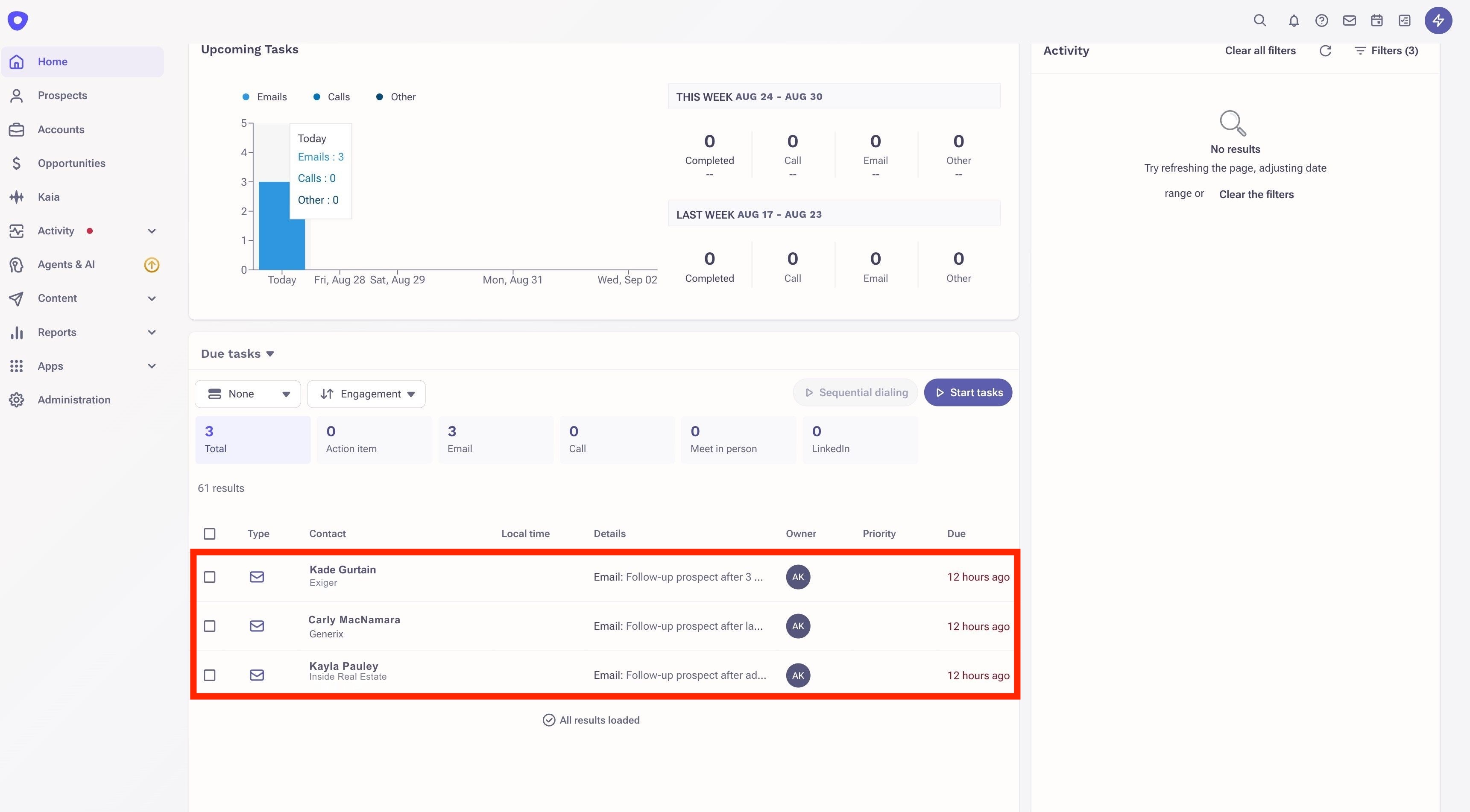
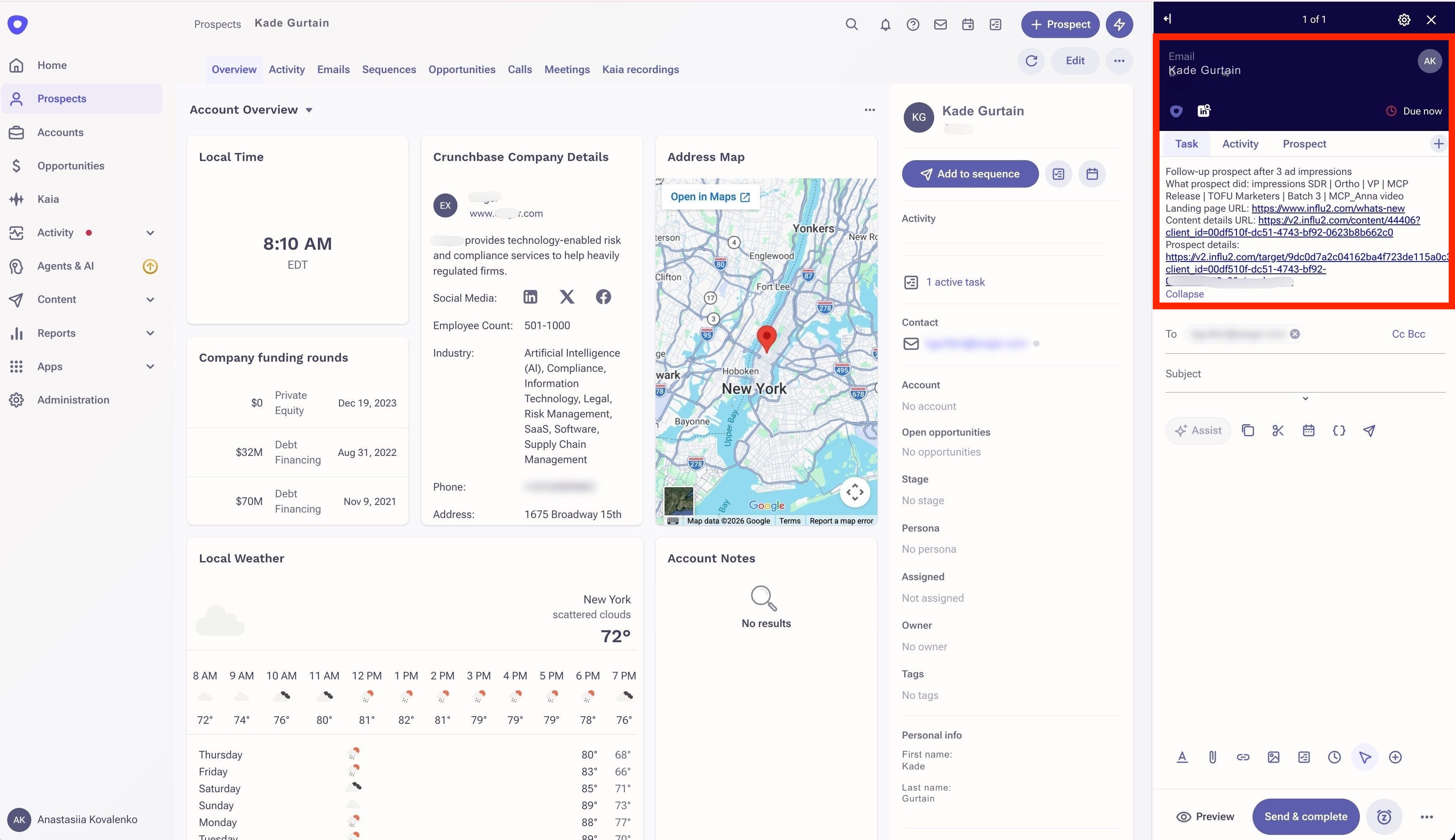
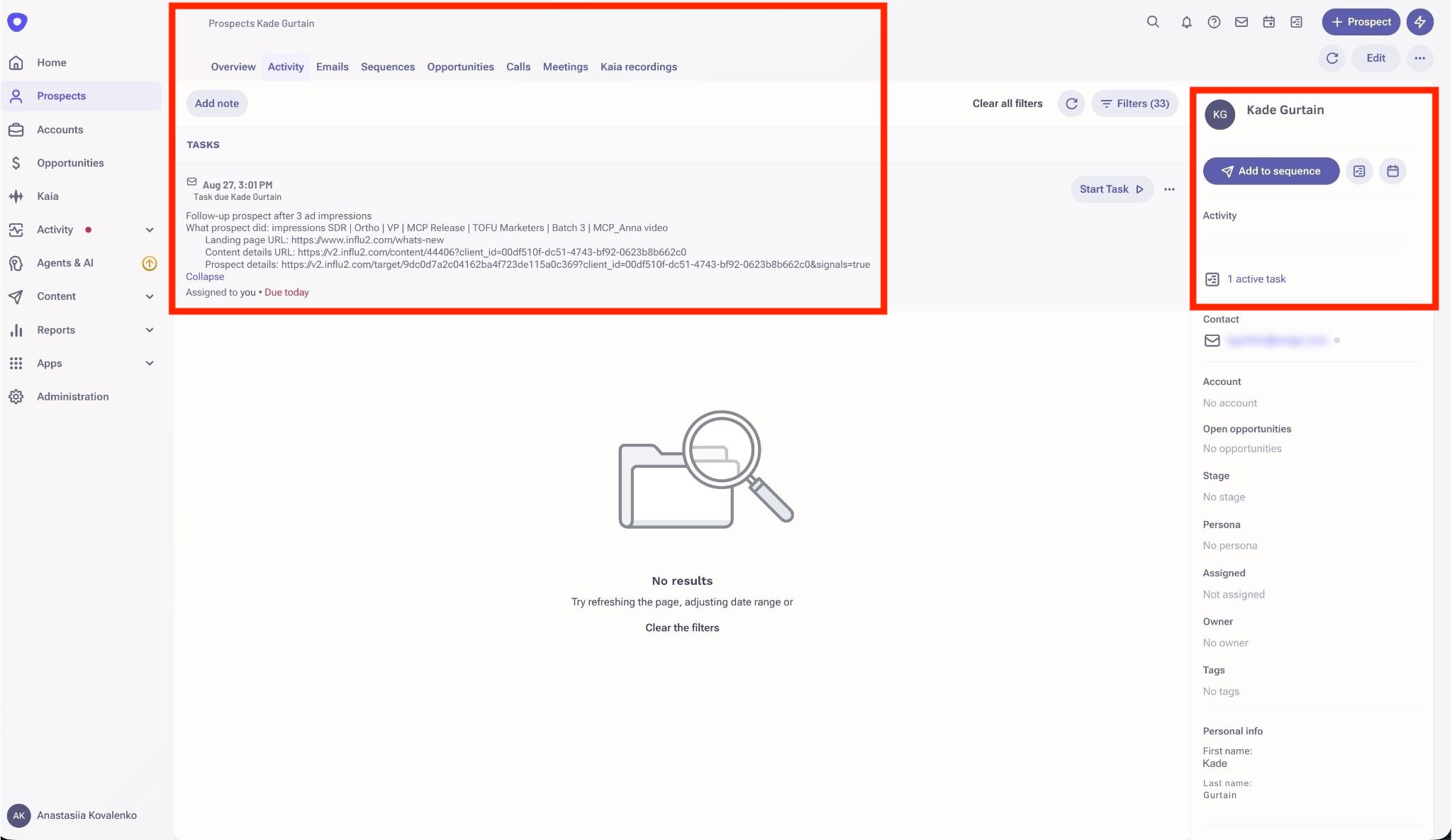
Once a threshold is met, Influ2 automatically sends a notification to the Activity section of the prospect's profile in Outreach as a task or note. Sales reps see these alerts and can use the engagement data to time their outreach.
Using Outreach with Programs
Programs let you take automated actions in Outreach — like enrolling a Prospect in a Sequence — when a target enters a specific journey stage. The settings below control how Influ2 handles those actions when the required Outreach record doesn't exist yet.
Auto-create contact
When a target enters a journey stage with an Outreach action and no matching Outreach Prospect exists, Influ2 can create one automatically.
Go to Settings → Integrations → Outreach → Contacts.

Toggle Auto-create to ON.
ON — Influ2 creates an Outreach Prospect before processing the journey action. Processing continues without interruption.
OFF — if no Prospect record exists, Influ2 stops processing that action for the target. No record is created.
Auto-create is recommended for most Programs setups. Leaving it OFF is appropriate if you need strict control over which contacts get added to Outreach.
Approved IPs
If your organization restricts API calls by IP address, add these Influ2 IPs to your approved list:
35.224.81.3
35.232.17.171