How to Set Up Microsoft Teams Notifications for Signal Followers
Last updated: September 17, 2026
Connecting Microsoft Teams means your followers see a buyer signal the moment it happens, right where your team already collaborates — no need to log into Influ2 first. Here's how to get it set up.
Before you start
You'll need admin access to Influ2's Follower settings.
You'll need permission to connect an account to your Microsoft Teams workspace (or a Teams admin on hand to approve it).
Set up your followers first, if you haven't already — Teams notifications go to whoever is assigned as a follower on a target. See How to Configure Target Followers and Notifications.
Steps
Go to Follower Settings. Open Settings → the Account tab → scroll to the Follower Settings block → find the Notifications section.
Click Connect next to Microsoft Teams.
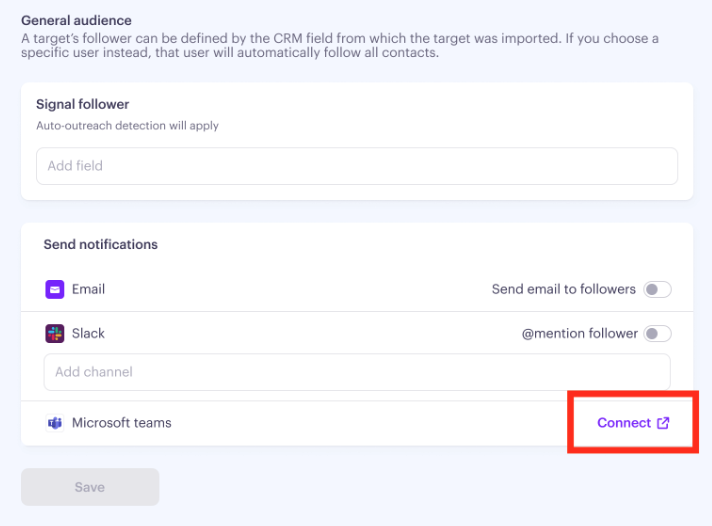
Follow the prompts to authorize Influ2. You'll be taken to Microsoft to approve the connection, then returned to Influ2.

Select which Teams channels to send notifications to. Remember: Microsoft Teams doesn't currently support private channels. Every channel you select for notifications needs to be public.
Choose between channel posts or direct messages.Keep in mind: if you configure a channel, Unassigned signals — signals where Influ2 can't determine a follower — are also posted there, so it doubles as a catch-all.
Send a test notification
Once your channel or DM destination is set, use the Send test button on the Teams row to confirm it's actually working — no need to wait for a real signal or file a support ticket.
The test sends a sample card, clearly marked [TEST], to you specifically — either your Teams DM or the channel you configured, never to your real followers. It uses your current notification template (including any unsaved edits), so it also doubles as a preview of your wording.
If something's misconfigured — for example, the account connected to Teams is no longer a member of that team or channel — you'll get a specific message telling you what to fix rather than a generic failure.
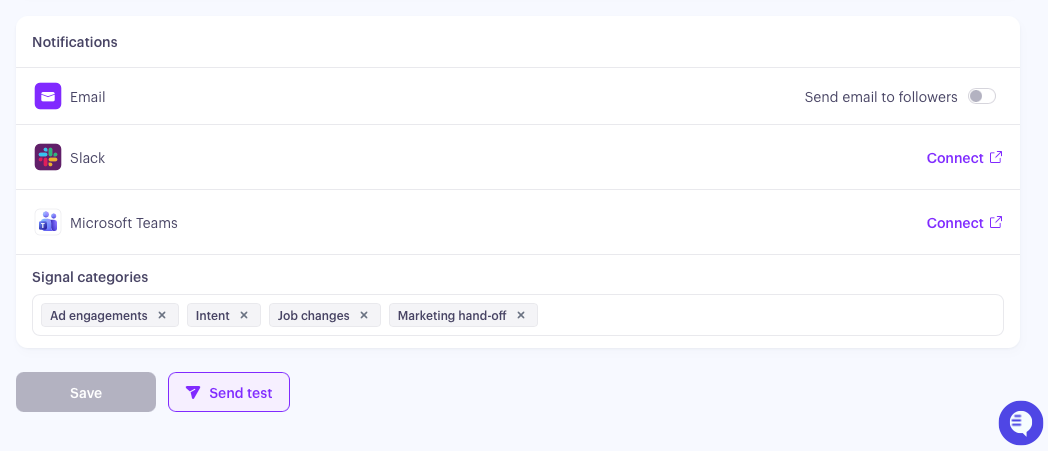
Keep in mind: there's a short cooldown between test sends on the same channel, so give it a few seconds if you send more than one in a row.
What you'll see
Once connected, your Teams channel or DMs start receiving cards for every signal category you have turned on, formatted using your notification template. Each one shows who the signal is about, what happened, and a link back to the target in Influ2.
Examples
Content Intent

Search Intent

Social Intent

Engagement Intent

Job Change
