How to Create a Program Cohort
Last updated: June 4, 2026
The Cohort tab is where you decide who is included in your Program. You can automatically pull audiences from your connected CRM or MAP based on criteria you define. Cohort Designer is built to give you the speed, flexibility, and precision to build smart, targeted audiences directly inside Influ2 — without requiring ops tickets or manual CRM workflows.
What is a cohort?
A cohort is a targeted group of contacts that meet specific criteria you define. It has two parts:
Included Audience — A group of one or more audiences pulled from your connected CRM or MAP.
Excluded Audience — Audiences included in an existing Program that should be excluded from this Program's cohort to avoid overlap. Useful for excluding current customers, competitors, or anyone already covered in another program.
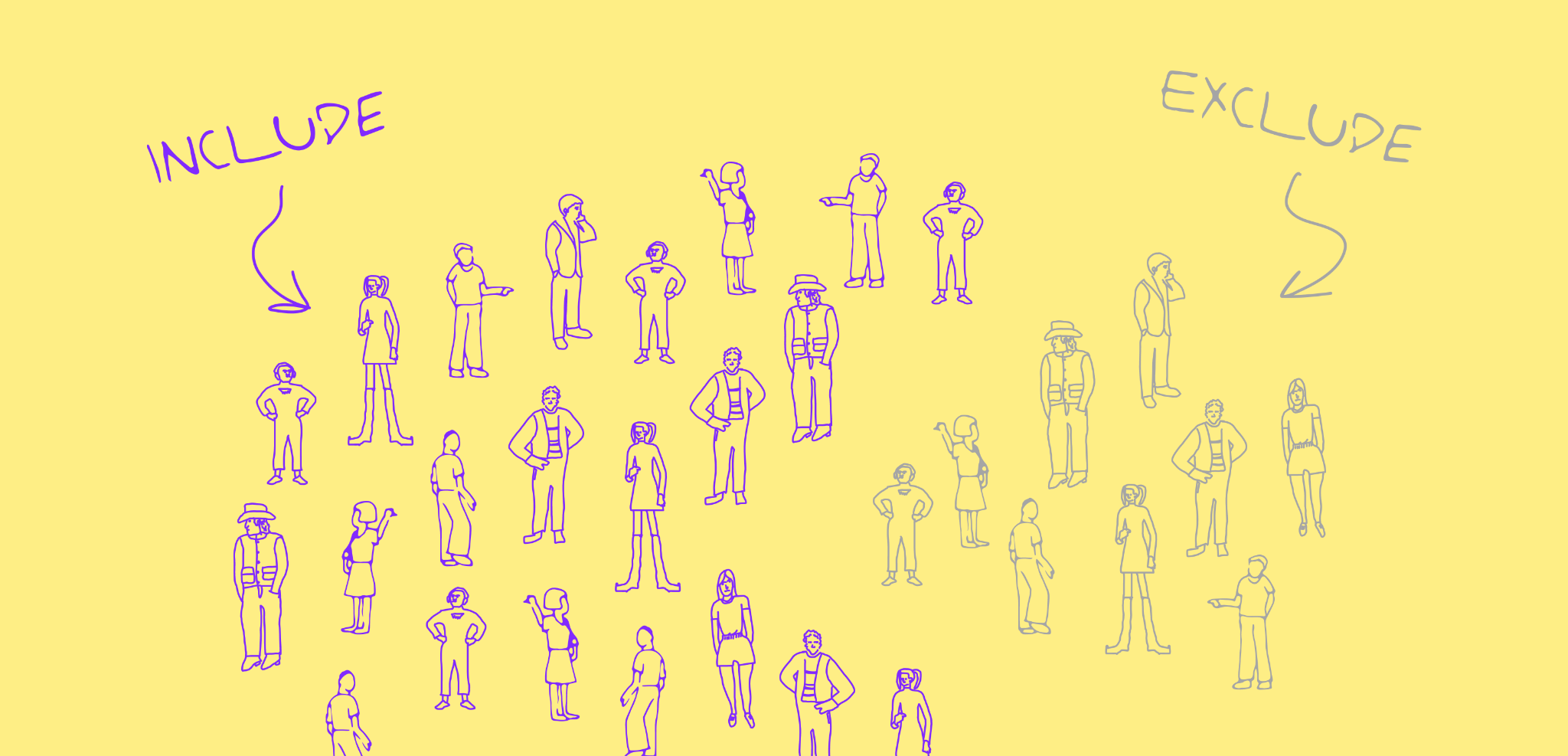
Example: Imagine you're launching a special offer for marketers across North America. You only want to target marketers in that region—and you want to exclude current customers and competitors from seeing your ads. A cohort lets you do exactly that.
Why cohorts matter
Forrester found that GTM teams waste up to 30% of their budget on misaligned outreach. Cohort Designer is how Influ2 helps you close that gap — by making sure your campaigns reach the right people, at the right moment, with the right context. Here’s what building flexible cohorts in Influ2 makes possible:
Self-sufficiency. You can build and update audiences independently without needing to file an Ops ticket or wait for a campaign to be built before launching your program.
Precise targeting. CRMs like Salesforce and HubSpot have limits on which filters and objects you can combine. Cohort Designer removes those limits so you can mix account, contact, and deal rules into one tailored audience — making sure only the right people are added to your program.
Always up to date. Cohorts update dynamically as contacts meet (or no longer meet) your criteria, so your programs are always targeting the right people at the right time.
Sales and marketing alignment. Even the best program won’t convert without strong sales follow-up. Cohort Designer lets you build cohorts not just by persona or intent, but by sales ownership — for example, targeting enterprise accounts owned by a specific AE — so coverage and campaign efforts stay in sync.
What you'll see
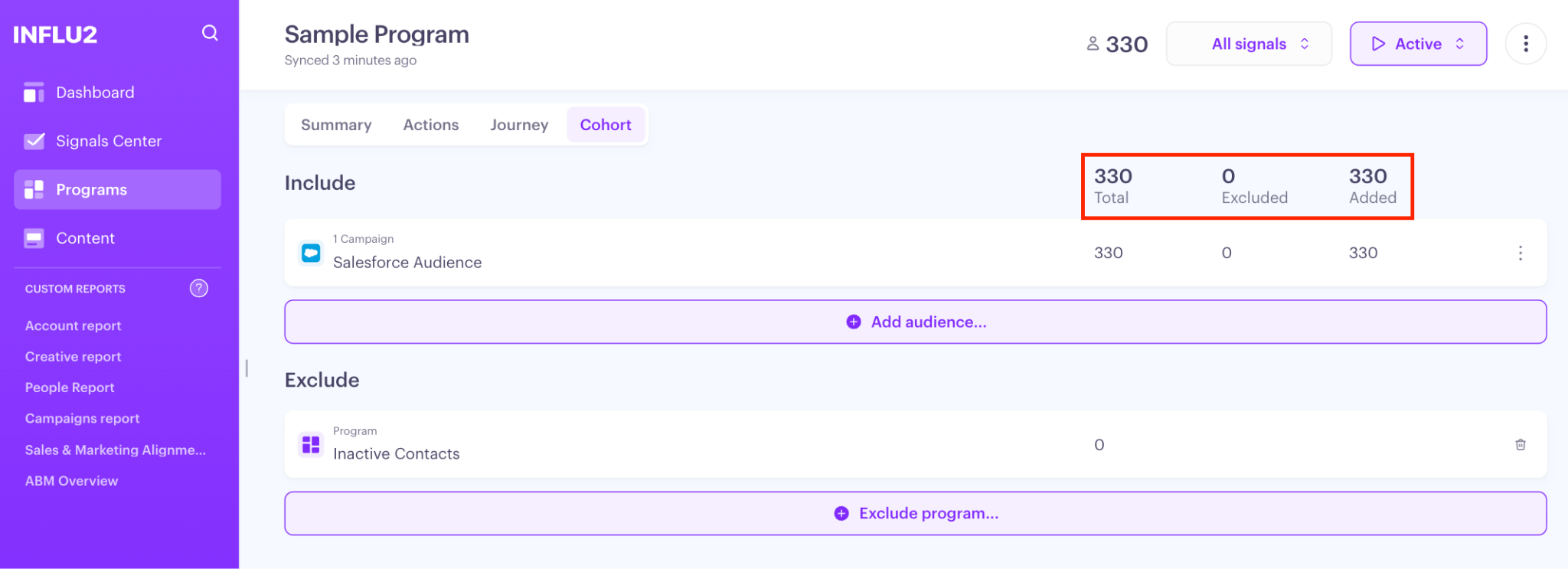
At the top of the Cohort screen you’ll see three metrics:
Total — The total number of unique contacts across all Include audiences, minus anyone matched in Exclude. This is the actual audience the Program will run against. It's the number to watch when sizing a launch.
Excluded — Unique contacts that exist in both Include and Exclude.
Added — The total number of contacts across all Include audiences, without cross-audience deduplication. When this is meaningfully higher than the Total, the difference is duplicates between your Include audiences.
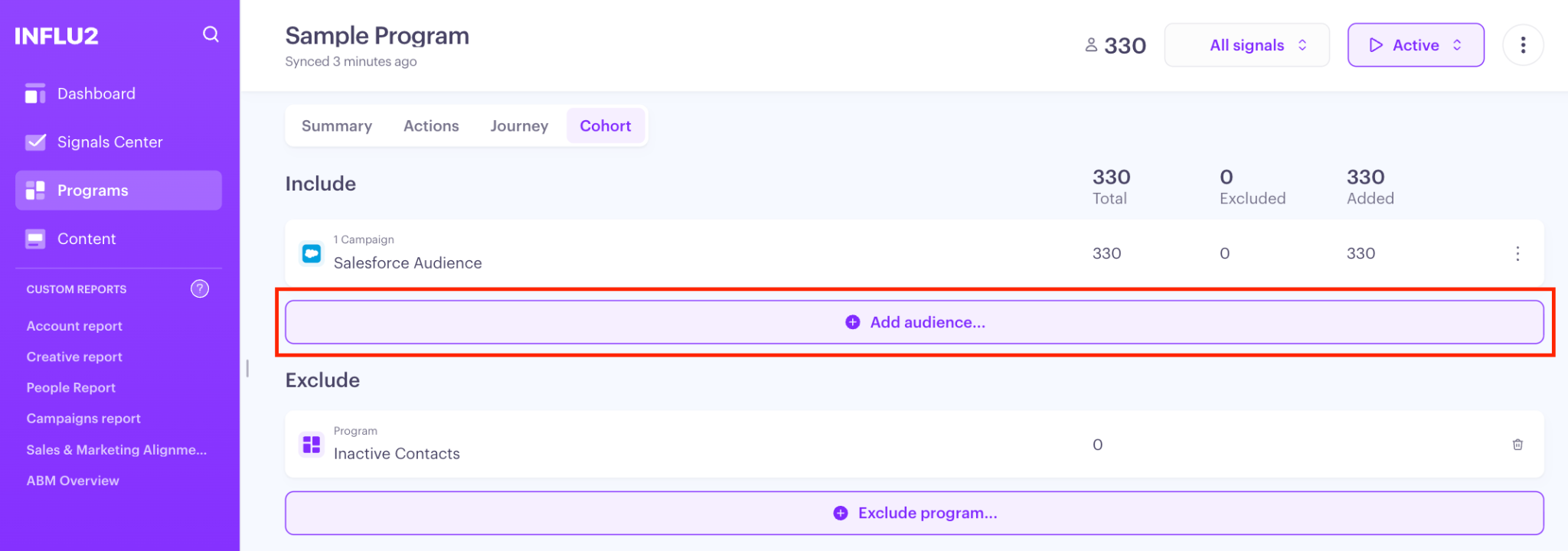
How to add an audience
On the Cohort tab, click + Add audience in the Include section. A source picker appears.
Pick your source.
Name the audience. The name appears as the row label on the Cohort tab. Save stays disabled until both a name and at least one criterion are set.
Add your criteria to narrow down exactly who you want to reach. You can segment by:
Job title and seniority
Company size and industry
Location and mailing country
Custom CRM fields
Deal and opportunity data
The available fields depend on the source.
For Salesforce, you'll choose between Contact, Account, Lead, and/or Opportunity criteria — Lead criteria can't be mixed with the others.
For HubSpot, Outreach, Marketo, Eloqua, and Microsoft Dynamics, you'll see each integration's own set of relevant fields.
Choose your operators and values. Operators include "contains any of," "contains none of," "is any of," and "is none of."
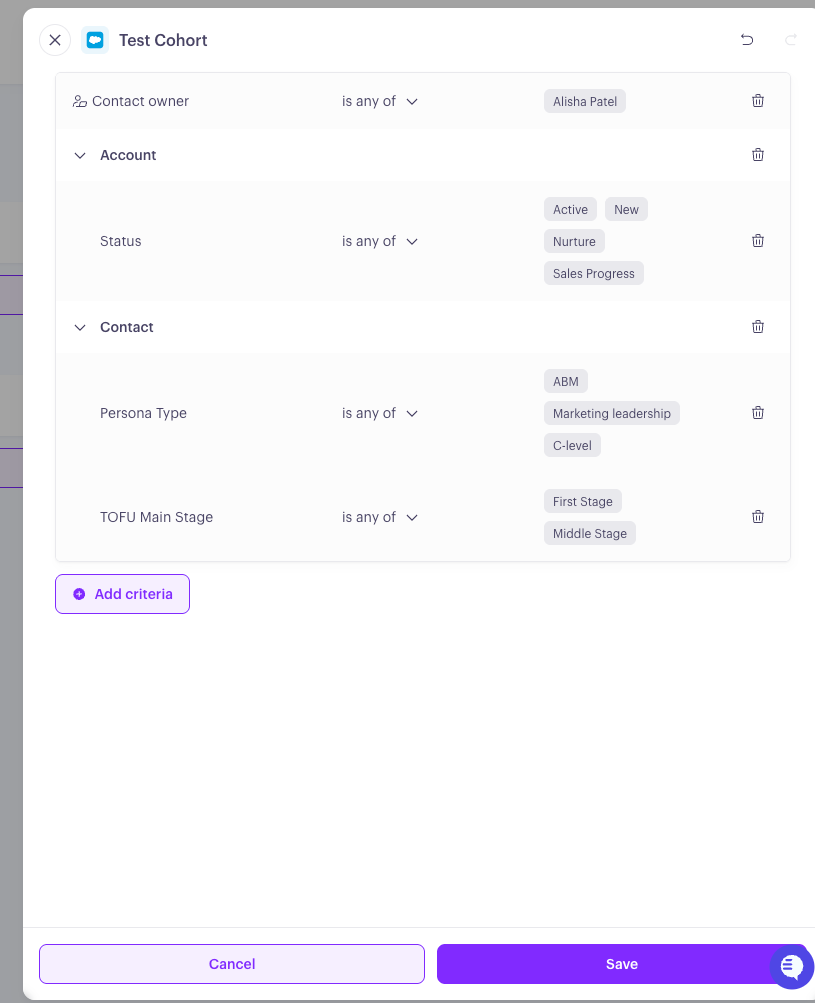
Click Save. The audience appears as a new row in the Include section, and counts recalculate immediately.
Tips and tricks:
Target the full buying group, not a single title. Decisions are rarely driven by one person. Combine role, seniority, and department so your program includes decision-makers, champions, and influencers across the deal.
Segment beyond job title. Layer in behavioral and deal signals — sales outreach status, deal stage, last activity, persona labels (e.g., Finance vs. Technical) — so you can personalize messages by who they actually are, not just what their title says. For large accounts with 200+ contacts, persona labels are one way to narrow the audience down to the 10 people you actually want to reach.
How to import a configuration from another Program
If a similar Program already exists, you can use it as a starting point:
Click Import from program at the bottom of the Include section.

Select a Program from the list.
Influ2 duplicates that Program's full configuration — every Include audience and every Exclude — as independent copies in the current Program.
Imported audiences are added to whatever's already configured (not replaced), and there's no link back to the source Program.
Edit, remove, or add to the imported audiences as needed. All changes stay local to this Program.
How to exclude audience from existing Programs [optional]
In the Exclude section, click Exclude program
Select one or more Programs (multi-select) and confirm. Each one becomes its own row in the Exclude section. Contacts that match an excluded Program's audience are removed from this Program's cohort, and counts recalculate.
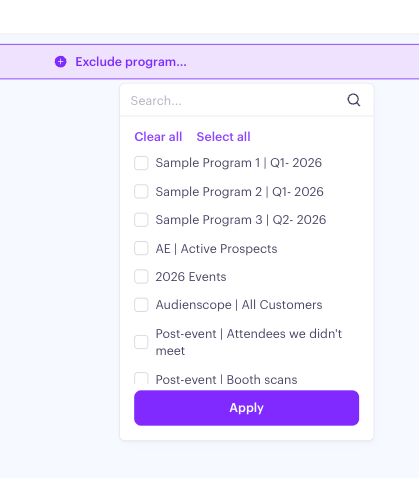
Keep in mind: there's no free-form "name your exclusion group." Exclusions reference Programs you've already built — so if you want to exclude current customers, build a Customers Program first, then exclude it here.
How to edit or remove an audience
Each Include row has a three dot menu with Edit and Remove options.
Edit reopens the Cohort Designer pre-filled with the audience's source and criteria. Changes only affect this Program.
Remove asks for a simple confirmation, then drops the audience and recalculates counts. If you remove the last Include audience, the cohort empties and all activities stop — the Cohort tab shows its empty state.
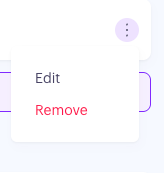
Each Exclude row has a three dot menu with Remove only — exclusions don't get edited, just removed and re-added.
Syncing your audience from your CRM or MAP
Your audience is automatically synced from your CRM or MAP the moment the Program is activated.
If at any point your integration is disconnected, that audience's row stays visible with a warning. Its metrics aren't shown and its contacts aren't counted toward the Summary totals. Reconnect the integration to bring it back.
What's next
Move to the Journey tab to define how targets move through the Program