Creating properties with a Number Format
This section will cover creating number format properties within HubSpot, which includes the following metrics:
- Impressions
- Clicks
- Visits
- Goals
- Score
- 30 days impressions
In this example, we'll use the 'Clicks' metric.
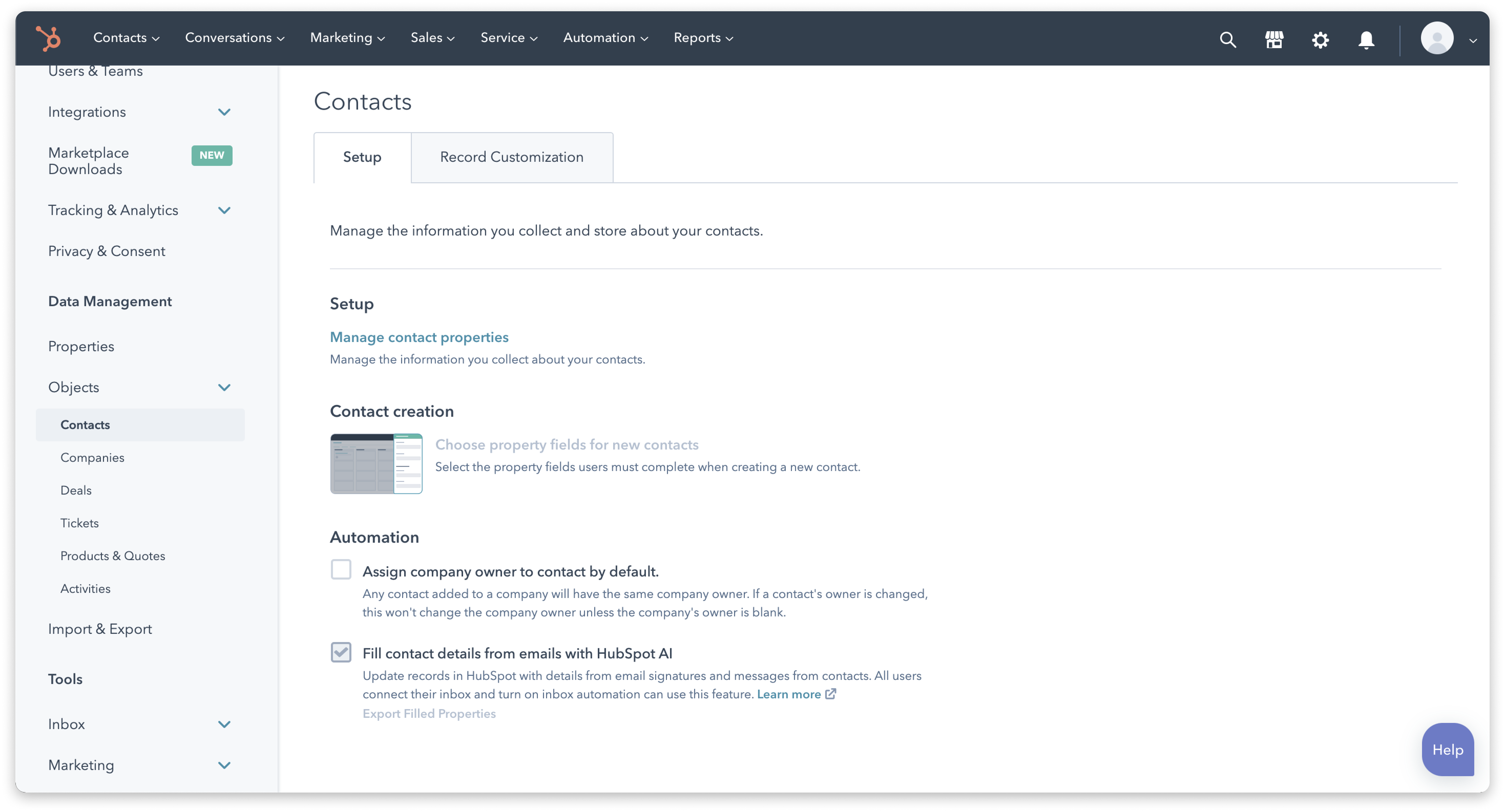
1. Visit your HubSpot account to pass your selected Influ2 events to properties within HubSpot. To do this, go to HubSpot settings, click Objects > Contacts > Manage contact properties.
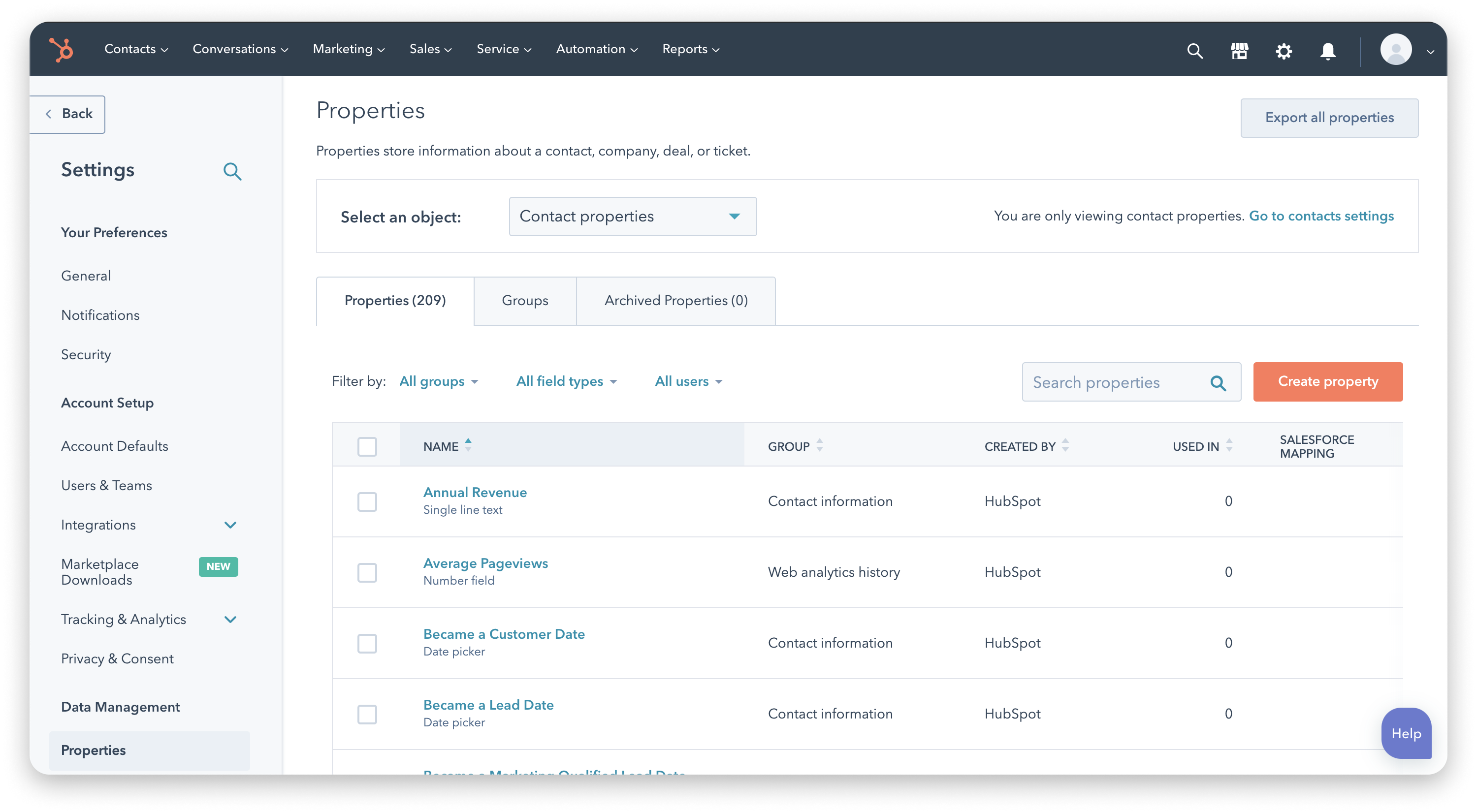
2. In your opened Properties section, click 'Create property.'
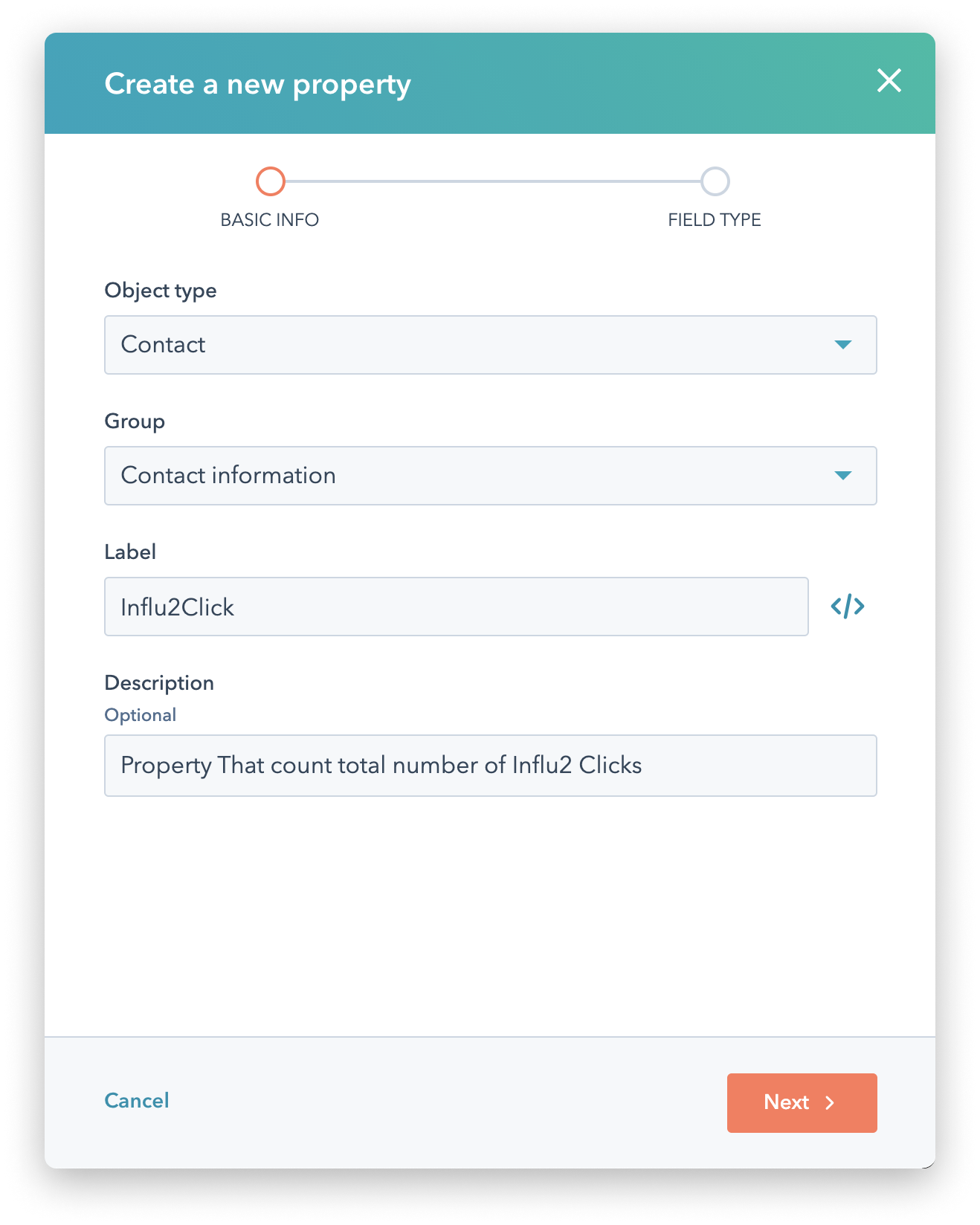
3. Select the necessary settings for your new property.
BASIC INFO:
- Object type — Contact
- Group — Contact information
- Label — 'Influ2Click'
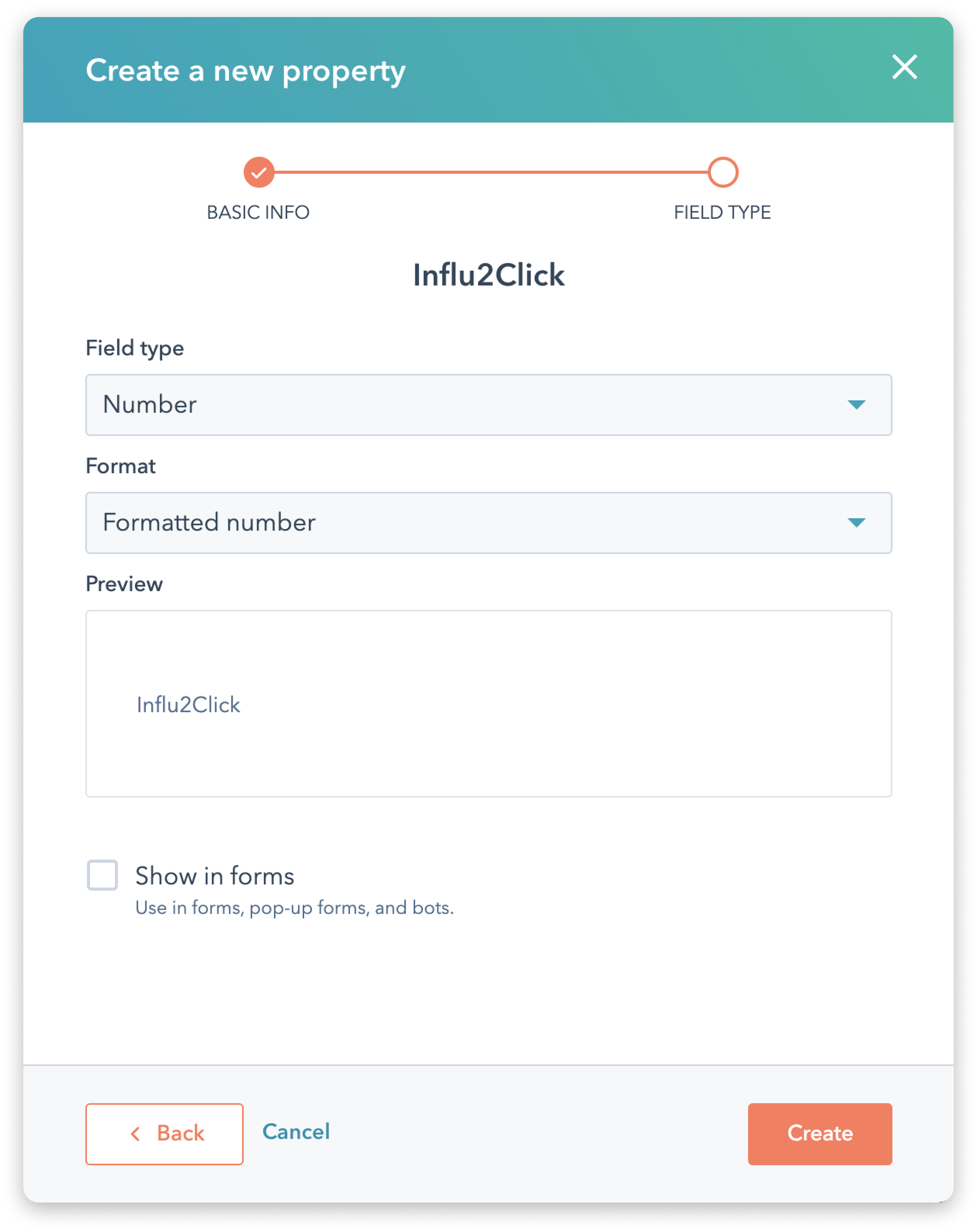
FIELD TYPE:
- Field type — Number
- Format — Formatted number
Then click 'Create.'
 |
 |
Repeat 'Step 3' for each metric Influ2 will export to HubSpot.
4. Check your contact records to ensure that the new field is created.
Creating properties with a Date picker Format
This section will cover creating the date picker format properties within HubSpot, which includes the following metrics:
- First impression date
- Last impression date
- First click date
- Last click date
- Last visit date
We'll use the 'Last click date' metric in this example.
1. Visit your HubSpot account to pass your selected Influ2 events to properties within HubSpot. To do this, go to HubSpot settings, click Objects > Contacts > Manage contact properties.
2. In your opened Properties section, click 'Create property.'
3. Select the necessary settings for your new property.
BASIC INFO:
- Object type — Contact
- Group — Contact information
- Label — 'Influ2LastClick'
FIELD TYPE:
- Field type — Date picker
RULES:
- Property visibility — Uncheck
Then click 'Create.'
Repeat 'Step 3' for each metric Influ2 will export to HubSpot.
4. Check your contact records to ensure that the new field is created.
Creating properties with a Single-line Text Format
This section will cover creating Single-line text format properties within HubSpot, which includes the following metrics:
-
Last seen creative name
-
Last seen URL
-
Last clicked creative name
-
Last clicked creative URL
We'll use the 'Last seen URL' metric in this example.
1. Visit your HubSpot account to pass your selected Influ2 events to properties within HubSpot. To do this, go to HubSpot settings, click Objects > Contacts > Manage contact properties.
2. In your opened Properties section, click 'Create property.'
3. Select the necessary settings for your new property.
BASIC INFO:
- Object type — Contact
- Group — Contact information
- Label — 'Influ2LastSeenURL'
FIELD TYPE:
- Field type — Single-line text
RULES:
- If any boxes are checked, uncheck them at this time
Then click 'Create.'
Repeat 'Step 3' for each metric Influ2 will export to HubSpot.
4. Check your contact records to ensure that the new field is created.
Comments
0 comments
Please sign in to leave a comment.