1. To create a list in PipeDrive for Influ2, go to your PipeDrive account > Settings > Data Fields > Person tab and click Add custom field button > select Person field
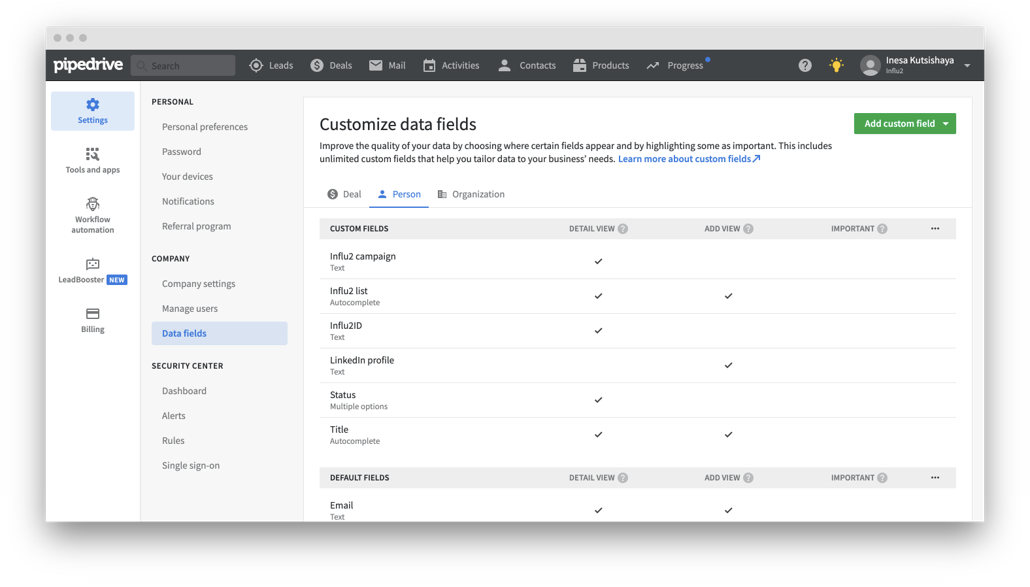
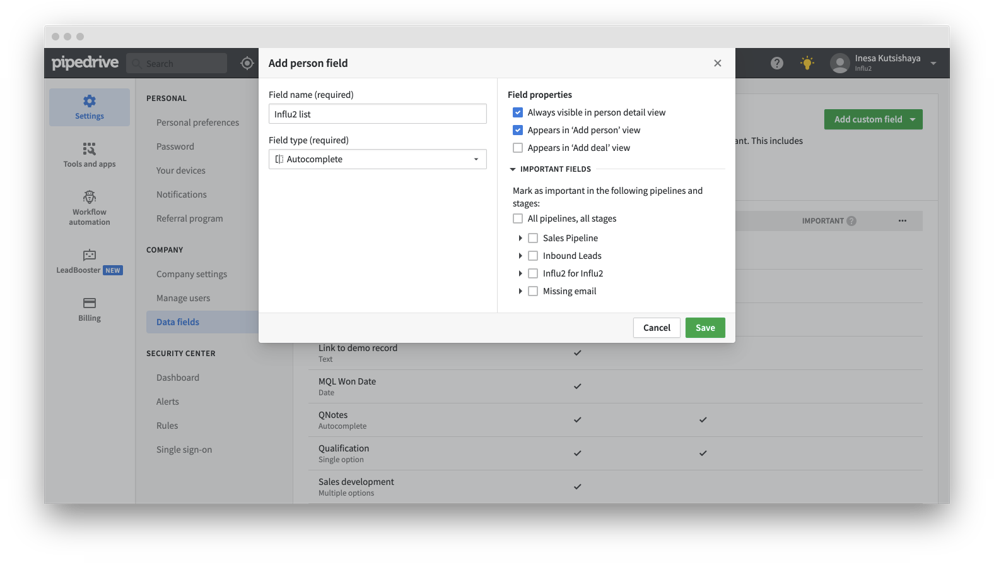
2. Create an autocomplete field and name it 'Influ2 list'. Please note that the field's name should be spelled exactly as 'Influ2 list'.
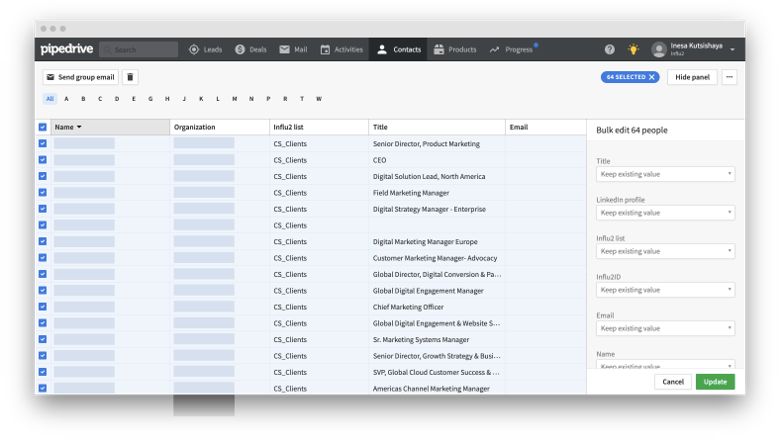
Complete Influ2 list field for every person you'd like to target in Influ2 Select all the necessary people, and a window for bulk editing will appear.
Specify the value for the Influ2 list field, this value will be a target list name in your Influ2 account.
3. If you want to have several lists for targeting in Influ2, you should add different field values for different segments. Once complete, click 'Update'.
4. When the connection is set up, your target lists will be synced and displayed in the Audience Discovery tool while building/editing Influ2 campaigns.
5. Once you have a campaign running with Pipedrive contacts and a click is identified, Influ2 will send an event to Pipedrive for this target list member.
Comments
0 comments
Please sign in to leave a comment.