To begin your Outreach integration journey, you need to first connect it to Influ2! Follow these step-by-step instructions to get started with your integration.
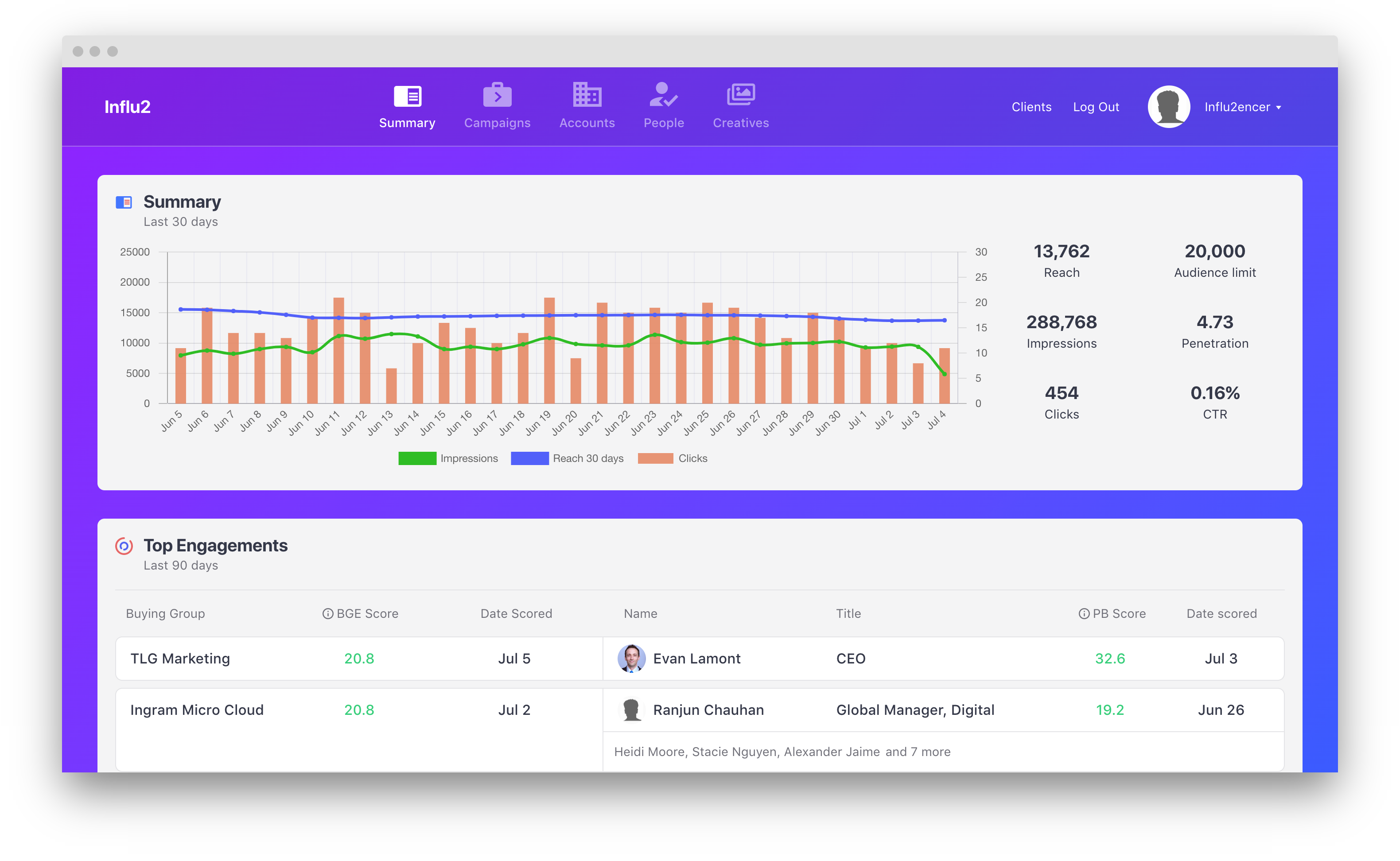
1. To connect your Outreach integration, log in to Influ2. To access your ‘Account Settings’ click on your name in the top right of the screen.
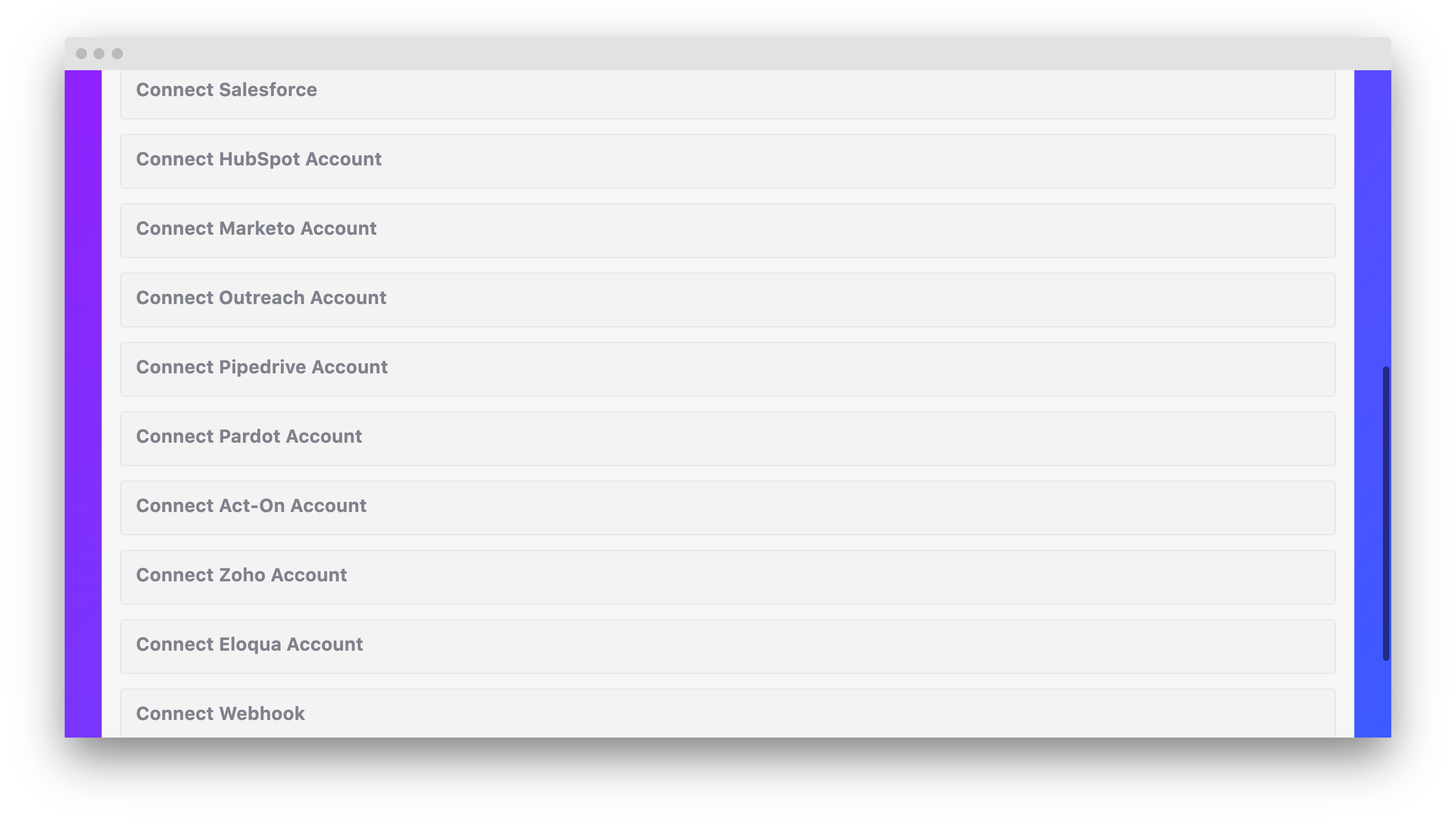
2. Scroll down until you see ‘CRM Integrations’ and click ‘Connect Outreach Account’.
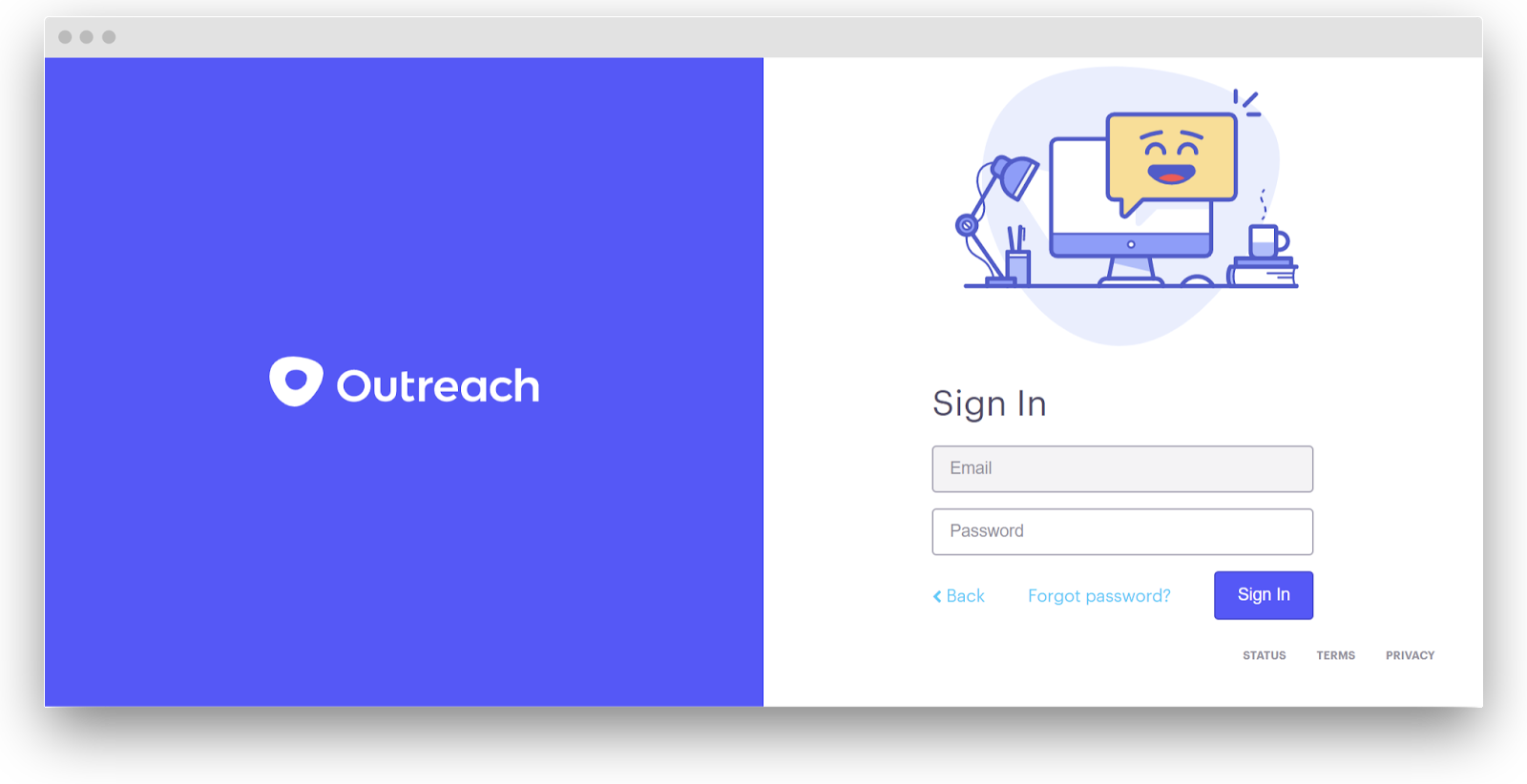
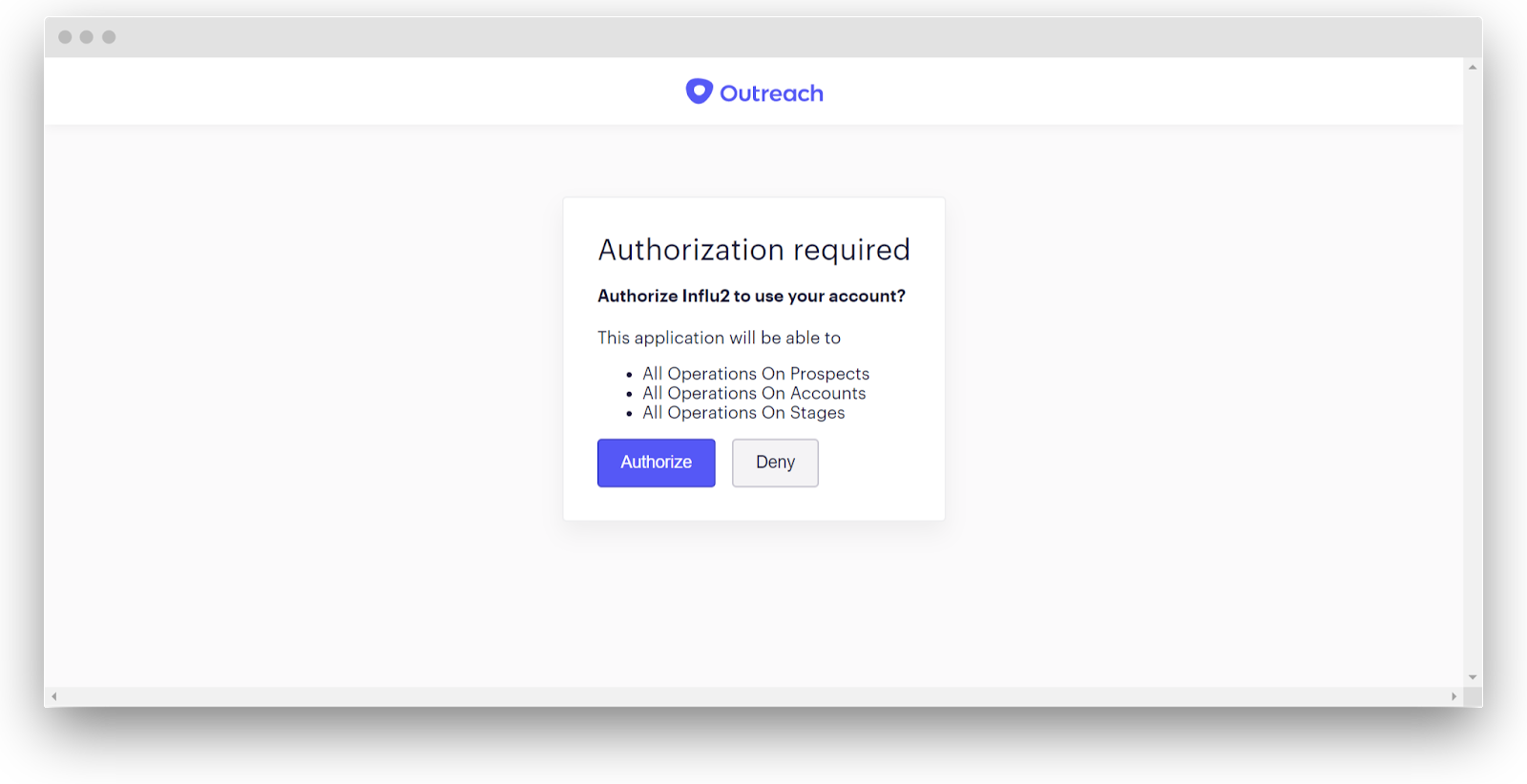
3. After clicking into your Outreach Account, you will be brought to your Outreach login page. Log in with your credentials.
 |
 |
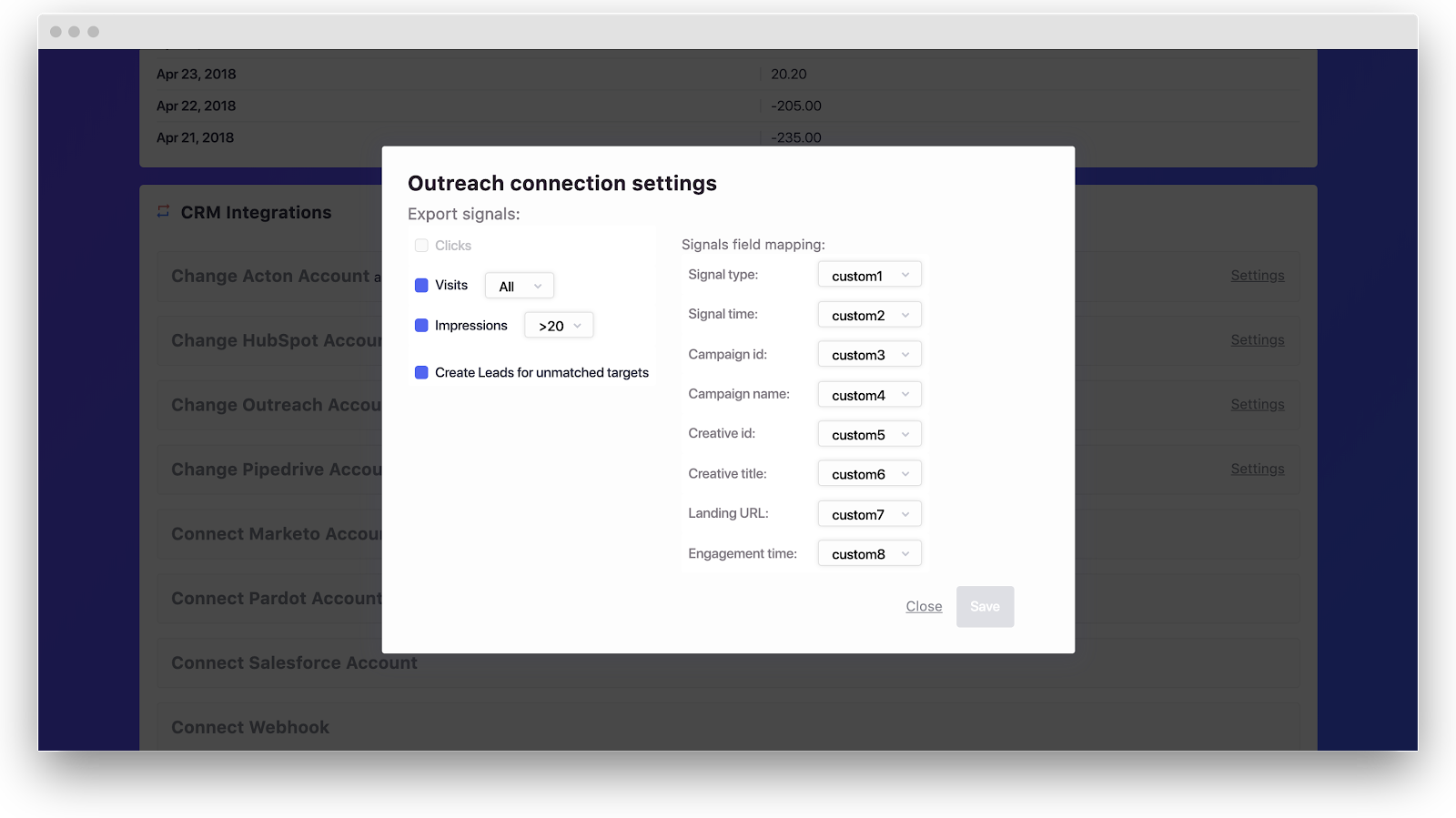
4. Choose the necessary settings for the connection.
- Export signals — define an action upon which Influ2 will send events to Outreach.
- Create leads for unmatched contacts — if Influ2 could not find the lead in your CRM, it’ll be automatically created and the event will be sent.
-
Signals field mapping — Map different signals from Influ2 to custom fields within Outreach. When engagements occur, these fields will be updated with it's corresponding Influ2 information.
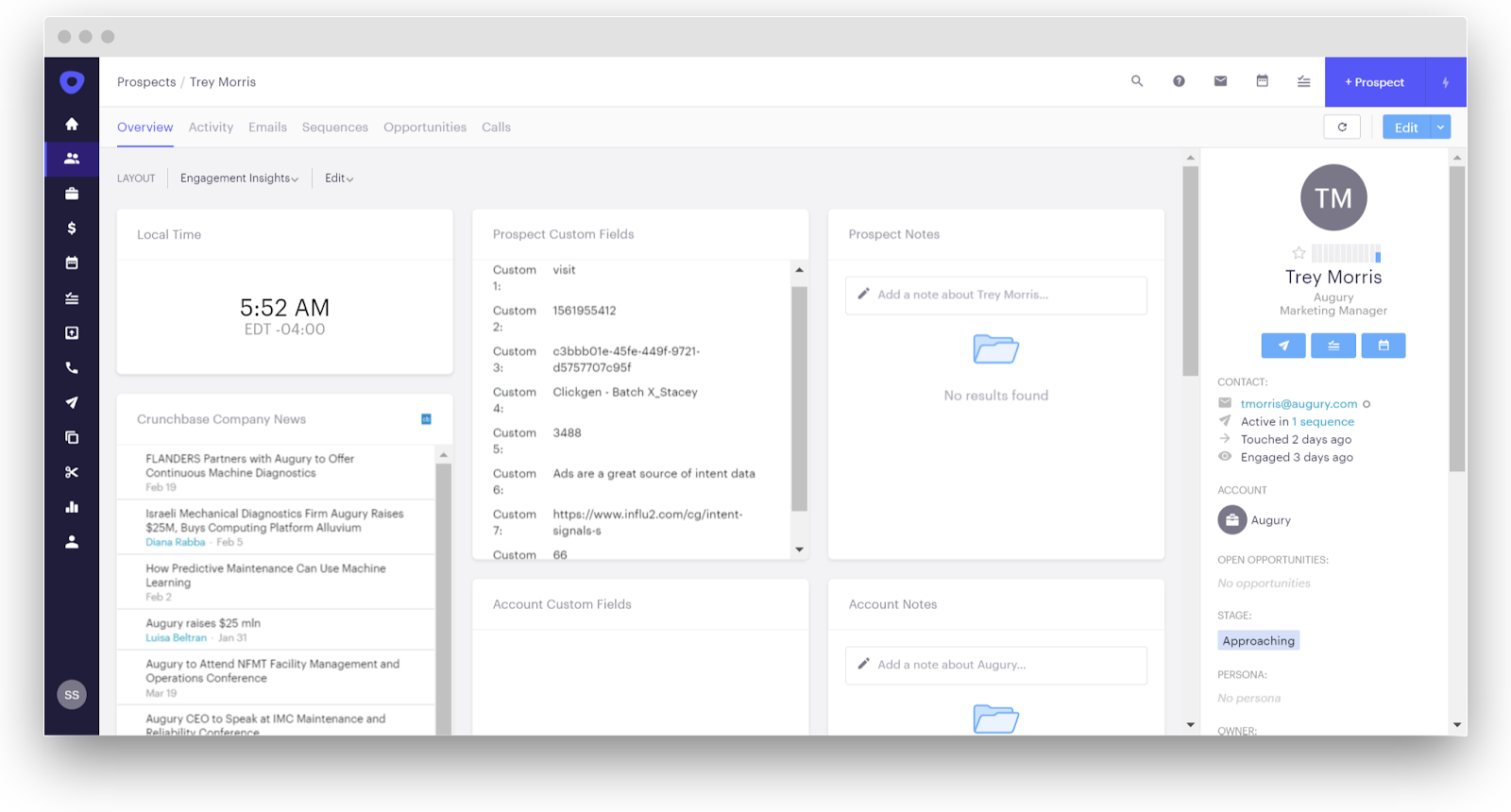
5. Once an event is identified, Influ2 will update the selected custom fields for a prospect. If a prospect is created by Influ2, you will see the source listed as 'Influ2' in the prospect settings.
Comments
0 comments
Please sign in to leave a comment.