Let's set up your Outreach triggers based on Influ2 engagements! Follow these step-by-step instructions to make the most of your integration.
If you haven't connected Outreach to Influ2 as of yet, follow this user guide before continuing.
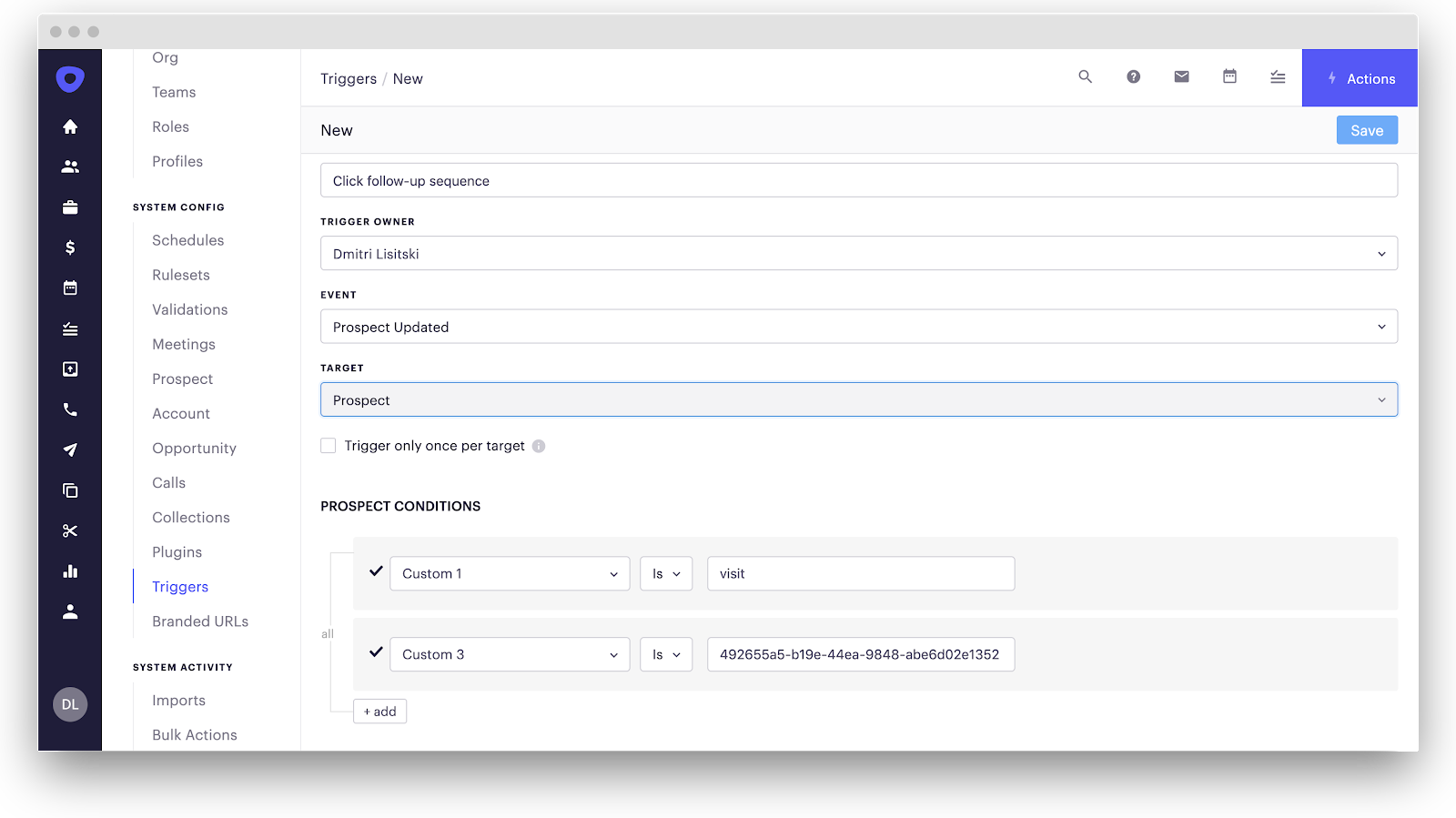
1. Login to Outreach and click your initials on the bottom left-hand corner of the platform. On the settings panel, find the section labeled 'System Config' and select 'Triggers'. Then, click the 'Add' button in the top right corner.

2. Select the necessary conditions in the 'Prospect Conditions' section. For instance, if a trigger should fire for a prospect who clicked on your ad from Campaign A, select the corresponding custom fields (visit and campaign ID).
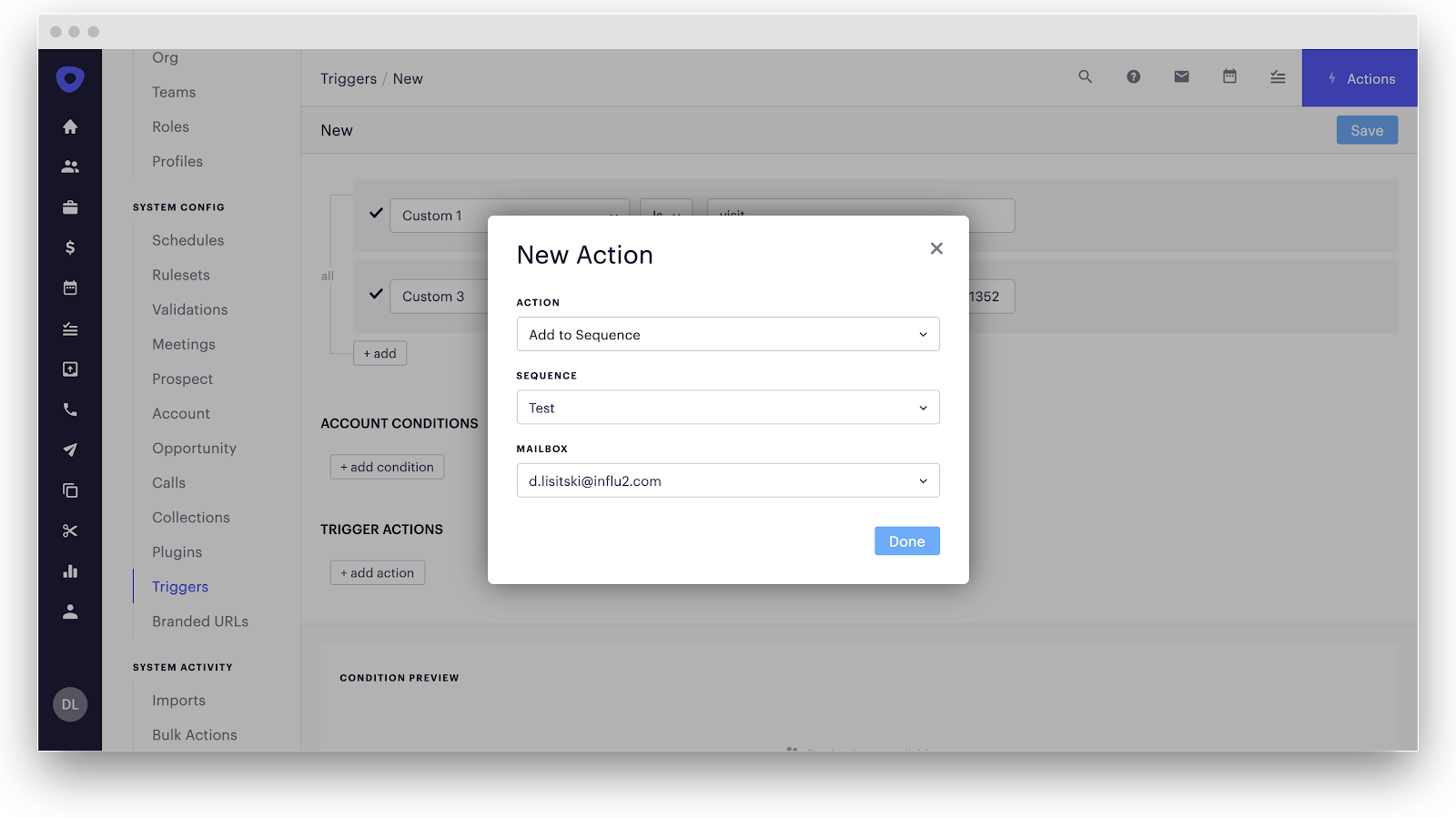
3. Then, select which action to trigger. For instance, Add to Sequence > specify sequence name > choose which mailbox the sequence should be sent from.
Comments
0 comments
Please sign in to leave a comment.