To begin your Pardot integration journey, you need to first connect it to Influ2! Follow these step-by-step instructions to get started with your integration.
1. To connect your Pardot integration, log in to Influ2. To access your ‘Account Settings’ click on your name in the top right of the screen.
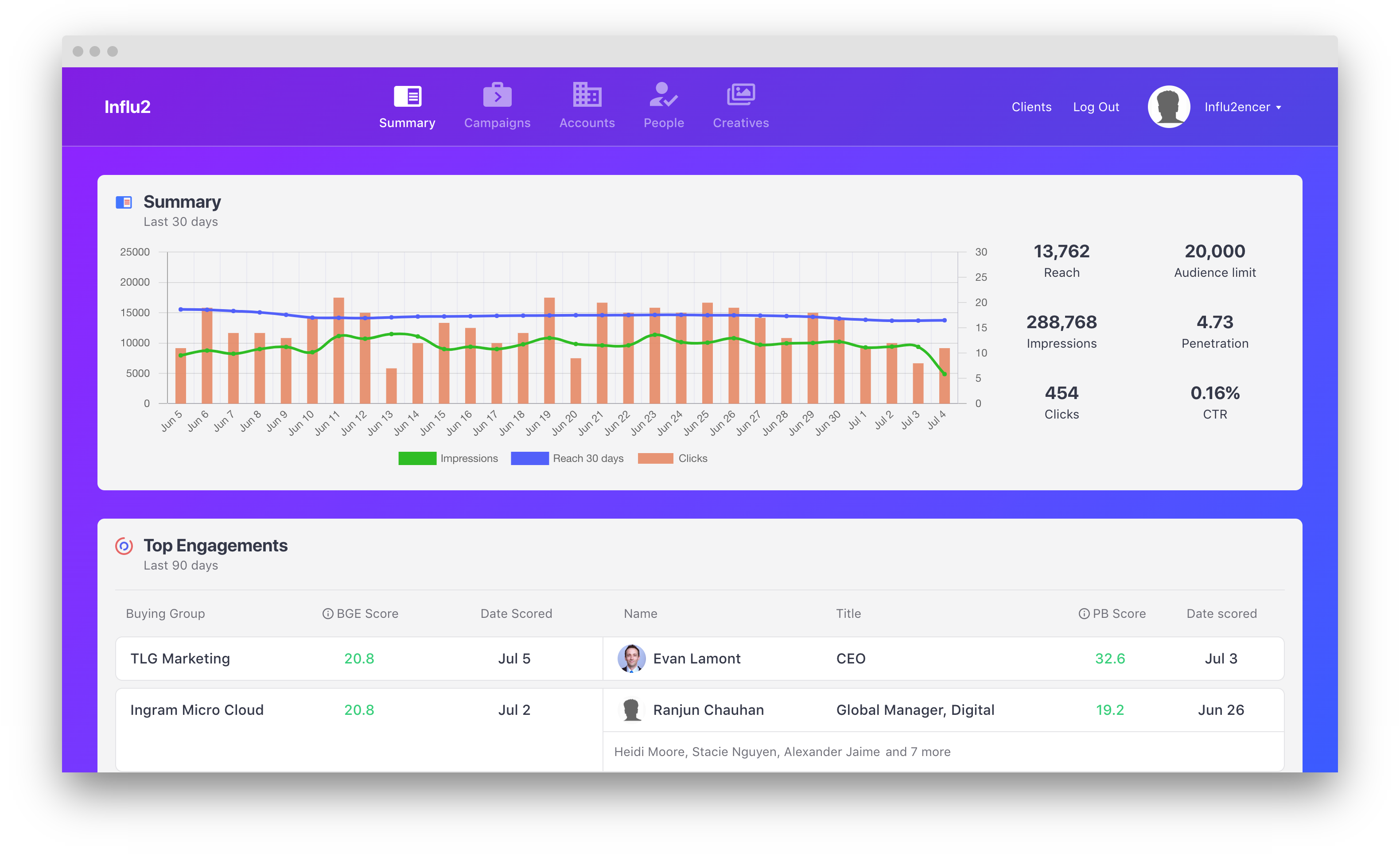
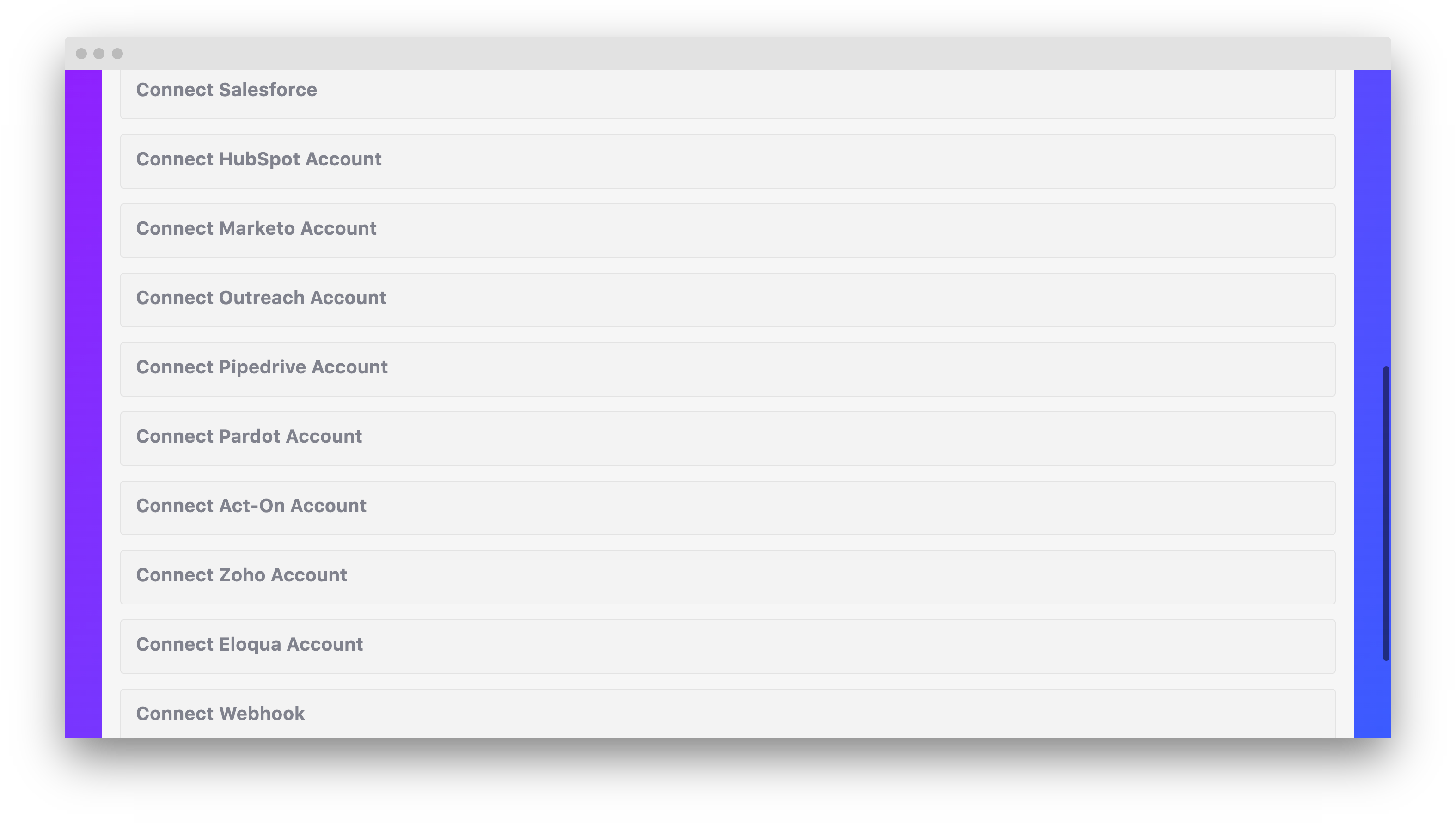
2. Scroll down until you see ‘CRM Integrations’ and click ‘Connect Pardot Account’.
3. After clicking into your Pardot Account, you will be brought to your Pardot authorization page. Log in with your credentials.
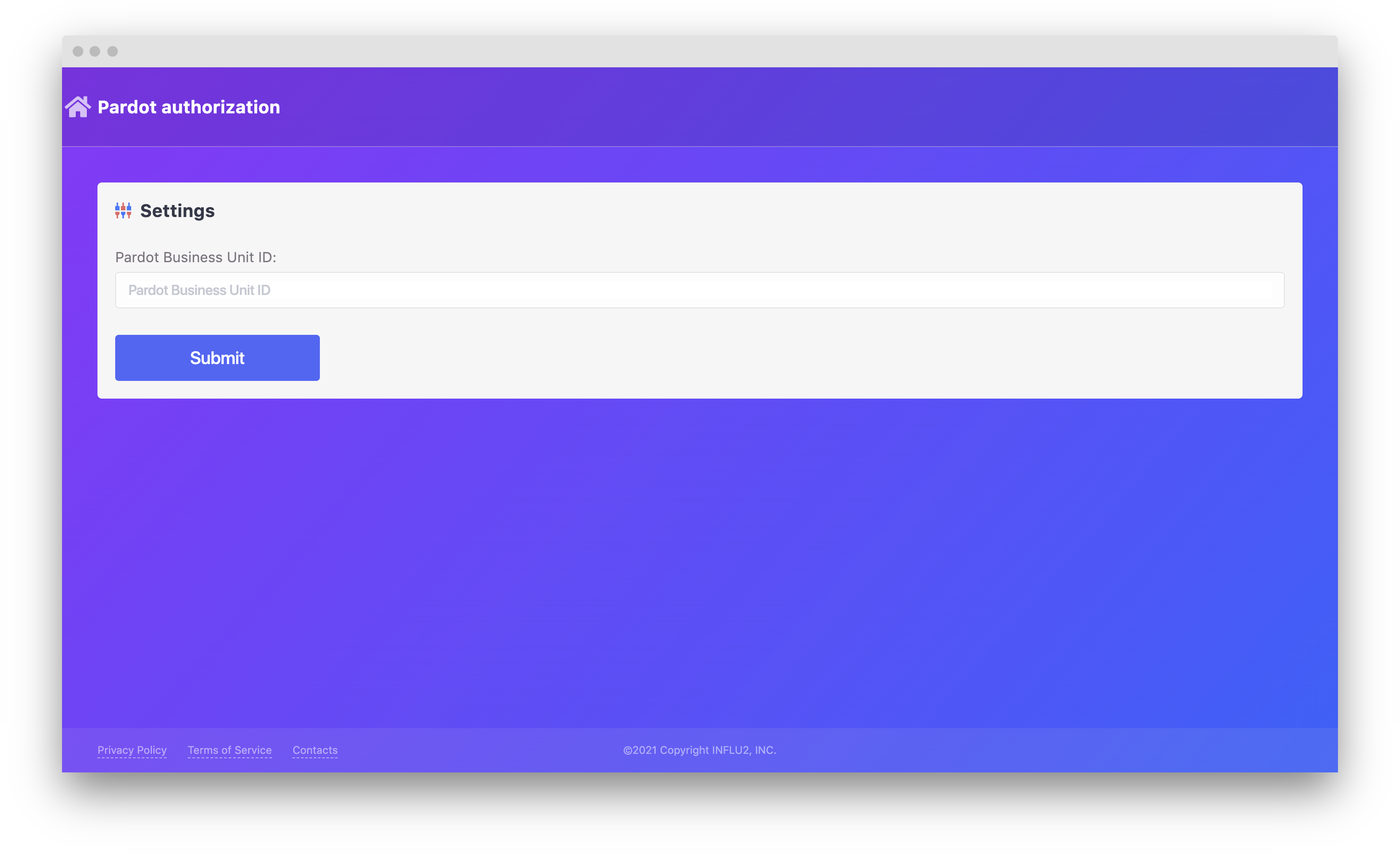
4. To find your Pardot Business Unit ID, log into Salesforce using the same account you use to log into Pardot. Then, go to Setup > Pardot > Pardot Account Setup. Copy your Business Unit ID.

You may have multiple Pardot business units. Use the Business Unit ID of the one you want to connect with Influ2.
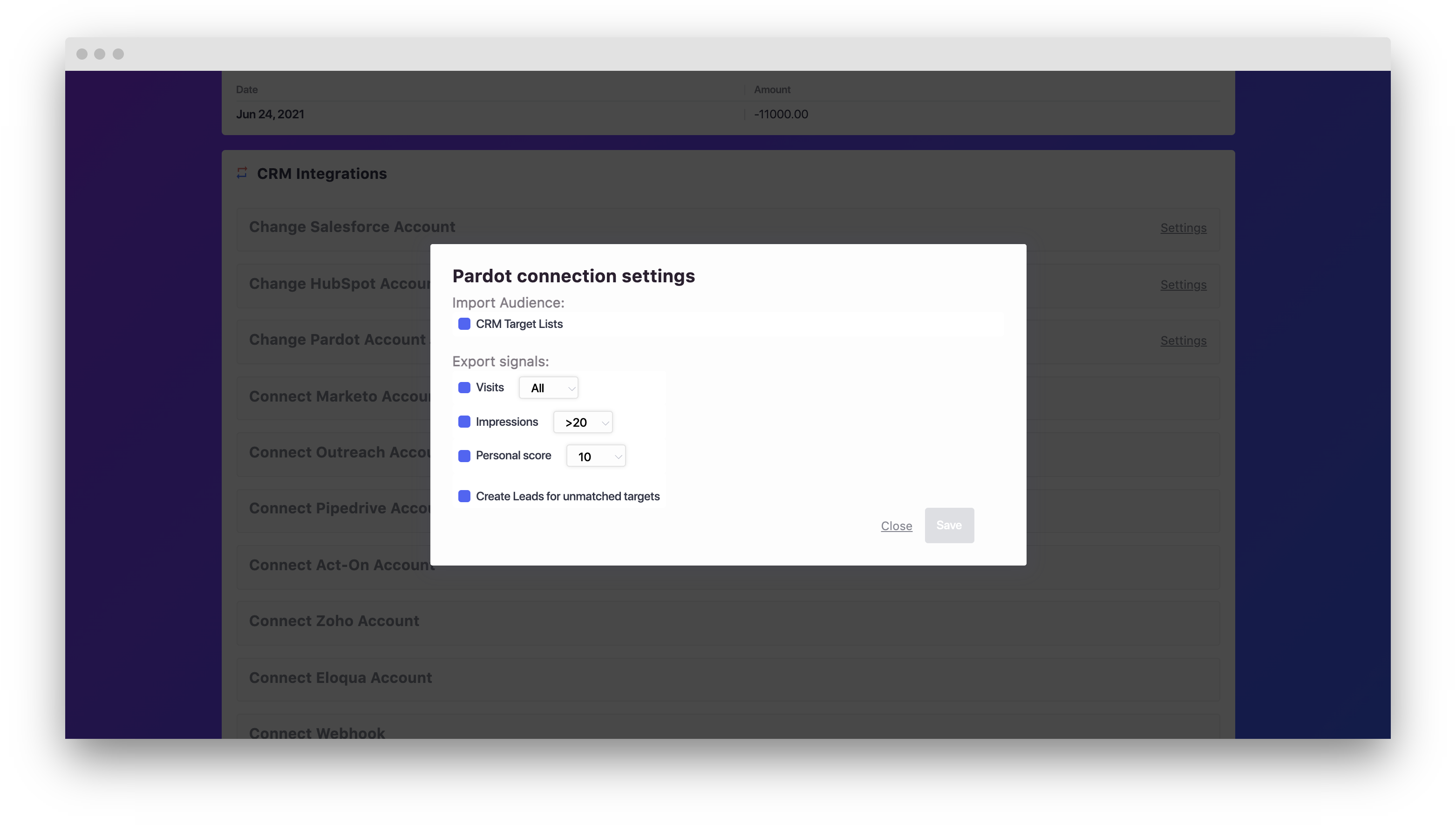
5. Choose the necessary settings for the connection.
- CRM Target Lists means that Influ2 will import the target views from your CRM, you’ll be able to choose which one.
- Export signals define an action upon which Influ2 will send events to your CRM.
- Create leads for unmatched contacts — if Influ2 could not find the lead in your CRM, it’ll be automatically created and the event will be sent.
5. From the Audience Discovery campaign page, you can now target your internal Pardot target lists within Influ2.
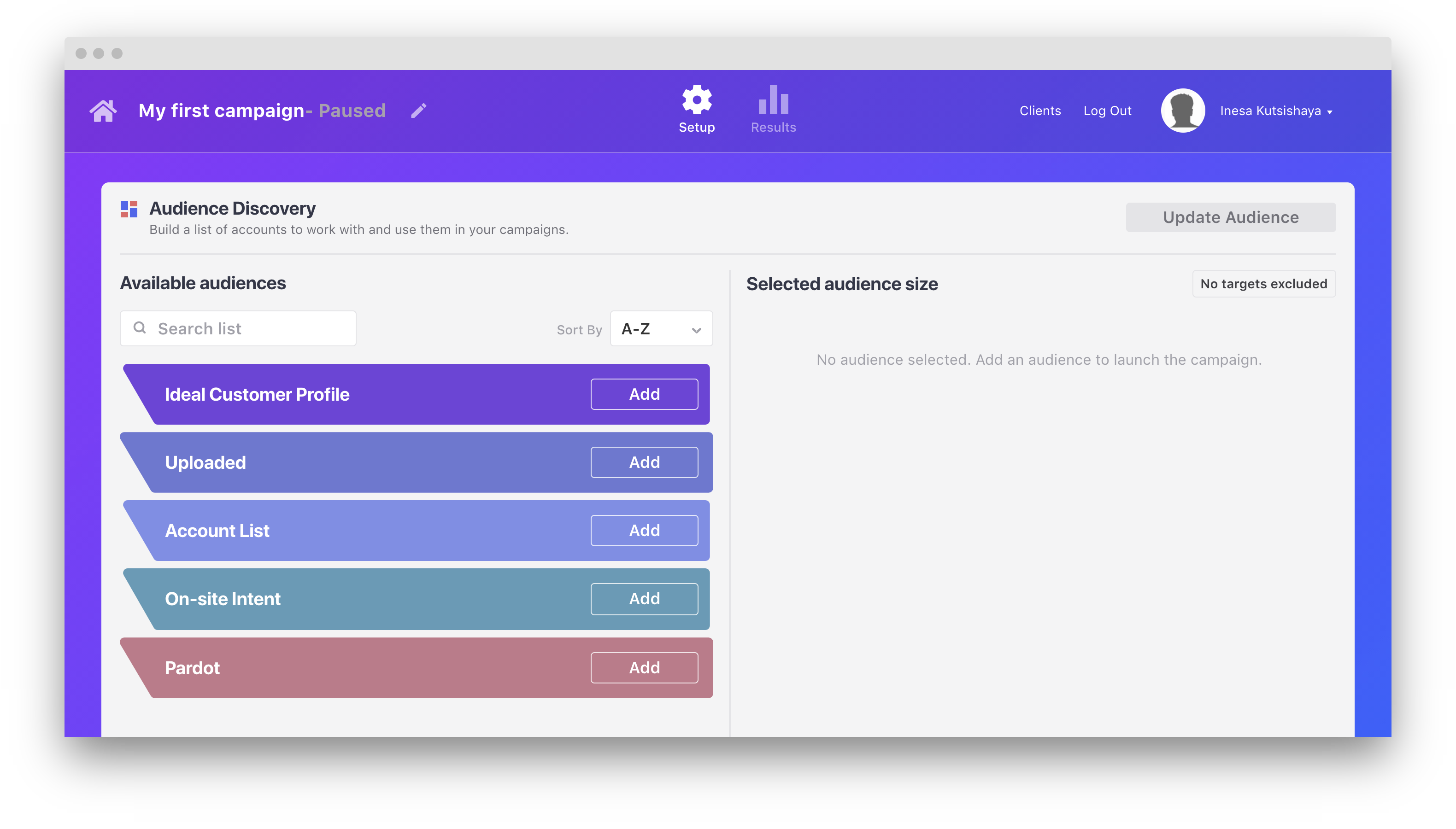
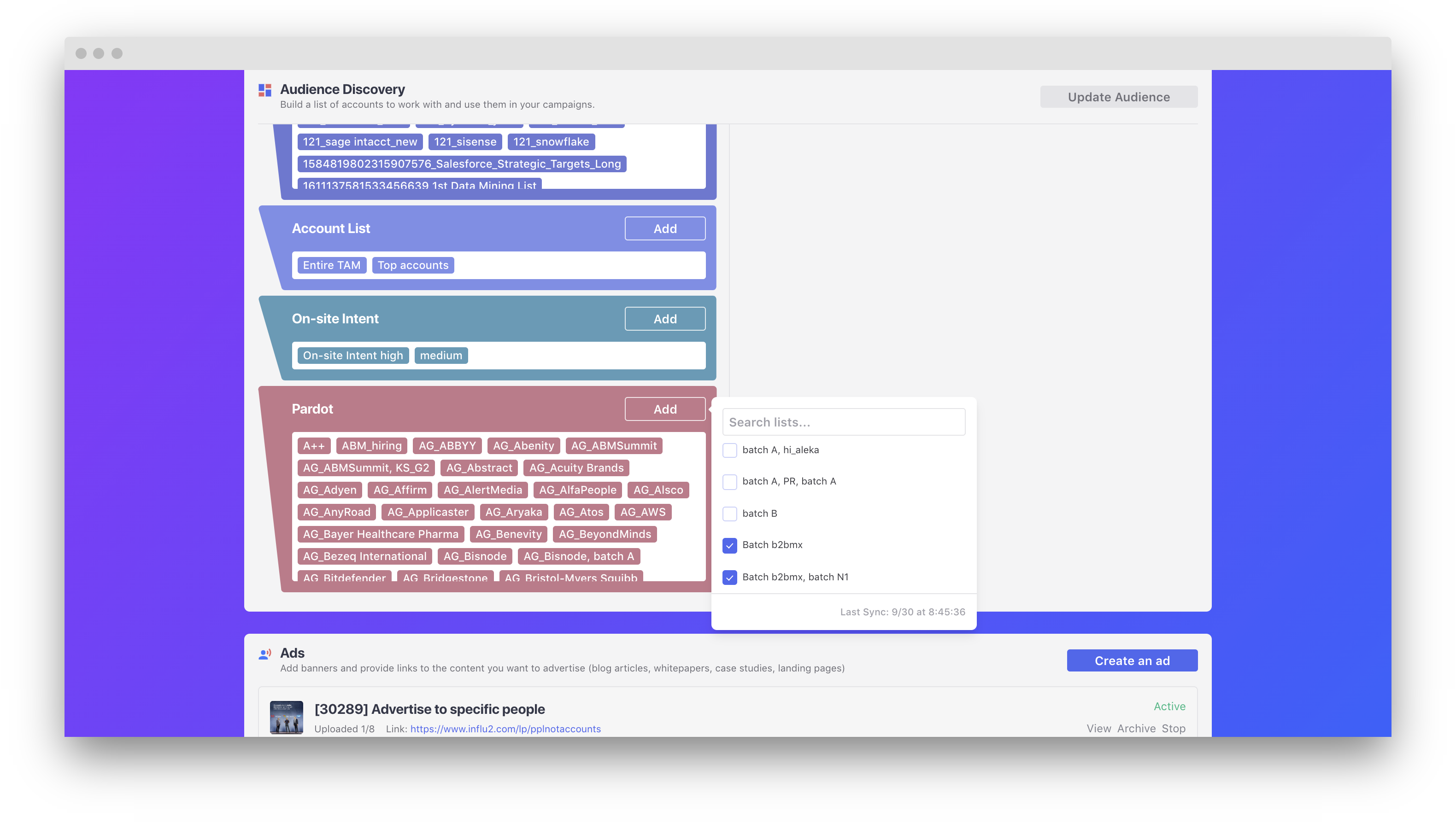
6. Click the 'Add' button and you’ll see all the lists from your Pardot integration. Select the lists that you want to target via Influ2, and we’ll start syncing them.
Comments
0 comments
Please sign in to leave a comment.