This major update to Influ2’s Salesforce integration will allow for more automation, less management, and faster turnaround times on your prospects.
Let’s walk through the new features available to maximize your experience with Influ2 and Salesforce.
A streamlined view to better customize and manage your integration
When connecting Influ2 to Salesforce, you will now have a series of new pages to:
- Manage your connection settings
- Set your notifications
- View metrics; and
- Select campaign lists to target.
Each key item now has its own page that you can dig into and tweak as necessary.
See below for a before/after shot of the integration.
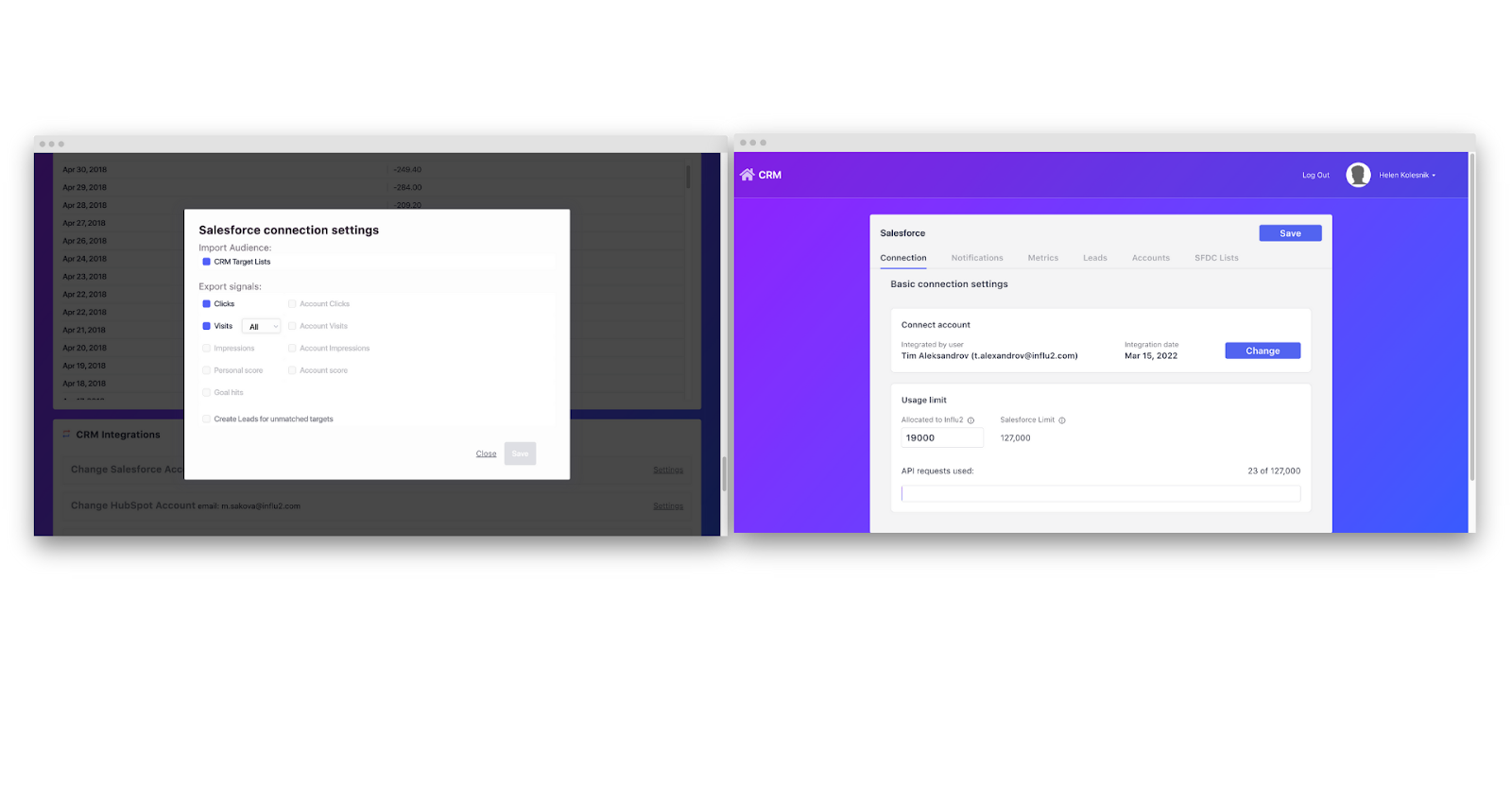
(Fig. 1 - Before/After of Influ2-Salesforce integration)
Receive automatic notifications when you want them
Take more control over which engagement types to receive notifications on and when to send them to your Salesforce team.
Select which engagements you want to send and set a threshold for when to send it over. After a target reaches your threshold limit, the notification is sent to Salesforce and a timestamp is saved in Influ2. With this update you can:
- Select which engagements to send
- Automatically send notifications based on set thresholds; and
- View last send and last modified dates next to each engagement type.
See the example below, where impressions won’t be sent until a target reaches a threshold of ‘5’ impressions or a score of ‘10’.
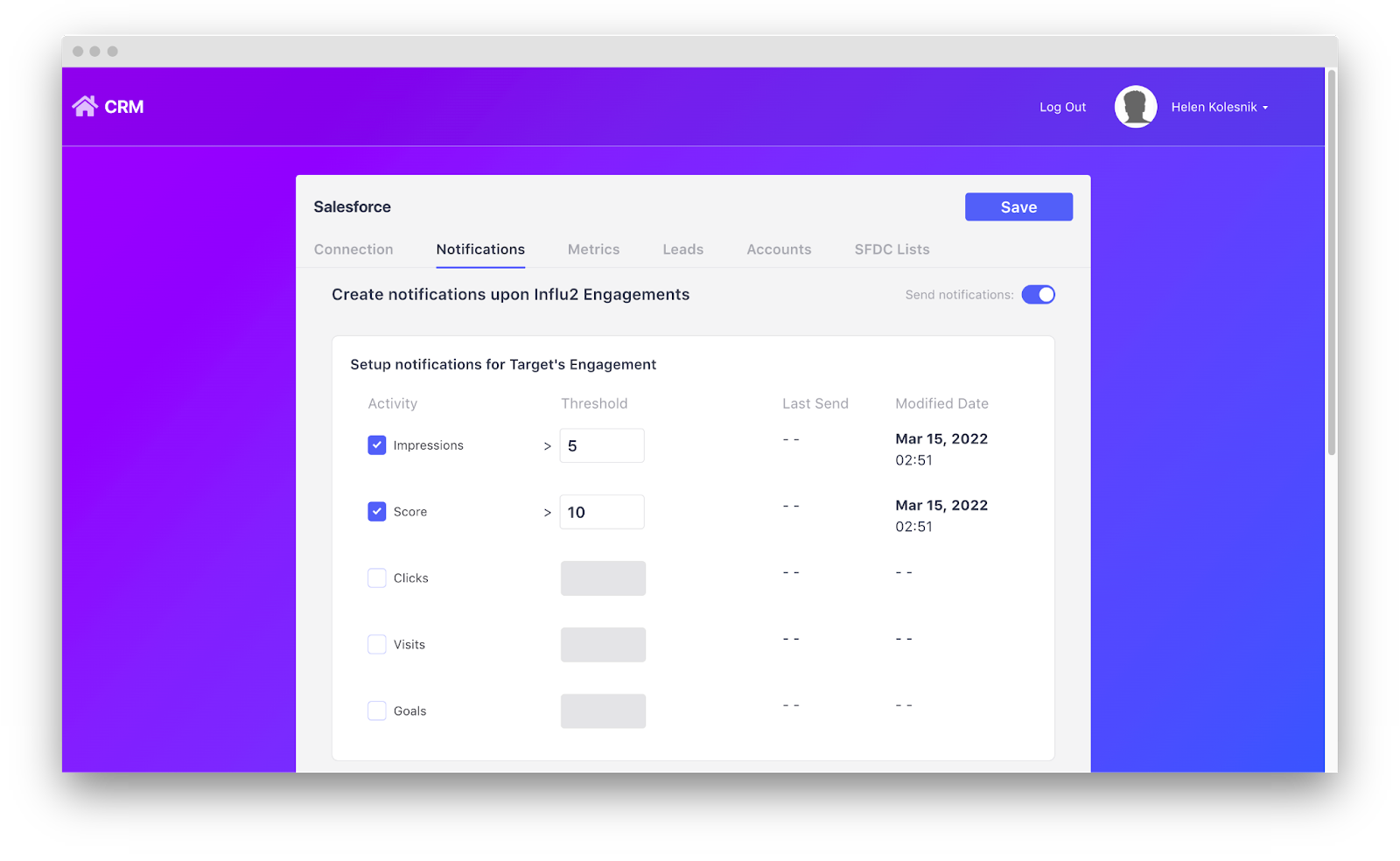
(Fig. 2 - Notifications page with close-up of tracking abilities)
Synchronize Influ2 metrics to fields in Salesforce
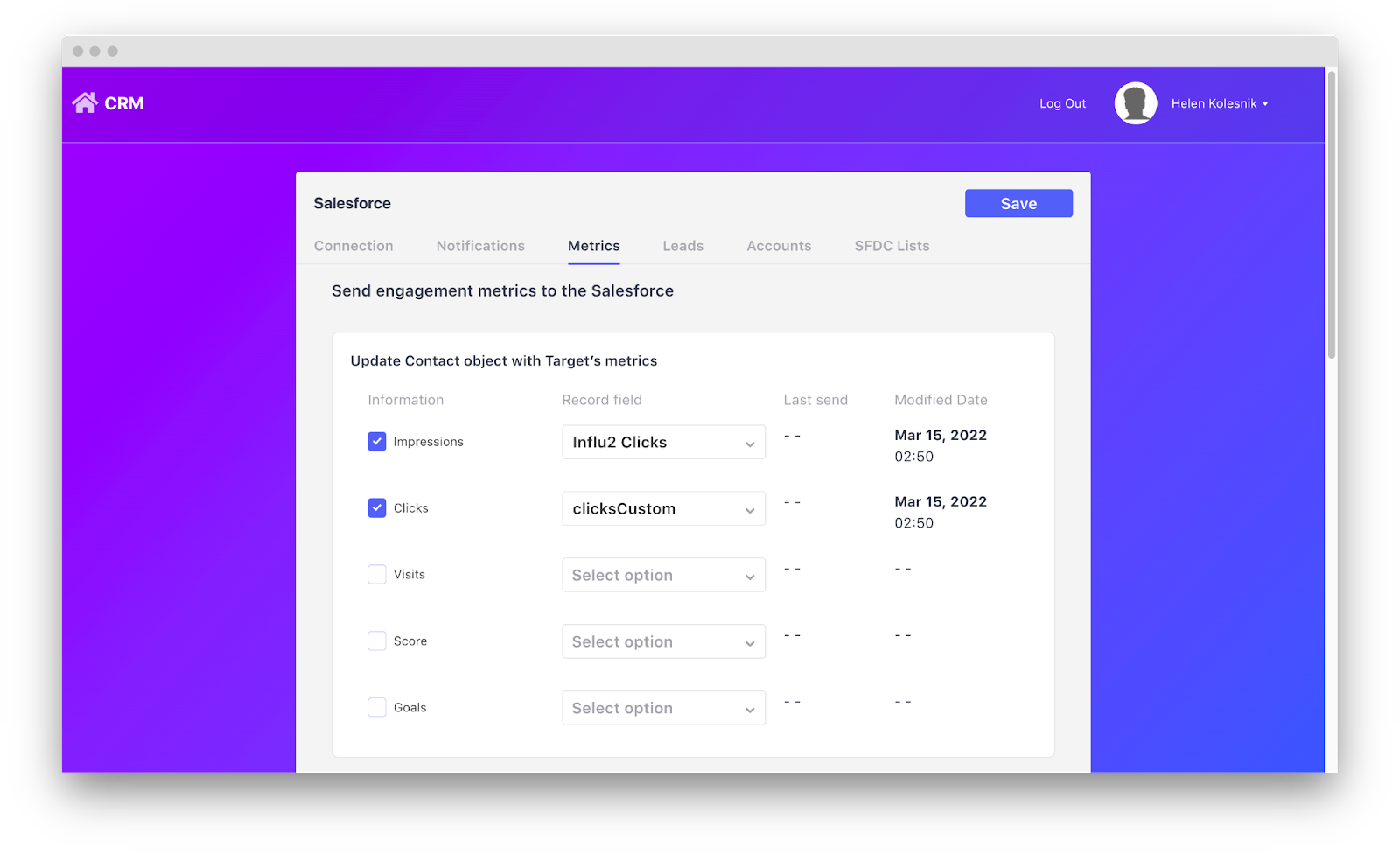
Establish which Influ2 metrics are sent to Salesforce default or custom fields. Like setting notifications, you can also see the last time a metric was saved or modified in Influ2.
Every 24 hours, your Influ2 metrics are synced with Salesforce. Set up workflows inside of Salesforce based on inputs from synced metrics in Influ2.
For example, once X clicks have occurred within an account, your Salesforce can send a template email to all associated contacts. Click here to learn more about setting up workflows in Salesforce.
(Fig. 3 - new notifications page view with close-up of threshold functionality)
Edit and optimize the number of API requests Influ2 uses
With this update, you can set the number of API requests allocated to Influ2 from Salesforce. Salesforce has a finite number of API requests for third-party integrations. To find out what Salesforce Edition your company has, you can follow these Salesforce Help Center instructions.
API requests are used to send notifications, sync metrics, create new leads, and keep your SFDC lists up-to-date.
On your connection settings page you will also see the admin name, email, and integration date listed. You can easily change the admin account by clicking the ‘Change’ button if needed.
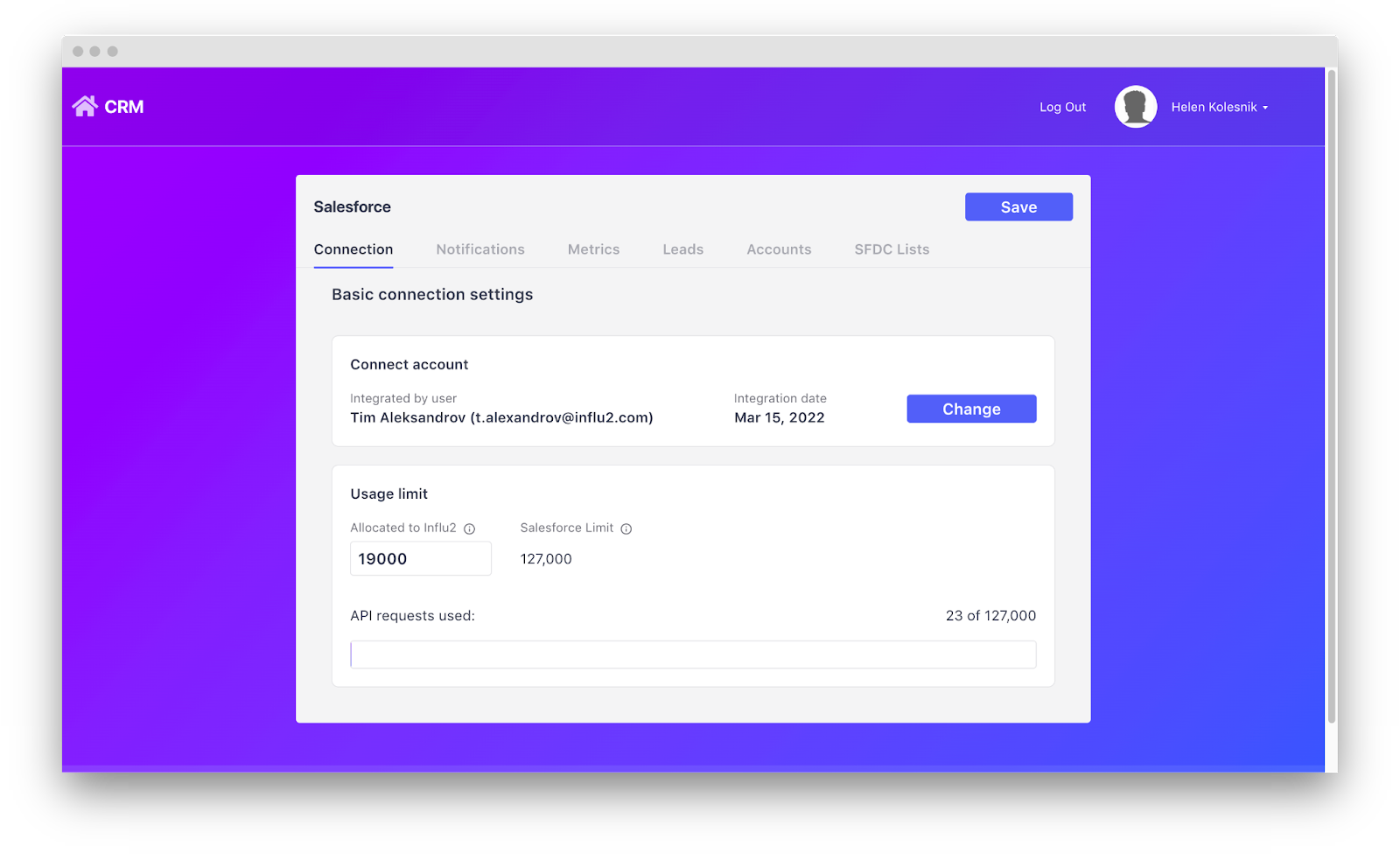
(Fig. 4 - connection settings page)
Create new engaged leads in Salesforce
Inform your sales team when a target is engaged and ready for outreach, even if they aren’t currently in your Salesforce records.
Create new leads by enabling a switch in your Influ2-Salesforce integration. Once enabled, any engaged lead will be added to your Salesforce as soon as the engagement occurs. You can easily find these new leads in Salesforce by filtering the “Lead source” to “Influ2”.
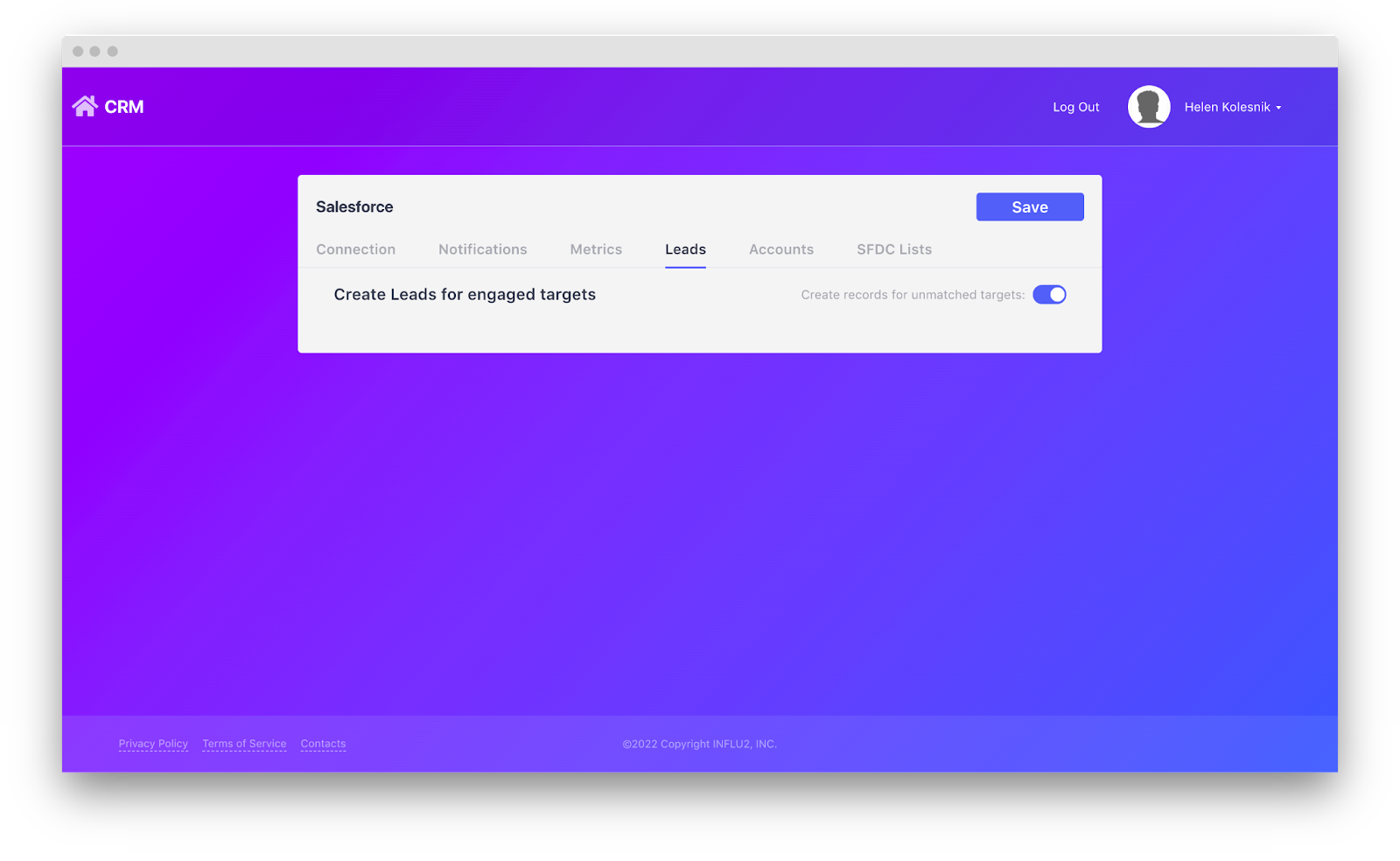
(Fig. 5 - Leads page)
Dynamically target Salesforce campaign lists
Select which campaign lists are synced by checking a box next to the list you would like imported into Influ2.
Influ2 will keep track of your dynamic lists and update them every three hours to ensure your Influ2 campaigns are targeting the right leads at the right time.
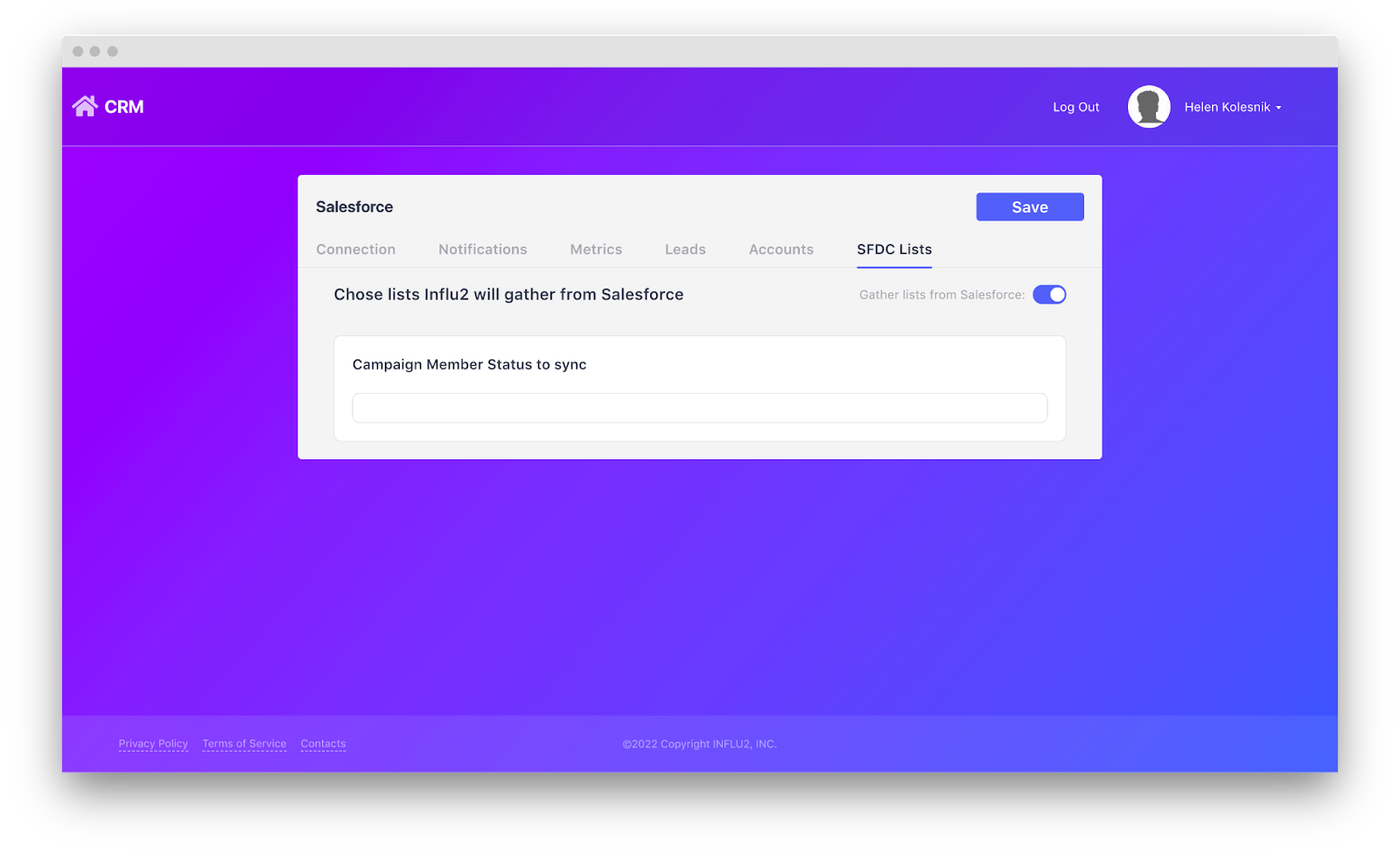
(Fig. 6 - SFDC lists page)
And there you have it! A range of ways to maximize your Influ2-Salesforce integration.
If you want a more in-depth look into these updates, reach out to your CSM or reach out to our sales team.
Comments
0 comments
Please sign in to leave a comment.