How to define pipeline stages to measure ad impact on revenue
Last updated: April 19, 2026
Understanding how your ads drive revenue requires a clear view of your buyer's journey. By customizing which pipeline stages count as Pipeline Generation, Progression, and Won Deals, you gain precise control over revenue attribution in your Influ2 reports.
Influ2 sources pipeline information from your CRM and uses it to measure the influence of your ad engagement on key revenue events: meetings booked, opportunities generated, opportunities progressed, and deals won.
Define your pipeline stages
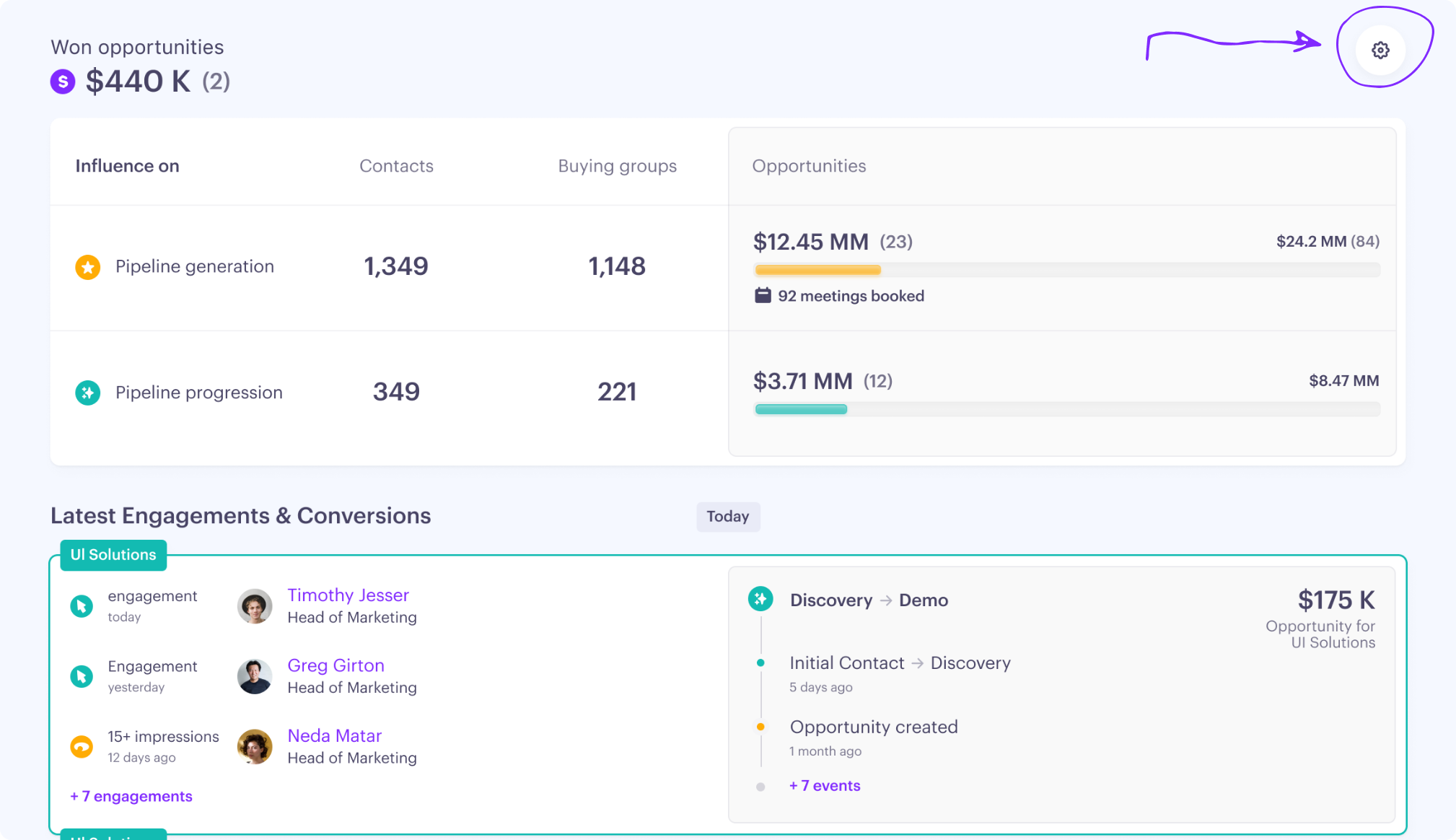
Go to the Influence Dashboard section of your Influ2 dashboard.
Click the settings icon in the top right corner to open the Revenue Attribution settings window.
Select your source of Opportunities (HubSpot, Salesforce, or manual file import). Under the corresponding tab, you'll see all your pipelines and stages.
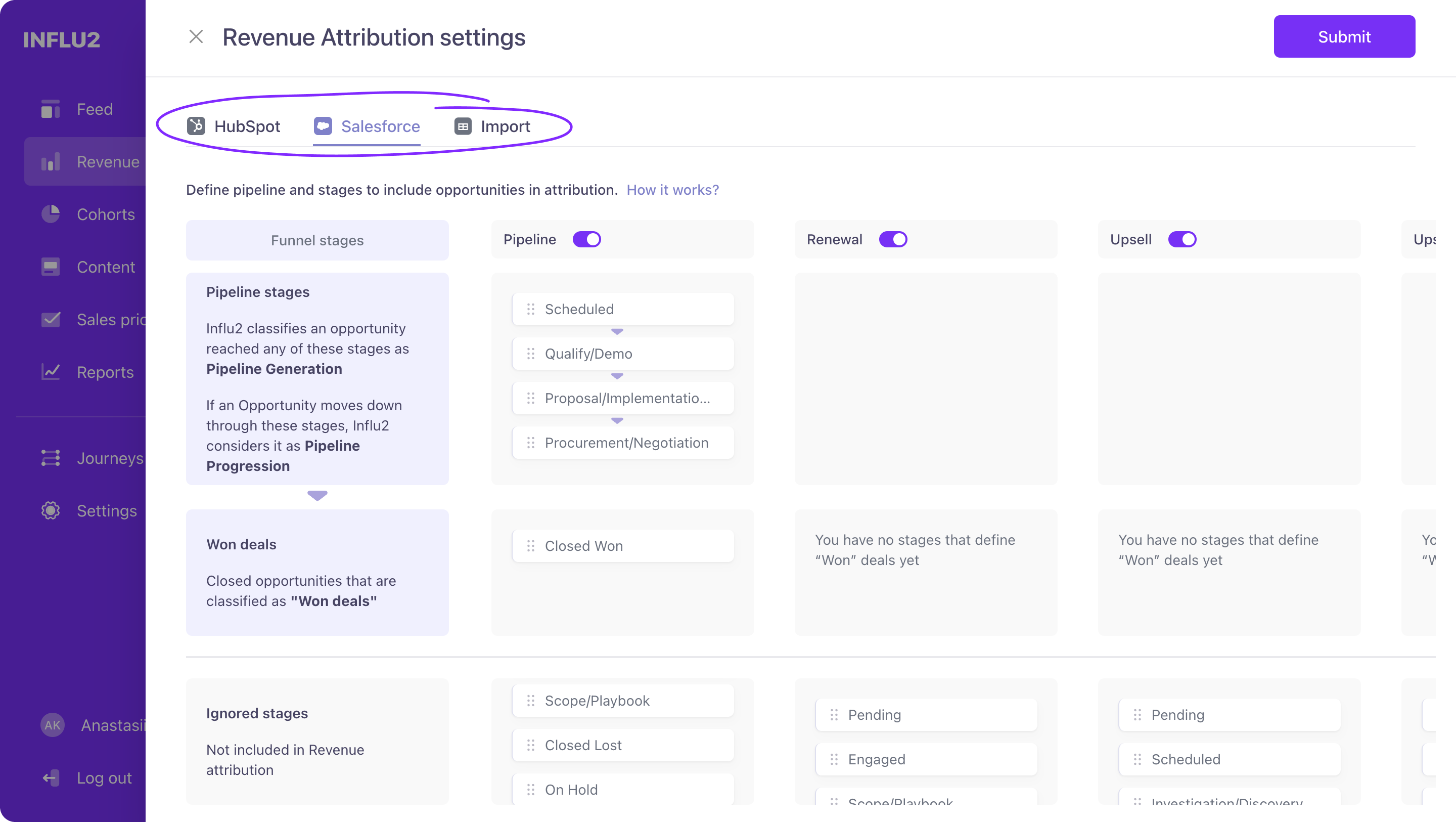
Activate the pipeline you want to track.
Review the assigned stages for Pipeline generation & Progression and Won deals. Drag and drop stages between sections to customize which stages are included in your revenue analysis.


Exclude any stages from the report by dragging them to the Ignored stages section. These stages won't be considered for revenue attribution.
Click Submit to save your configuration.


How Influ2 measures revenue impact
Once you've configured your pipeline stages, Influ2 automatically calculates the influence of your ads on revenue:
As an opportunity progresses through stages in your Pipeline generation & progression section, Influ2 includes it in pipeline progression calculations.
When an opportunity reaches a stage in the Won deals section (e.g., "Closed/Won"), Influ2 attributes it as a won deal.
Influ2 determines influence by checking if targets in the buying group had meaningful ad engagement (at least 1 click or 15+ impressions) within a specific time window relative to the revenue event.