Let's set up your Marketo lead scoring with Influ2 engagments! Follow these step-by-step instructions to make the most of your integration. If you haven't yet connected Influ2 to Marketo, follow this guide before continuing.
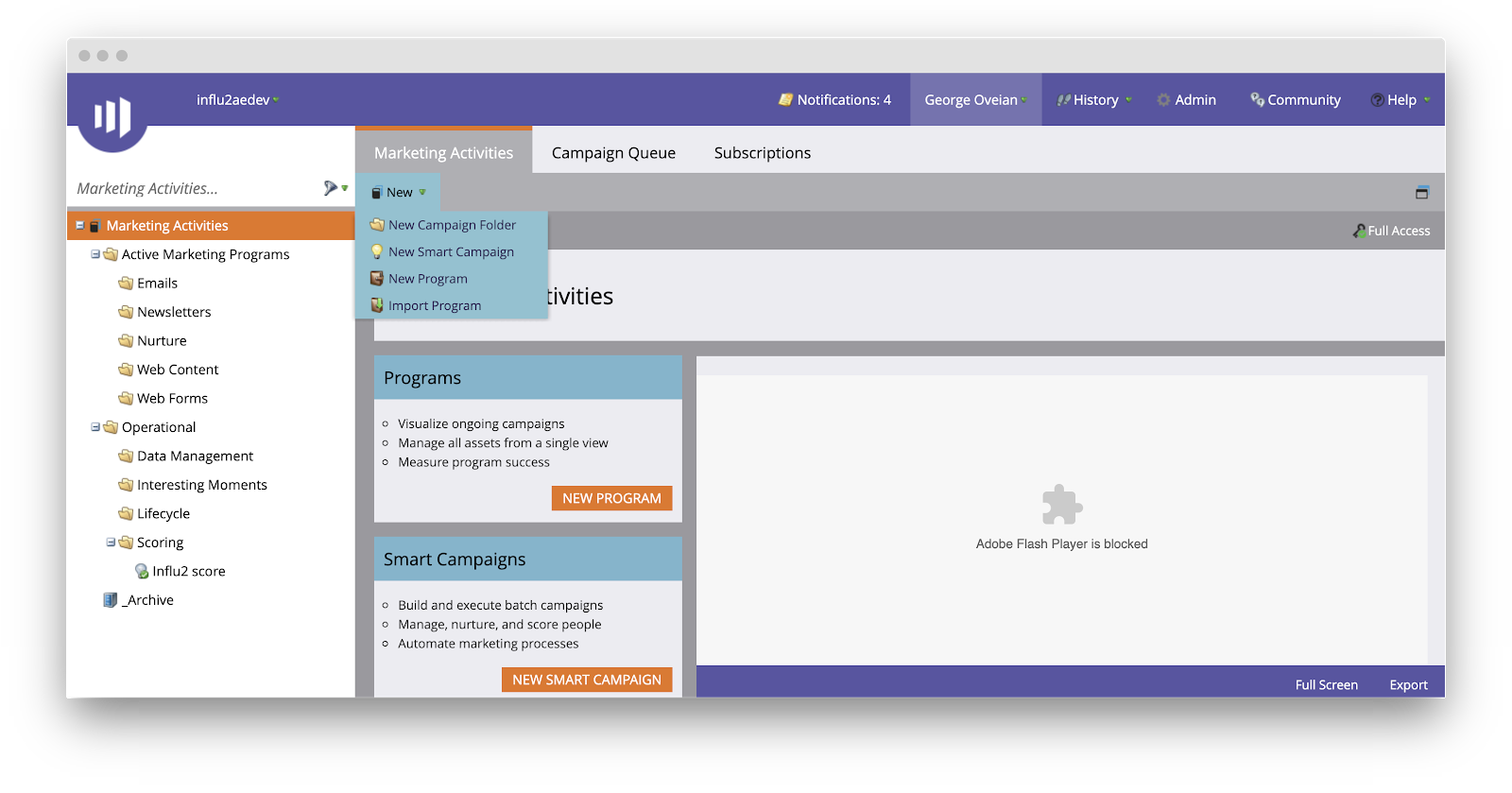
1. Inside of Marketo, visit 'Marketing Activities' and select 'New Smart Campaign'.
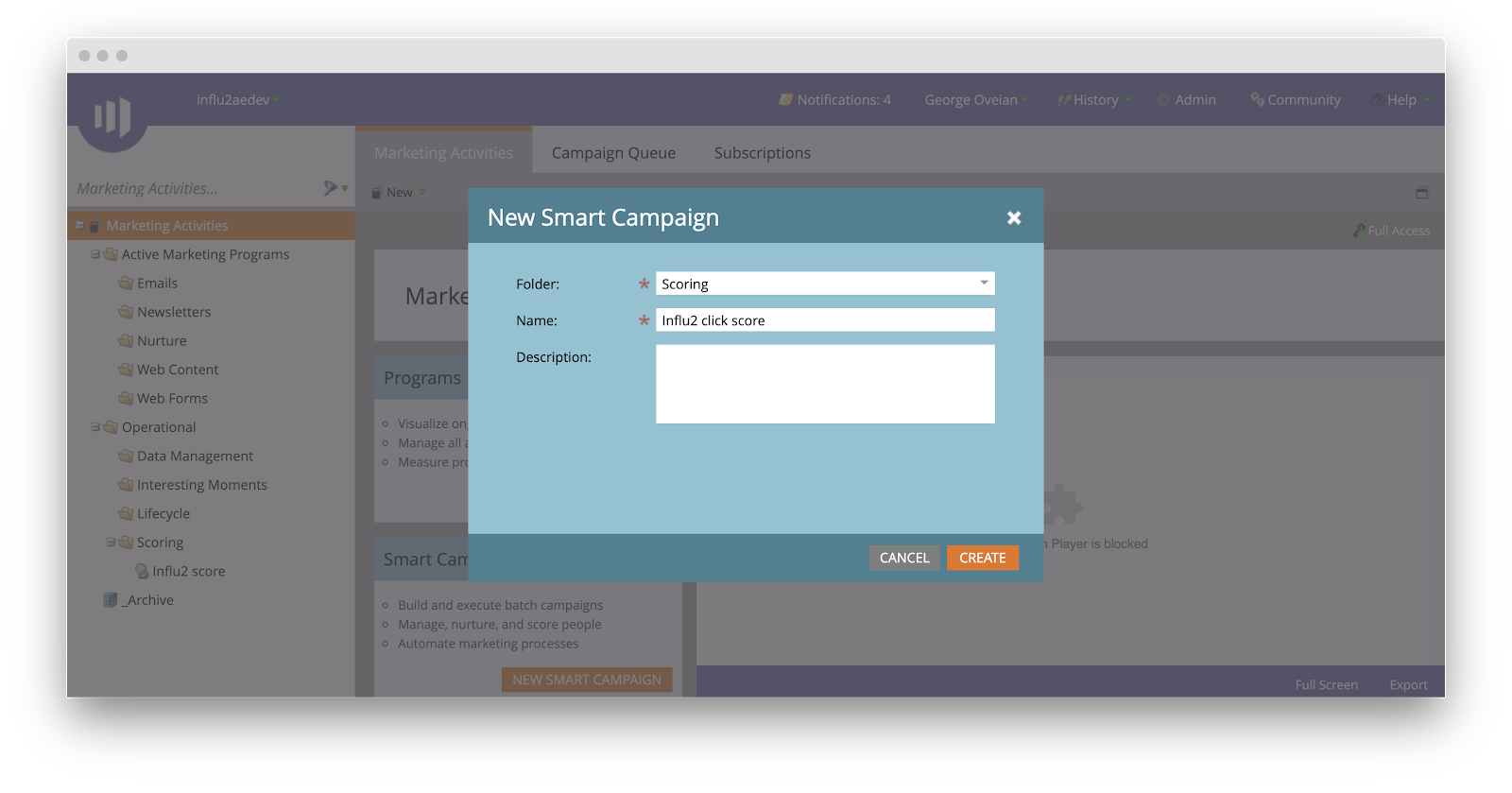
2. Select the folder to save this campaign to and give it a title and description. In this example, we will be using Influ2 clicks, so the title will be 'Influ2 click score'. You can perform these steps with other engagement metrics such as impressions and visits as well.
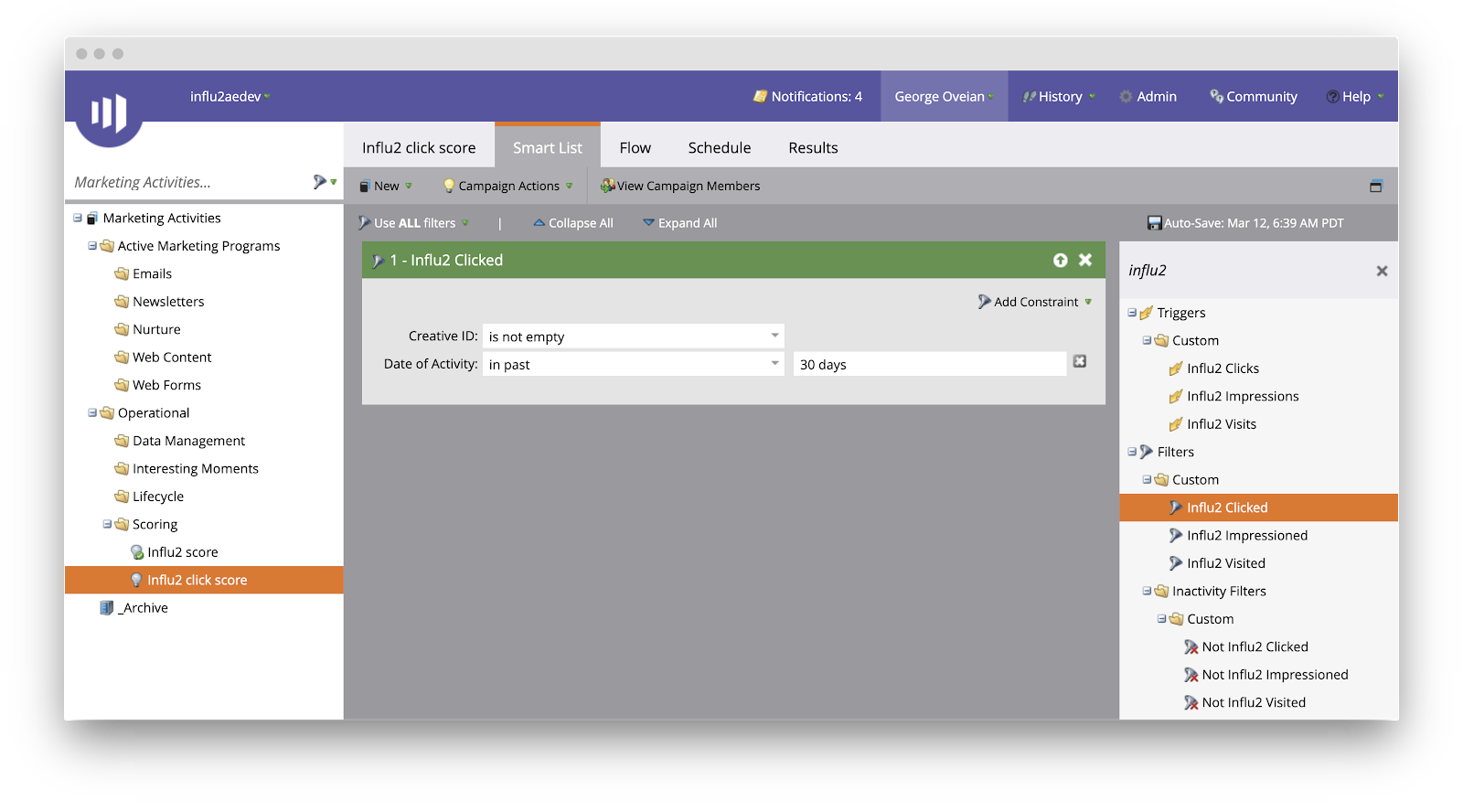
3. Once created, visit your 'Smart List tab' on the topbar and search for Influ2 on the right panel. Drag and drop 'Influ2 Clicked' to the center panel. Make sure 'Creative ID' says 'is not empty'.
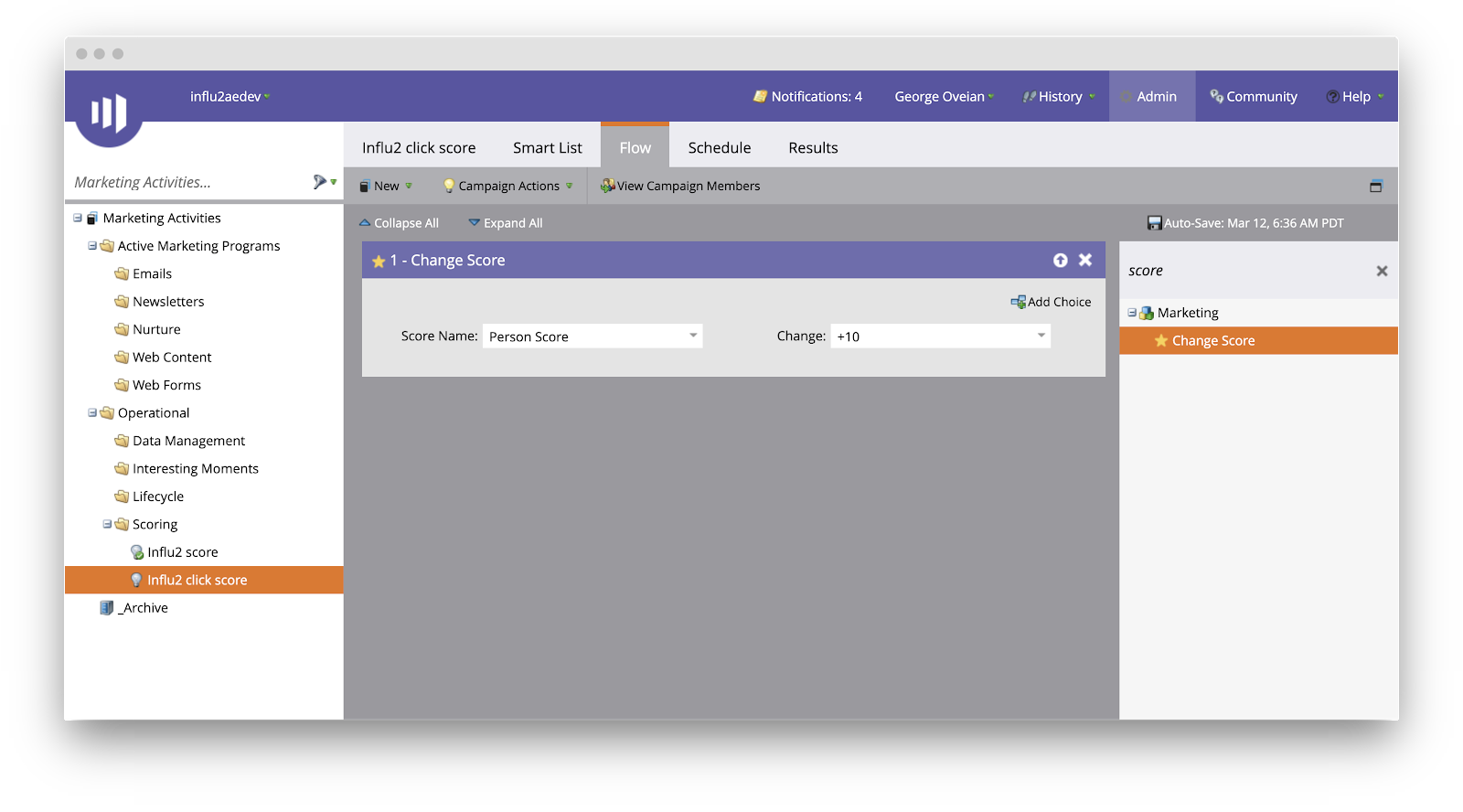
4. Visit the 'Flow' tab on the topbar and search for 'Score' on the right panel. Drag and drop 'Change Score' to the center panel. Enter the score name and edit the value.
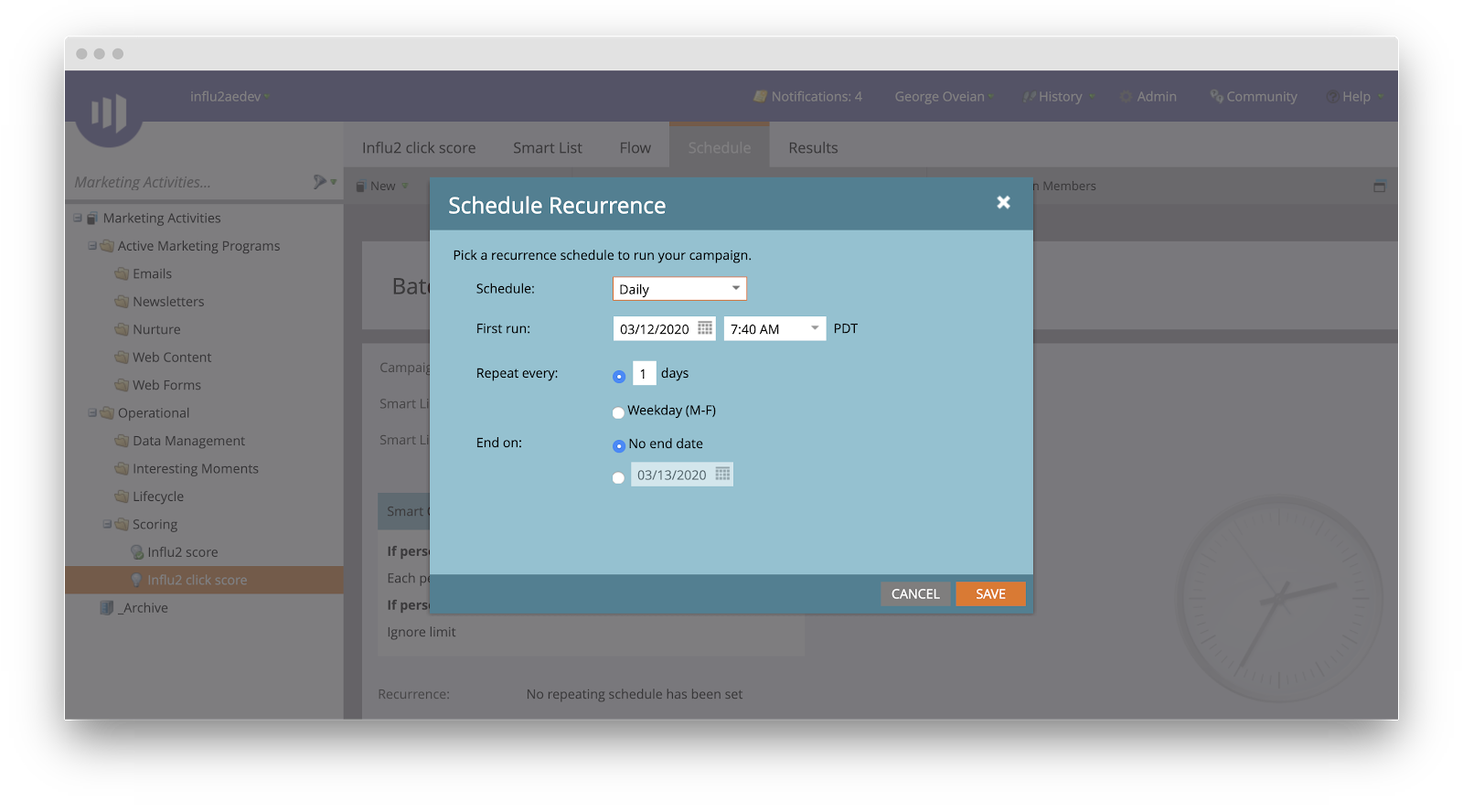
5. Finally, visit the 'Schedule' tab and select 'Recurrence'. This will affect how often the data will be updated. We recommend a daily schedule that repeats every '1' day.
6. After the first sync has taken place, you can see results in the 'Results' tab on the topbar.
Comments
0 comments
Please sign in to leave a comment.