Let's create a new user in Marketo to connect the integration to Influ2! Follow these step-by-step instructions to make the most of your integration. If you've already connected Marketo to Influ2, continue on this guide.
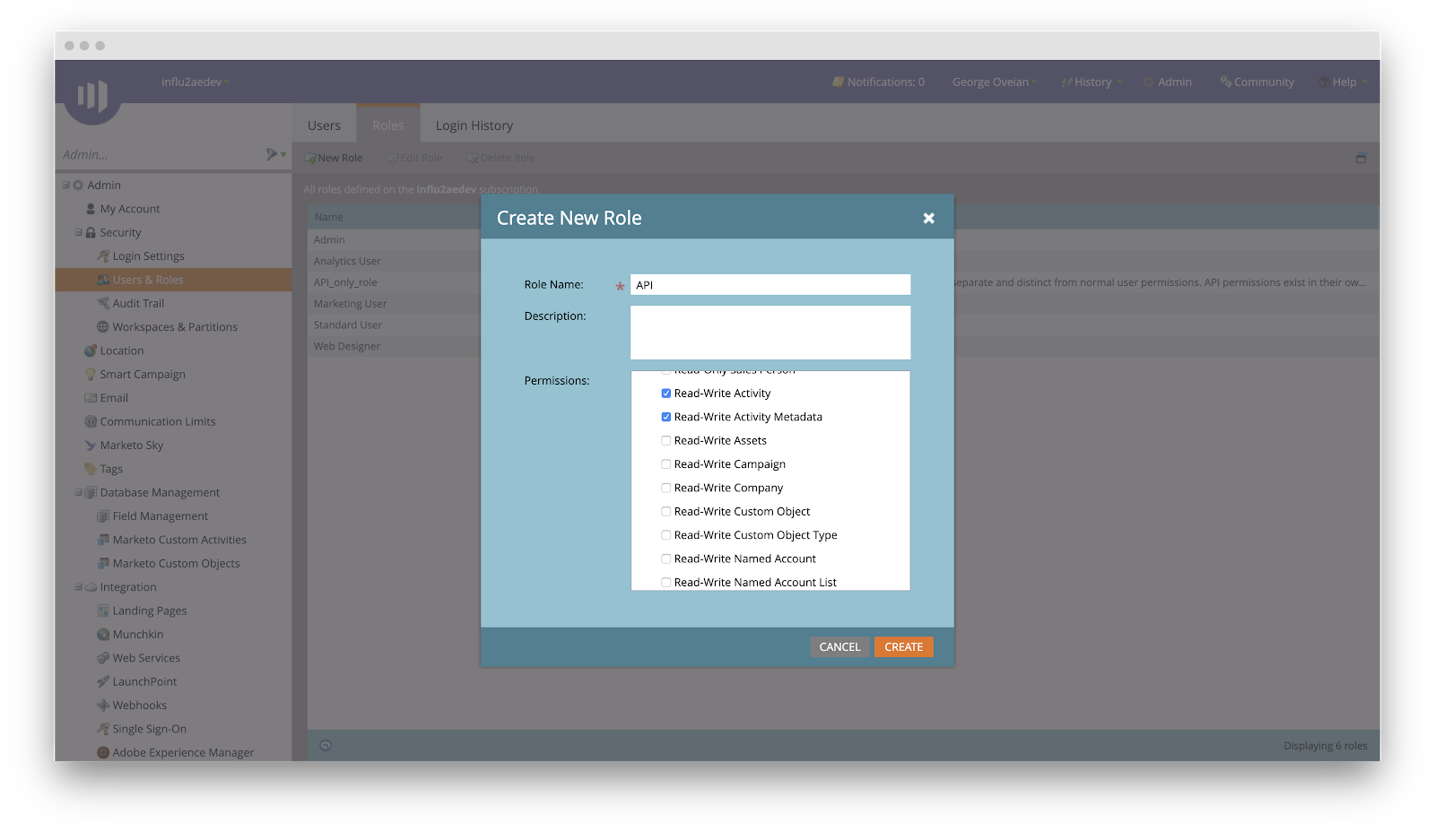
1. Login to Marketo and create a new role. To do this go to Admin > Security > Users & Roles > Roles > New Role. Name the 'Role Name' 'API'. Select the following roles in Access API group:
- Read-Write Activity
- Read-Write Activity Metadata
- Read-Write Person
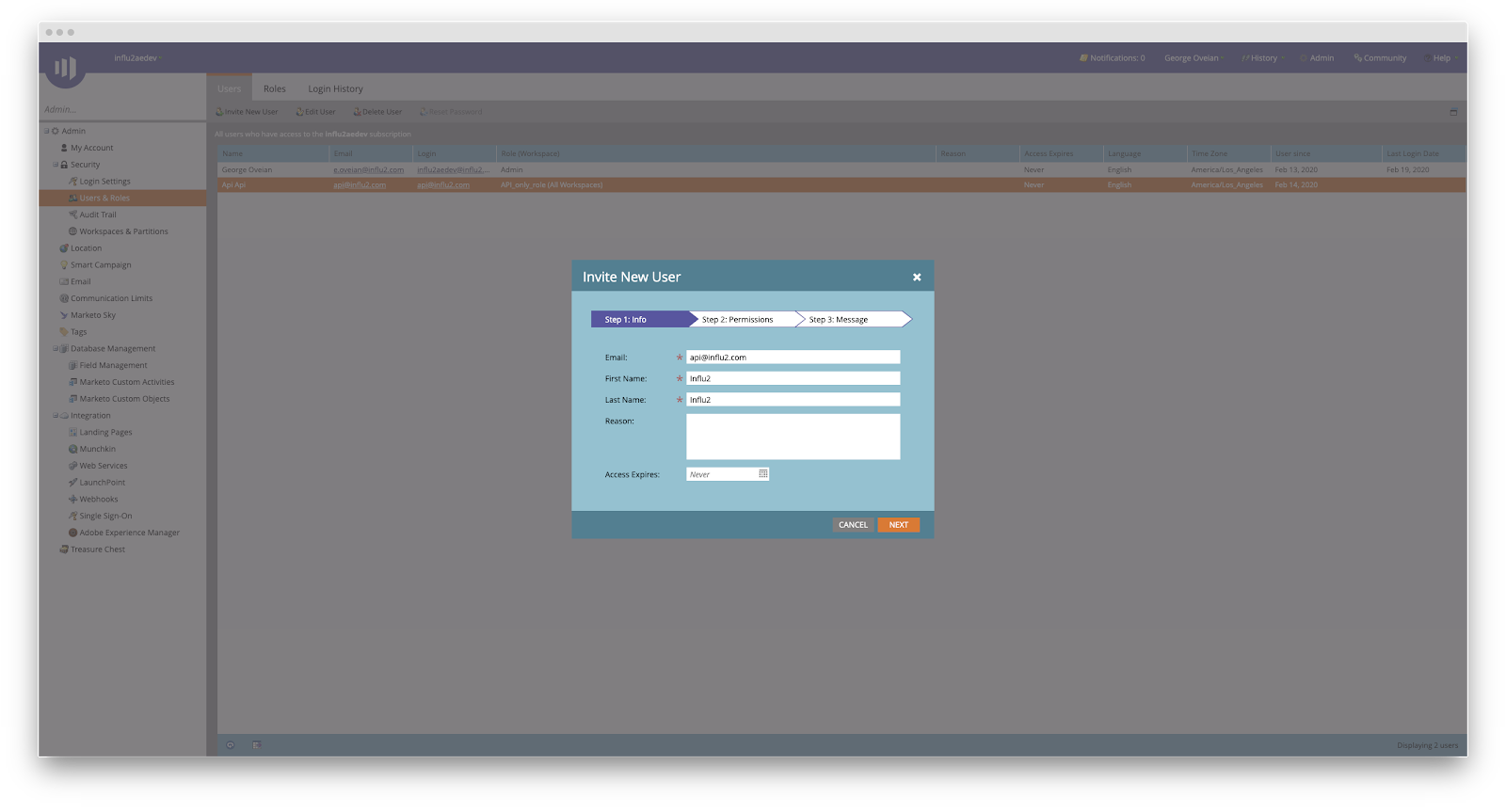
2. Then, you will create a new user. Go to Admin > Security > Users & Roles > Users > New User. Enter your information. In this example, we are naming the user Influ2.
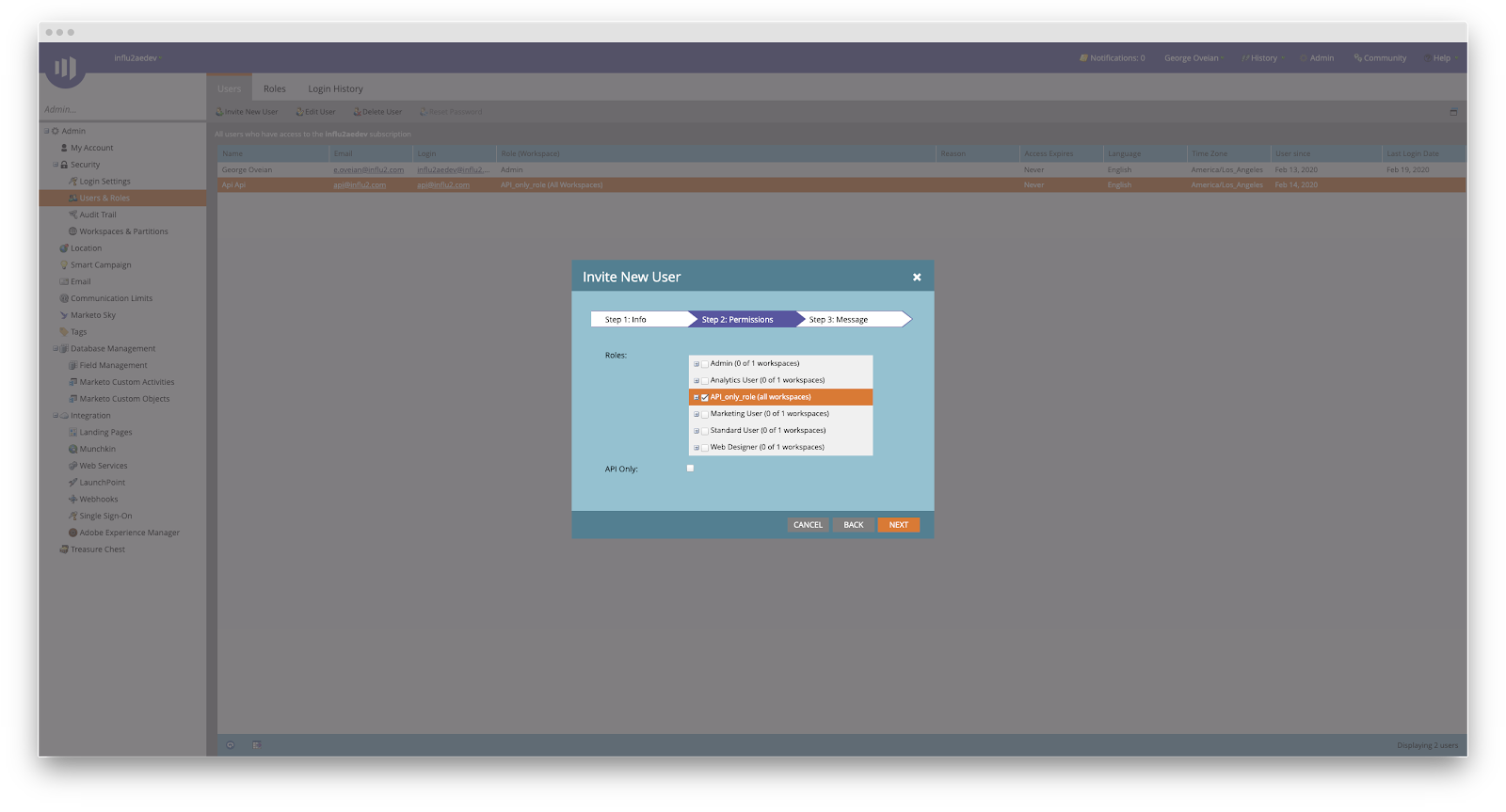
3. After inputting the information, Step 2 of 3 will ask for enabling permissions. Select 'API_only_role (all workspaces)'.
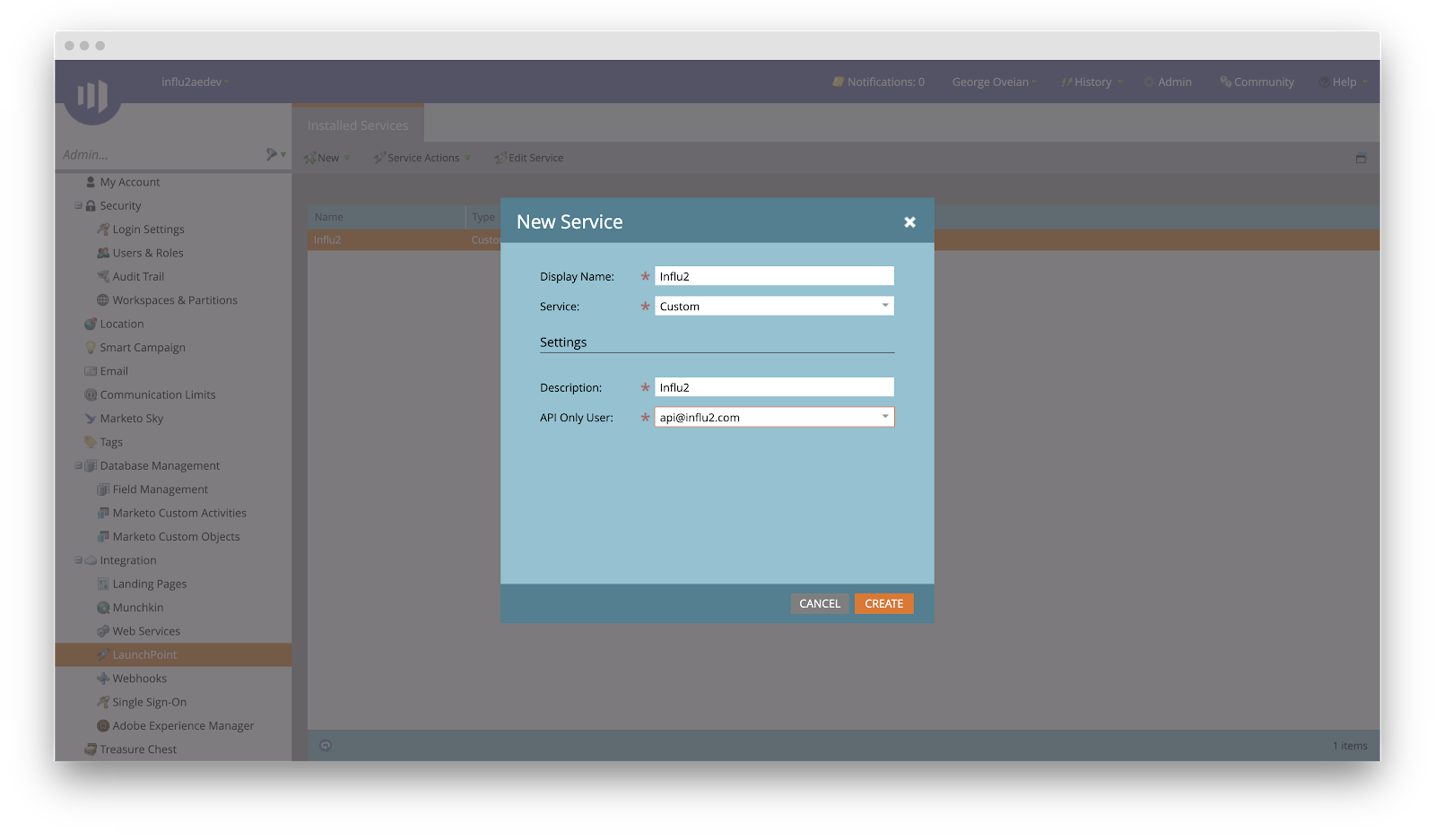
4. Then, you must create a new service. To do this go to Admin > Integration > LaunchPoint and select 'New Service'. Under 'Type', select 'Custom' and choose the API Only User you have just created.
5. Finally, click 'View Details' on the newly created service and use the provided Client Id and Client Secret when connecting Marketo in Influ2 interface.
Comments
0 comments
Please sign in to leave a comment.