How to sync Agent Who contacts to your CRM
Last updated: July 27, 2026
Once Agent Who has found your ideal contacts, you can push those records straight into Salesforce or HubSpot — no manual export needed. Here's how to set up and manage that sync.
Before you start
Your Salesforce or HubSpot connector needs to be connected.
Field mapping is a client-level setting, so set it up once before turning on sync for individual audiences.
Steps
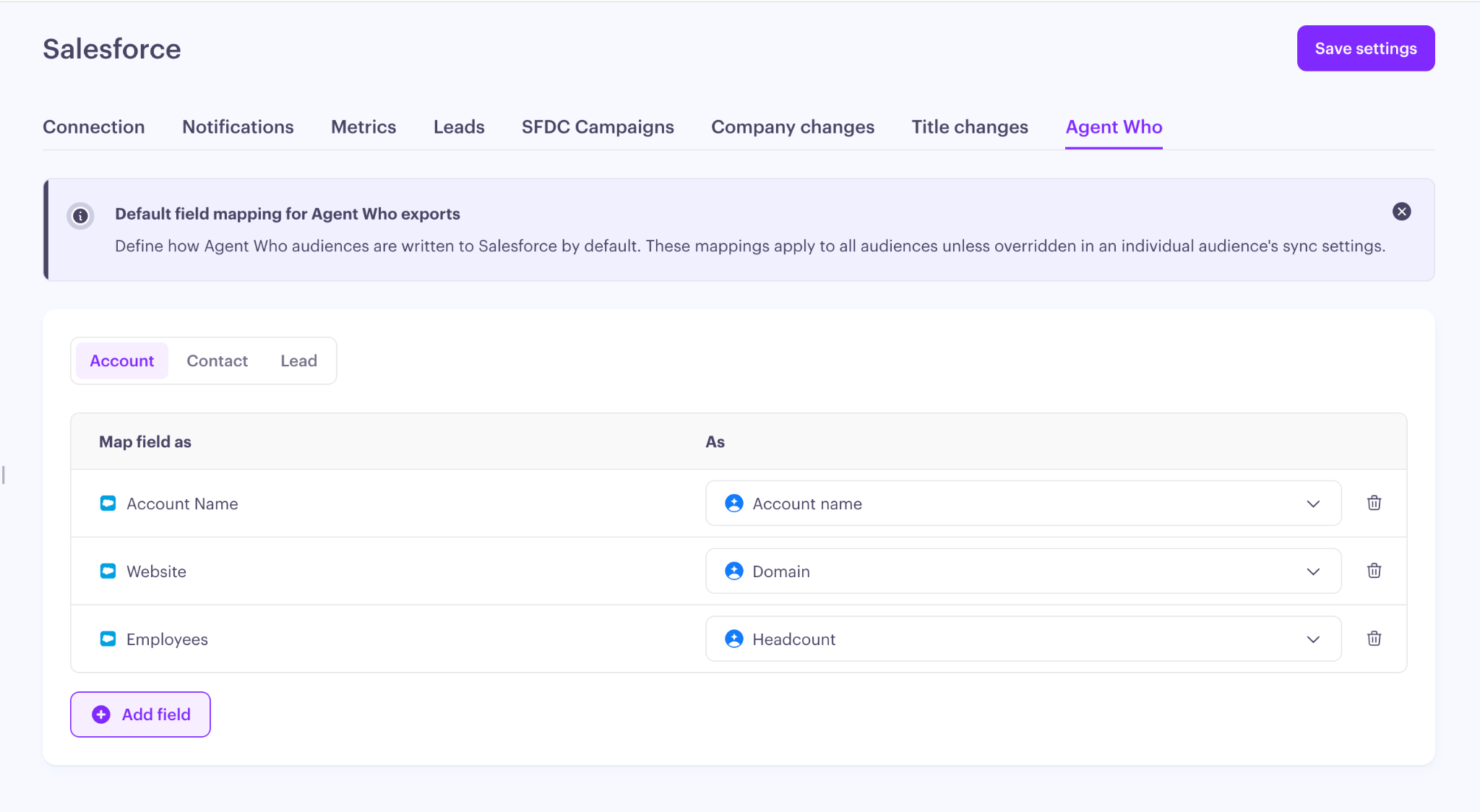
Set your default field mapping.
Influ2 populates a default mapping for Account, Contact, and Lead objects — for example, in Salesforce, Account name maps to Account name, Website maps to Domain, and Email maps to Business Email. You can edit this mapping, and add or remove fields, mapping each one either from an Influ2-sourced field or to a fixed static value.
Turn on sync for an audience.
Enable the sync toggle on the audience. Records not yet in your CRM start syncing immediately.
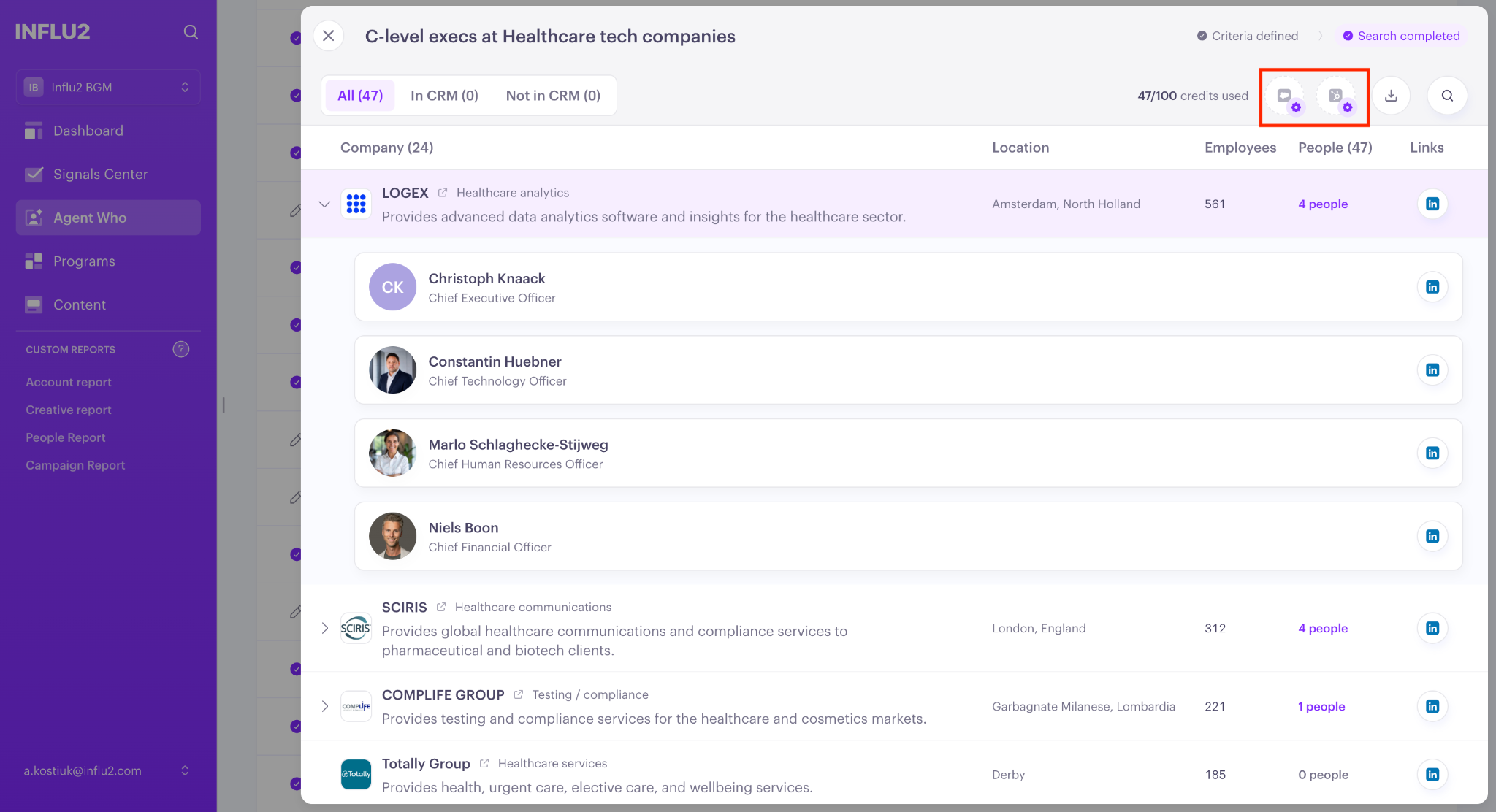
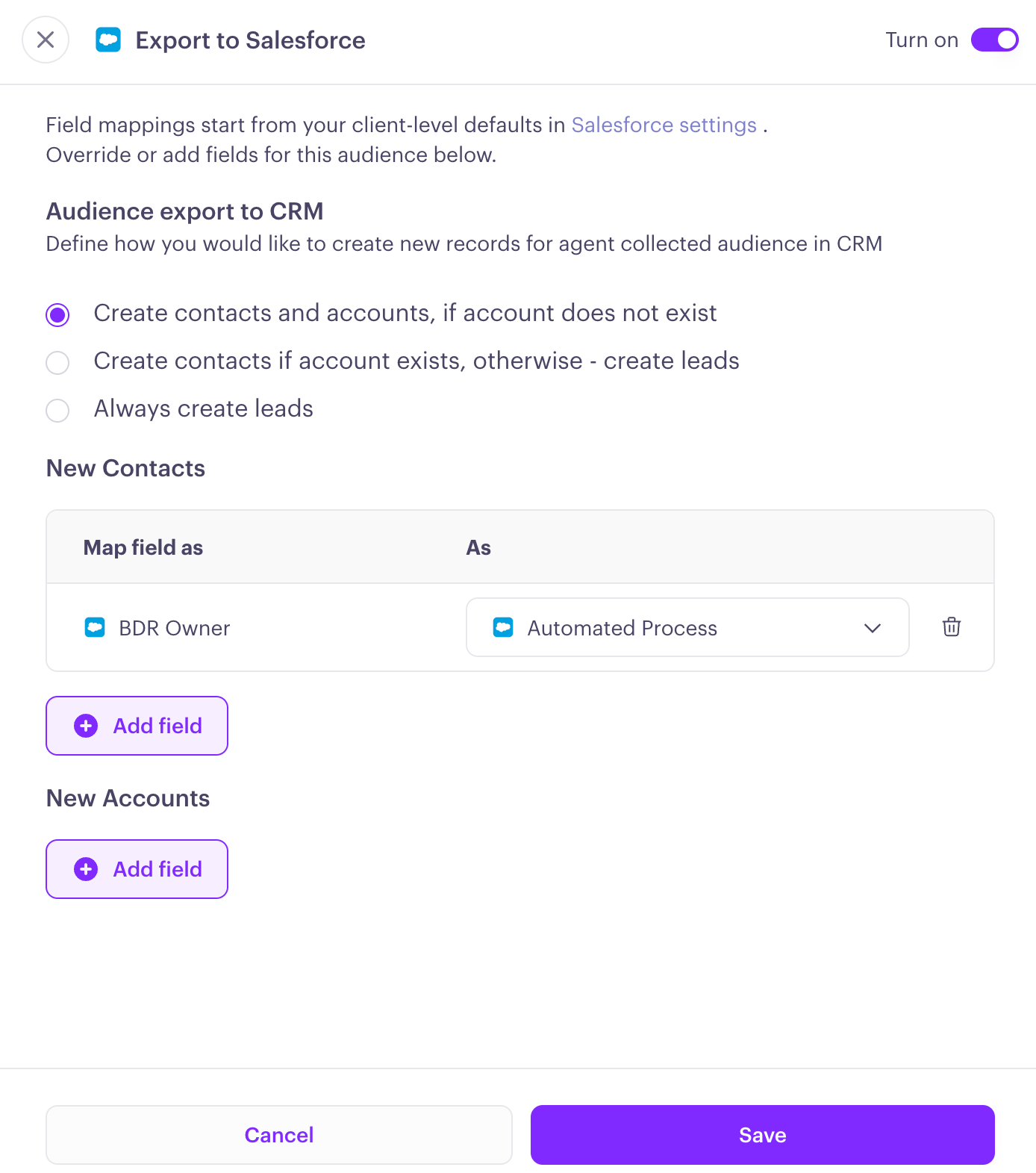
Choose your automation option:
Create contacts and accounts, if the account doesn't already exist
Create contacts if the account exists, otherwise create leads
Always create leads
Set ownership mapping.
Decide who new records should be assigned to in your CRM:
Accounts and Leads — default to the Owner field, pick from your list of CRM users, or leave it to populate with the integration user by default.
Contacts — same options, plus the ability to set up account owners.
You can also map additional custom ownership fields if your CRM setup needs it (standard fields like Created By and Last Modified By aren't available for this).
Add any audience-specific field mappings. If this audience needs different mappings than your global default, set them here — audience-level mapping overrides the global setting for that audience only.
Click Save.
What you'll see
As each record syncs, you'll see its status right on the audience:
Created — a link to the new record in your CRM.
Failed — a warning you can hover over to see the raw error from your CRM. Failed records retry automatically once a day.
Keep in mind: if a contact already exists in your CRM, Influ2 only fills in fields that are currently empty — it never overwrites data you already have. Use the All / In CRM / Not in CRM / Failed filter on your results to check sync status at a glance.