Understanding Agent Who
Last updated: August 21, 2026
Agent Who is Influ2's AI-powered audience builder. Instead of manually configuring filters and lists, or jumping between tools, you describe your ideal audience in plain language and Agent Who does the work of finding matching contacts for you. The result is a usable audience — built in minutes — that can be easily added to any Influ2 program or synced back to your CRM.
Overview
Once you start an Agent Who search, you're guided through a short chat conversation. Agent Who asks clarifying questions to pin down exactly who you're looking for — company size, location, what the company does, and the roles you want to reach. You can also add public signals about a company (like recent funding or active hiring).
With Agent Who, you can run two types of searches:
Open search – Describe the type of person you're looking for, and Agent Who finds matching contacts across companies that fit your search criteria.
Search within an account list – If you want to find new contacts within specific target accounts, upload your list of accounts. Agent Who will search only within those companies to identify the right people.
Once a search is complete, the resulting audience is saved and can be reused across any number of programs, so you only need to build it once. You can also sync the contacts to your CRM. If a contact already exists, Agent Who updates the existing record instead of creating a duplicate. And if you find you need more contacts later, you can extend a finished audience instead of starting over — Agent Who searches only for the gap and charges only for the new contacts it finds. See Extending a search below.
What you'll see: The Agent Who Tab
The Agent Who tab is the single place to run new searches, and where you can find and reuse every audience you've built. An audience is a reusable list of people—build it once, then use it in as many programs as you like.
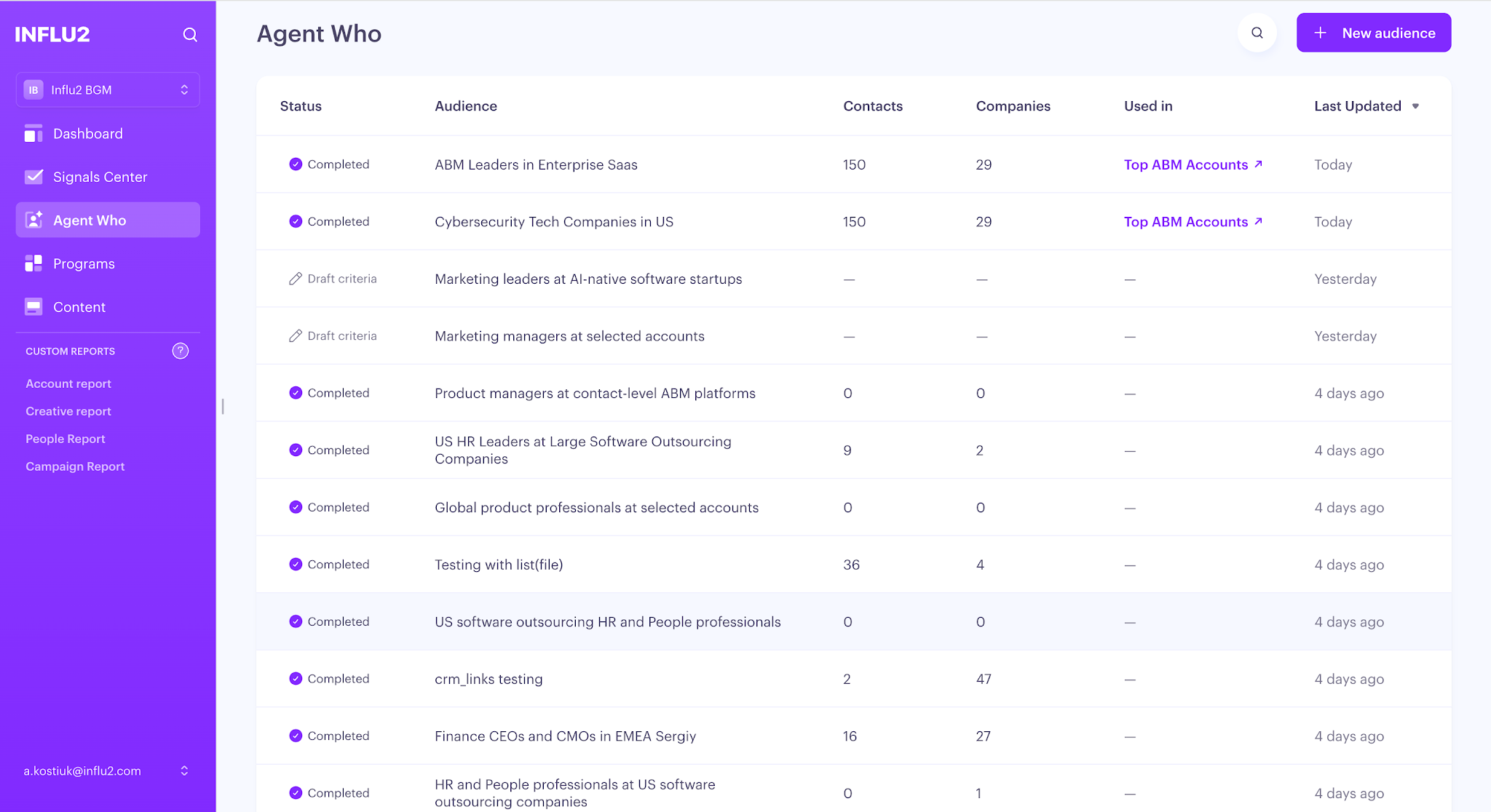
Each audience appears as a row with these columns:
Status: Draft means the search hasn't started yet, Searching means people are being collected right now, and Completed means the search finished and business emails are enriched — a completed audience is also the starting point for extending a search to find more.
Audience name: The name you gave it. Use the search box above the table to find one by name.
Contacts: How many people the audience has collected so far. Updates live while a search runs.
Companies: How many distinct companies those contacts come from, also updates live.
Used in: Which Influ2 programs use this audience.
Last updated: When a company or person was last added. The table sorts by this by default, newest first.
How to build an Agent Who audience
Start a new audience
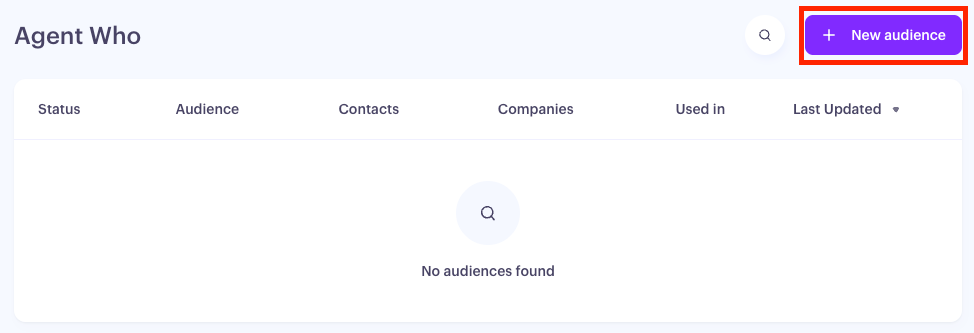
Go to the Agent Who tab and select New audience. This opens the Agent Who chat, where you'll describe who you're looking for. Your audience is saved here as you go, with a status of Draft, Searching, or Completed.
Describe your ideal audience
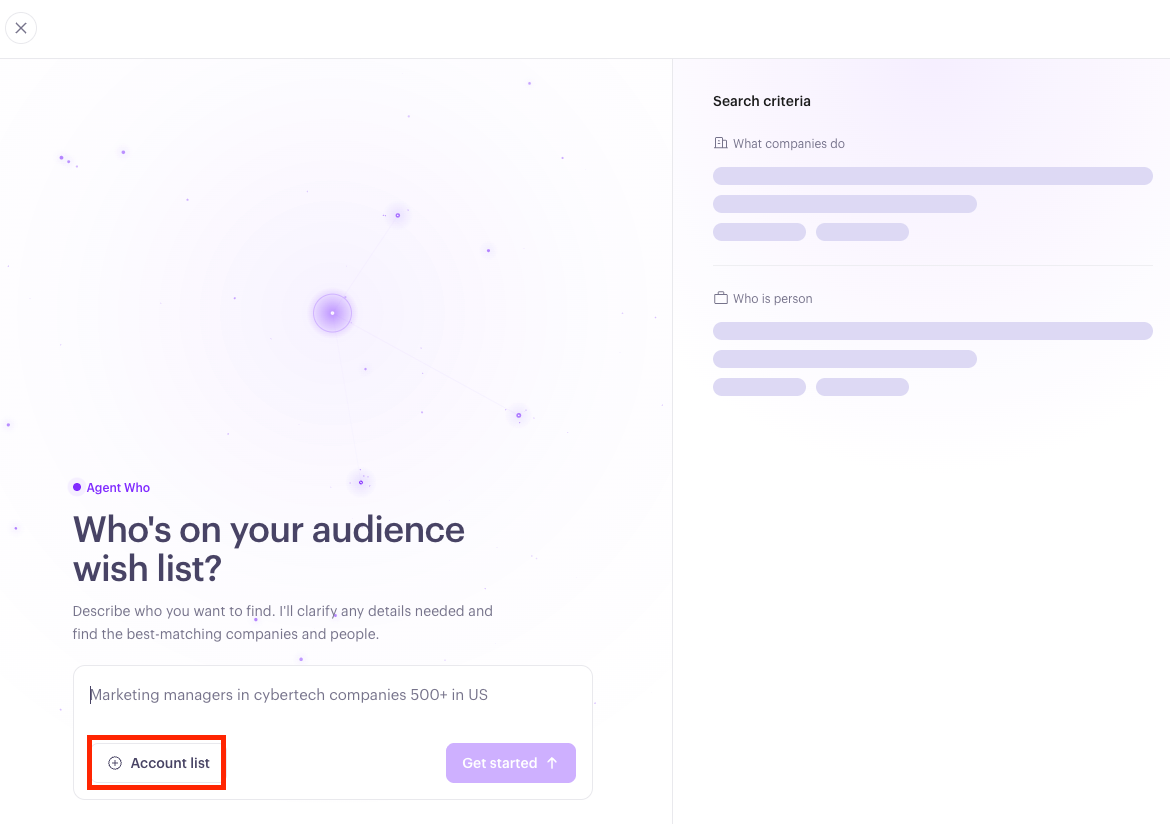
A slideout panel opens with a chat interface on the left and the Audience Criteria panel on the right. Type a free-form description of the audience you want to reach — for example: "VP-level buyers at B2B workflow automation companies in North America with 200–1000 employees who work in marketing or revenue operations."
At this stage, you can let Agent Who run an open search, or you can search for contacts within an existing account list. To do this—upload a CSV of target accounts (with a domain column) and Agent Who finds people inside just those companies. See Searching within a named account list below for more guidance.
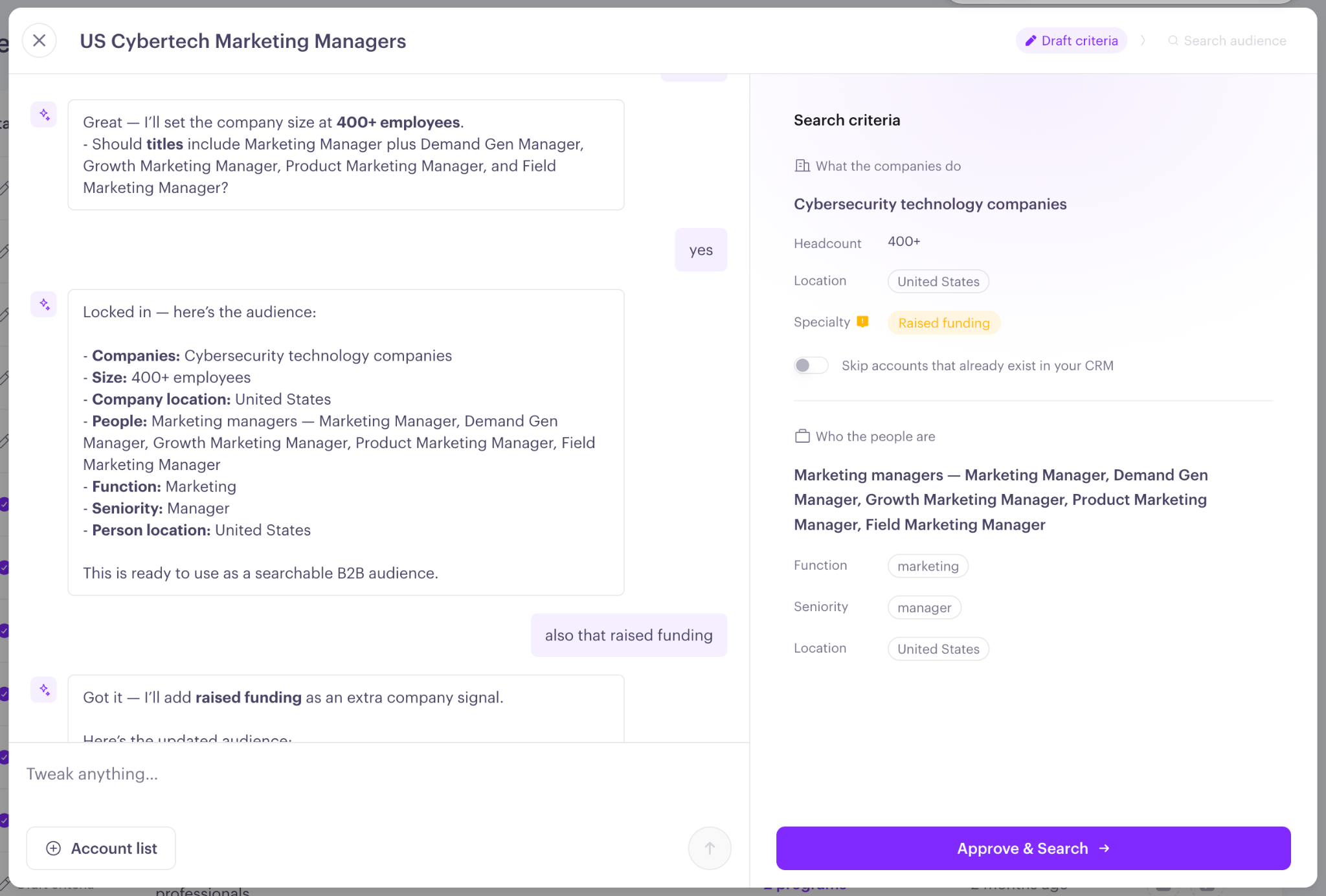
Agent Who will respond with clarifying questions. As you answer, watch the Audience Criteria panel on the right fill in automatically. You don't need to answer in a specific format — just respond naturally.
Add Specialty company signals (optional)
Mention things like recent funding, hiring, or new leadership and Agent Who captures them in a separate section. See Specialty Company Signals section below for more information.
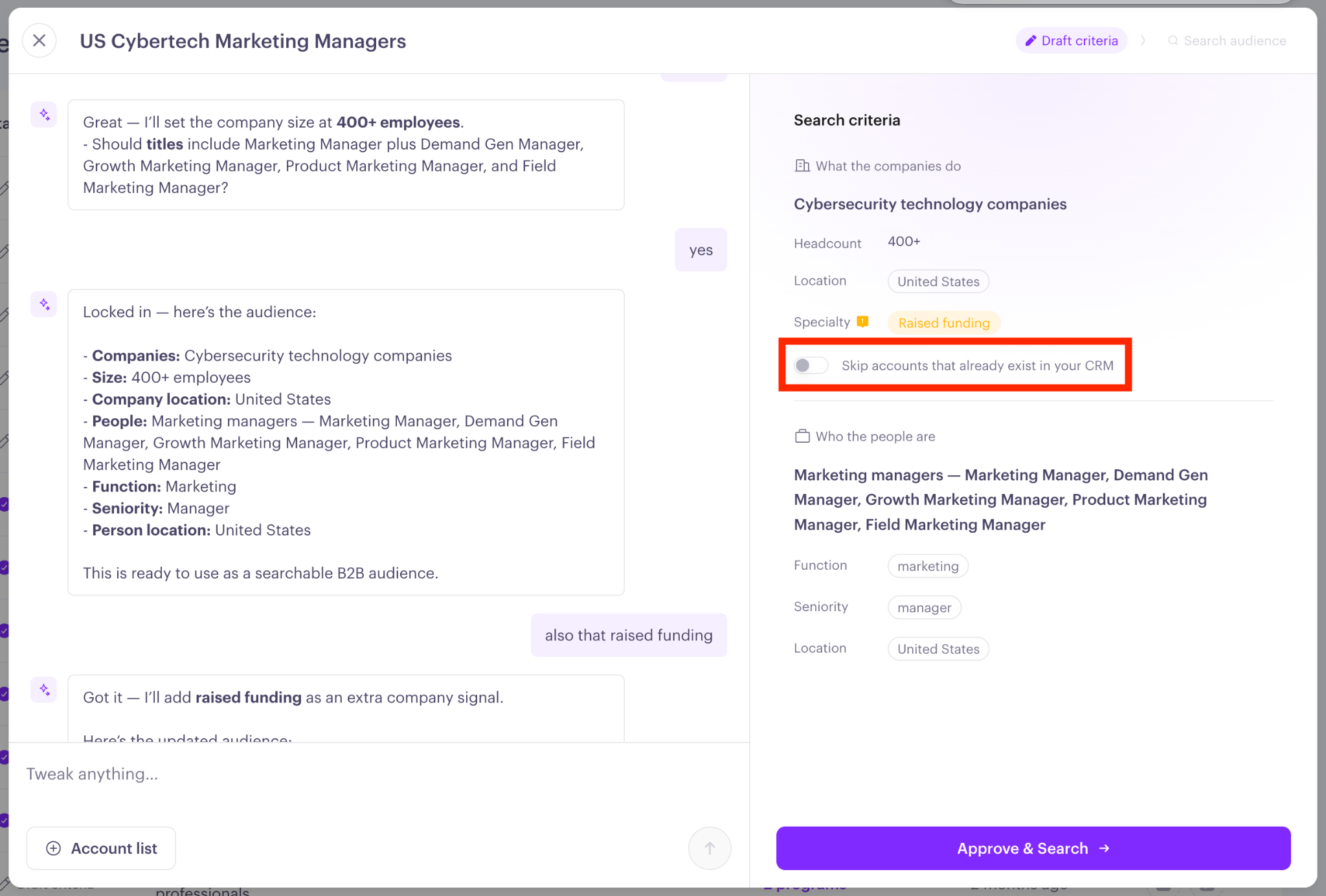
Skip accounts already in your CRM (optional)
The criteria panel includes a toggle to Exclude accounts that already have contacts in CRM. Turn it on and Agent Who skips any company it recognizes in your connected CRM before searching. Those accounts are never processed and won't appear in your results, so your audience comes back as net-new companies only.
Review and approve the search
Once all required fields in the Audience Criteria panel are confirmed, the Approve button activates. Click it to set:
Total contacts to find — the maximum number of contacts you want in this audience
Max contacts per account — how many people to find per company (up to 100).
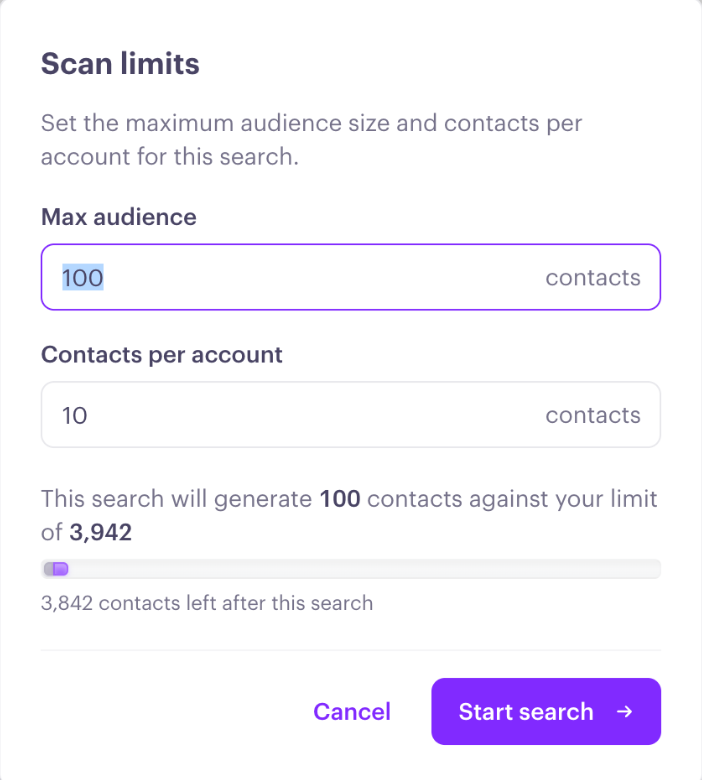
This is also where you'll see how much Agent Who usage will be consumed against your cap. When you're ready, click Start search.
Watch results come in
Influ2 automatically moves you to the results view. Accounts appear in real time as they're found, sorted by relevance score.
What you'll see in the search
Each account row shows the company logo, domain, headcount, location, a short description, and a note from the AI explaining why this account matched your criteria. Click any row to expand it and see the individual contacts found at that company, including their name, title, and LinkedIn URL.
Business emails. Agent Who gathers a business email for every person it finds, so your audience arrives contact-ready and includes emails when you export it.
See who's already in your CRM. As contacts are found, Agent WHO checks them against your connected CRM (HubSpot, Salesforce, or both). Matched accounts and contacts show a CRM icon that links straight to the record, and you can filter results by All, In CRM, or Not in CRM to focus on the people you don't already have. See How CRM matching works below.
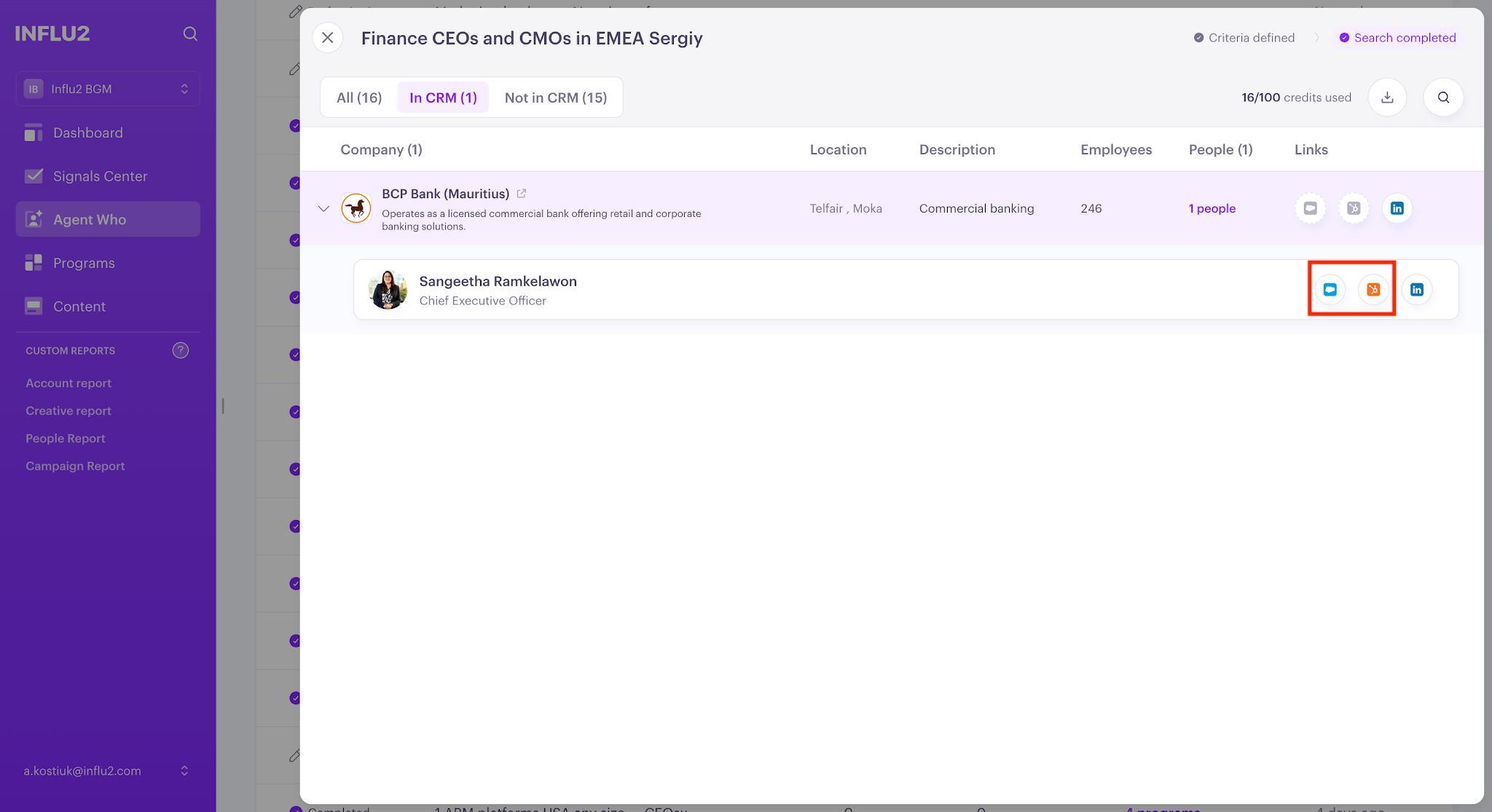
See when each contact was found. Every contact in the results shows the date it was added. This is the easiest way to tell your newest contacts apart from ones collected earlier — especially after you extend a search (below).
You don't need to stay on the page — the search runs in the background. Close the slideout whenever you need to; all results will be there when you come back. You'll also get an email once the search is complete.
Your finished audience appears in the Agent WHO tab with a Completed status, ready to reuse across programs.
If no accounts matched your description, the segment will show 0 results. Try broadening your criteria and running a new search.
Stopping a search early
If you want to stop the search before it finishes — for example, if you already have enough results — click Stop search on the Run search tab. A confirmation dialog will appear. Once confirmed, no new companies or contacts will be added, and the audience will begin processing with whatever was found.
You're not locked in by stopping early. A stopped audience finishes as Completed, so you can pick the search back up whenever you want using Extend search — Agent Who continues from what you already collected rather than starting over. See Extending a search below.
Extending a search
Sometimes a finished audience isn't quite big enough — you want more contacts, or you stopped a search early and now want more people from it. Instead of building a new audience, you can extend an existing one: raise its limits and Agent Who searches only for the additional contacts, keeping everything you've already collected. You're only charged for the new contacts it finds.
Steps
When the extension finishes, the audience returns to Completed. If CRM sync is turned on for the audience, the newly found contacts are pushed to your CRM automatically — see How to sync Agent Who contacts to your CRM.
Spotting your newest contacts
After an extension, use the date each contact was found (shown in the results) to separate the people from this latest run from the ones collected earlier.
Searching within a named account list
Sometimes you already know exactly which companies you're going after and just need the right people inside them. Instead of describing the kind of company you want, hand Agent Who your account list.
Before you start: have your account list ready as a CSV file with a column for each company's domain (for example, acme.com).
Start a new audience, then upload your CSV in the Agent Who chat.
Send the file — the send button is active with just the file attached. Your file stays visible by its original name, and you can download it again anytime.
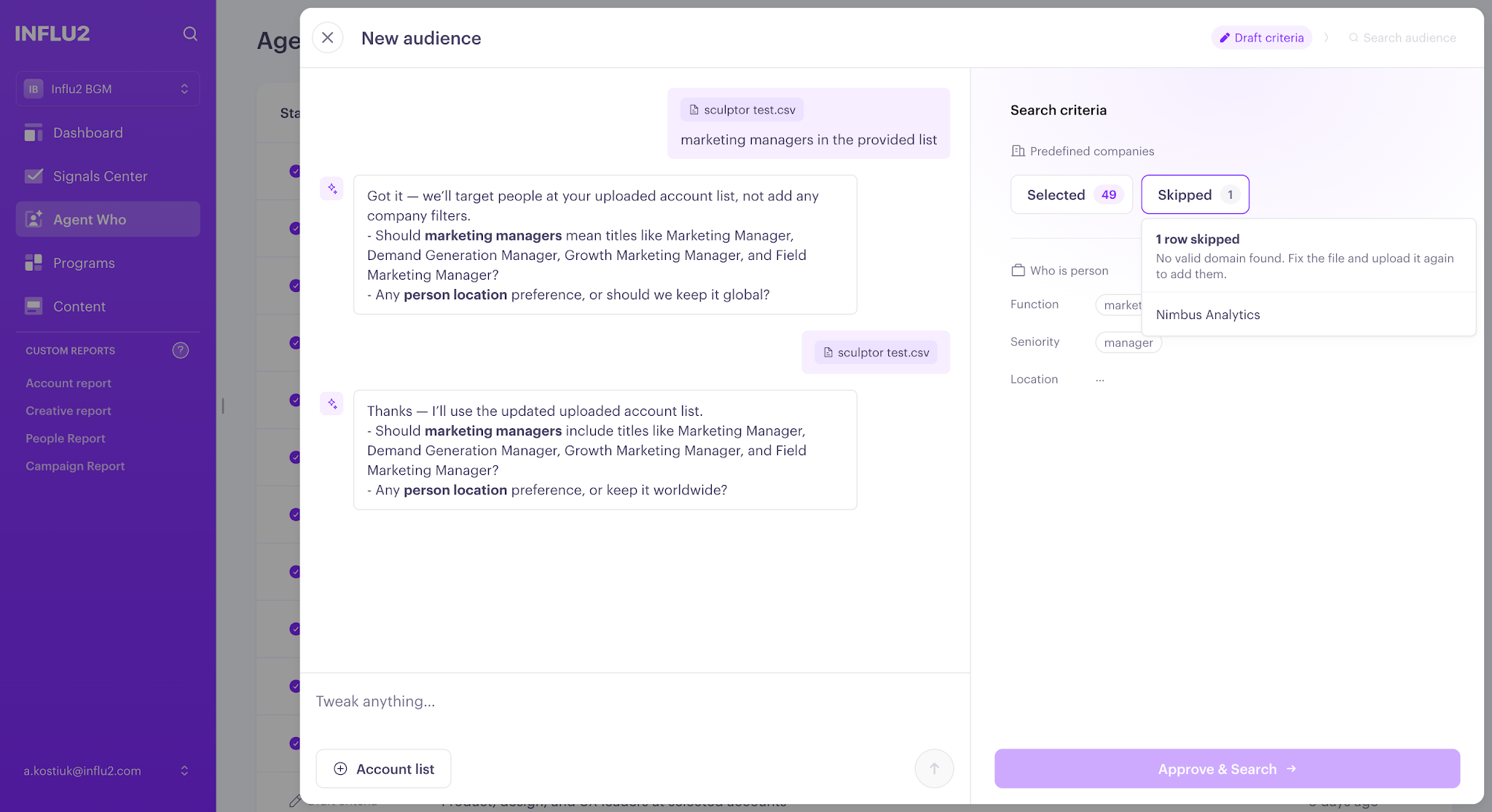
Review which accounts were picked up. Agent Who splits them into valid accounts (a domain was found) and skipped accounts (no valid domain), listed separately with the reason so you can fix and re-upload.
Continue in chat to define who you're looking for within those accounts. Agent Who skips company discovery and focuses on finding people inside your list.
If you'd rather broaden the search beyond your list, just tell the chat — your account list is cleared and Agent Who returns to open discovery.
Good to know:
Domains are required. Account-list search works from company domains, so your CSV needs a domain column.
CSV upload is the way in. This works only via CSV upload — you can't type or paste an account list into the chat.
One file at a time. Uploading a new list replaces the previous one.
How CRM matching works
As contacts are found and enriched with a business email, Agent Who checks each one against your connected CRM and marks anything it recognizes with a link to the record. Here’s how it works:
Matching an account — matches are determined first by domain, then by an exact name match, then by a close (fuzzy) name match. If more than one matches, it uses the most recently updated one.
Matching a contact — determined within a matched account, by email first, then by first and last name.
The In CRM / Not in CRM filter lets you focus on net-new prospects or see the overlap with people you already know.
Keep in mind: the In CRM and Not in CRM counts may not add up to All while matching is still catching up.
For Salesforce users: matching runs against your Salesforce Contacts, not Leads. If your buyers live in Leads, they won't be recognized as existing records.
Specialty company signals (Optional)
Alongside describing what a company does, you can add extra, publicly available details about the company you're looking for. Agent Who captures these in a separate section labeled as Speciality, so a signal like "raised funding recently" doesn't get mixed into your description of the business. The section appears only when such signals are detected.
Signals you can target include:
Recent funding — companies that have raised a round.
Open positions in a specific department — for example, hiring in sales or engineering.
Recent C-level hires — new senior leadership.
Hosted webinars — companies running their own events.
Technographics – Tech stack results are based on publicly available signals. So while it can be used, it may not include every company using a given technology. For example, results may be pulled from job postings that require skill with a specific platform.
How to use it: describe what you're after in plain language — ex. "B2B software companies that raised funding this year and are hiring in sales." Agent Who separates the business description from the additional signals and shows them in a separate section.
Keep in mind: each Specialty criteria is another filter that may noticeably shrink your results. Since only a subset of companies have public data on funding, hiring, or other information not directly describing the company’s business, it’s best to start with one or two and check your counts before adding more.
Activating an Agent Who audience in a program
An Agent Who audience starts working once it's activated in an Influ2 program. Here's how to set it up.
Keep in mind: You'll need at least one audience already started in the Agent Who tab (Draft, Searching, or Completed all work — though only Completed audiences will be counted in your program).
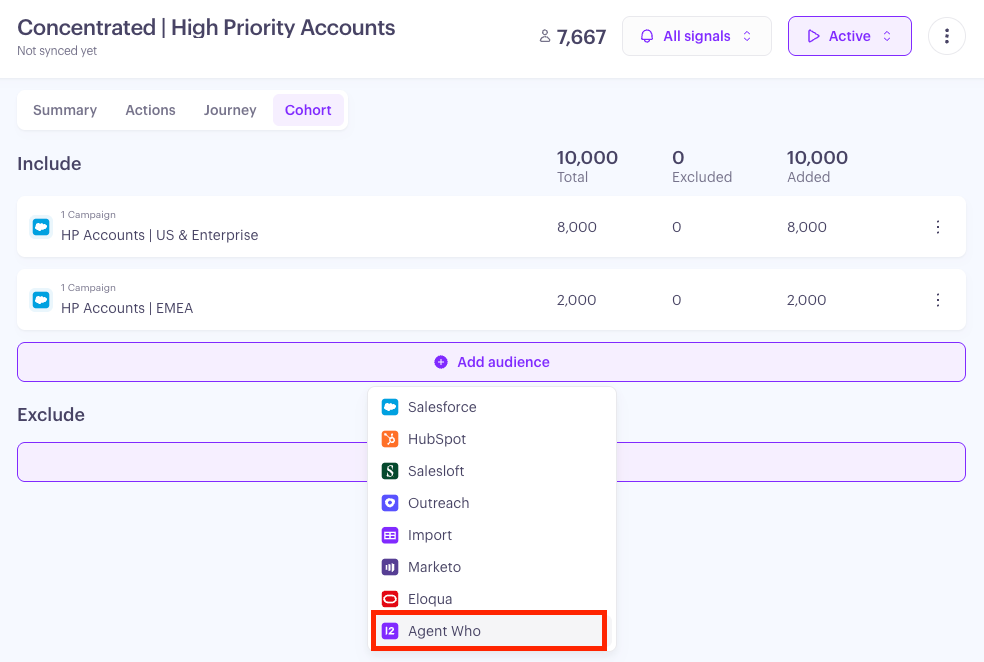
Open your Influ2 program and go to its Cohorts tab. Click Add audience and choose Agent Who.
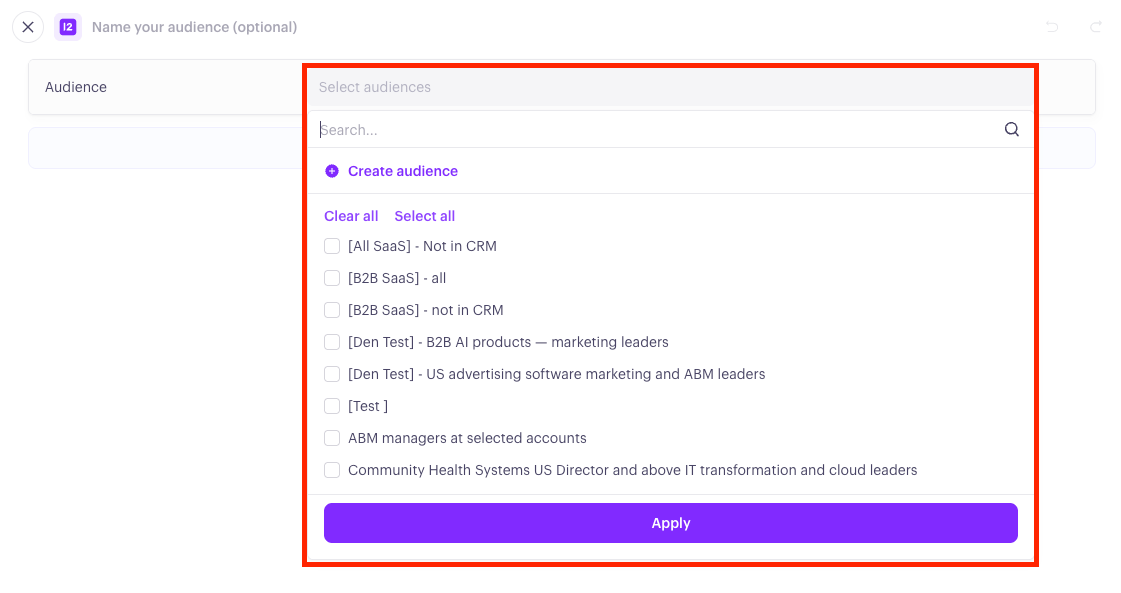
Select one or more of your collected audiences. The segment name populates automatically from the audience names you pick
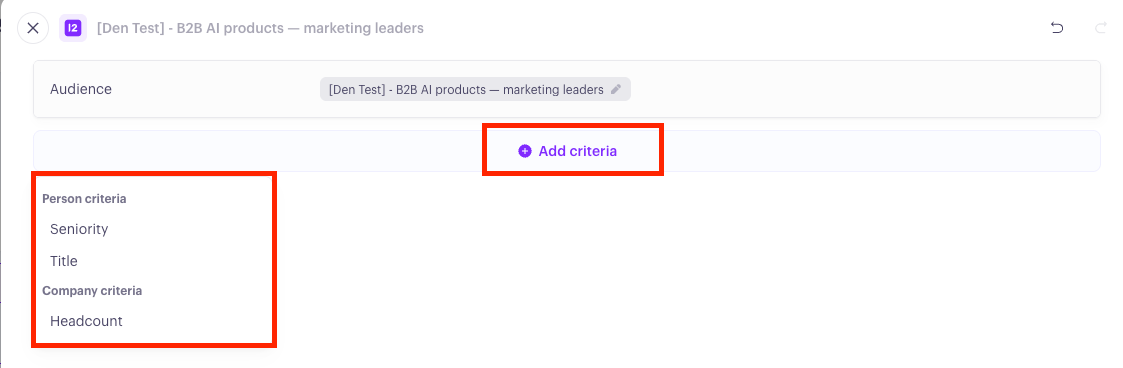
Refine who you reach (optional). Two groups of criteria are available:
Person criteria — Seniority and Title.
Company criteria — Headcount.
Save the segment. The audience starts generating targets from the people who match your criteria.