Syncing Company Changes to HubSpot
Last updated: June 4, 2026
When a prospect changes jobs or companies, keeping your database up-to-date is crucial. Influ2 can automatically sync company changes to HubSpot, creating or updating records based on rules you define.
Why this matters
Automatic company change syncing ensures:
Your audience targeting stays accurate
Sales teams work with current contact data
You maintain clean, actionable records in HubSpot
Before you start
You'll need:
The Admin or Manager role in Influ2, with Audienscope enabled
Permission in HubSpot to create and update contacts, and to read companies
Set up automatic syncing
Influ2 handles company changes and title changes as two separate workflows, so you can enable one without the other and configure them independently.
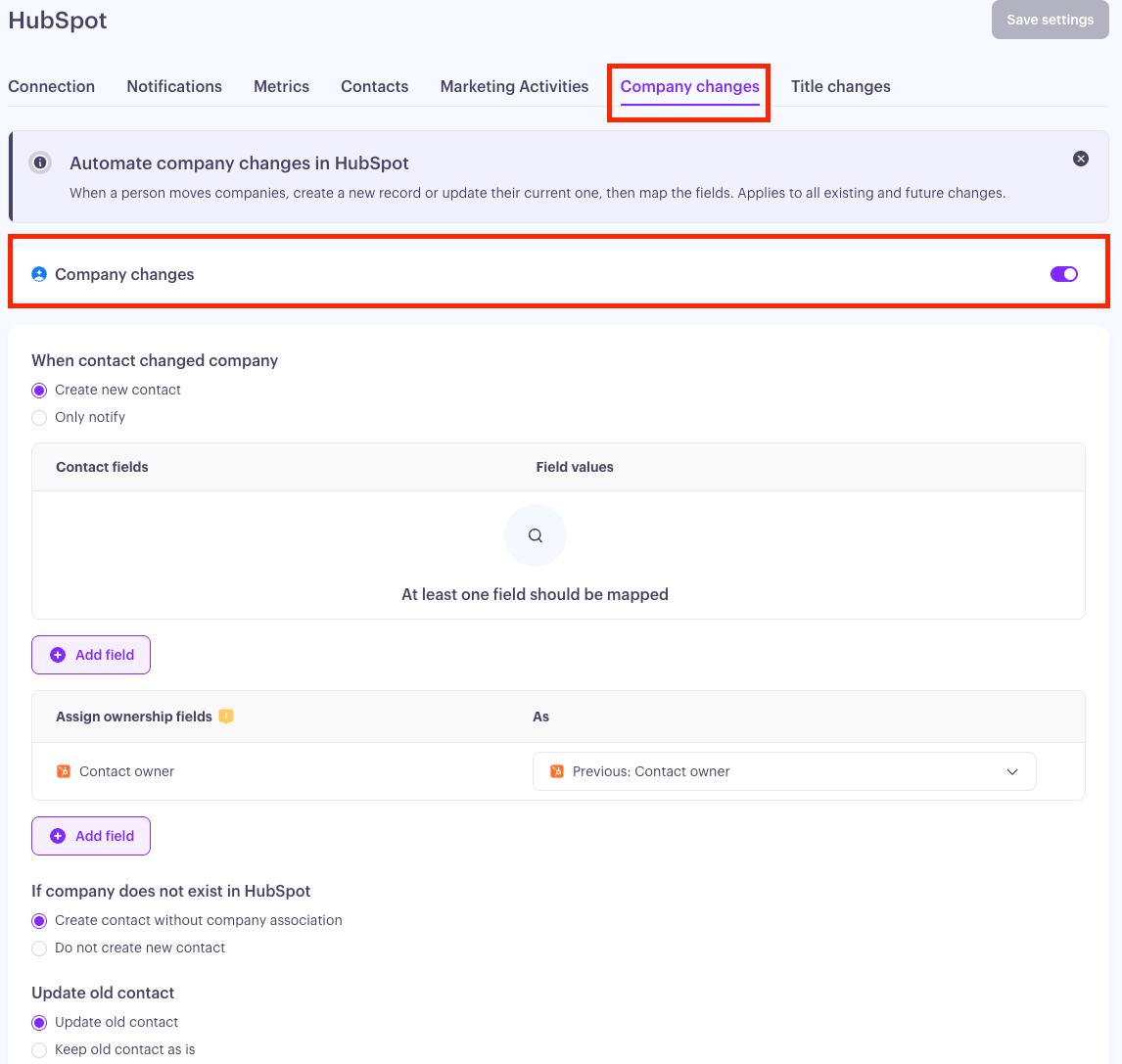
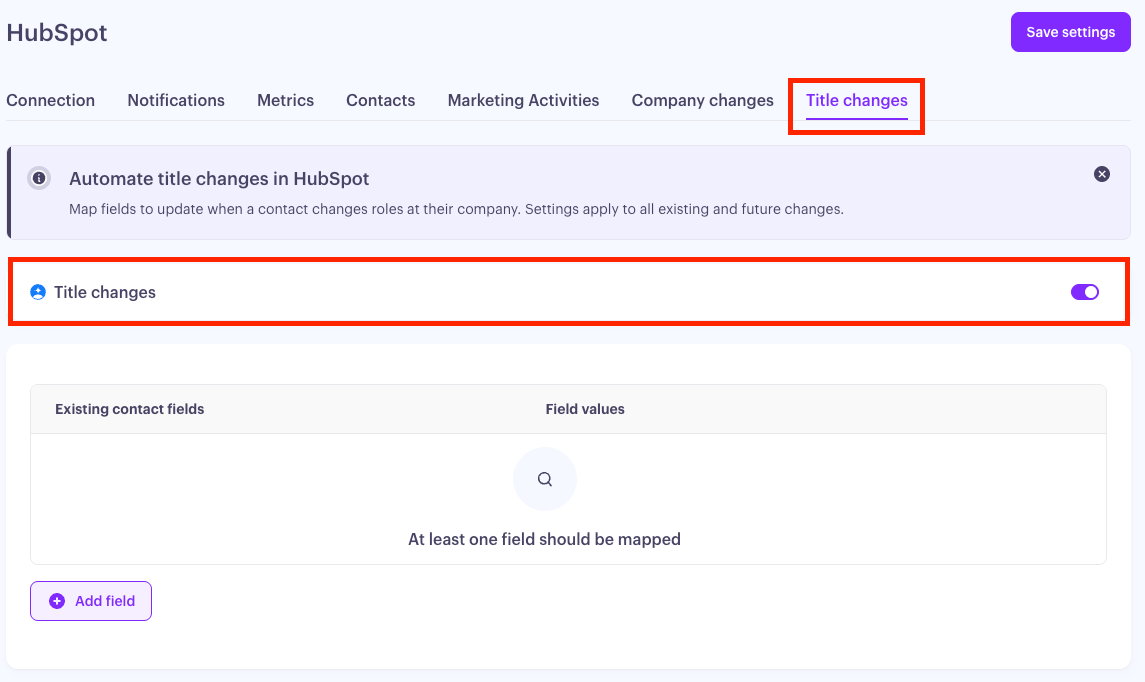
Go to Settings > Integrations > HubSpot > Company changes or Title changes.
Pick the workflow you want to set up: Changed Company or Changed Title.
Configure the action, field mapping, and ownership rules (covered below).
Toggle the workflow on. Once enabled, the widget shows Active along with the date of the last run.
Company Changes
Title Changes
Keep in mind: You can save a partial configuration, as long as the workflow is disabled. Once you turn it on, Influ2 will check that every selected HubSpot property has a mapping before letting you save.
Changed Company — What happens when a contact moves
When Influ2 detects that a tracked contact has moved to a new company, you choose what should happen in HubSpot:
Create new contact — Influ2 creates a new HubSpot Contact at the new company and associates it to the matching Company record
Only notify — no records are created or updated in HubSpot; you just get the signal in Influ2
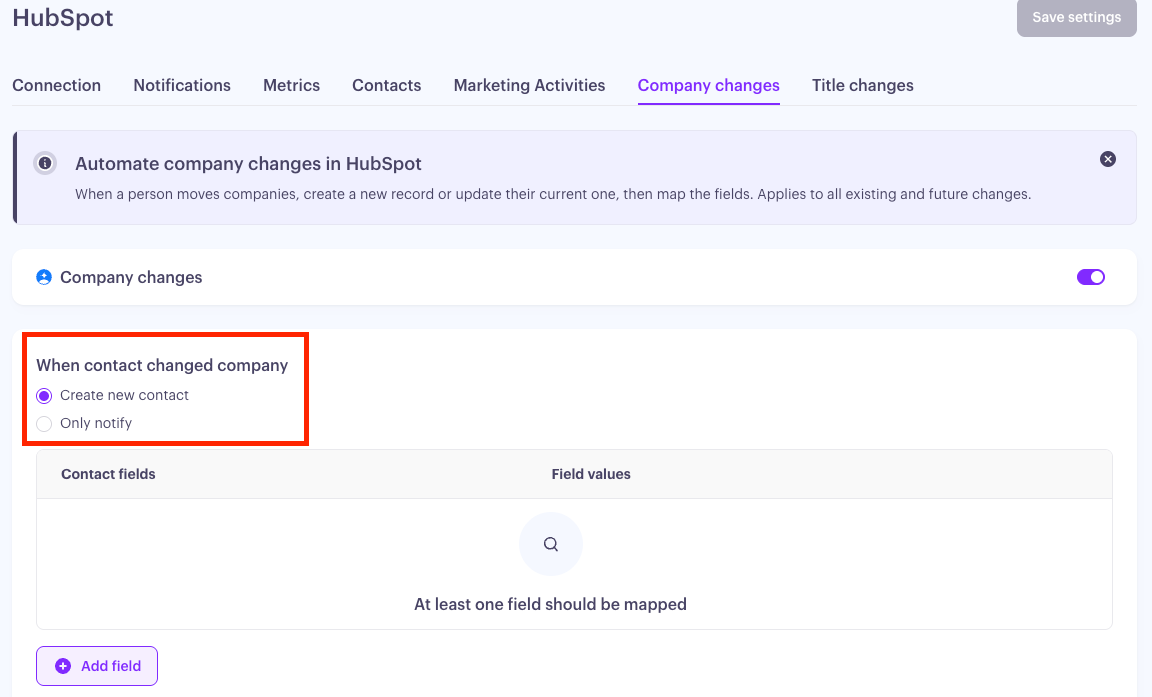
If you select Only notify, no further setup is needed for this workflow.
Map fields to the new contact
When Influ2 creates a new contact, you decide what data goes into each HubSpot property. Map each property to either an Audienscope field (so it pulls live data about the person) or a static value (a fixed value you set once).
Audienscope fields available for mapping:
First name, Last name
Title, Seniority, LinkedIn URL
Company name, Company domain
Associated company (the HubSpot Company record itself)
Business email
Start Date at Company, Start Date at Role
Influ2 pre-fills a default mapping to save you time:
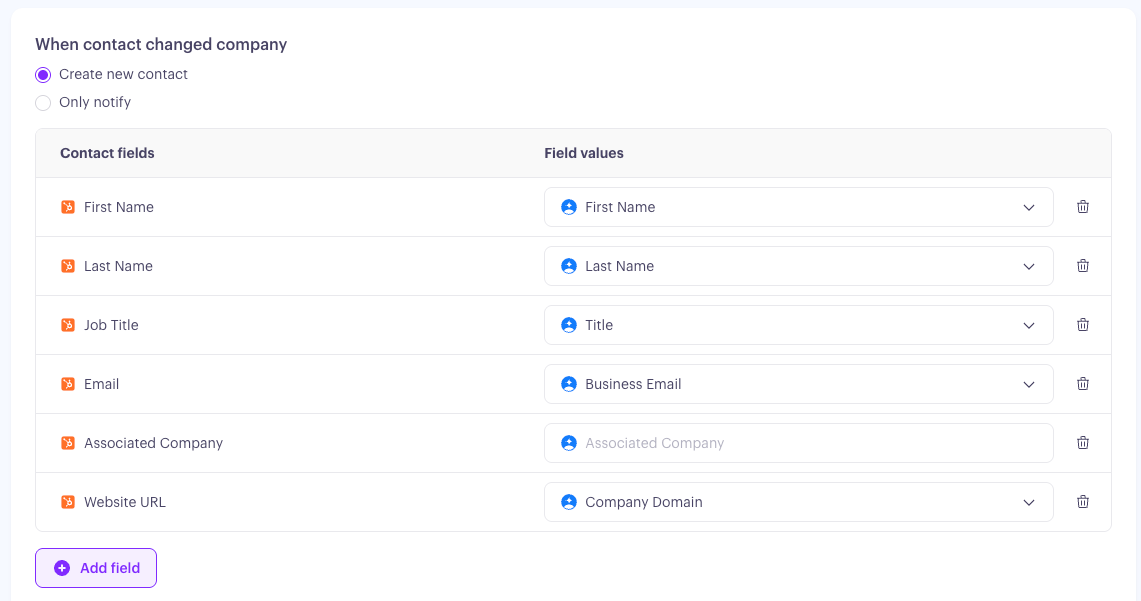
You can change any of these, or add more properties — for example, mapping a static value like Lead Source = "Audienscope" so every contact created this way is easy to find later.
How Influ2 finds the right Company
If you've mapped Associated Company, Influ2 will link the new contact to the right HubSpot Company automatically. It searches in this order:
Match by domain (exact)
If no match, match by company name (exact)
If still no match, try a fuzzy name match
If multiple companies match, Influ2 picks the most recently modified one
This is a real association, made through HubSpot's Associations API — not just a property value written to the contact. Your existing HubSpot reporting that depends on Contact–Company associations will work as expected.
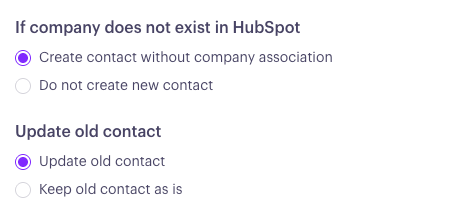
When the new Company doesn't exist in HubSpot
If Influ2 can't find a matching Company, you tell it what to do:
Create contact without company association — the contact gets created using your mapping, but isn't linked to any Company
Do not create new contact — Influ2 skips the contact entirely; useful when you only want to work with companies that are already in your CRM.
Keep in mind: Influ2 doesn't create new Companies in HubSpot. Only contacts.
What happens to the old contact
When someone moves companies, their old HubSpot contact is now out of date. You decide how Influ2 handles it:
Update old contact (default) — Influ2 updates the original record so you can see they've moved on. You can map an Is unemployed field to a boolean or checkbox property in HubSpot, and add any other fields you want updated.
Keep old contact as is — Influ2 leaves the original record untouched.
Clearly marking the old contact record is the cleaner option for most teams — it lets you exclude former employees from active campaigns without losing the history.
Special case: the contact is now unemployed
If Influ2 detects that a contact has left their company but hasn't joined a new one, it will never create a new contact — there's no new company to associate. Instead, it applies the Update old contact mapping, so you can flag the record as unemployed.
Assign ownership
You decide who owns the contact that Influ2 creates. The Contact Owner (hubspot_owner_id) field is always part of the mapping and can't be removed. You can also add any other user-type HubSpot property — for example, a custom "Account Manager" or "SDR" field.
For each owner field, set the value from one of these sources:
Previous contact fields — copy the owner from a user field on the original contact
Account fields — copy the owner from a user field on the associated Company
Static Owner — pick a specific HubSpot user who will own every contact created by this workflow
Keep in mind: HubSpot's internal fields (hs_created_by_user_id, hs_updated_by_user_id) aren't available here — those are set by HubSpot itself and shouldn't be overridden.
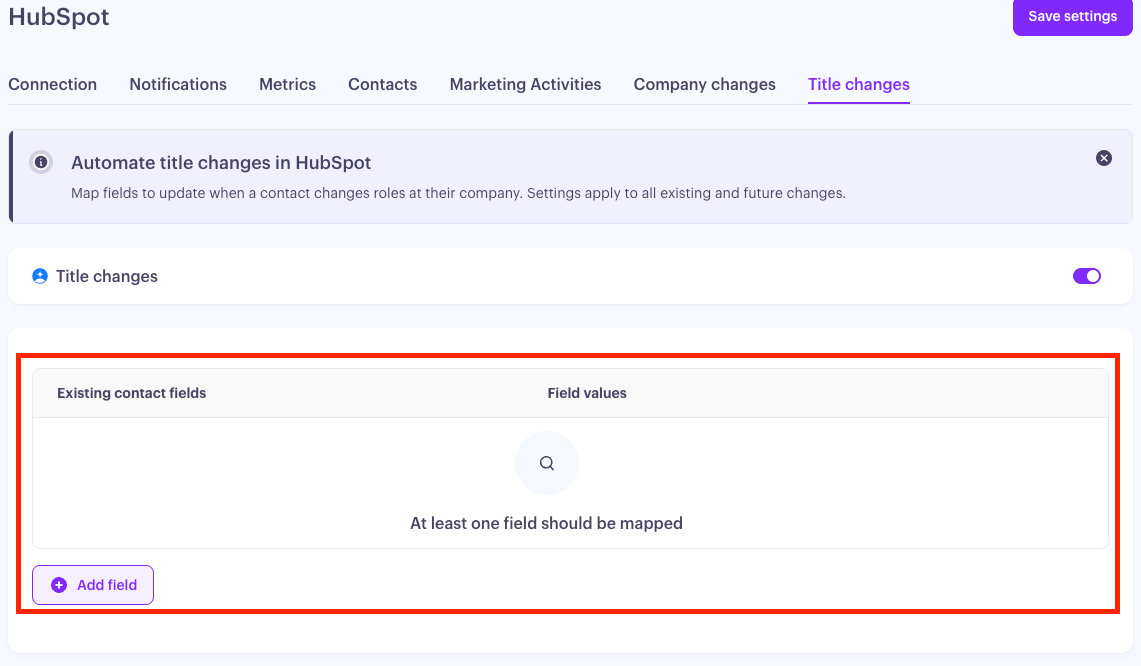
Changed Title — When someone gets promoted or moves roles
When a contact's role changes at their current company, Influ2 updates the existing HubSpot contact rather than creating a new one. There's no "create" option for title changes — the person hasn't moved companies, so a new record would just create a duplicate.
Audienscope fields available for mapping:
Title
Seniority Level
Department
Start Date at Role
The default mapping is HubSpot jobtitle → Audienscope Title. You can add or remove any of the other fields above, and map any of them to a static value if you'd rather not pull from Audienscope.
What you'll see
Once both workflows are active, your HubSpot data starts syncing on its own. When Influ2 detects a job change:
New contacts appear in HubSpot, already associated with the right Company and assigned to the right owner
Old contacts get flagged according to your update rules — easy to filter out of campaigns
Title changes update silently in the background, so your reporting reflects current roles
The Last run date on each widget tells you when the workflow most recently picked up a change.