How to install the Signals Center widget in HubSpot
Last updated: May 4, 2026
The Signals Center widget gives your sales team a native feed of Influ2 buyer signals directly inside HubSpot Contact records. Signals include ad clicks, content views, social posts, search intent, job changes, and more—all in one place.
Before you start, you'll need to confirm the following:
You have an active Influ2 account with the HubSpot integration enabled.
Your HubSpot account is already connected to Influ2 via the HubSpot connector in Influ2 settings.
You have Super Admin or App Marketplace permissions in HubSpot.
Step 1: Install the Influ2 app from the HubSpot Marketplace
Open the Influ2 app listing in the HubSpot Marketplace.
Click Install app.
If prompted, select the HubSpot account (portal) where you want to install the app and log in.
Review the requested permissions and click Connect app.
HubSpot confirms that the Influ2 app has been installed successfully.
Keep in mind: The app is now connected, but the CRM cards are not yet visible on your records. A HubSpot admin must manually add the following two cards to the Contact record layout:
Influ2 contact signals — the main signal feed displayed in the middle column of the record.
Influ2 contact summary — a compact summary card displayed in the right sidebar.
Step 2: Verify the app is connected
To confirm installation was successful:
In HubSpot, click the Settings gear icon (⚙) in the top navigation bar.
In the left sidebar, go to Integrations → Connected Apps.
Look for Influ2 in the list of connected apps. If it appears, the installation is complete.
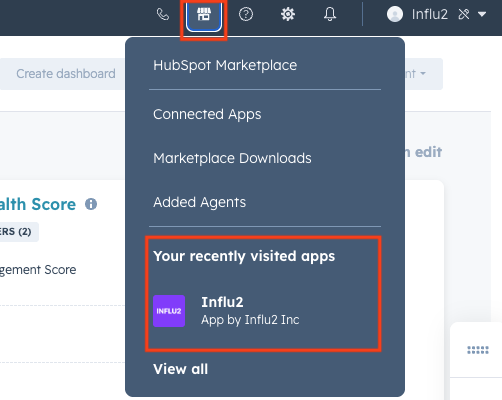
Alternatively, go to Apps in the top navigation menu and select Connected Apps to see the same list.
Step 3: Add the Influ2 cards to the Contact record layout
After installation, a HubSpot admin must manually add the Influ2 cards to the Contact record layout. There are two ways to access the record layout editor.
Option A: From Settings
Click the Settings gear icon (⚙) in the top navigation.
In the left sidebar, go to Data Management → Objects → Contacts.
Select the Record Customization tab.
Click Default view (or the specific view you want to edit) to open the Page Editor.


The Page Editor shows a three-column layout.
Click Add card at the top of the middle column.

In the Card library, search for "Influ2" and click + Add card next to "Influ2 contact signals."
Repeat to add Influ2 contact summary in the right sidebar.
Drag and drop cards to reorder them within a column as needed.
Click Save in the top-right corner.


Option B: Quick shortcut from a Contact record
Open any Contact record.
Click the Customize record button (top-right area of the record page). This opens the Page Editor.
Use + Add cards to add the Influ2 cards, arrange them in your preferred position, and click Save.
Tip: To remove a card, hover over it, click the three-dot menu (•••), and select Remove card. You can re-add it later.
Done! Your team now has the Influ2 Signals Center on Contact records. Reps can see who is engaging, what they're doing, and when—right inside HubSpot.
Using the Signals Center widget
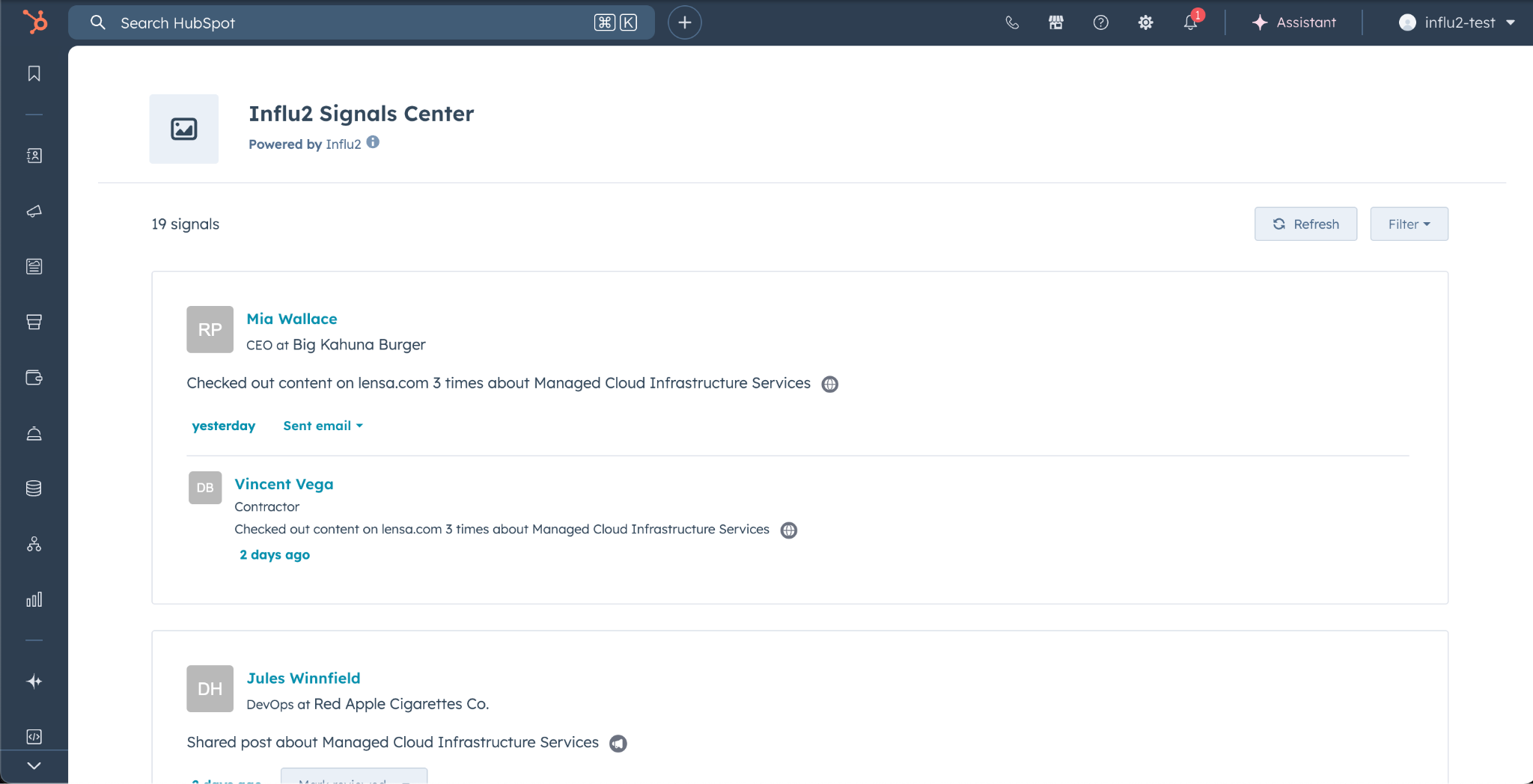
The Influ2 contact signals card displays a real-time feed of buyer engagement signals for the current contact. To access your signals feed, click Home > Influ2 in the upper right-hand corner of your Hubspot navigation.
What you'll see:
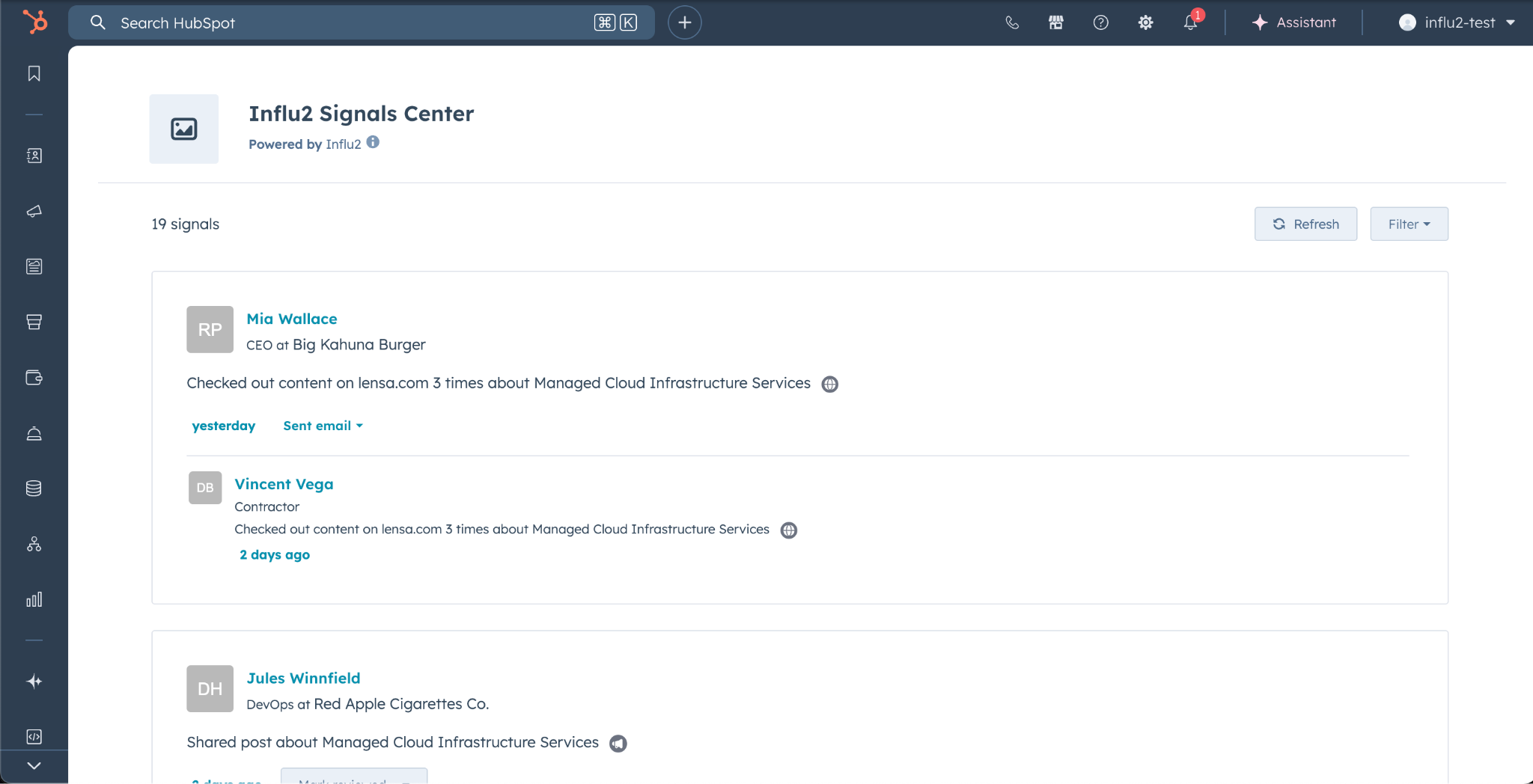
Signal count: The total number of signals shown at the top of the card.
Signal feed: Each entry shows the contact name, title, company, engagement description (e.g., "Clicked on ad," "Searched for intent keyword"), and timestamp.
Mark Reviewed: Click to log that the rep has seen and actioned the signal, keeping the feed clean.
Refresh: Click to pull the latest signals.
Filter: Use the dropdown to narrow the feed by signal type, date range, or other criteria.
Pagination: Navigate through signal pages using Previous / Next controls at the bottom.
Signal types
Signals Center displays these Influ2 engagement types:
Ad click: Contact clicked on an Influ2 ad
Landing page visit: Contact visited a landing page after clicking an ad
Content intent: Contact browsed relevant content on a third-party website
Search intent: Contact searched for keywords related to your solution
LinkedIn post: Contact shared a relevant post on LinkedIn
Job change: Contact changed company or title
Impressions threshold: Contact reached a defined ad impressions threshold
Prioritized for outreach: Contact was surfaced as a high-priority outreach target
Troubleshooting
I don't see the Influ2 cards on a Contact record
Make sure the app is installed (check Settings → Integrations → Connected Apps). The cards don't add automatically—a HubSpot admin must add them manually via the Page Editor. Follow Step 3 above.
The widget shows "No signals"
This means no Influ2 signals have been recorded for this contact yet. Confirm that the Influ2 integration is active and that the contact belongs to a targeted audience in Influ2.
I want to show the widget only for certain teams or views
HubSpot supports multiple record views under Record Customization. You can create a separate view with the Influ2 cards and assign it to specific teams, while keeping the default view unchanged.