Use your ICP criteria in this module to expand and augment your existing lists and build out buying groups of best fit targets.
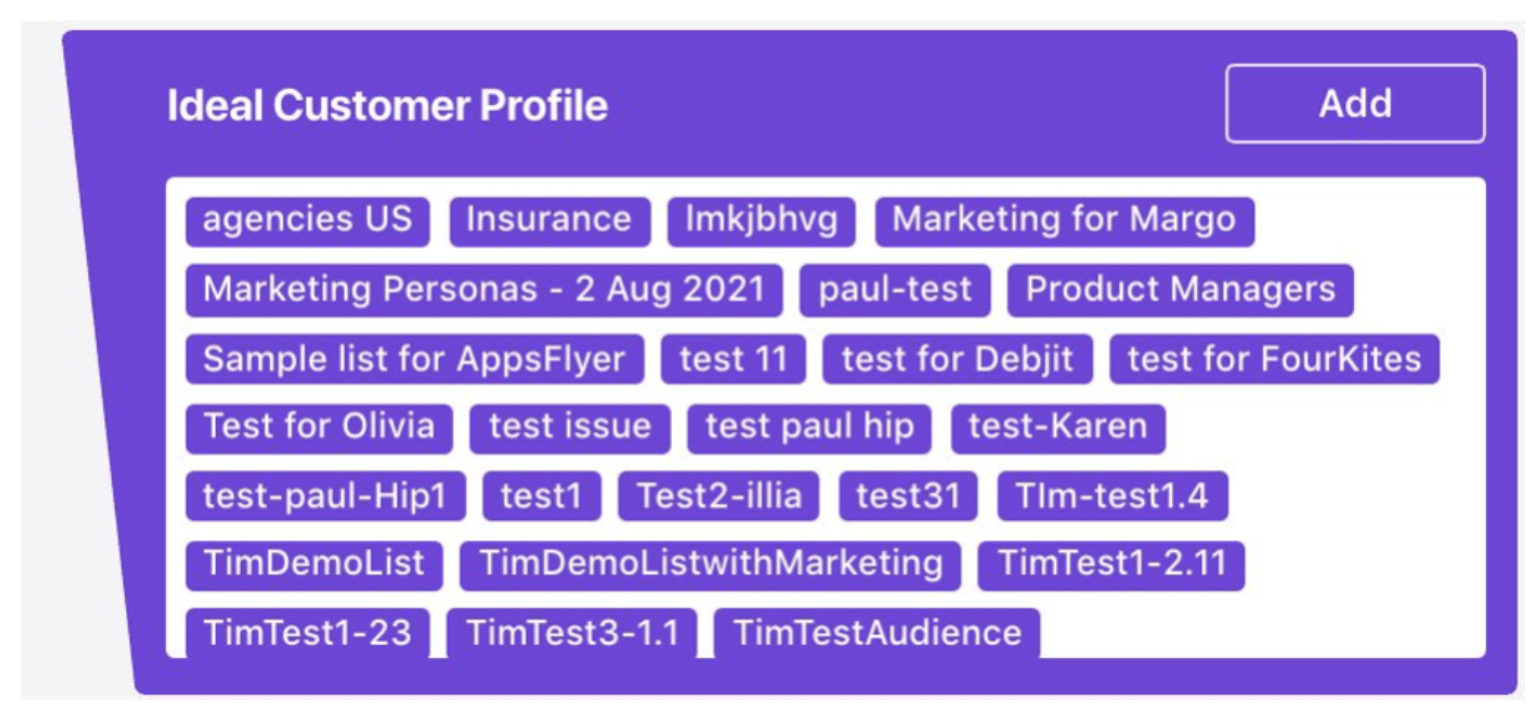
1. To create a new audience using this module, click on ‘Add’. This module also displays all other lists that you have created, for quick selection, editing and addition to the campaign.
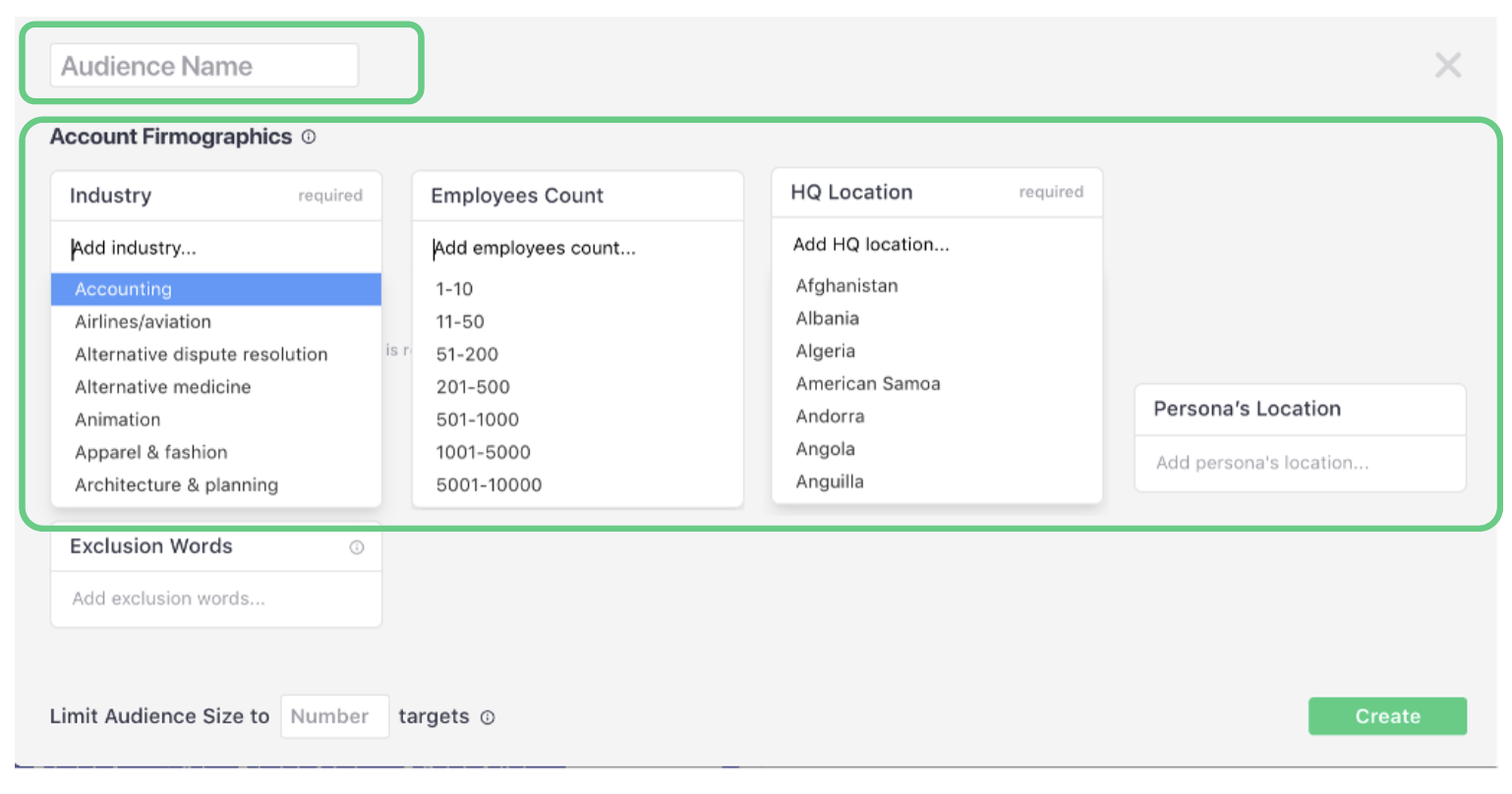
2. When you create a new audience, name it and then select the ‘Account Firmographics’ criteria for your audience:
a. The industry for your accounts
b. The employee count of the accounts
c. The Headquarter (HQ) location for the accounts you want to target
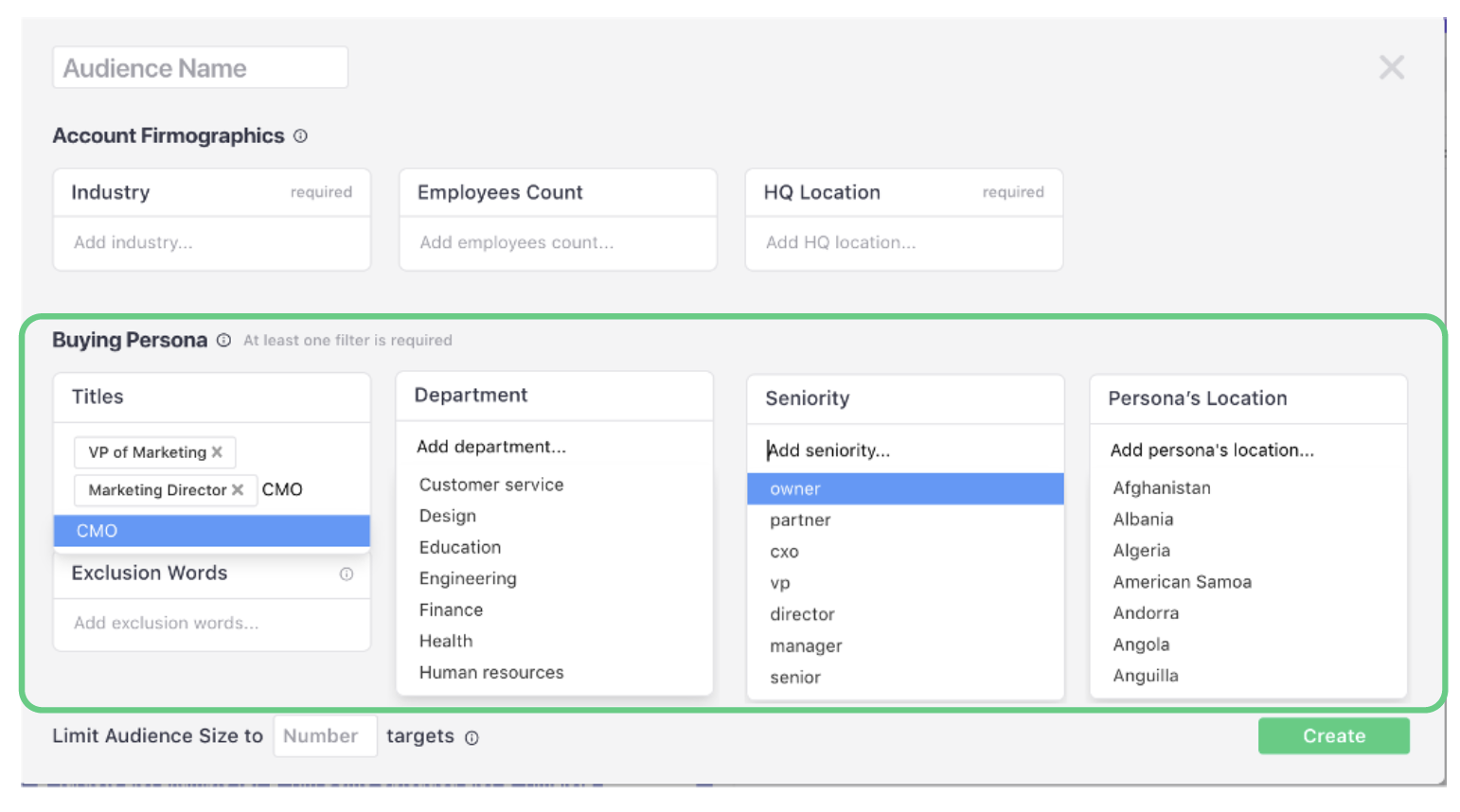
2.1. Then select your ‘Buying Persona’ criteria, as follows:
a. The position titles (free form field)
b. Department
c. Seniority
d. Location
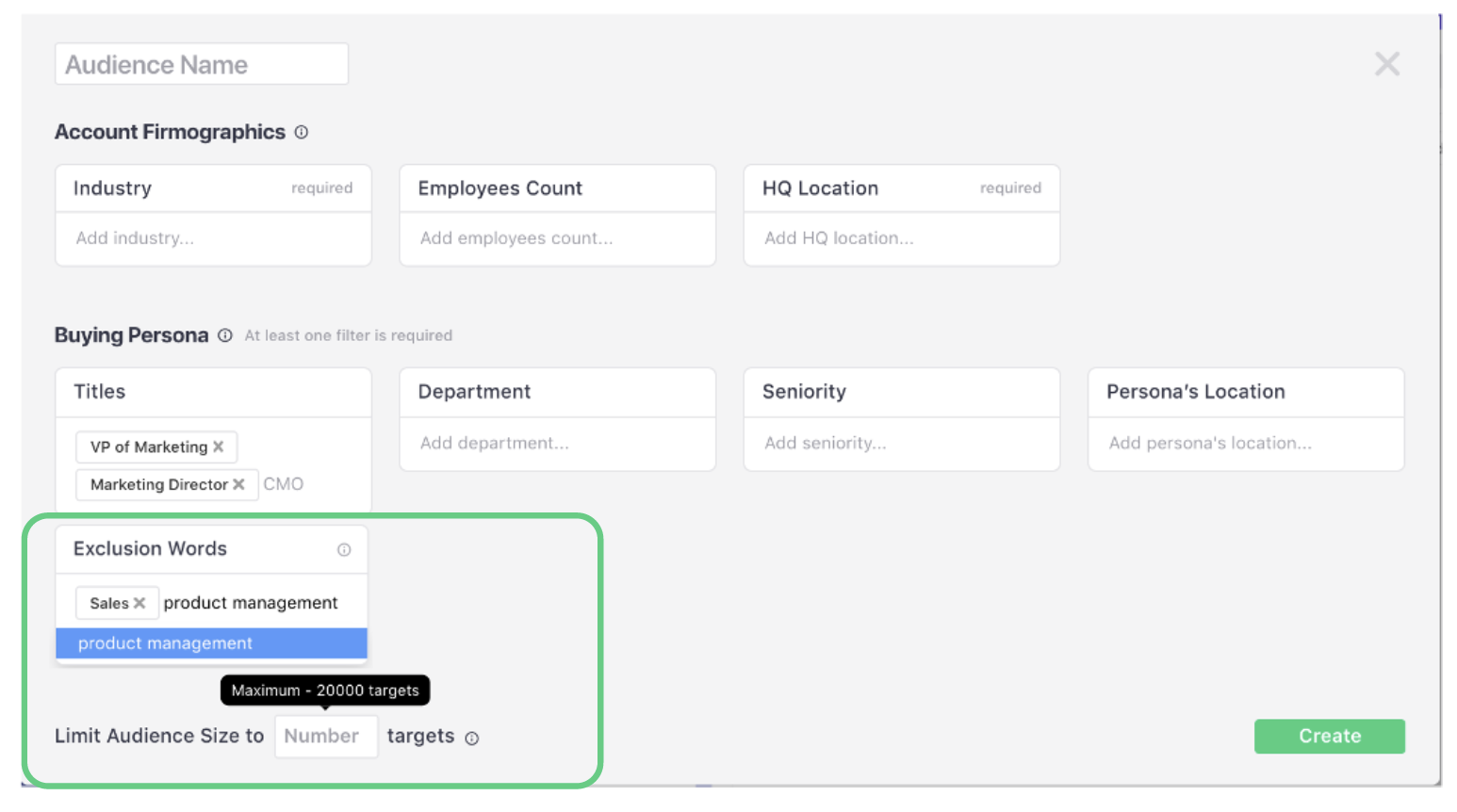
2.2. Additionally, add ‘Exclusion Words’ in the free form field to further refine your audience.
The ‘Limit Audience Size’ field controls the volume of your list in line with your campaign goals.*
Once completed, press ‘Create’ and the system will gather and return your new audience in real time.
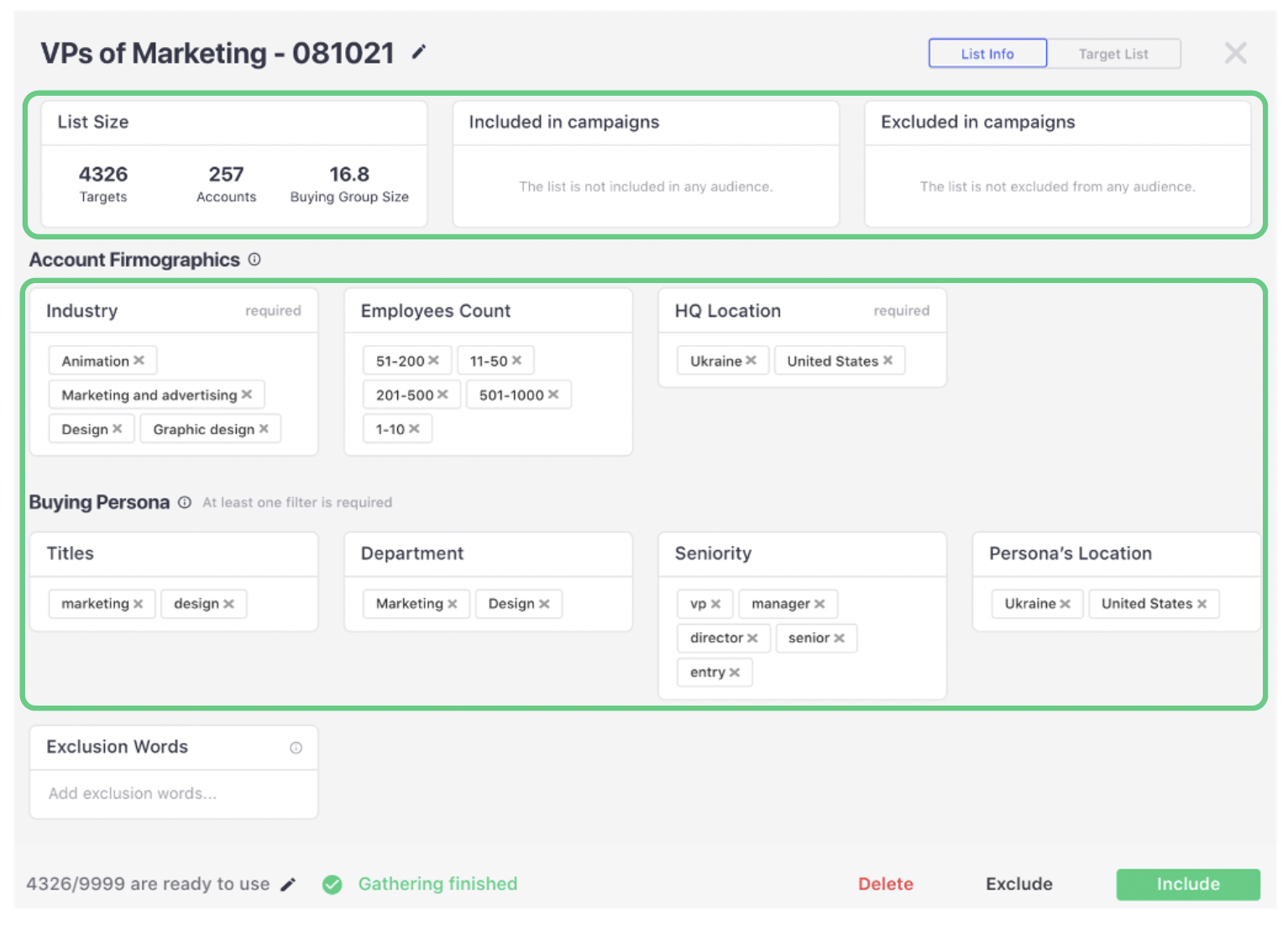
3. Once you have created your audience, a dashboard panel will appear in the same window.
In this panel you can view (and edit):
- List size information
- Which campaigns the list is included and excluded (in this example there are none)
- Firmographic and persona criteria
- Contacts limits
- Include, delete or exclude the list from the campaign
From this dashboard you can adjust and manage this list holistically.
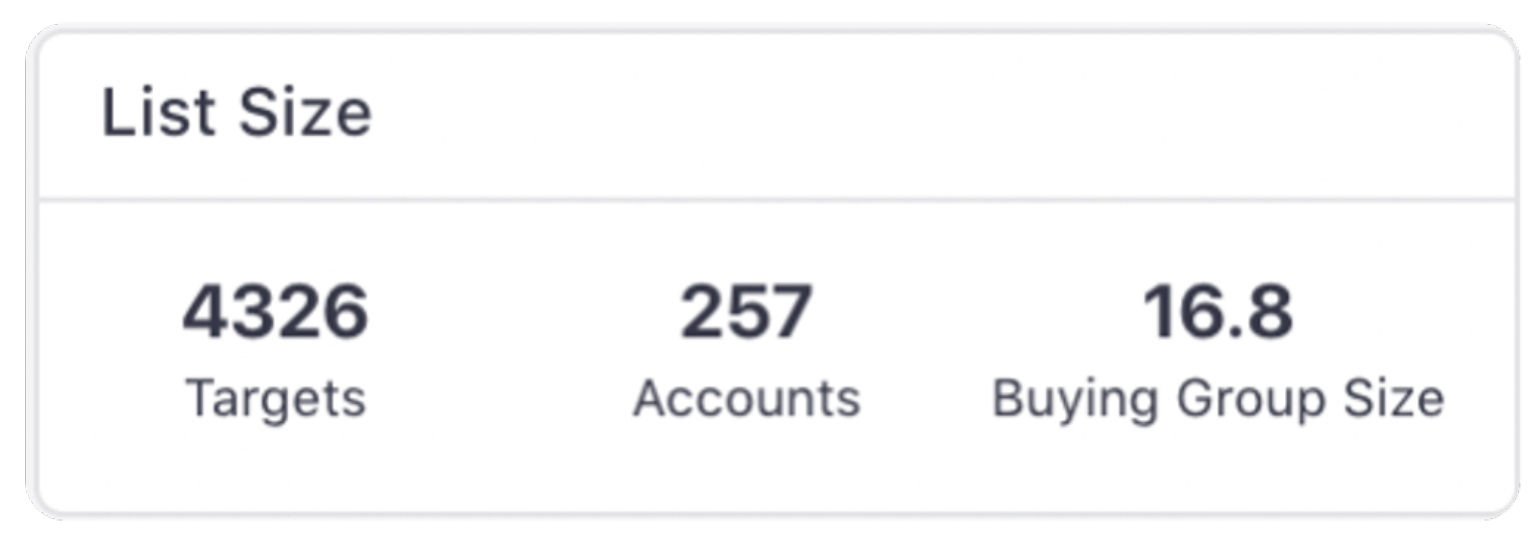
3.1. The List Size shows:
a. Targets – The number of found targets (or contacts).
b. Accounts – The number of companies in the list.
c. Buying Group Size – The average size of the buying groups within the accounts.
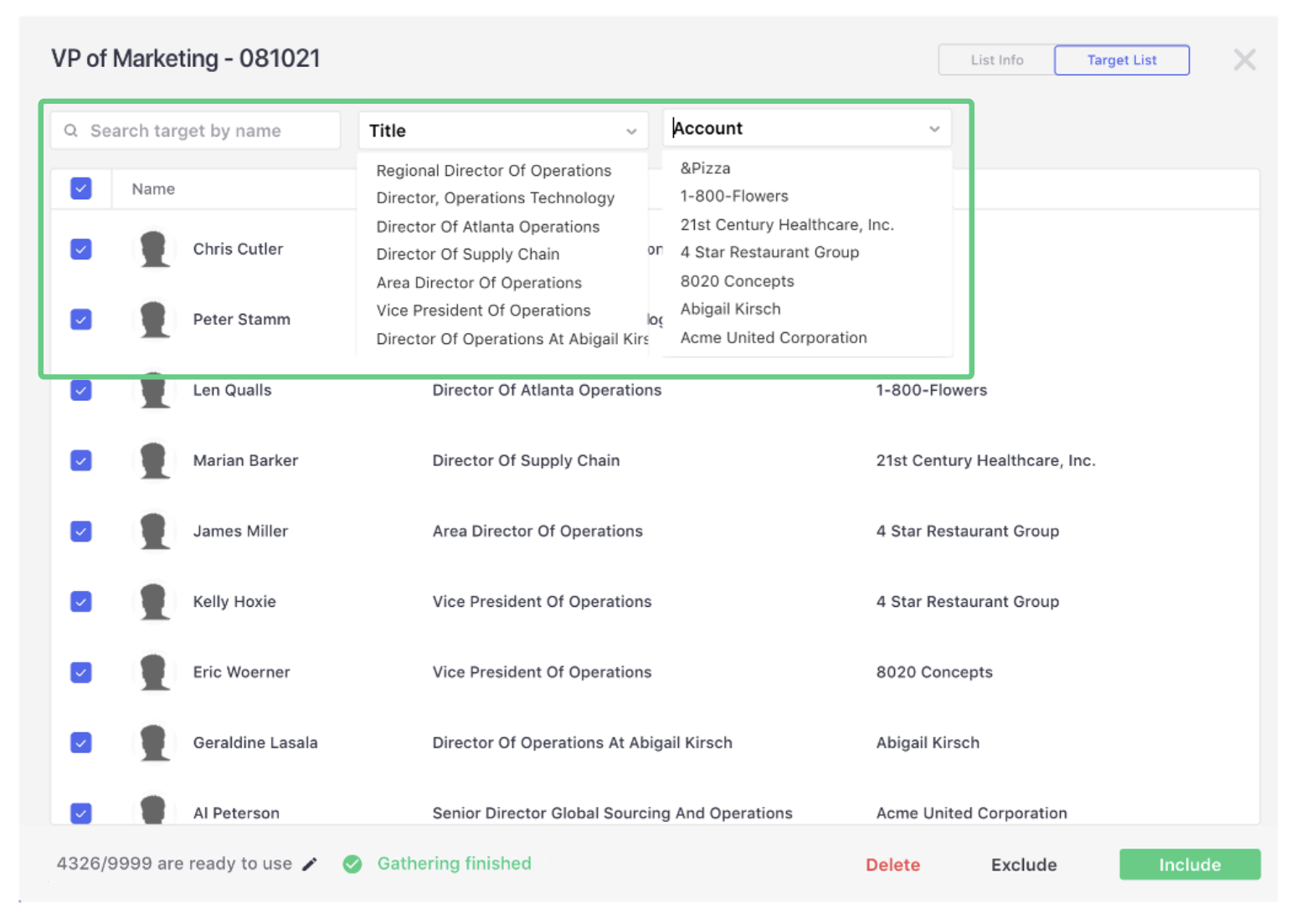
3.2. To further refine your list, click on ‘Target List’ in the top right-hand corner.
This allows you to view the list by target (or contact name). It can be filtered by name, title or account. This feature allows you to select the targets that you want to include, exclude or delete from your list.
When you select targets to be ‘included’, this audience will be automatically added to your campaign and targeted by Influ2.
Comments
0 comments
Please sign in to leave a comment.