Connect your campaigns directly to targets in engaged through your marketing activity or pipeline, using this module to connect Influ2 to your MAP or CRM.
Please note: While Influ2 can connect to multiple MAP/CRM systems, for the purpose of this guide we will focus on Salesforce. If you have questions or need help connecting other systems/platforms, please speak to your CSM.
1. This module allows you to connect one of your existing platforms/systems of record to Influ2 to create audiences from. To choose your platform, click on ‘Add’.

Please note:
- If no system is connected, this module will be titled ‘External’.
- You may need to check with your CRM/MAP Administrator to ensure you have the authority to make the connection. If you have any questions, please reach out to your Customer Success Manager.
2. You will be taken to the Account Settings page. Scroll down to the ‘CRM Integrations’ and click on the platform that you want to connect.
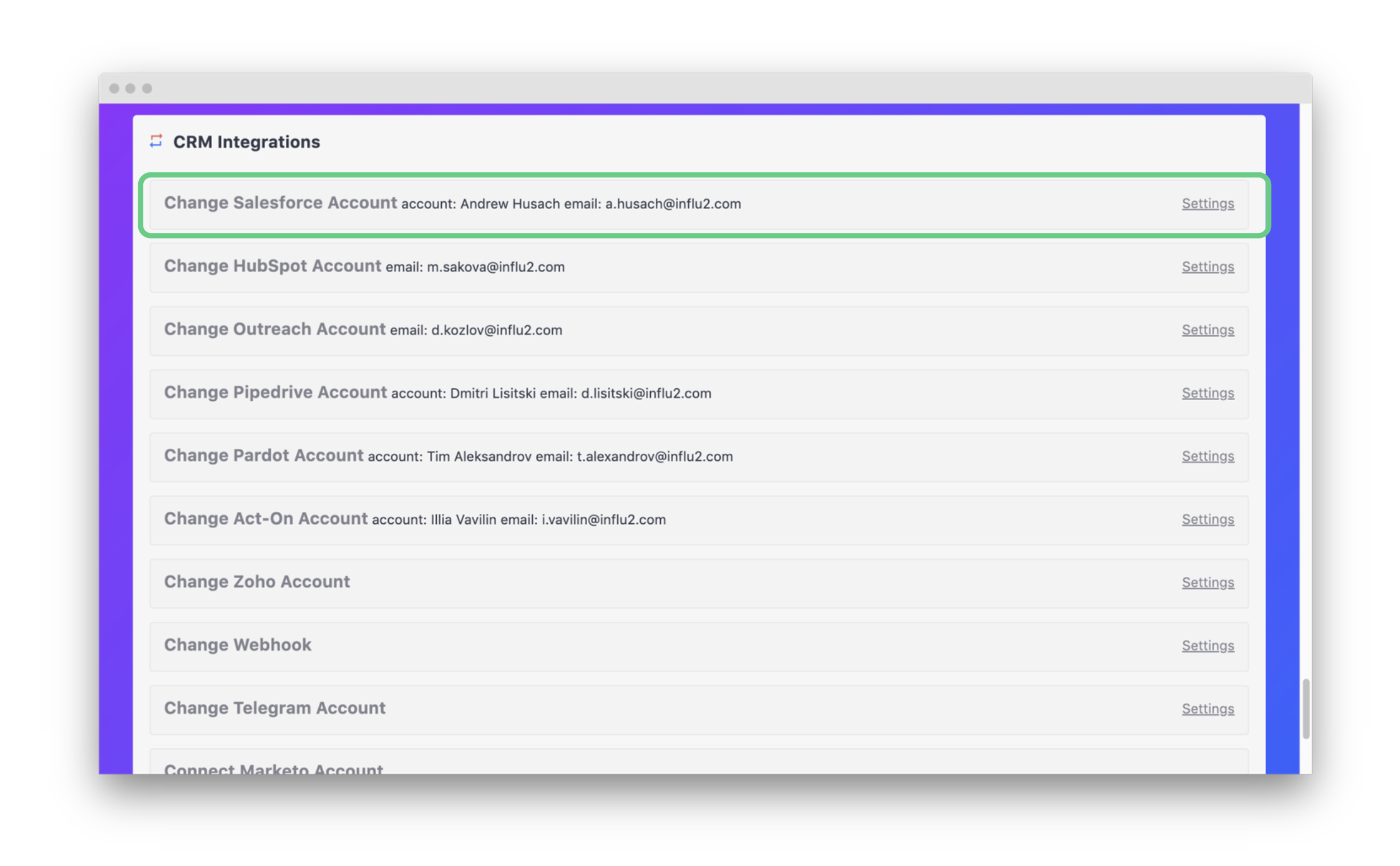
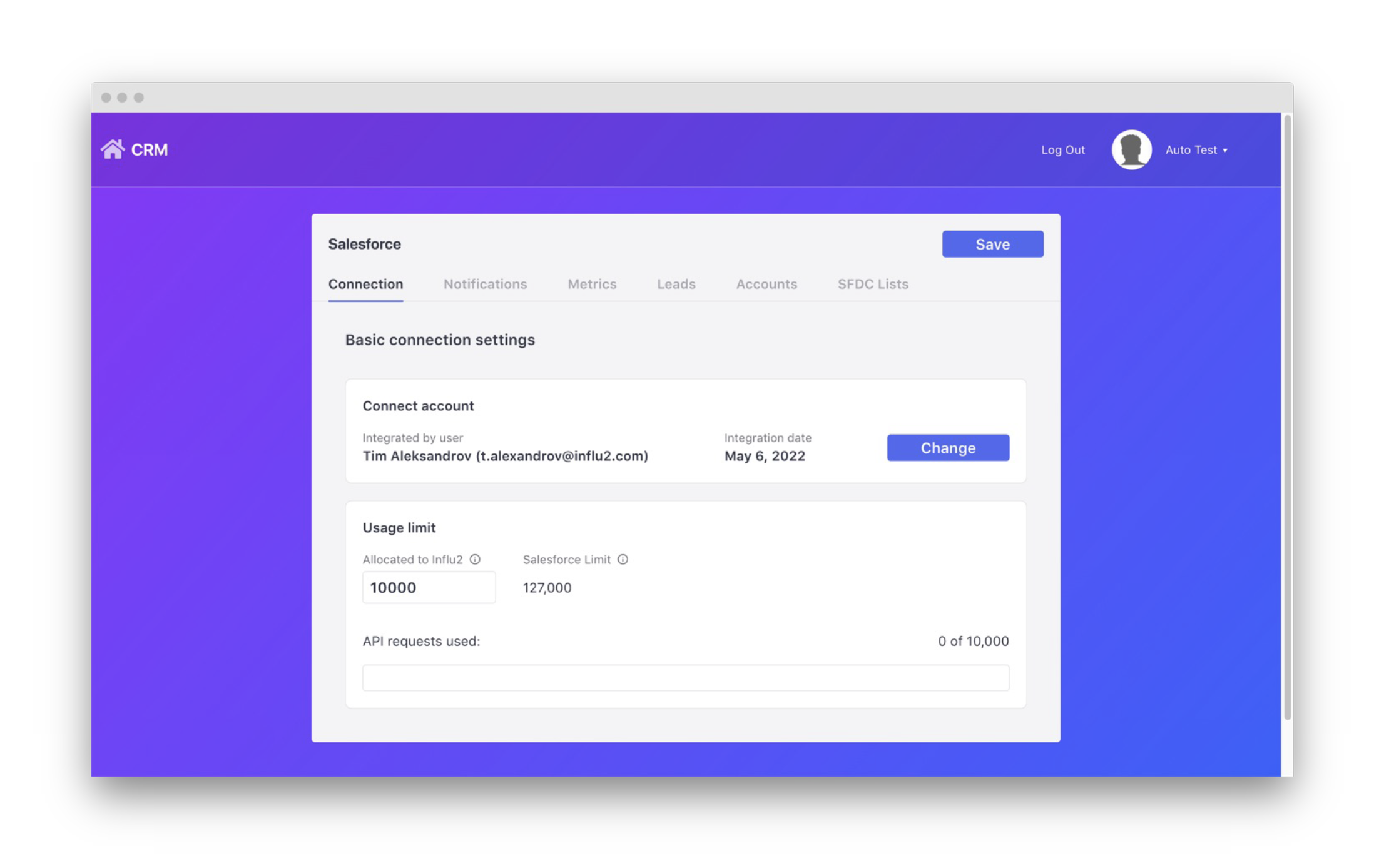
2.1. After clicking into your Salesforce Account, you will be brought to your Salesforce connection settings page. Click the ‘Connect’ button to sign into your Salesforce admin account.
3. When you return to your campaign setup in Audience Discovery, this module will:
a. Be named as the system you’ve connected (e.g., in this example, Salesforce)
b. Allow you to select and add all the synced lists from your system (e.g., Salesforce) through a drop-down menu.
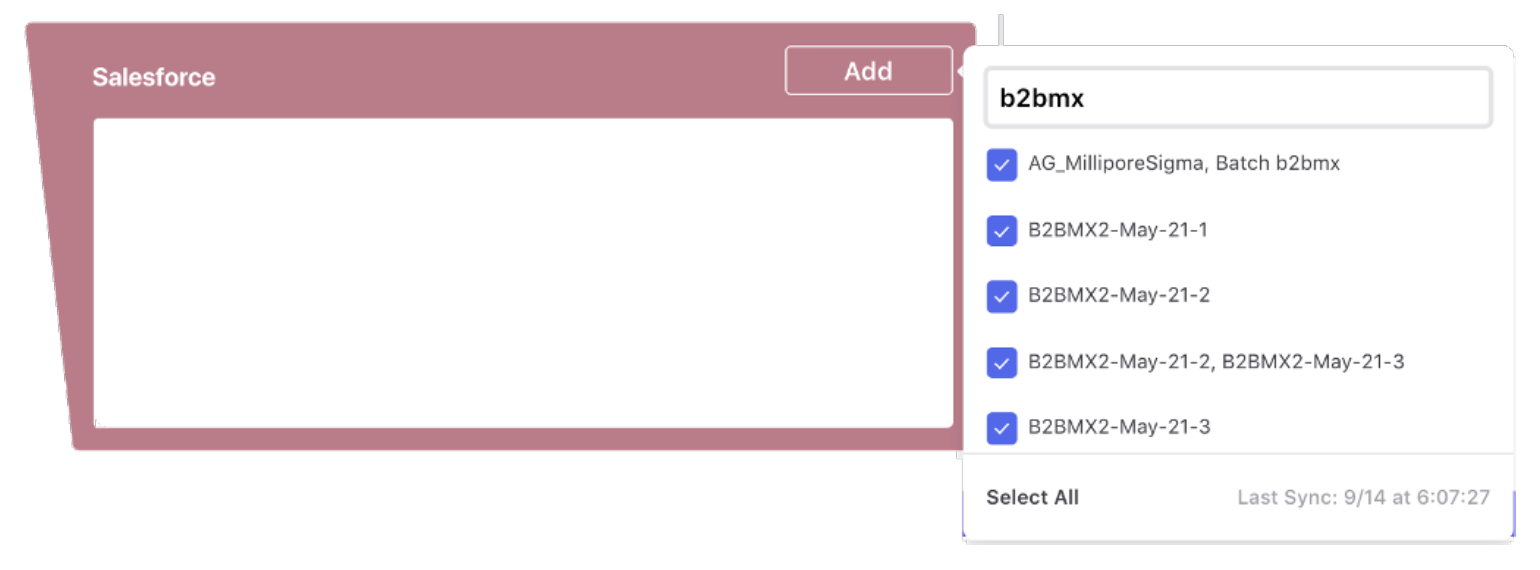
To add new lists for selection, click the add button and this will populate a drop-down of all the lists synced from your external system. Lists can be found using keywords. And you can ‘select all’ of the lists related to this keyword, in this case ‘b2bmx’.
4. Once you’ve added your synced lists to the module, click on the list you want to add to you campaign from the module (e.g., B2BMX2-May-21-2).
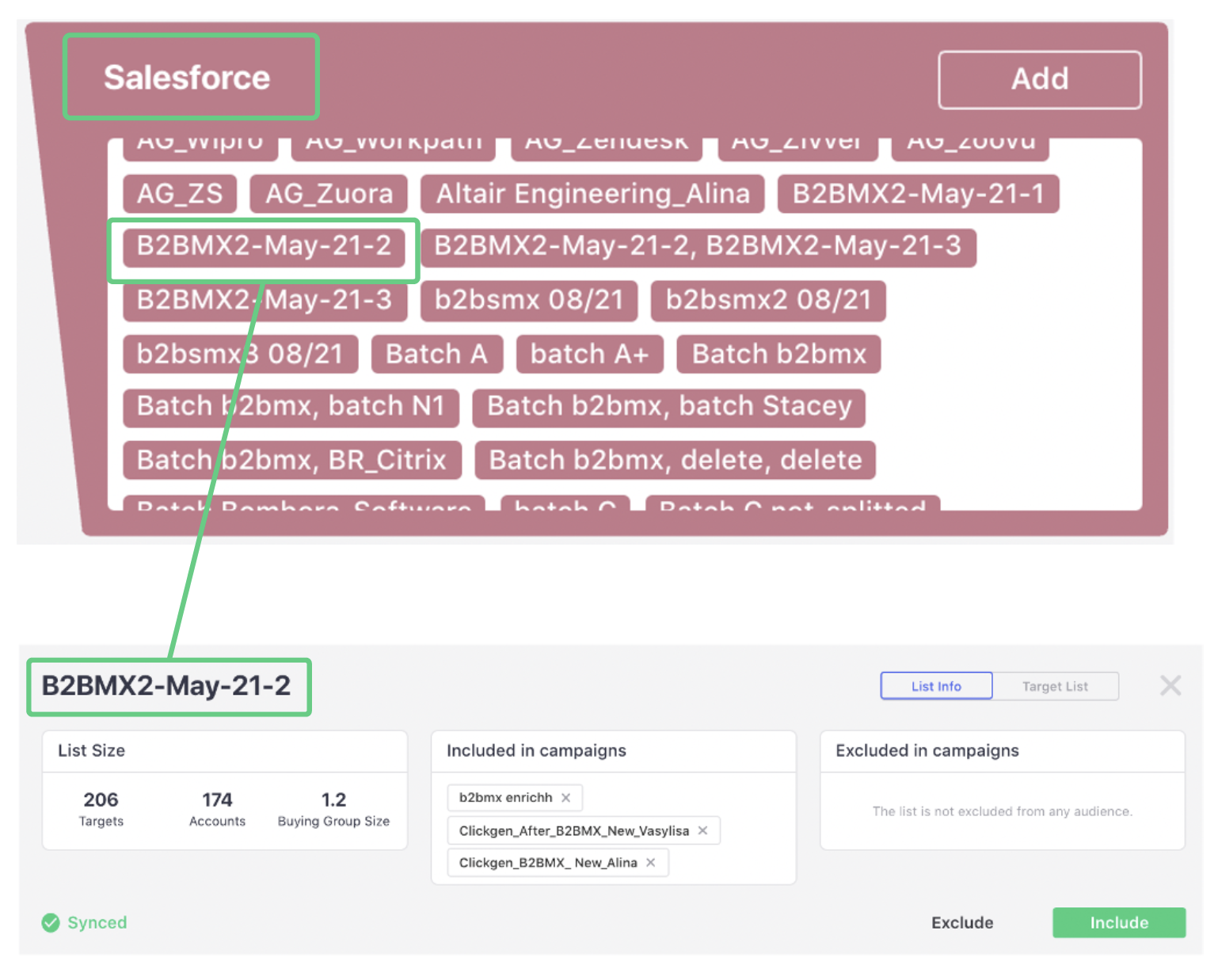
5. A dashboard panel will appear in the same window. In this panel you can view (and edit):
- List size information
- The existing campaigns it is included in or excluded from
- The function to include, delete or exclude the list from the campaign
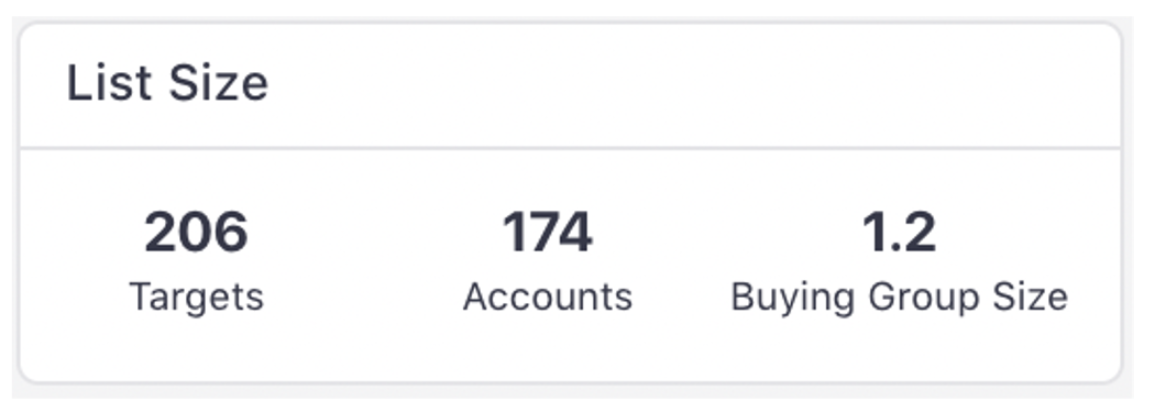
5.1. The List Size shows:
a. Targets – The number of returned targets (or contacts).
b. Accounts – The number of companies in the list.
c. Buying Group Size – The average size of the buying groups within the accounts.
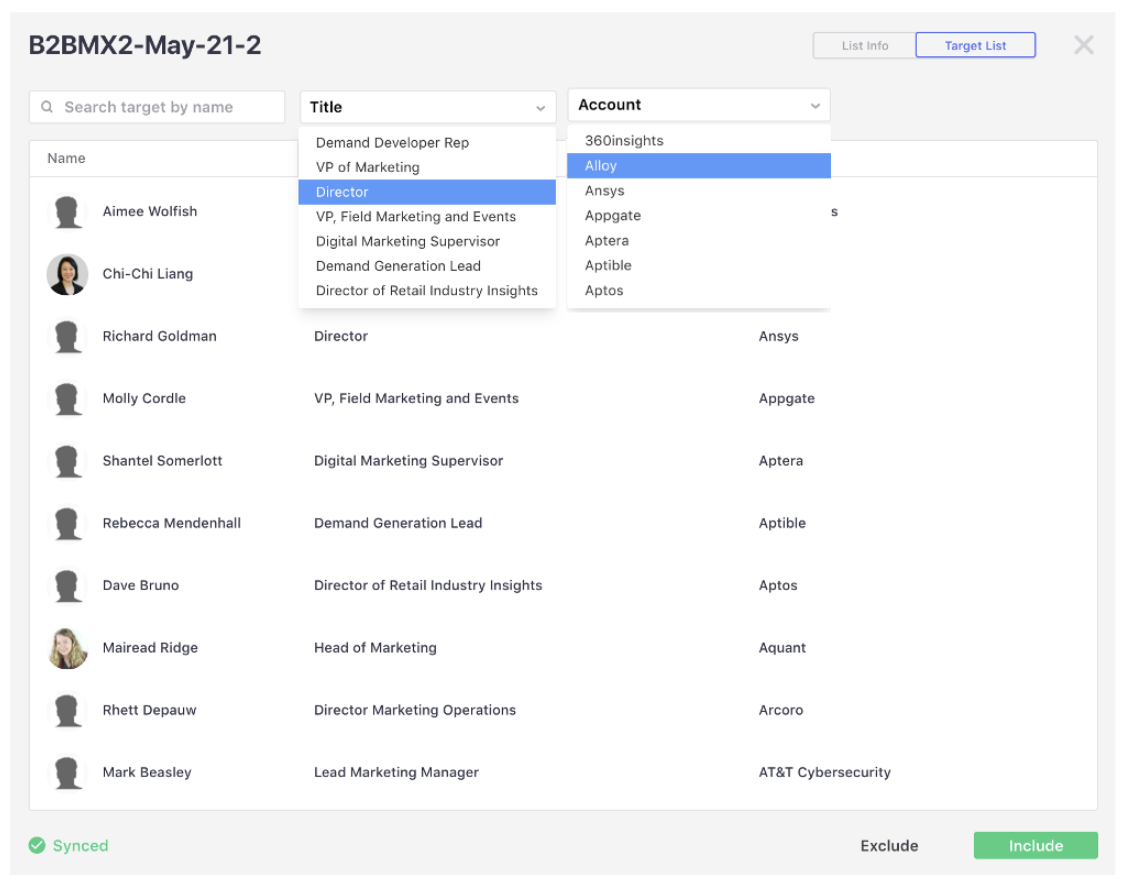
5.2. To further refine your audience, click on ‘Target List’ in the top right-hand corner.
This allows you to view the list by target (or contact name). It can be filtered by name (free from), title or account.
Comments
0 comments
Please sign in to leave a comment.