Influ2 + Salesforce: What You Can Do with the Integration
Last updated: July 29, 2026
Connecting Salesforce to Influ2 turns your CRM into a two-way signal engine: your Salesforce data flows into Influ2 to power precise ABM targeting and reporting, and Influ2’s intent and engagement signals flow back into Salesforce so your sales team can act on them right where they already work. This article walks through everything the integration lets you do, so you can decide which pieces to switch on for your team.
The integration breaks down into three parts:
Bringing Salesforce data into Influ2 — sync audiences and measure how sales activity and revenue connect to your programs.
Pushing Influ2 data into Salesforce — surface intent and engagement signals, update or create contact, lead, account, or opportunity records, and update campaign member statuses.
The Signals Center widget — access Influ2’s signals center feed natively within Salesforce.
What you’ll need
You’ll set most of this up under Settings → Integrations → Salesforce in Influ2.
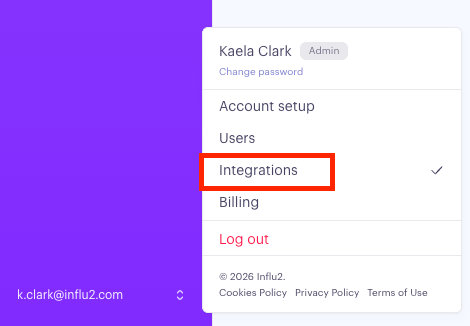
A couple of things to have ready for setup:
The appropriate permissions to connect Salesforce to Influ2.
For outreach tracking: permission to read Events and/or Tasks in Salesforce.
Keep in mind: This article provides an overview of what the Salesforce integration can do. For setup instructions and step-by-step guidance, refer to the links throughout and at the bottom of this article.
Bringing Salesforce data into Influ2
Once Salesforce is connected to Infu2, four capabilities become available. Together they let you target the right people and prove how your programs influence real sales outcomes.
1. Sync your Salesforce audiences to Influ2
Syncing contacts directly from Salesforce enables Influ2's precise, contact-level targeting. Your audiences stay automatically up to date as contact records change in your CRM, eliminating the need for manual updates. This can be setup in two ways:
Salesforce Campaign sync —Influ2 syncs Salesforce Campaigns and Campaign Member statuses, allowing you to use them as audience segments in your Programs. In your integration settings, you choose which Campaign Member statuses to sync, ensuring only members with those statuses are imported into Influ2.
Influ2 Cohort Designer — Within the Cohort tab in your Influ2 program, you can select fields tied to the following Salesforce objects to design a custom audience segment:
Lead
Contact
Account
Opportunity
Opportunity Contact Roles
Contact Owner
Influ2 automatically refreshes synced audiences every 3–4 hours. If a contact no longer meets your audience criteria—or if a Campaign Member's status changes to one that isn't synced—they're automatically removed from the Program. Likewise, new contacts that meet the criteria are added during the next sync. Once you've defined your audience rules, Influ2 keeps it up to date automatically.
2. Track sales outreach
Outreach tracking shows how your sales team follows up on the signals generated by Influ2, giving you visibility into whether engaged contacts are receiving timely outreach.
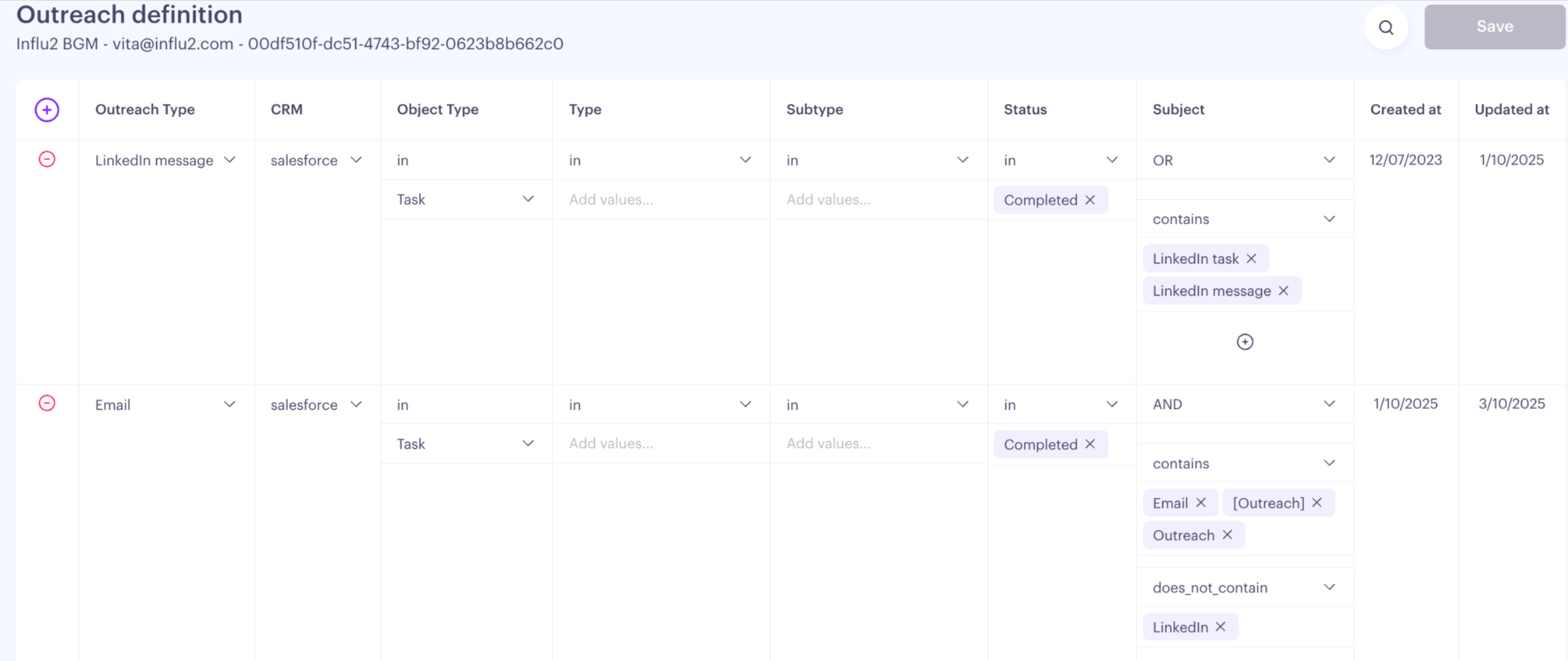
During setup, you'll define what qualifies as an outreach activity by selecting which Salesforce Events and/or Tasks—based on Type, Subtype, Status, and Subject—should be tracked. If your team logs outreach differently, let your Customer Success Manager know, and they'll work with you to configure this accordingly.
Example outline of outreach definition:
Outreach data shows up in Influ2 in the following ways:
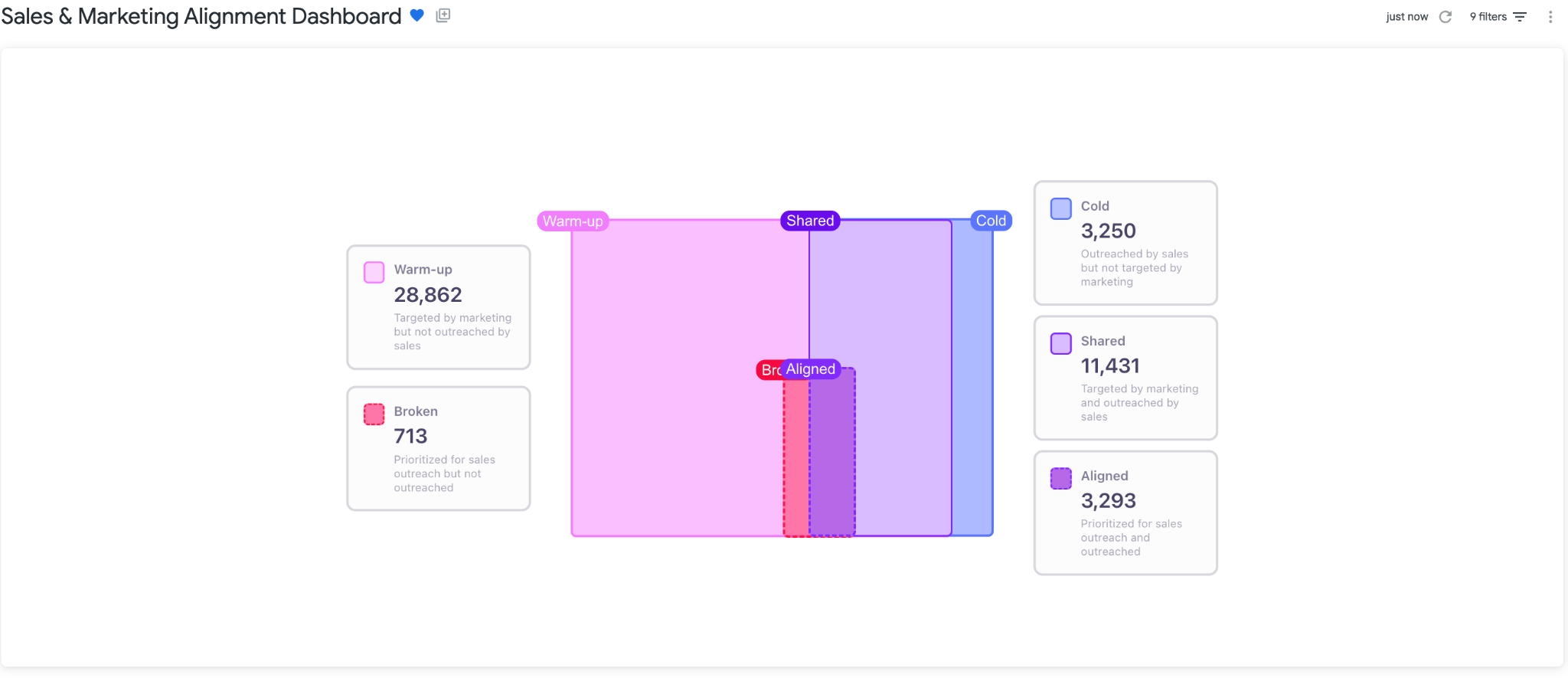
Sales & Marketing Alignment Dashboard — See how your audience is distributed across outreach statuses and measure how effectively your sales team is following up with contacts engaged by your Influ2 programs.
Target Report — View the outreach status for each signal in the engagement drop-down, and see the subjects of tracked Salesforce Events and Tasks in the Signals Center timeline view.
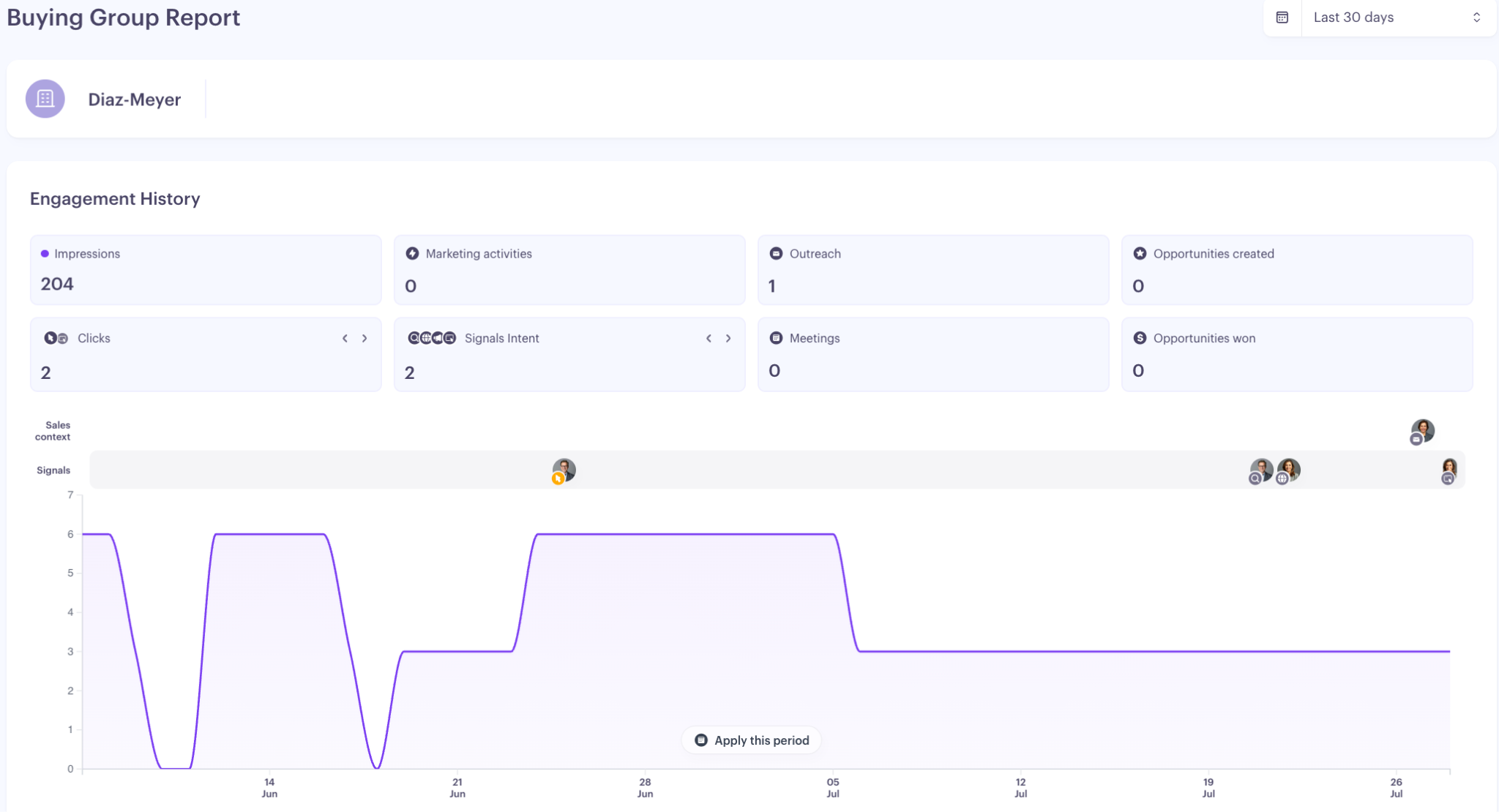
Buying Group Report — View outreach activity summarized at both the account and contact levels, including the most recent outreach date for each contact and daily outreach trends on the chart.
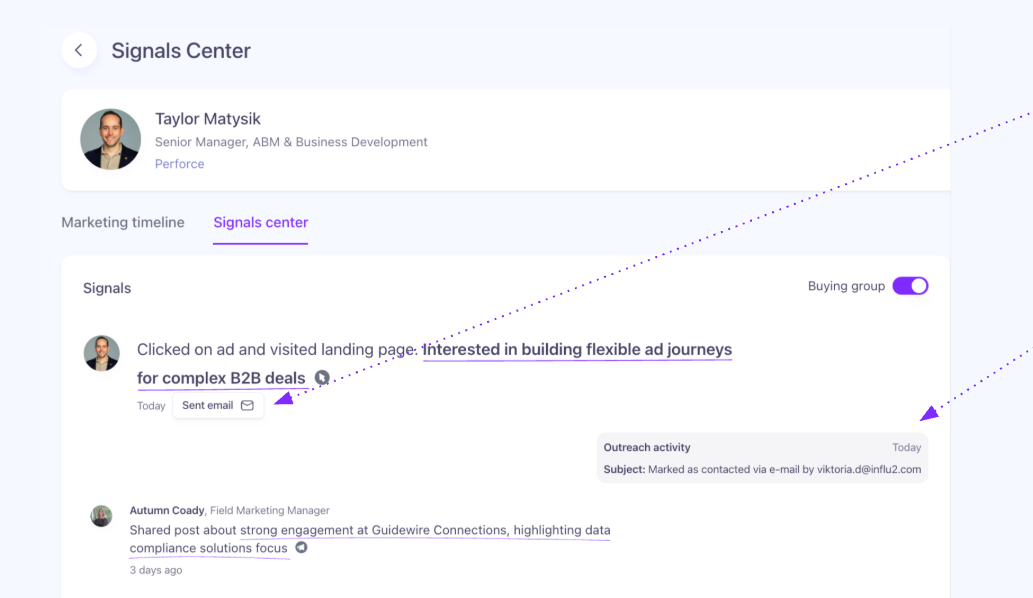
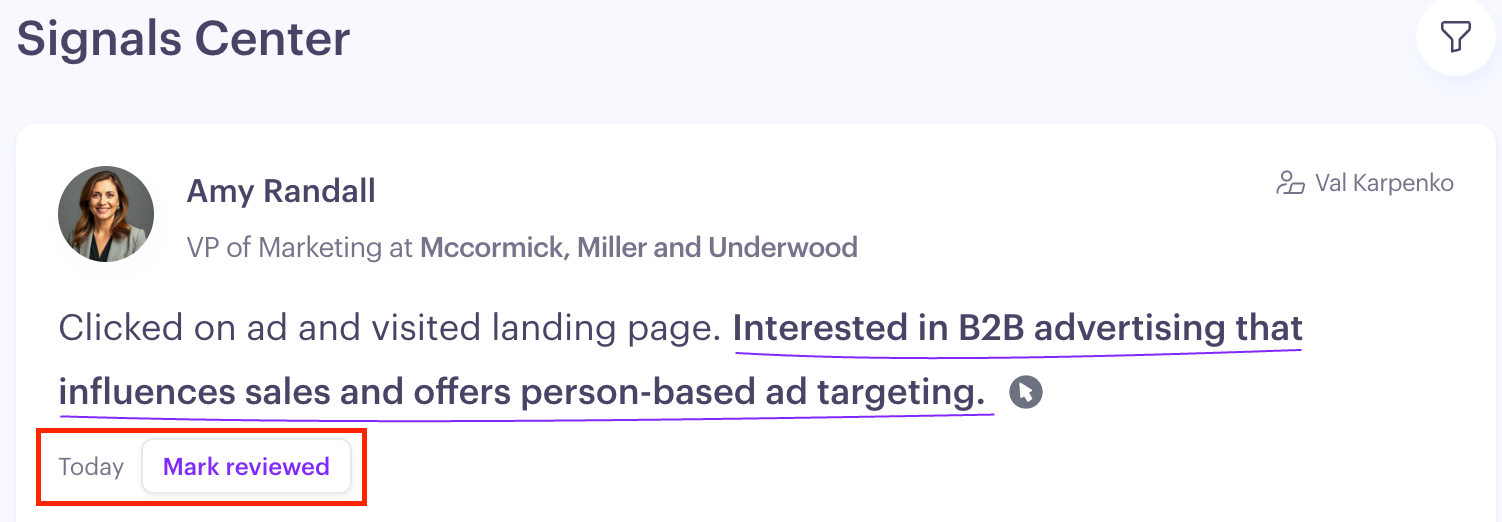
Signals Center — Outreach status is displayed directly on each engagement or signal (for example, Email Sent, LinkedIn Message, or Phone Call). New engagement signals are initially marked as To Be Reviewed. You can update the outreach status manually or let Influ2 automatically detect outreach activity from Salesforce.
3. Track influenced meetings booked
Meeting tracking connects the meetings your team books back to the Influ2 programs that helped drive them, so you can measure their impact in your revenue influence reporting.
Influ2 captures meeting data from one of two Salesforce sources:
Activities: Tasks or Events that match your configured meeting definition.
Opportunities: If your team tracks meetings by moving an Opportunity to a meeting-related stage (such as Demo Scheduled or Discovery Call), Influ2 uses the Opportunity stage change date instead.
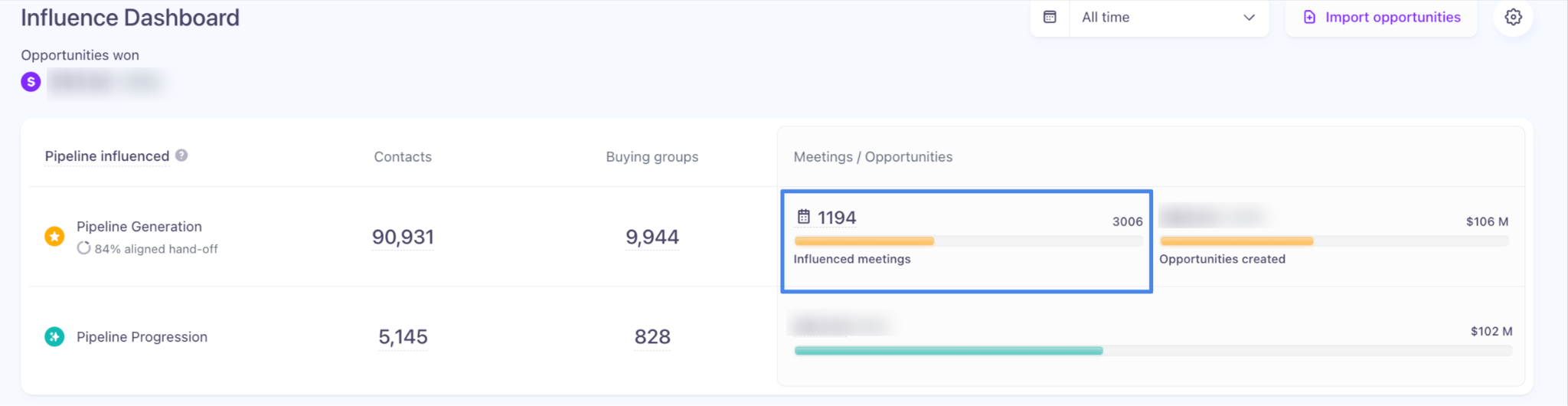
You can view the total number of influenced meetings booked in the Influence Dashboard. Click the metric to see the individual meetings and the programs that influenced them.
4. Track influenced opportunities
Opportunity tracking helps you measure the impact of your advertising on pipeline and revenue. Influ2 syncs opportunity data from Salesforce every 3–4 hours to power opportunity influence reporting and audience sync.
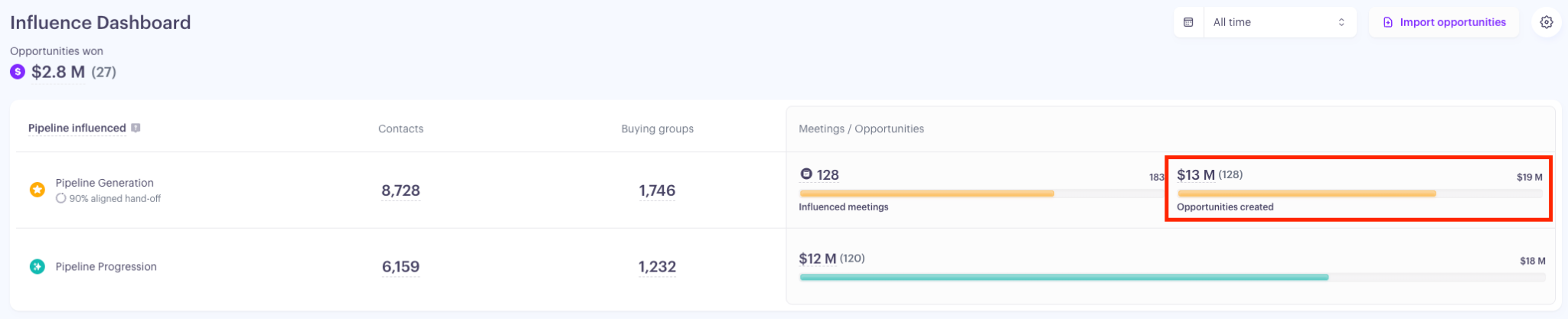
You can view influenced opportunities in the Influence Dashboard or export the data to Excel for deeper analysis. To see the full list of opportunities influenced, simply click on the Opportunities Created total.
Pushing Influ2 data into Salesforce
Enabling Salesforce data population unlocks key capabilities that bring Influ2 data directly into the tools your sales team uses every day.
1. See Influ2 engagement metrics in Salesforce
Influ2 can populate your Salesforce records with engagement metrics such as impressions, clicks, website visits, first and last touch points, and content details. You control which fields are created and populated.
These metrics can be mapped to custom fields on the Contact, Lead, Account, Campaign, Campaign Member, Opportunity, Event, and Task objects. Configure field mappings in Salesforce Integration Settings → Metrics, and set a daily API limit to keep the connector within your Salesforce API usage. Metrics are updated once per day between 2:00 a.m. and 5:00 a.m.
Keep in mind: Populating metrics on the Campaign and Campaign Member objects isn't enabled by default. If you'd like to use this capability, contact your Customer Success Manager to have it enabled.
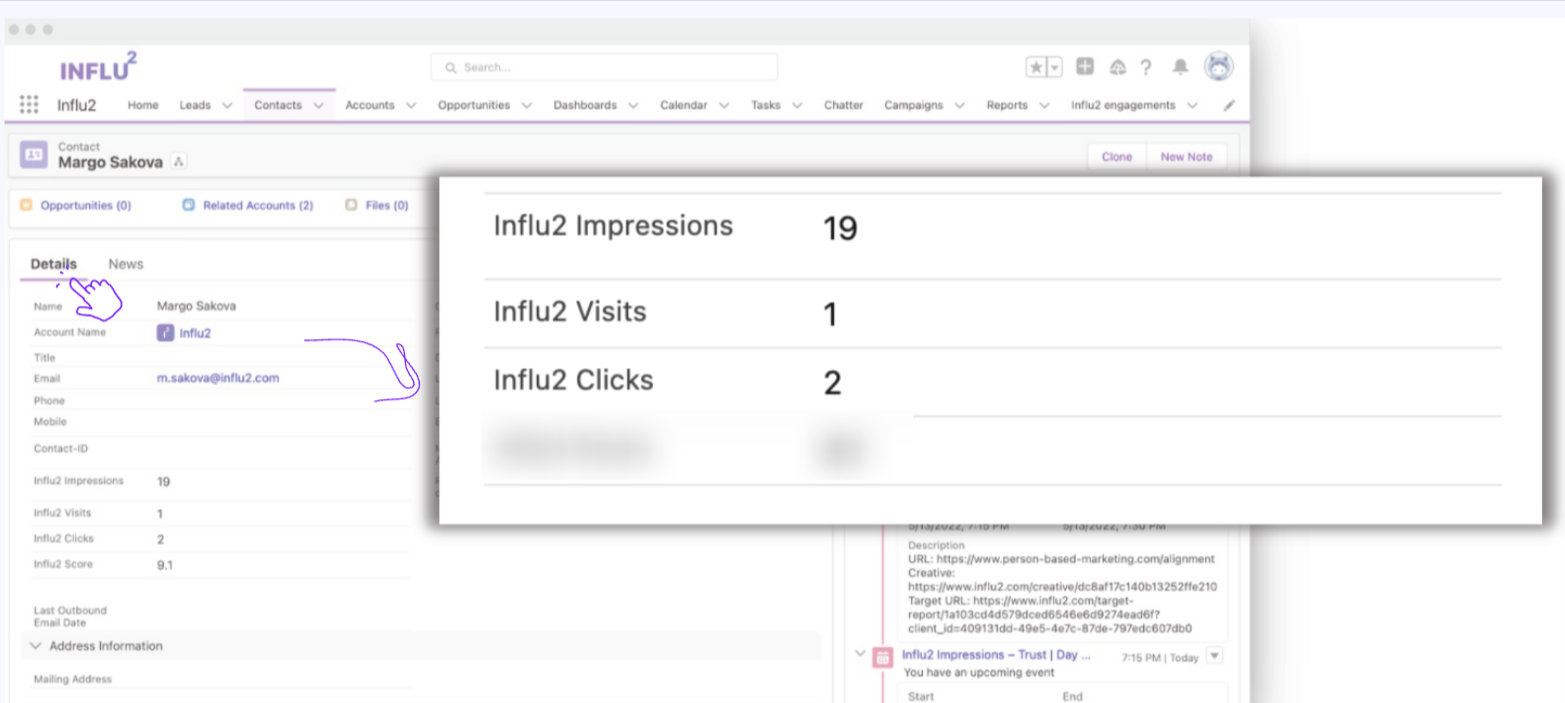
Contact Object
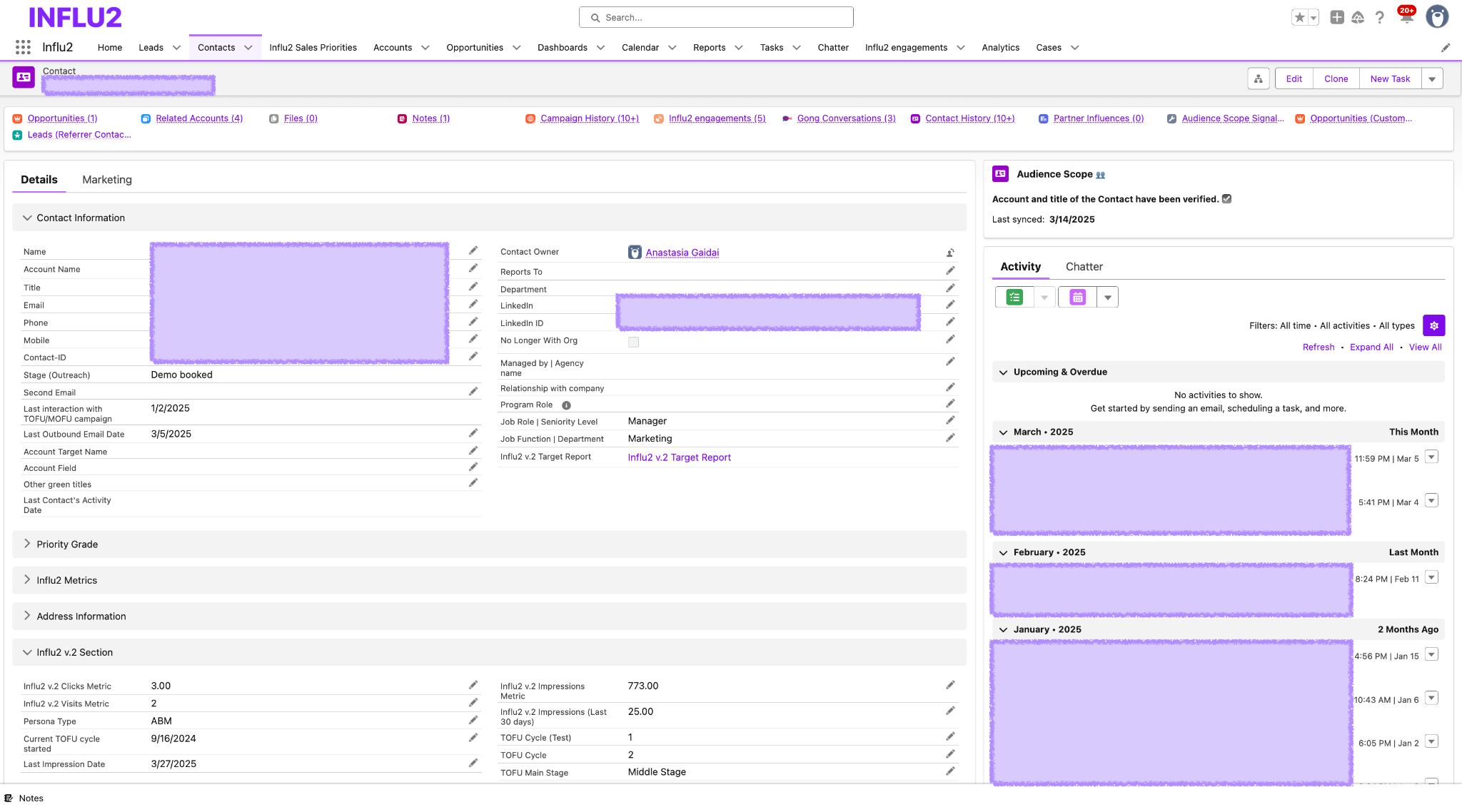
Account Object
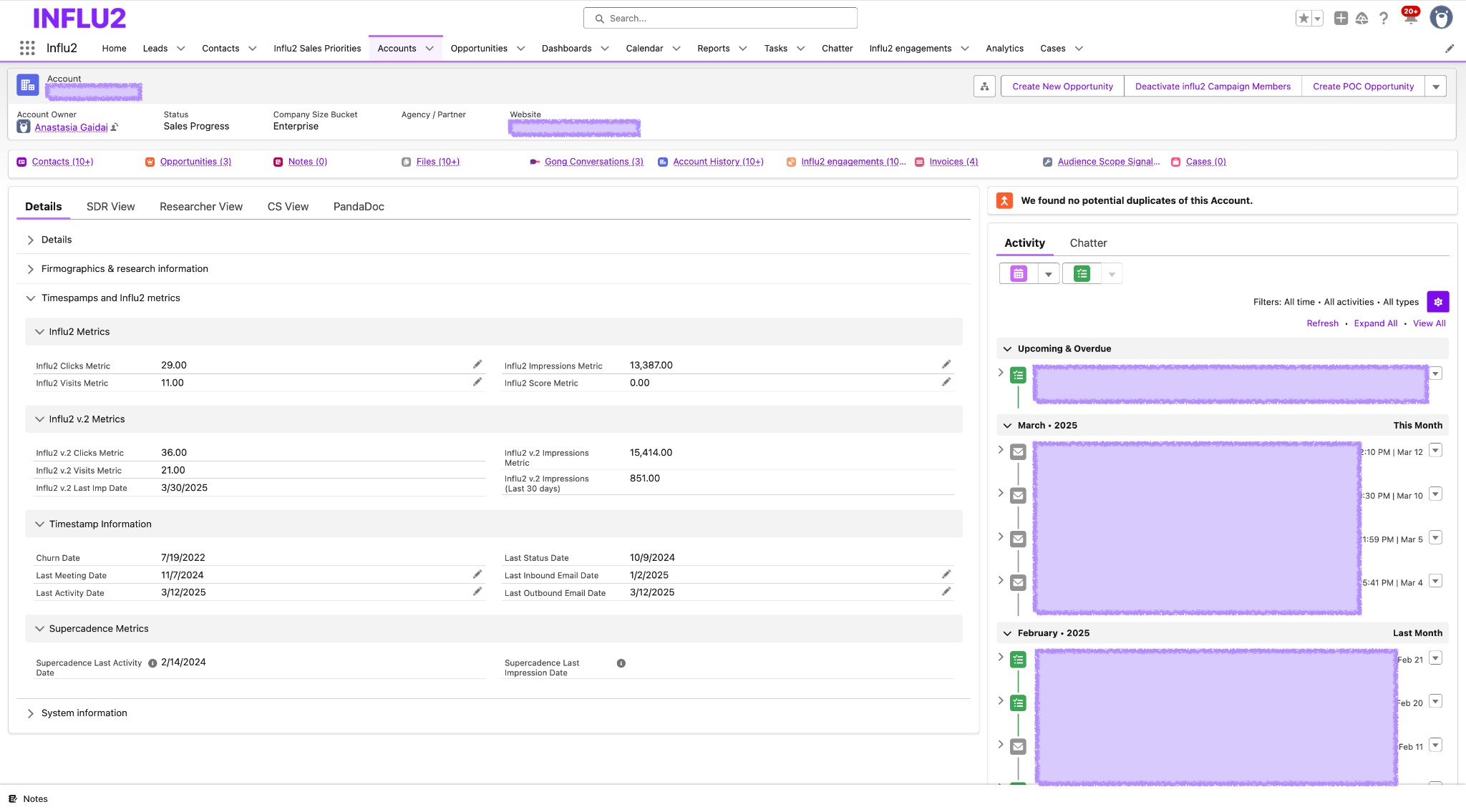
Opportunity Object
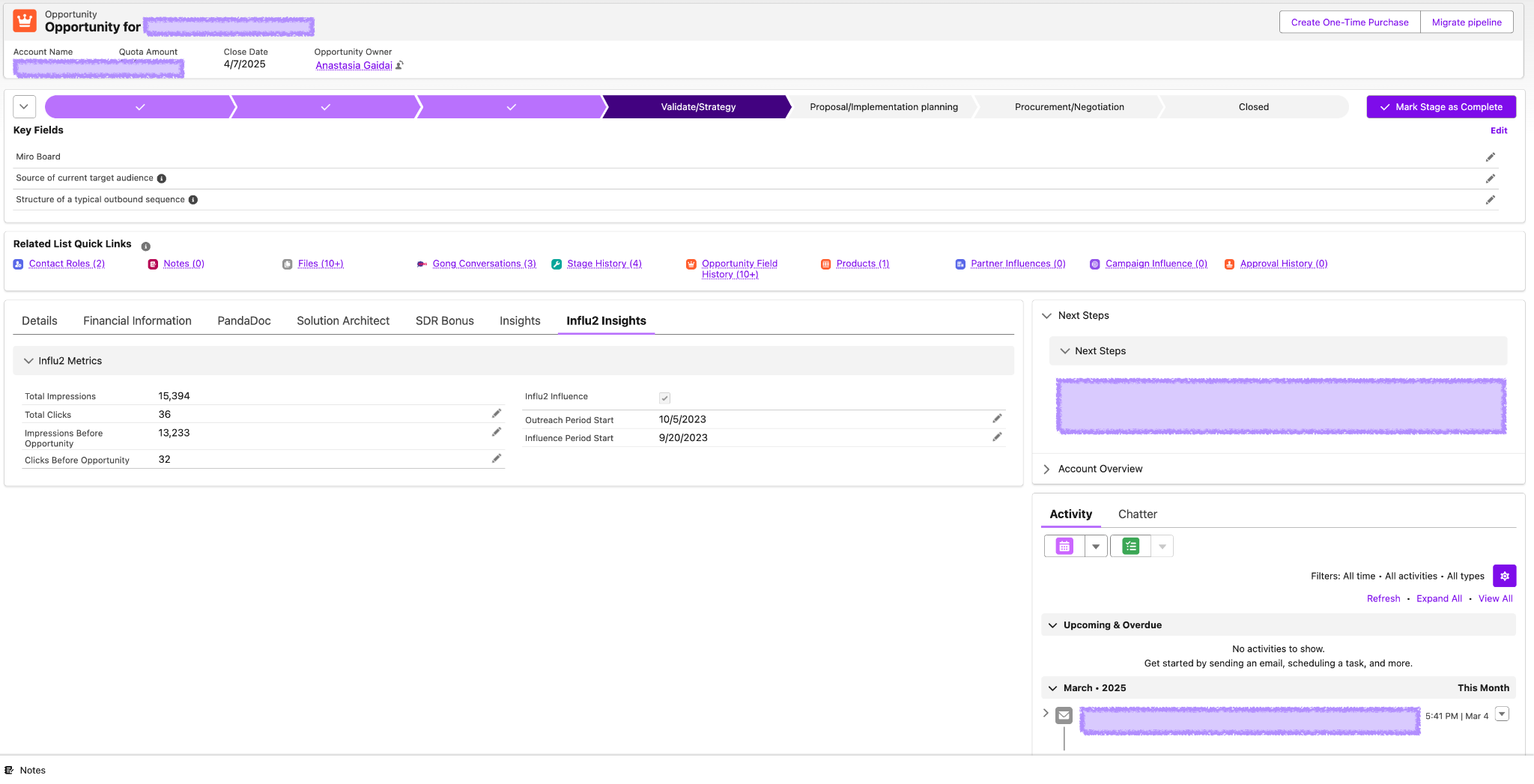
With Influ2 engagement data stored directly in Salesforce, you can build reports, dashboards, and automations based on real buyer engagement—making it easier to prioritize the accounts and contacts showing meaningful interest.
Example Reports Using Influ2 Data
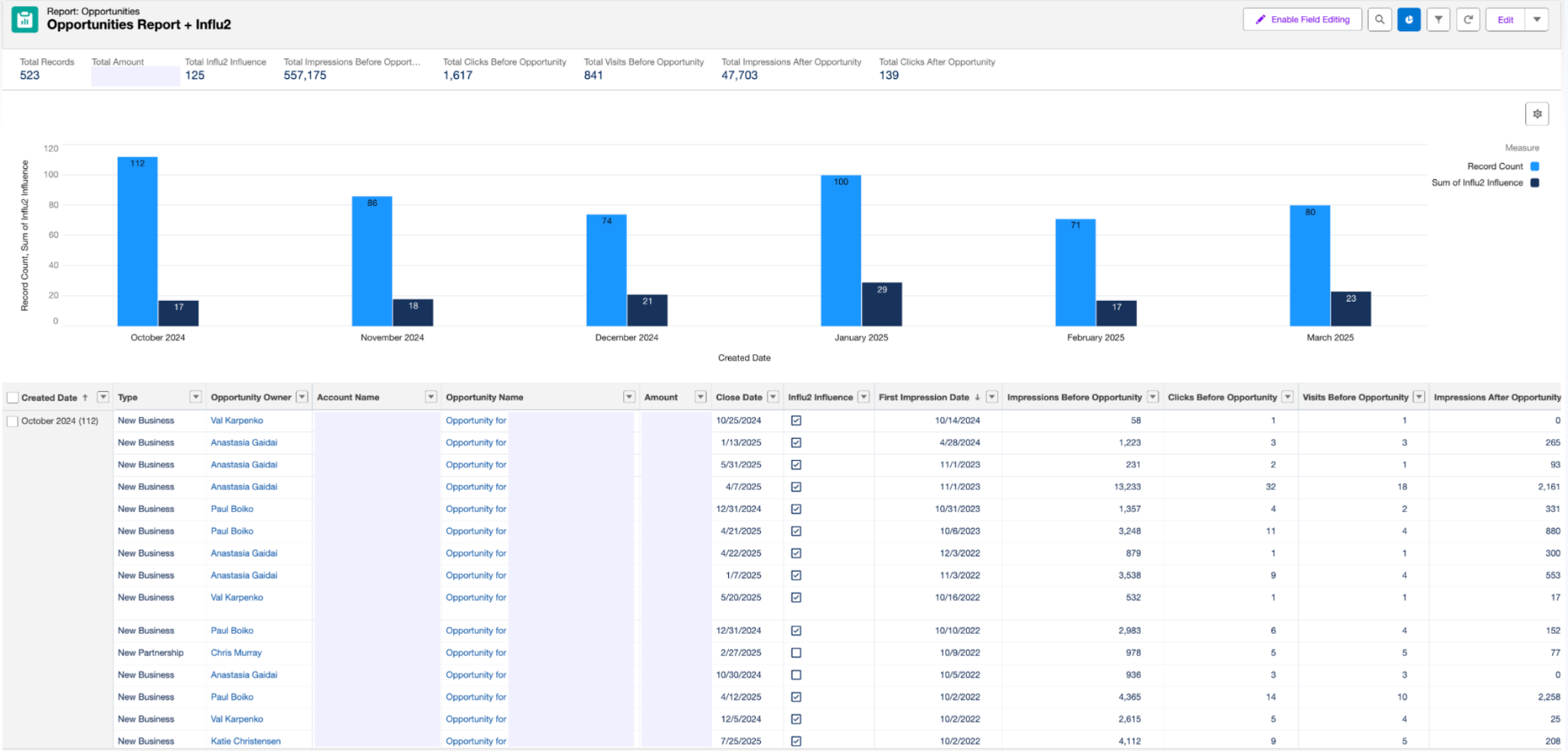
2. Get Influ2 activity as Events or Tasks
When Salesforce activity notifications are enabled, Influ2 writes engagement signals—such as ad clicks, website visits, impressions, and sales-priority stage changes—to the Activity section of the relevant Contact or Lead record. Notifications are assigned to the record owner, helping sales reps stay informed without leaving Salesforce.
Enable this feature in Settings → Integrations → Salesforce → Notifications.
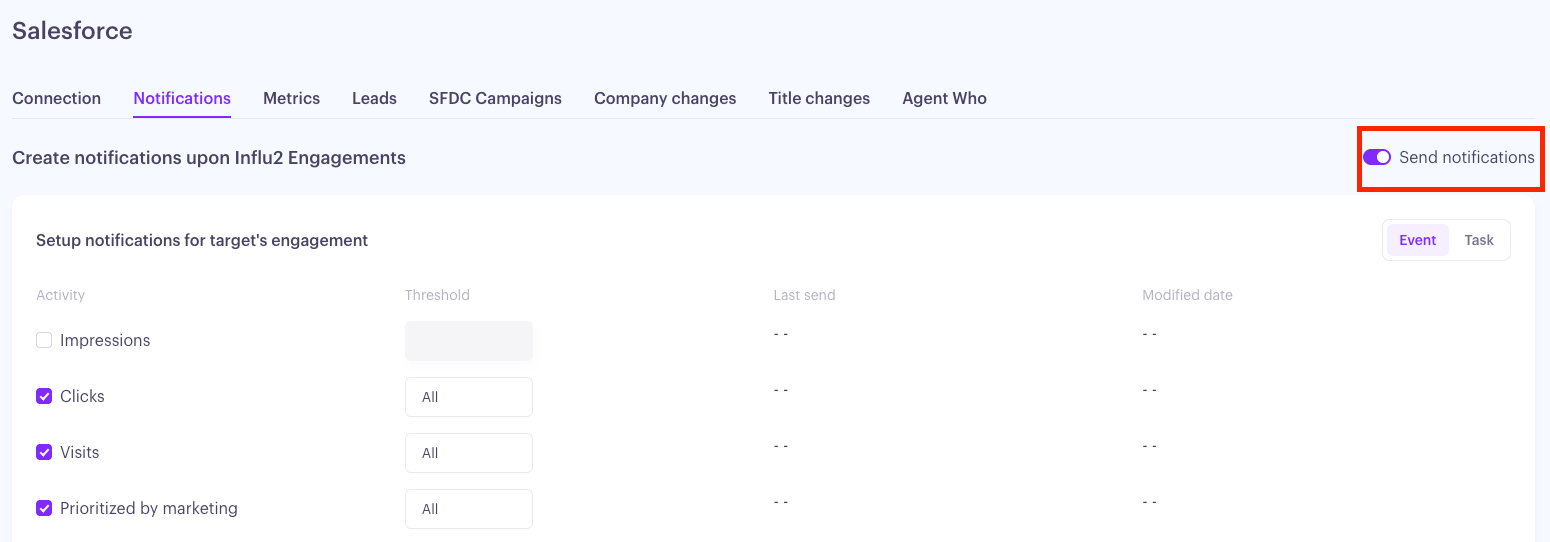
By default, notifications are created as Events. If your team prefers Tasks (created as open tasks), contact your Customer Success Manager to have your account configured accordingly.
For details on how activity notifications are structured and the information they include, see Salesforce Activity Notifications.
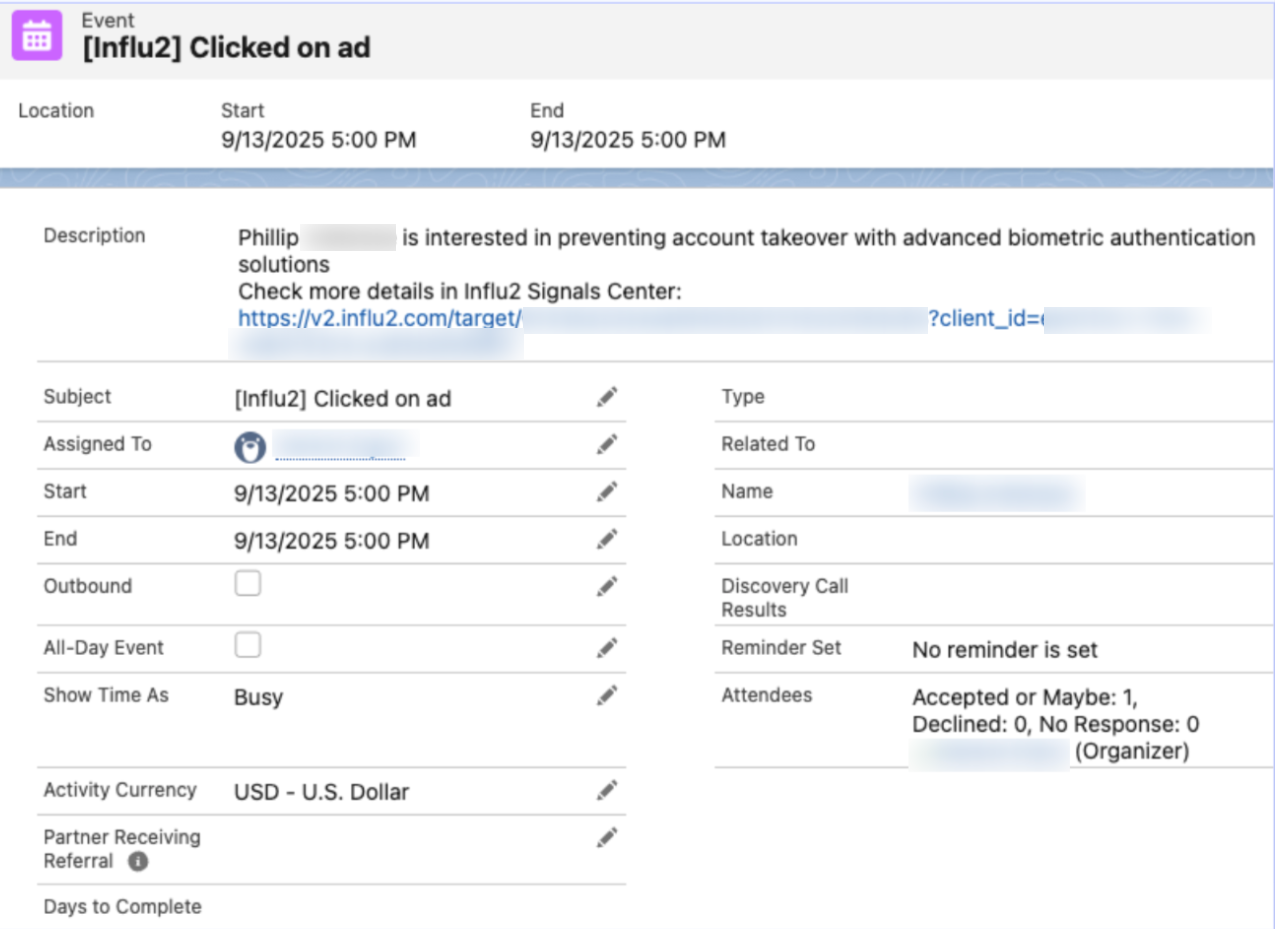
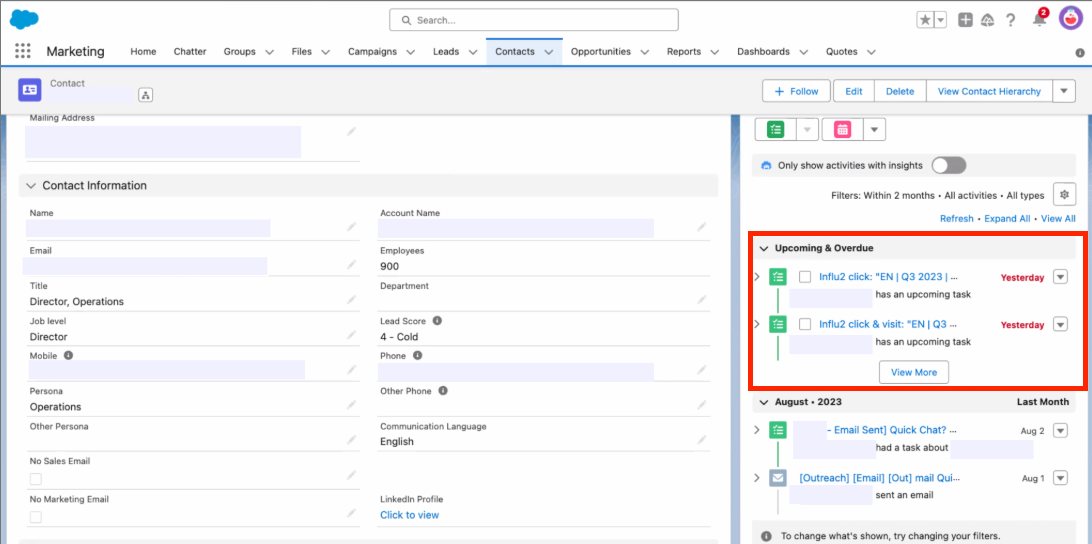
With engagement signals appearing directly in Salesforce, your sales team can quickly see who engaged, when they engaged, and what they engaged with—along with links back to Influ2 for additional context when needed.
Keep in mind: Descriptions can be customized if needed (ex. For use with AI)
Event Example
Task Example
3. Automatically create Salesforce leads for engaged prospects
Influ2 can automatically create a Salesforce Lead when someone engages with your ads but doesn't already exist in your CRM. This is useful when your target audience originates outside Salesforce—for example, if you sync audiences from HubSpot without syncing every contact into Salesforce, or if you target manually uploaded lists and only want to create CRM records for contacts who show engagement.
New leads are created using the targeting data available in Influ2, including Full Name, Job Title, Company Name, LinkedIn profile, and Email Address. The Lead Source field is automatically set to Influ2, making it easy to identify leads generated through your advertising.
Automatically creating leads ensures engaged prospects don't slip through the cracks. Your sales team can follow up with qualified contacts in Salesforce while you accurately track the pipeline and revenue generated from Influ2-driven engagement.

4. Keep records current when contacts change jobs
Influ2 can automatically detect when a contact changes jobs and sync that change to Salesforce, helping you keep your CRM accurate and your targeting up to date. Depending on your preferred workflow, Influ2 can create a new Contact or Lead for the person's new company, or update the existing Contact record.
This is especially valuable if you use Salesforce as your source of truth for sales outreach and reporting. By keeping contact records current, you can avoid targeting people who have left their company while ensuring your sales team has accurate information for follow-up.
For more information on how to configure this, see Syncing Company Changes to Salesforce.
Keep in mind: Job change detection is available to customers with an Audienscope subscription.
5. Keep Salesforce Campaign Membership in Sync with Buyer Journeys
As targets move through an Influ2 Journey, you can automatically keep their Salesforce Campaign membership up to date—so sales and marketing always have an accurate view of where each buyer stands without manual updates.
This works in both directions:
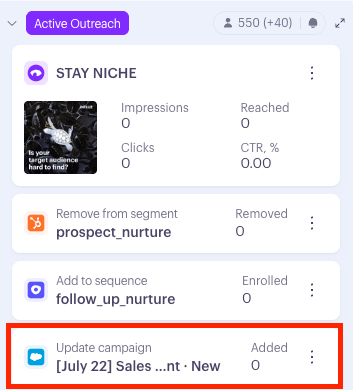
Update Salesforce from the Journey — Use a Journey stage action to update a target’s Salesforce Campaign Member Status or add/remove a contact from the Campaign Member list of a specific Salesforce Campaign. This keeps campaign data aligned with buyer movement and ensures Salesforce reporting reflects real engagement.
Drive the Journey from Salesforce — Use a target’s Salesforce Campaign Member Status as a Journey condition to move them through the next stage. For example, when a target in a specific Campaign reaches a status like Responded, they can automatically advance to the next stage. You can configure this for each stage using specific Campaign and Campaign Member Status combinations.
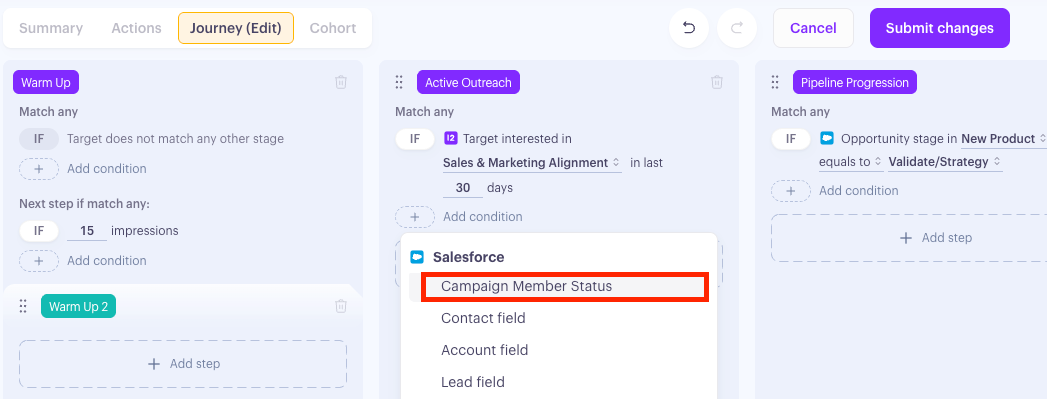
With Campaign membership connected to buyer journeys, Salesforce becomes a real-time reflection of buyer progress—giving sales accurate context while keeping targeting and reporting aligned with every contact’s journey.
6. Sync Agent Who audiences to Salesforce
Agent Who helps you find the ideal audience for your ABM programs. With Salesforce sync enabled, those audiences become actionable CRM records automatically—eliminating the need to manually export and import lists.
Enable sync for any Agent Who and Influ2 creates the necessary Accounts, Contacts, and Leads in Salesforce, maps them to your configured fields, and assigns them to the appropriate owners. Influ2 intelligently manages existing records by matching companies already in your CRM, creating new Accounts when needed, and falling back to Leads when no matching Account exists.
If a contact already exists in Salesforce, Influ2 only fills in empty fields—it never overwrites existing data.
For more information, see How to sync Agent Who Contacts to your CRM.
Bring Influ2’s Signals Center into Salesforce with the Salesforce Widget
The Salesforce widget brings Influ2’s Signals Center directly into Salesforce, giving sales teams easy access to contact-level intent and engagement signals without switching between tabs.
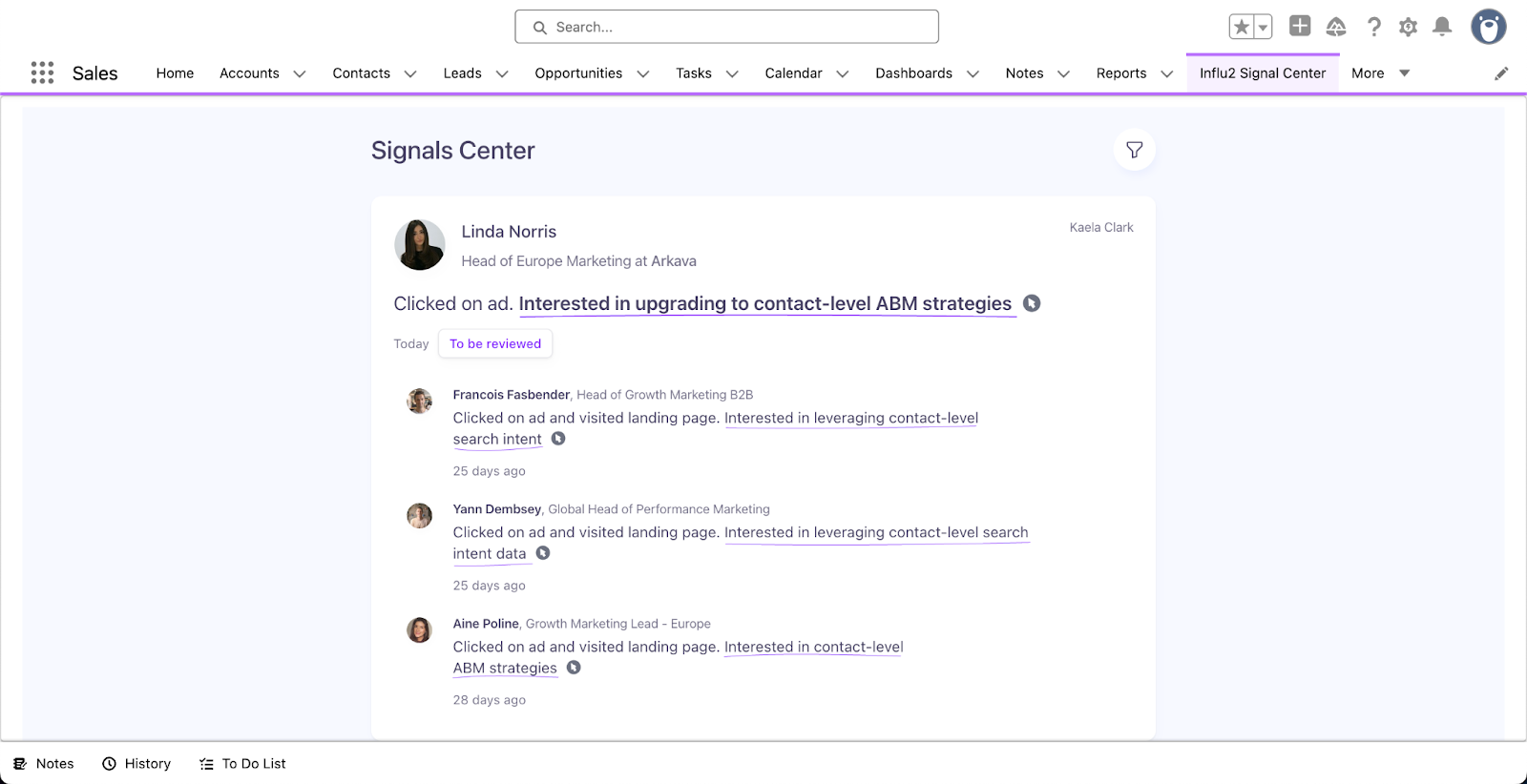
Each view updates automatically as new engagement data is captured.
With Influ2 signals available directly in Salesforce, reps can understand how contacts and buying groups are engaging the moment they open a record—giving them the context they need to prioritize outreach and take action without leaving their workflow.
For more information on the Salesforce widget or how to use it, reference the following articles:
Ready to set any of this up?
This article covers what the Salesforce integration can do. When you're ready to turn a piece on, these guides walk you through the how:
Get connected: How to integrate Influ2 with Salesforce and Salesforce Objects and Permissions — start here.
Sync audiences into Salesforce: How to sync Agent Who contacts to your CRM.
Bring signals into Salesforce: Salesforce Activity Notifications for Events and Tasks, How to install the Signals Center widget in Salesforce, and Signals Center for how those signals appear and how your team can use them.
Measure influence: How to Track and Report Influ2 Influence in Salesforce and How to export the Opportunities report from Salesforce — plus the reports where outreach and influence surface: Sales & Marketing Alignment Dashboard, Target Report, and Buying Group Report.
Keep records current: Syncing Company Changes to Salesforce walks through the job-change automation step by step.
New to the integration and want the bigger picture first? Why Integrating Influ2 with Salesforce Matters for Sales & Marketing Teams is a good place to start.
Still have questions? Reach out to your Customer Success Manager - they are always happy to help.