Setting up CRM syncing for Audienscope Discover
Last updated: November 9, 2026
Audienscope Discover identifies buying intent from named buyers across your target market, surfaces the accounts they work for, and fills in the buying groups you need to reach.
With Salesforce or HubSpot sync enabled, newly discovered accounts, contacts, and leads are automatically pushed to your CRM as Discover finds them—eliminating the need for your team to manually create records.
This article explains how to enable CRM sync, configure how records are created, and understand which fields are synced to Salesforce and HubSpot.
Before you start
Audienscope Discover needs to be enabled for your workspace. If you don't see it, reach out to your Influ2 CSM.
Salesforce or HubSpot needs to already be connected under your Influ2 integration settings.
Setting up the workspace-wide field mapping requires Manager or Admin access.
How CRM sync works
A few things to know before turning on sync:
Sync only goes one way. Influ2 sends Audienscope Discover data to Salesforce or HubSpot. It never pulls data from your CRM into Influ2.
Field mapping has two levels. Your global field mapping sets the defaults for your entire workspace. You can also override specific fields at the audience level when an audience needs different values, such as a different owner.
Sync runs automatically. When you turn on sync for an audience, Influ2 immediately sends any records that aren't already in your CRM. After that, it checks for new records every 4 hours and syncs them automatically.
Existing CRM data is never overwritten. If a contact or account already exists in your CRM, Influ2 only fills in fields that are empty. Any existing values are left unchanged.
How to configure CRM syncing for Audienscope Discover
Review your CRM integration and default field mapping. Before enabling sync, make sure your Salesforce or HubSpot integration is connected, CRM syncing is turned on, and review the default field mapping in your workspace settings.
Go to Settings → Integrations and select Salesforce or HubSpot to review your settings.
By default, Discover uses your workspace's existing field mapping for all audiences. You don't need to configure a separate mapping for each audience unless you want to override specific fields.
Please note: Influ2 populates a default mapping for Account, Contact, and Lead objects — for example, in Salesforce, Account name maps to Account name, Website maps to Domain, and Email maps to Business Email. You can edit this mapping, and add or remove fields, mapping each one either from an Influ2-sourced field or to a fixed static value.
In the Discovered Accounts tab in Audienscope, select Sync to CRM and select Salesforce or HubSpot.
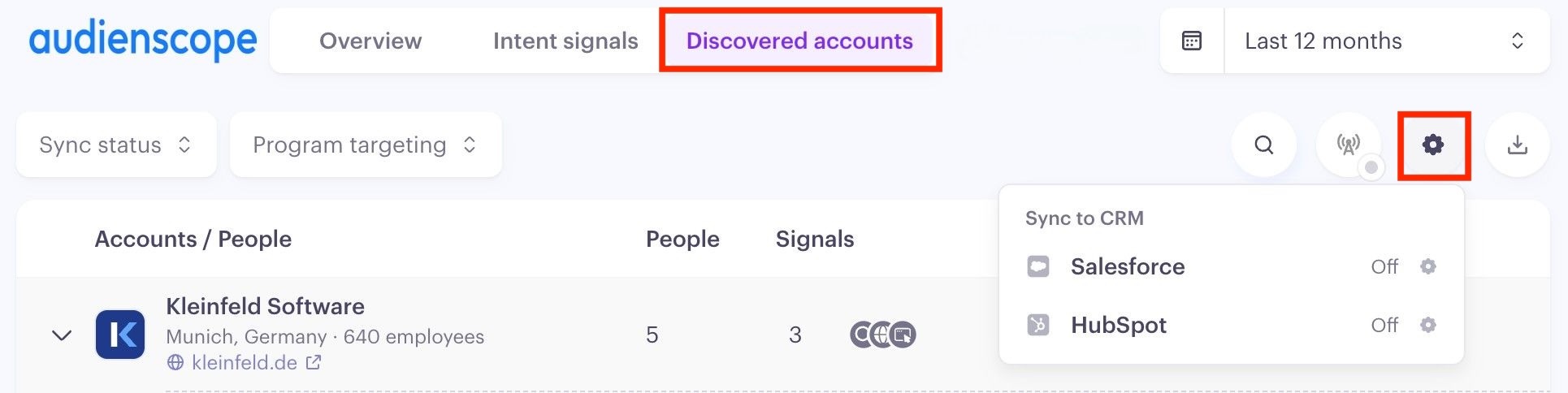
Next, choose how Discover should create records in your CRM. These settings are configured per audience and per CRM, so you can use different approaches for different audiences.
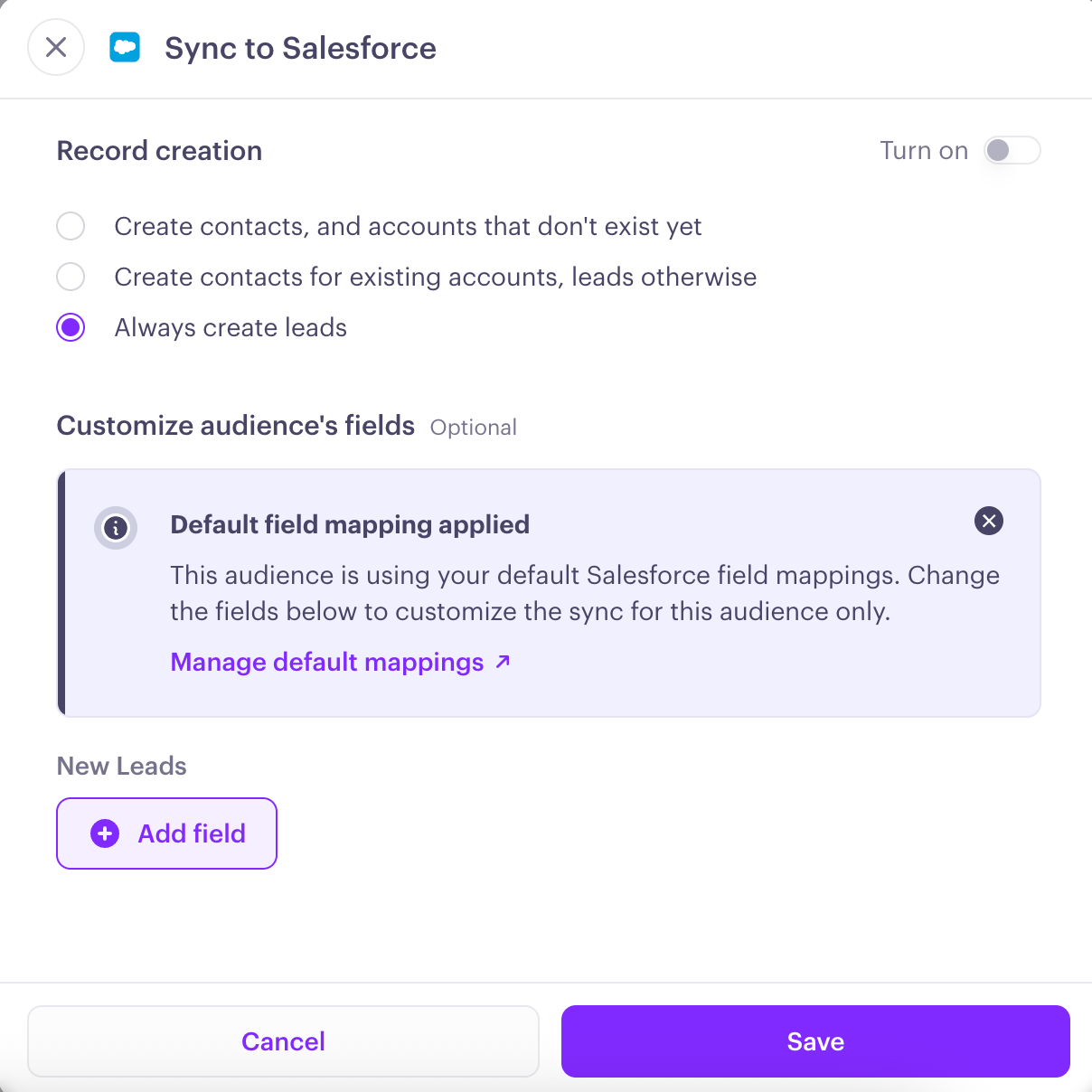
Salesforce offers three options:
Create contacts and accounts: Create new contacts and accounts when the account doesn't already exist.
Create contacts or leads: Create contacts when the account already exists; otherwise, create leads.
Always create leads: Create all discovered buyers as leads.
HubSpot doesn't have a separate Lead object, so you have two options:
Create contacts and companies: Create new contacts and companies when the company doesn't already exist.
Only create contacts: Create contacts without automatically creating new companies.
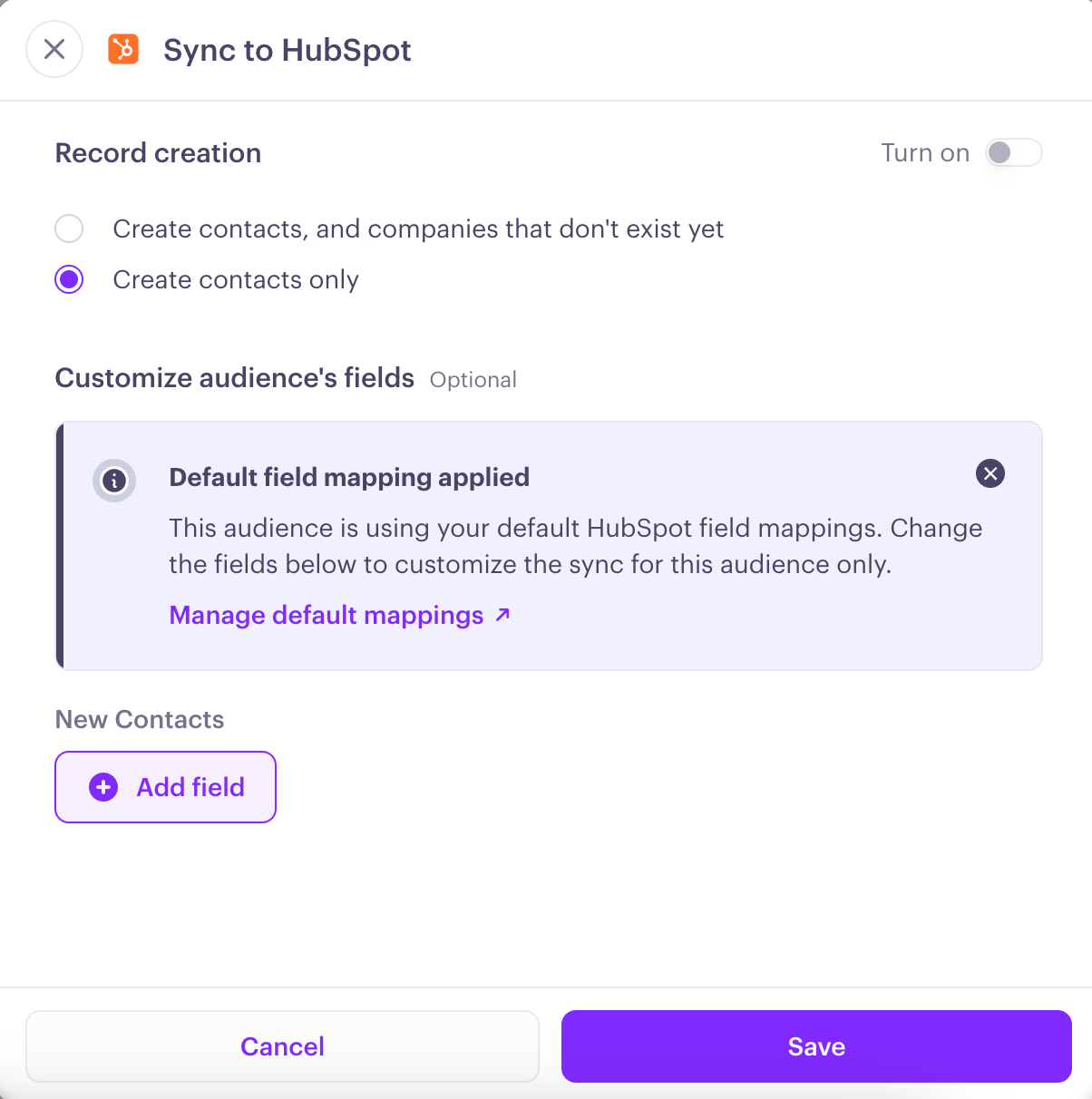
Once enabled, Discover automatically syncs all existing records in the audience that aren't already in your CRM. It then checks for and syncs new records every 4 hours.
(Optional) Customizing field mapping and ownership
By default, your audience inherits the workspace-wide field mapping and ownership settings. You can override these settings for a discovered audience when needed.
Customize field mapping
If you need a field mapped differently for a specific audience, you can map Discover fields dynamically to CRM fields or assign a fixed value instead. For example, you could set every new record's Lead Source field to a fixed value, such as "Influ2."
Available Discover fields include:
Accounts | Contacts | Leads |
Account name | First name | First name |
Domain | Last name | Last name |
LinkedIn URL | Full name | Full name |
Headcount | Title | Title |
Location | Seniority | Seniority |
Description | Business email | Business email |
LinkedIn URL | LinkedIn URL | |
Country | Country | |
State | State | |
City | City | |
Company name | Company name | |
Company domain | Company domain | |
AccountID (links contact to account) |
Customize record ownership
By default, new accounts and leads are assigned to the CRM user connected through your Influ2 integration. You can override ownership settings for an individual audience:
Accounts and leads: Assign new records to a specific CRM user.
Contacts: Use the default Owner field, inherit the account's existing owner, or assign all new contacts from this audience to a specific user.
You can also map ownership to another user-reference field in your CRM, such as SDR or AE owner.
What you'll see
Once sync is enabled, you can monitor CRM sync status directly in Audienscope Discover.
Synced records: Each contact and account displays a link to its corresponding CRM record.
Failed records: A warning icon indicates a sync failure. Hover over it to see the reason.
Automatic retries: Failed records are retried automatically once every 24 hours.
Sync status filters: Filter audience results by All, In CRM, Not in CRM, or Failed to see where records stand.
Failure tracking: The audience list shows how many records are currently failing, making it easy to identify issues that need attention.
Target reports: Links to matched or synced CRM records are also available from the target report.
Keep in mind: CRM matching happens automatically, even if sync is turned off. As soon as Discover finds and enriches a contact, it checks Salesforce and HubSpot to see if that contact already exists. See below for details on how matching works.
When a match is found, Discover displays a CRM icon and link to the existing record. You can use the All, In CRM, and Not in CRM filters to see which records already exist in your CRM before enabling sync.
How Influ2 matches companies to your CRM accounts
Before creating an account, Influ2 checks whether the company already exists in your CRM. It runs the checks below in order and stops at the first match.
Domain match: First, Influ2 compares the company's domain to the Website field on your CRM accounts. Before comparing, it ignores capitalization, http://, https://, www., and paths.
Influ2 domain | CRM Website | Result |
|---|---|---|
✅ Match | ||
❌ No match (different subdomain), so Influ2 tries step 2 |
Exact name match: Next, Influ2 looks for an account with exactly the same name. Capitalization doesn't matter.
Influ2 name | CRM account name | Result |
|---|---|---|
Acme Corp | ACME CORP | ✅ Match |
Acme Corp | Acme Corp | ✅ Match |
Acme Corp | Acme Corporation | ❌ No match, so Influ2 tries step 3 |
Fuzzy name match: Finally, Influ2 cleans up both names and then compares them:
Makes them lowercase and removes punctuation.
Removes accents, so "Nestlé" becomes "Nestle".
Removes legal and generic suffixes: Inc, LLC, Ltd, Limited, Corp, Corporation, Company, GmbH, AG, SA, PLC, LLP, Pty, Pvt, Group, Holdings and similar.
Influ2 name | CRM account name | Result |
|---|---|---|
Acme | Acme Inc. | ✅ Match |
Acme, Inc. | ACME LLC | ✅ Match |
Acme Corporation | Acme Corp | ✅ Match |
Nestlé SA | Nestle | ✅ Match |
Acme | Acme Industries | ❌ No match |
When several accounts match
At any step, if more than one CRM account matches, Influ2 picks the one modified most recently.
When nothing matches
Influ2 creates a new account using your export field mapping.