When you first login to Influ2, you'll be greeted with your Summary page. The top bar will have several other pages you can visit. Let's walk through those pages together!
Summary page
The summary page is accessed by logging in to Influ2. This page has two main sections, which displays a high-level look at your campaigns and top accounts.
The summary page can also be accessed by clicking the 'Summary' tab on the top bar.
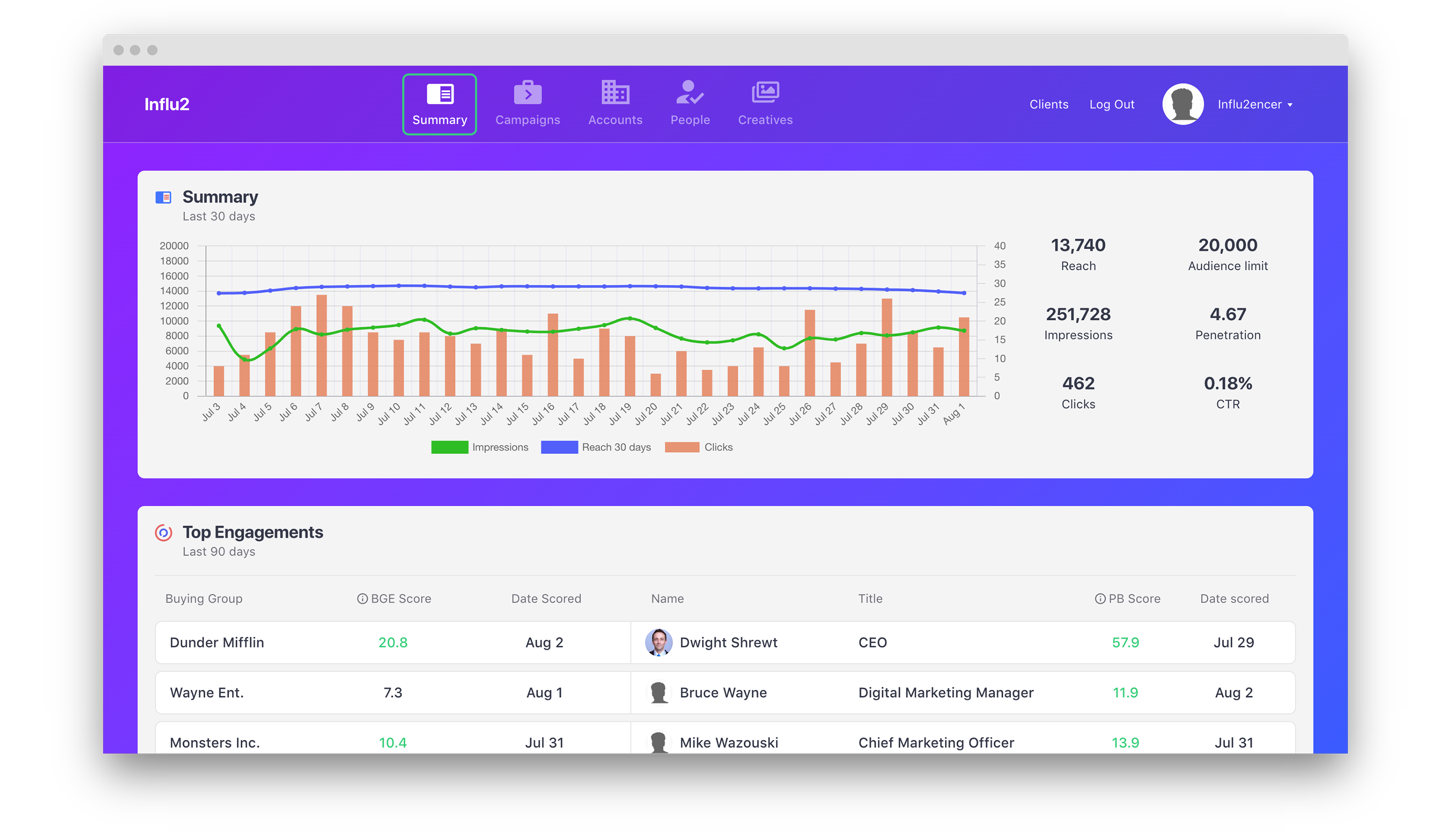
The first section of the summary page is the campaign overview graph below the top bar. This graph shows the results of every campaign over the last 30 days. The right side will show the results separated in number format. You can see these numbers for each day by hovering over the corresponding dot or line.
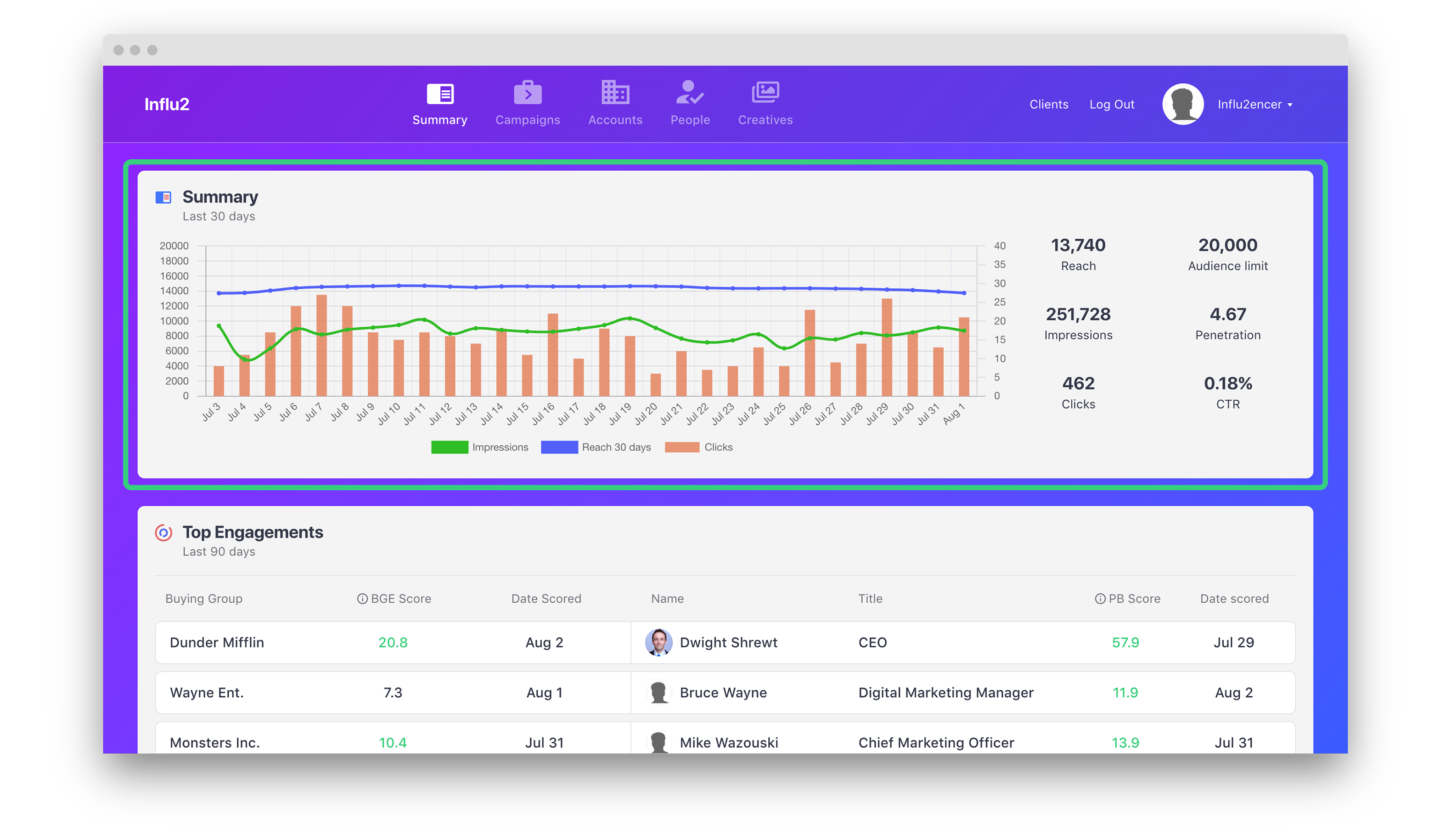
The second section is 'Top Engagements'. This section shows the most engaged buying groups and most engaged contacts within the buying groups. To the right of each name, you'll see a BGE score and the PB score, which you can learn more about here.
Note: The names are hyperlinks. Click into a buying group name or person's name to load a report on the account or person.
Campaigns page
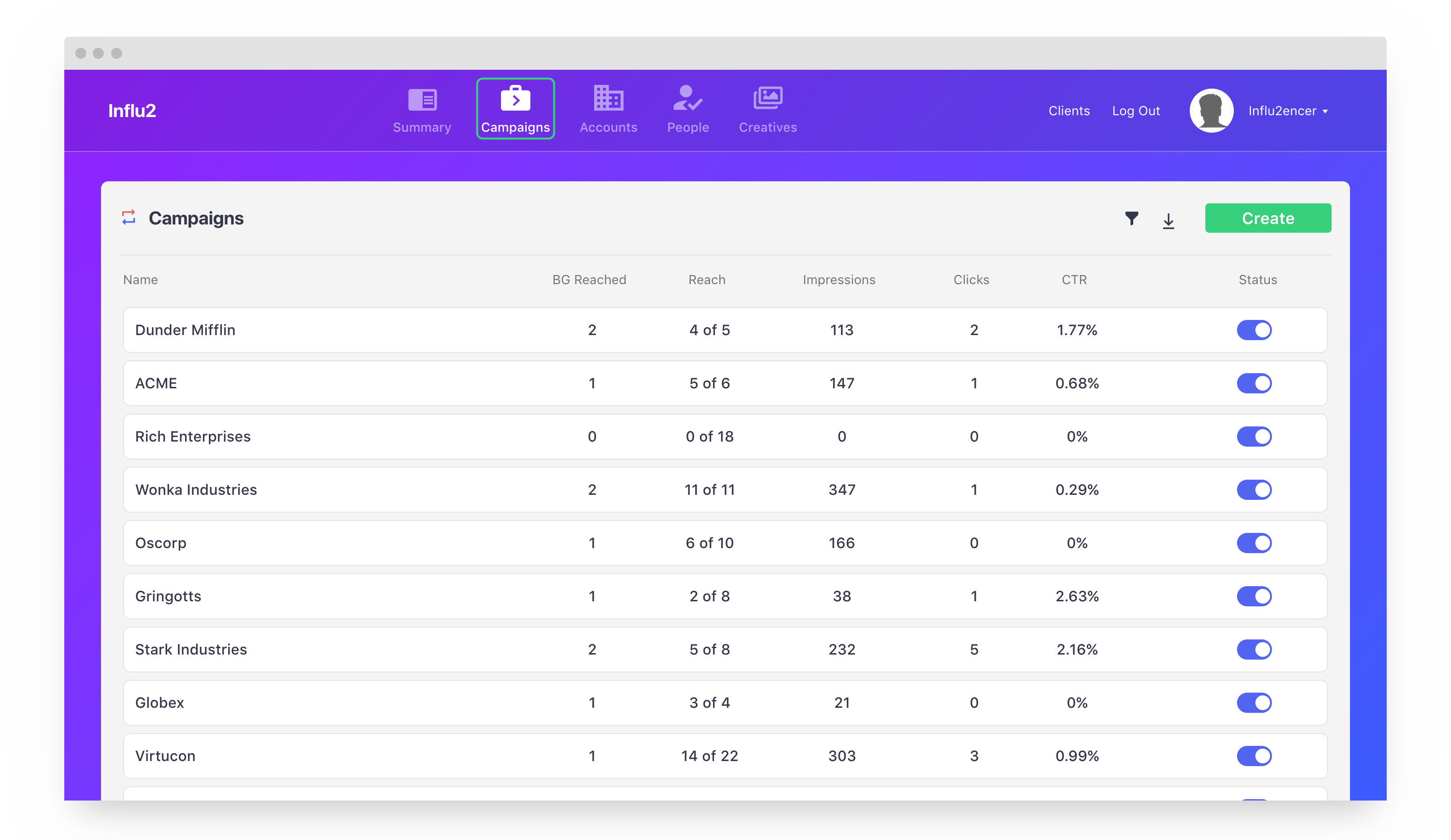
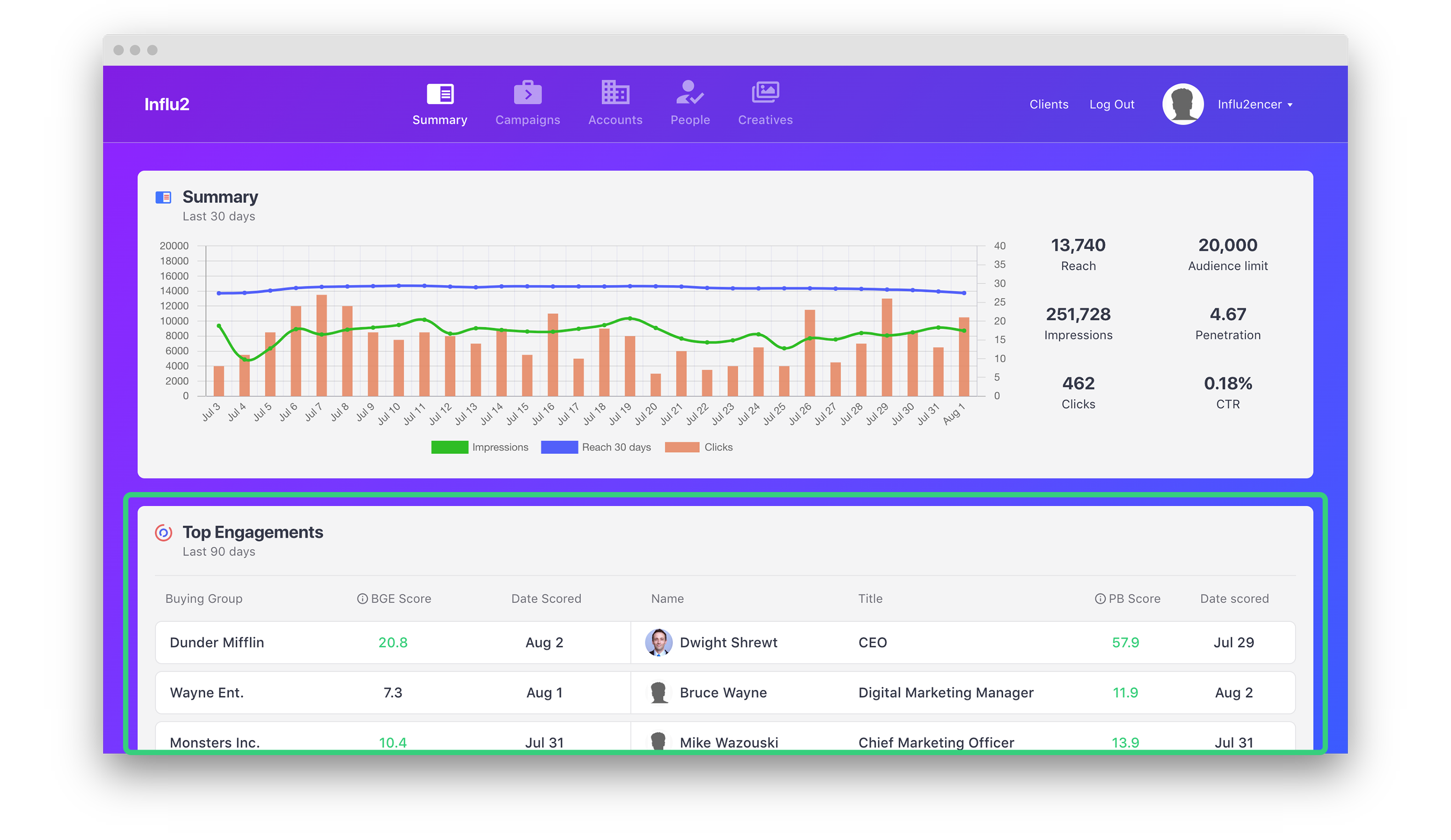
The campaign page is where you can access every campaign you have made. You can filter the list by clicking the filter button to the left of the 'Create' button at the top of the page.
When using the filter, you can filter your list by name and/or date. You can also export the list into an 'xlsx' file by using the download button to the left of the 'Create' button as well. Lastly, you can create a new campaign from this page by clicking 'Create'.
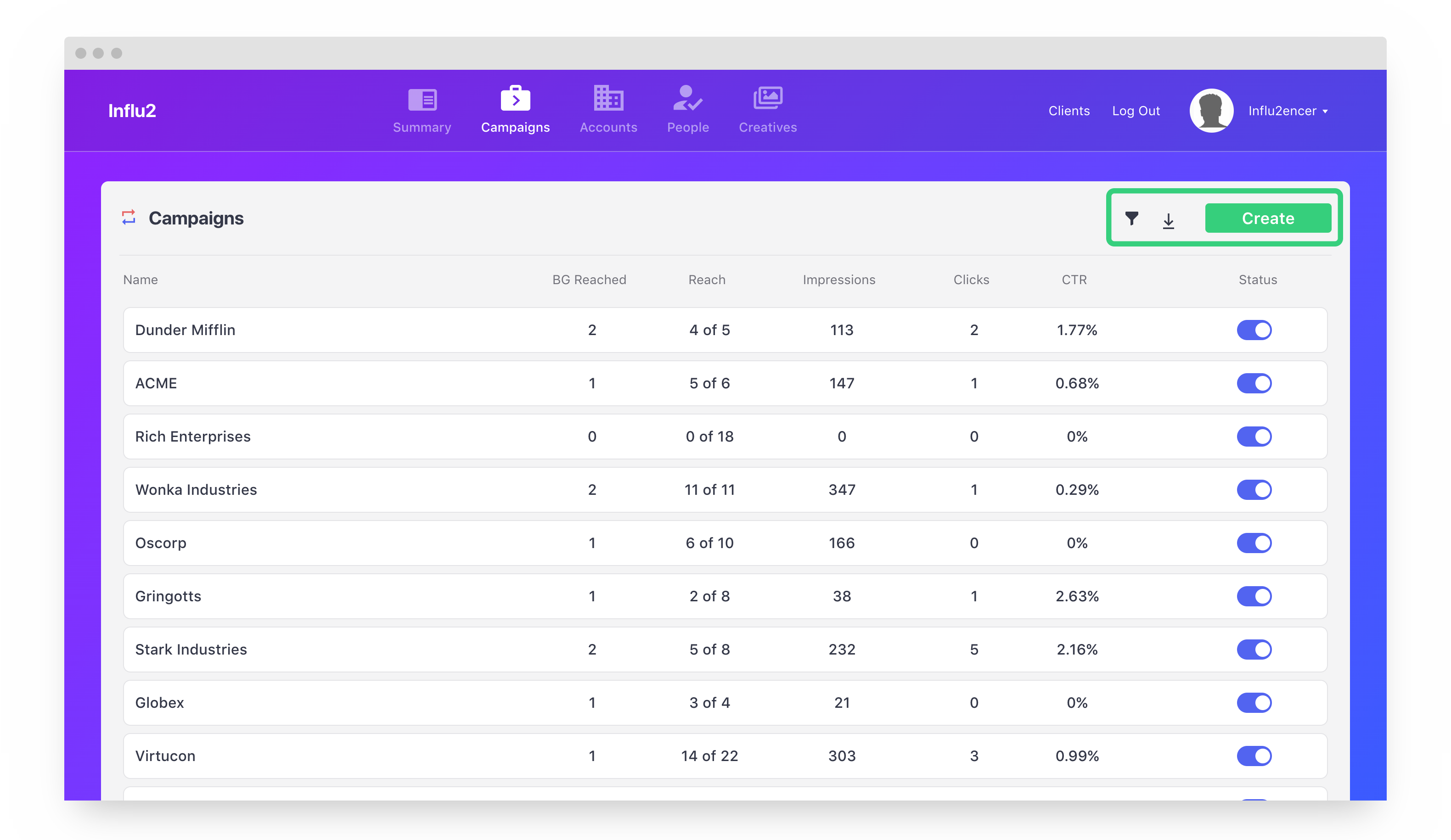
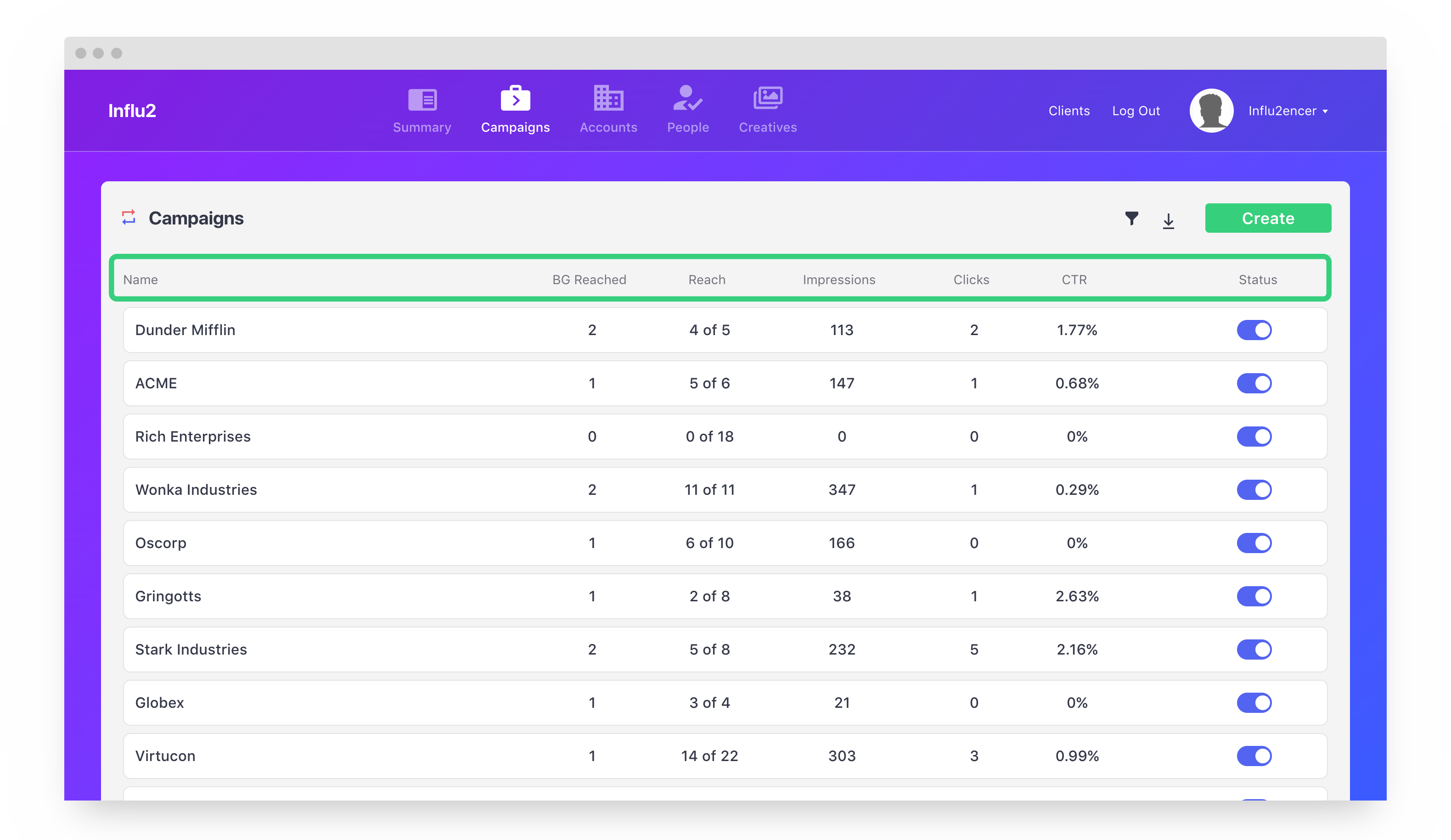
Looking at the list, you'll notice 7 columns. Let's go over what each column is below.
- Name – The name of your campaign.
- BG Reached – How many buying groups (i.e. accounts) you have reached through your campaign.
- Reach – The number of targets that have seen an ad in your campaigns. (ex. 10 (reached) of 20 (total targeted))
- Impressions – Total number of impressions from each contact in the campaign.
- Clicks – Total number of clicks from each contact in the campaign.
- CTR – Number of clicks divided by the number of impressions.
- Status – If the campaign is active or inactive.
Accounts page
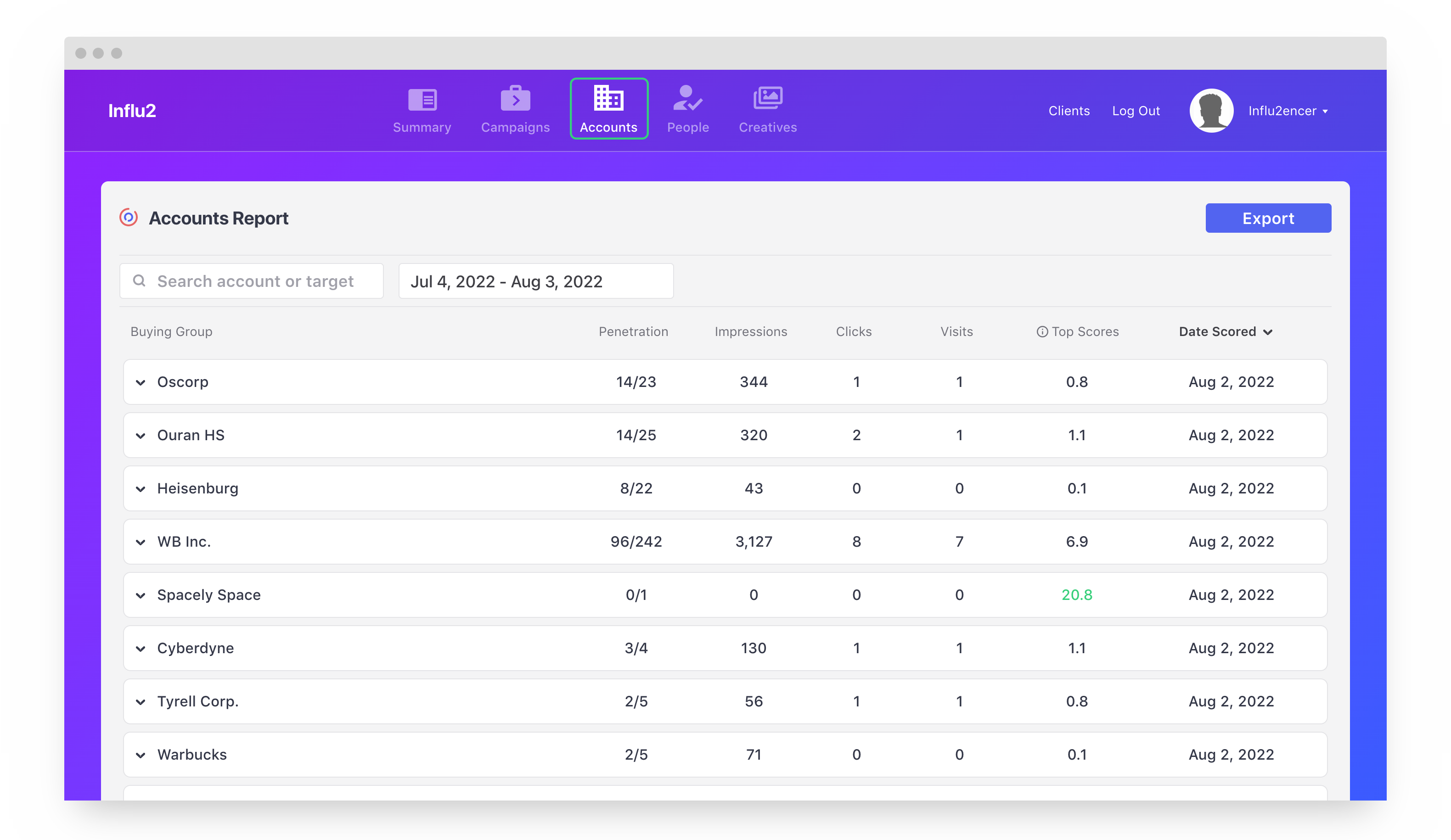
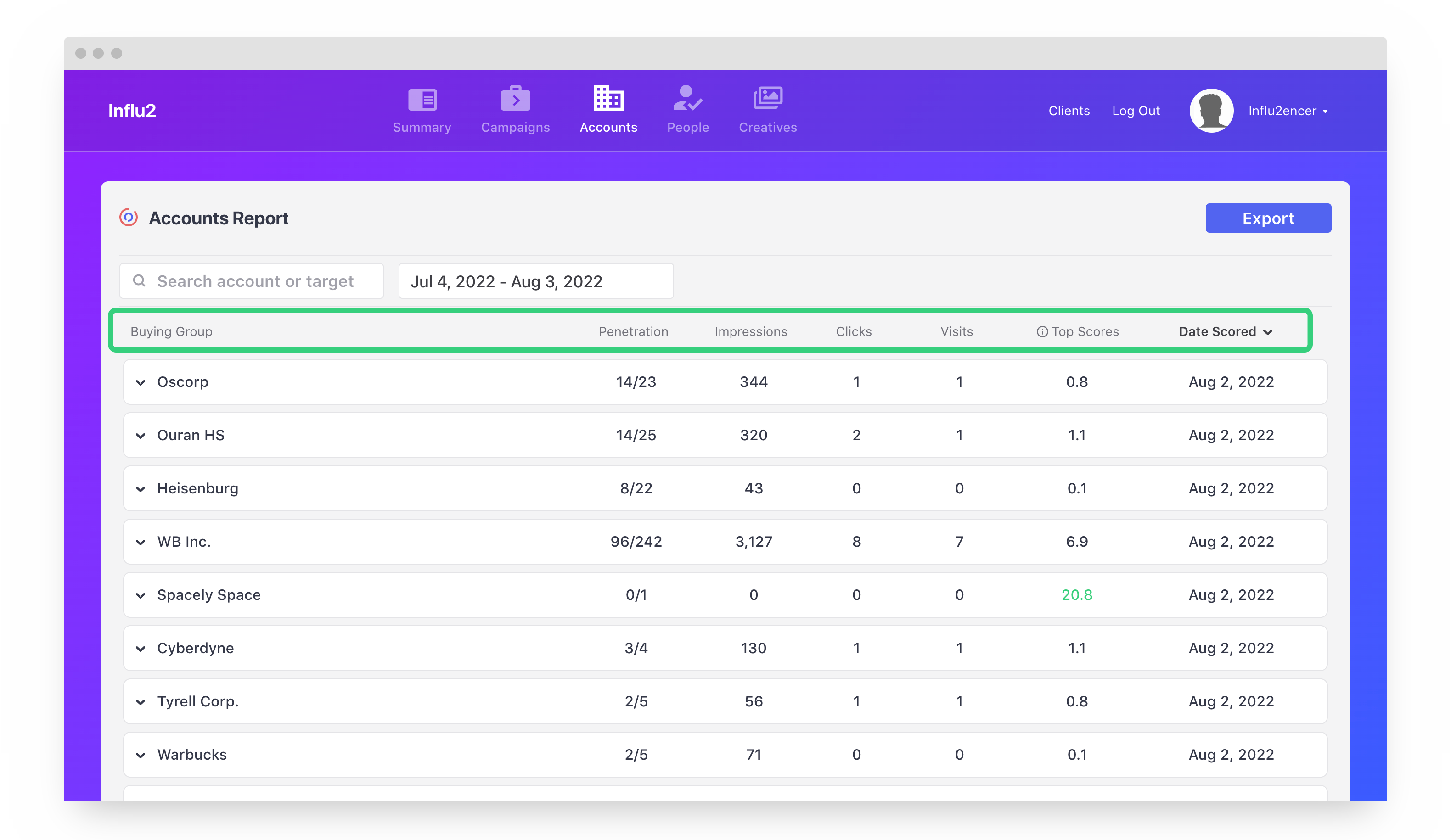
The accounts page is where you can see every buying group (i.e. account) separate from the campaigns. Using the text search option at the top, you can filter by specific account names. You can also filter by 'Date Scored'.
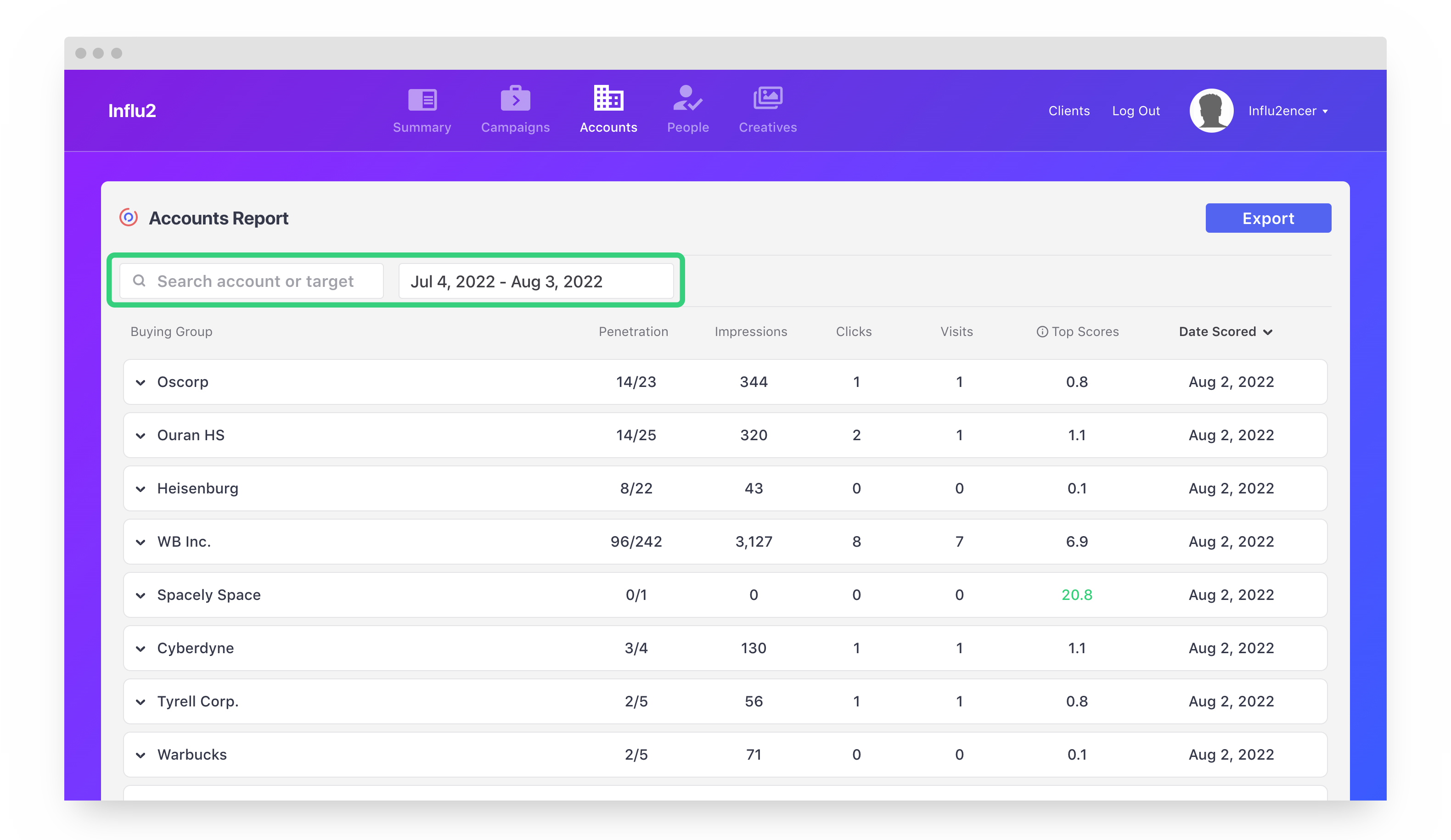
Looking at the list, you'll notice 7 columns. Let's go over what each column is below.
- Buying Group – The name of accounts you are targeting/have targeted.
- Penetration – The number of contacts within a buying group you have successfully served impressions to.
- Impressions – Total number of impressions from each contact in the buying group.
- Clicks – Total number of clicks from each contact in the buying group.
- Visits – Total number of visits from each contact in the buying group.
- Top Scores – The average score of the buying group based on engagement scores of the contacts. Read more about the BGE score and the PB score here.
- Date Scored – Last date the score was updated.
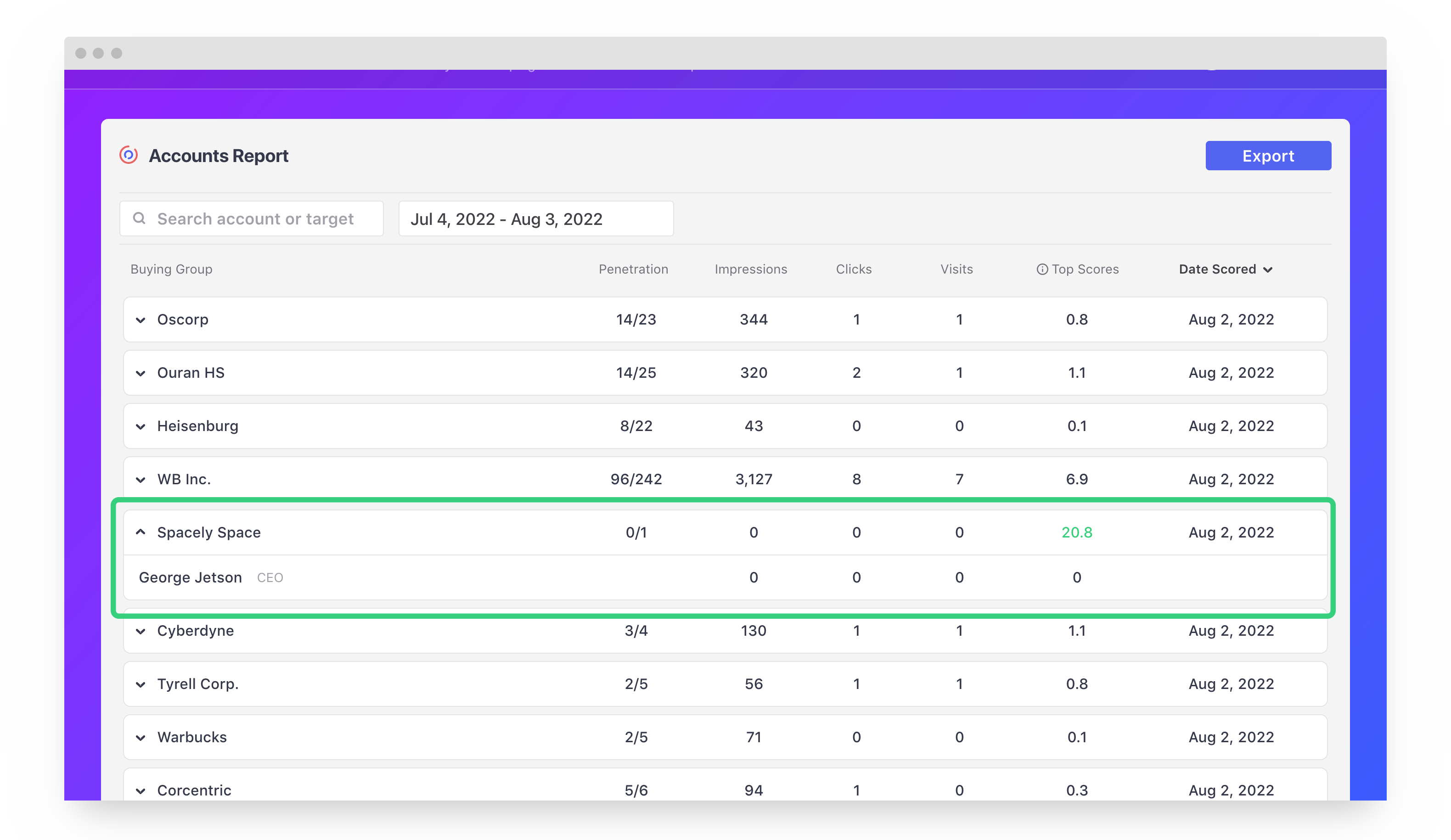
You can expand a buying group by clicking the chevron to the left of the name. By doing so, you'll get a deeper view of each contact within that buying group.
People page
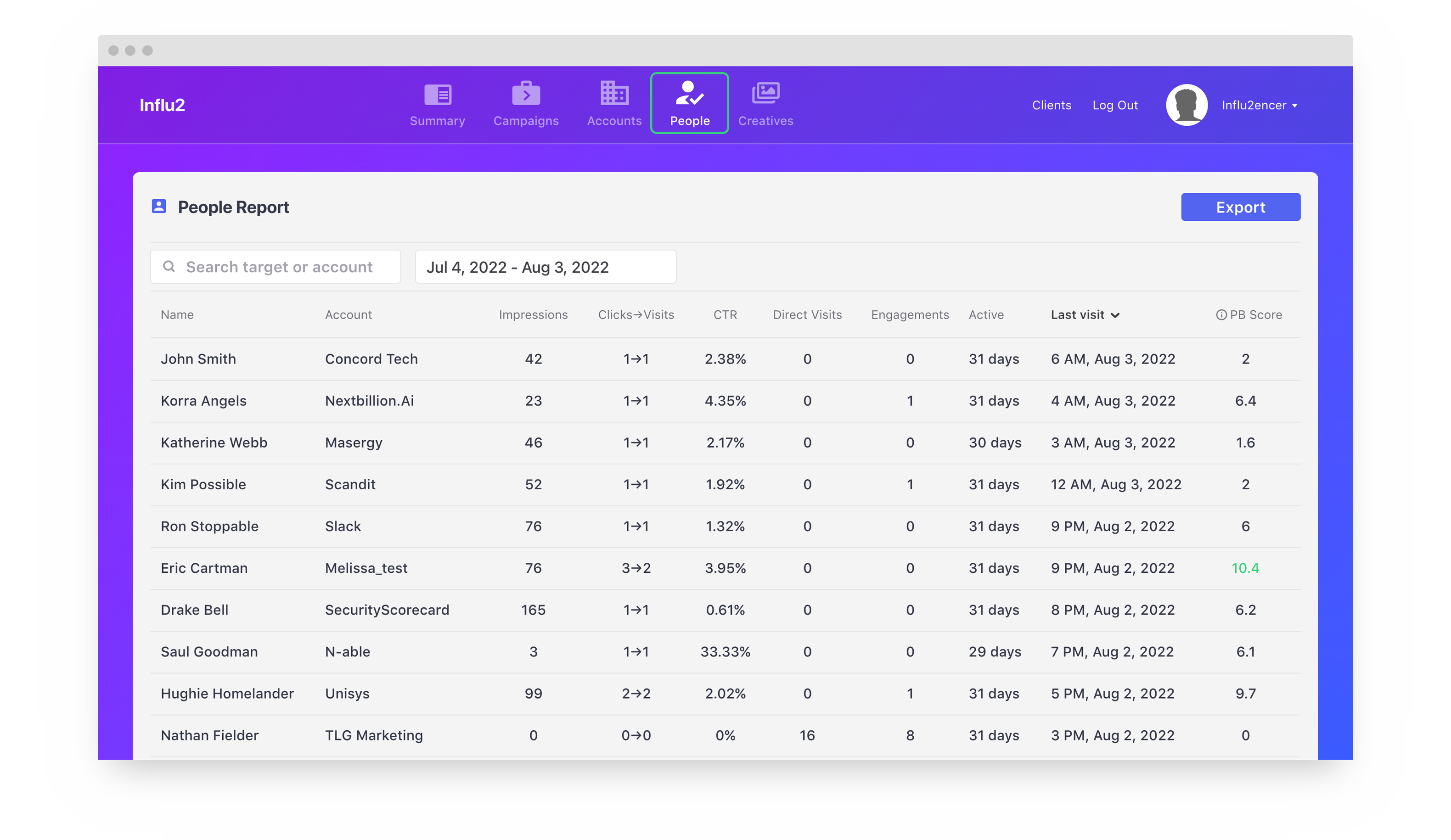
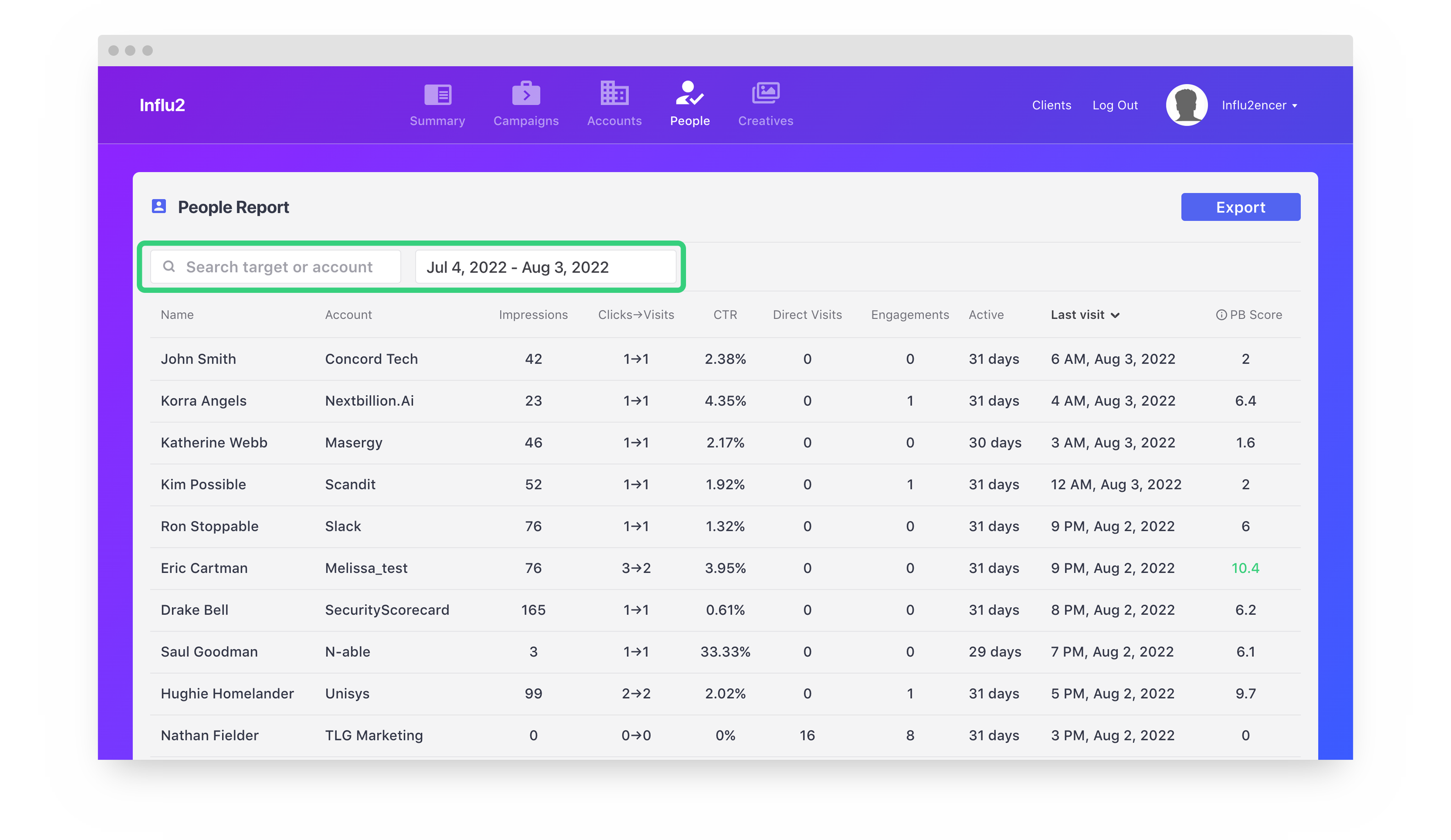
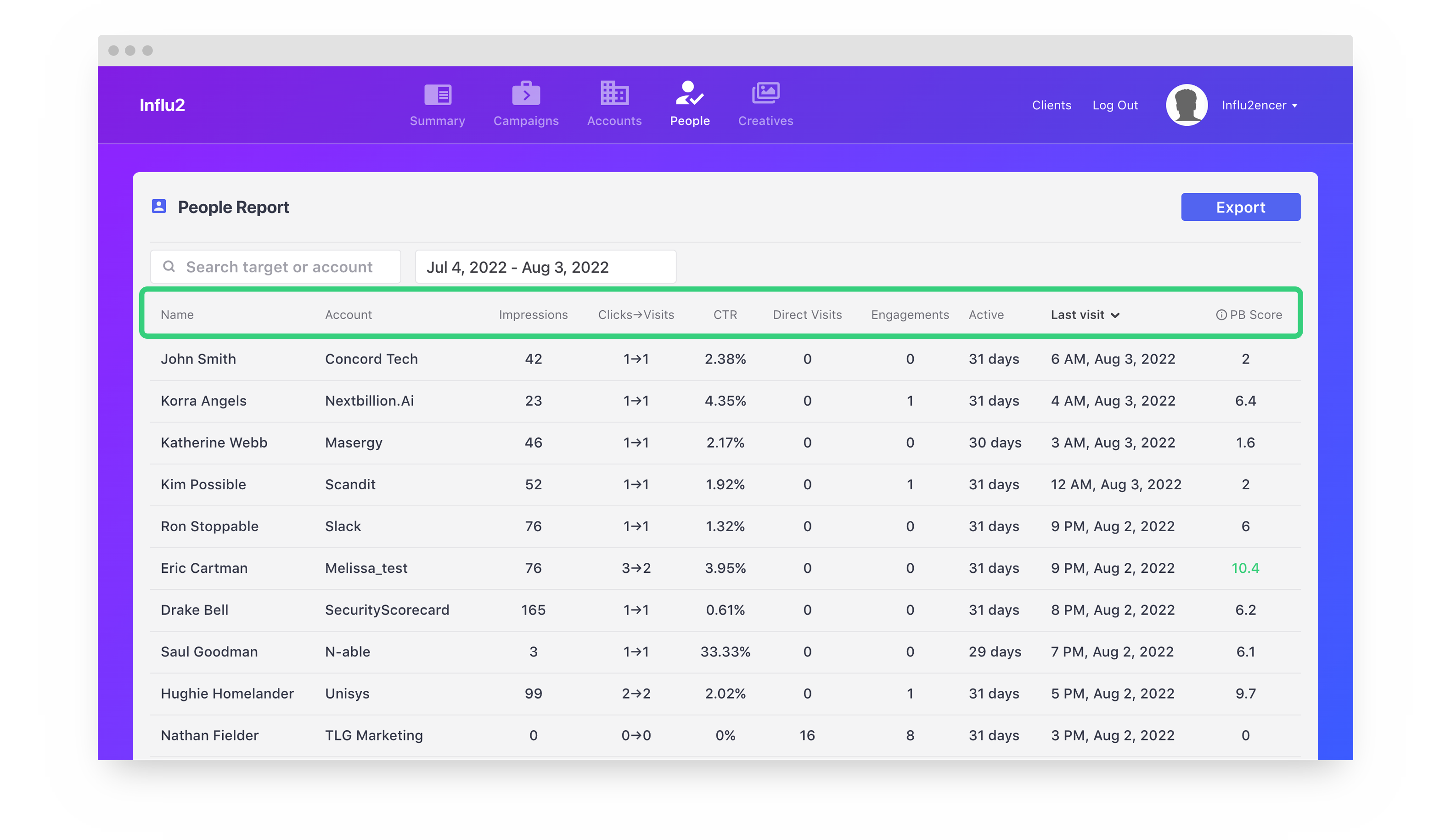
View each contact added to Influ2 in the people page; separate from buying groups and campaigns. There are two filter options available for you to use. The first, similar to the accounts page, allows you to filter by contact or account name. The second filter allows you to edit the results by date.
Looking at the list, you'll notice 10 columns. Let's go over what each column is below.
- Name – The name of the target contact.
- Account – The name of the target contact's account.
- Impressions – Total number of impressions from the contact.
- Clicks-Visits – Total number of clicks to visits from the contact.
- CTR – Number of clicks divided by the number of impressions.
- Direct Visits – Number of times the contact visited your website without clicking an ad.
- Engagements – Influ2 successfully tracked time spent by contact on your website.
- Active – Amount of time that a person was targeted in a campaign.
- Last visit – Last time the contact engaged on your ads with a 'visit'.
- PB score – Influ2's score of the contact. Read more about the BGE score and the PB score here.
Creatives page
The creatives page allows you to view engagement results of every creative at a high level or dig deep into individual insights.
The filter option at the top shows the last 30 days of every creative in the graph by default. You can edit the graph by typing in a specific creative name, changing the date, or only showing the 'Top 5 best performing' or 'Top 5 low performing' creatives.
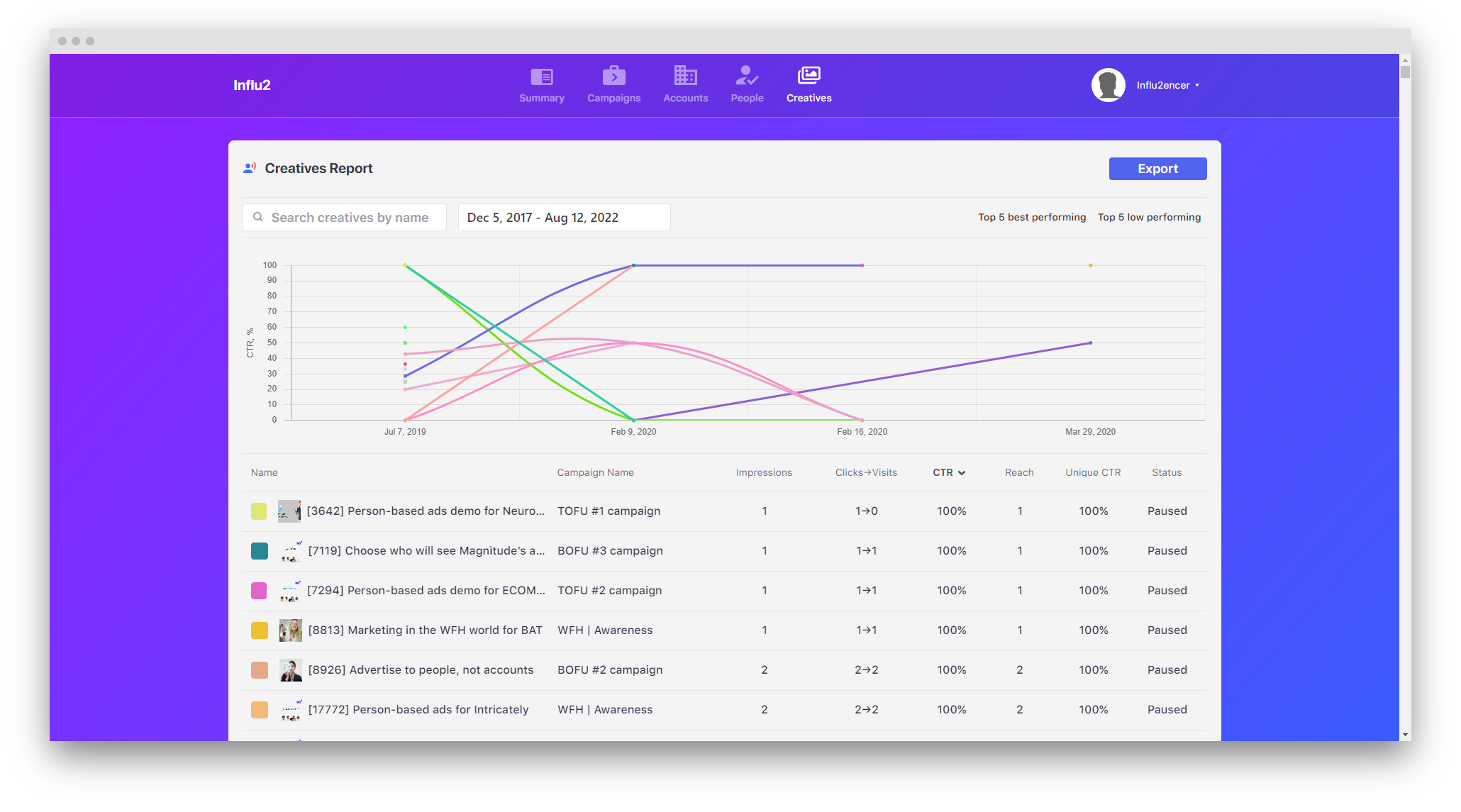
Below the graph, you can see individual creatives broken out for review. You'll notice 8 columns. Let's go over what each column is below.
- Name – The name of the creative.
- Campaign name – The name of the creative's campaign.
- Impressions – Total number of impressions from the creative.
- Clicks-Visits – Total number of clicks to visits from the creative.
- CTR – Number of clicks divided by the number of impressions from the creative.
- Reach – Number of contacts that have seen your creative.
- Unique CTR – % of clicks to unique people.
- Status – If the creative is being used in an active campaign or not.
Thank you for reading through what each page of Influ2 does at a high level. Continue through this section to understand your account settings, build a campaign, and use Influ2 engagements to create actionable insights.
Comments
0 comments
Please sign in to leave a comment.