Understanding the Audienscope Tab
Last updated: November 4, 2026
The Audienscope tab is Influ2's home for buyer intent — everything Influ2 picks up about who's showing interest in your business, and where to find more people like them.
It brings together two capabilities: Audienscope Monitor, which tracks intent from the people you're already targeting, and Audienscope Discover, which finds new accounts across your broader market based on real buying intent.
This article walks through everything you'll see in Overview, Intent Signals, and Discovered Accounts.
Overview
Overview is your starting point in Audienscope, bringing together a single view of buying intent across monitored and discovered contacts. Check it regularly to spot increases in New Accounts or spikes in topic activity. When you see something worth exploring, drill for the person-level details behind the signals.
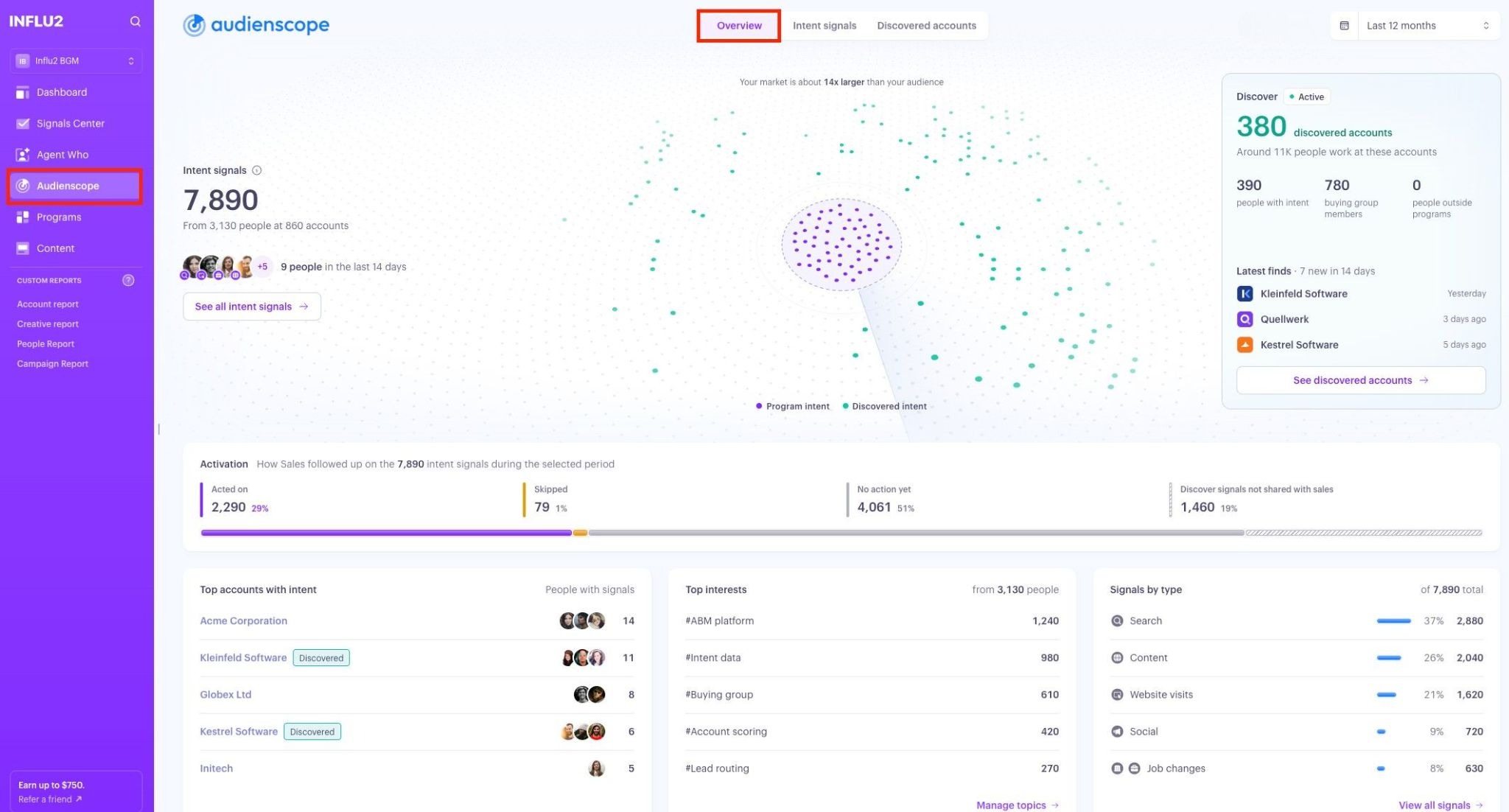
Intent this period — a set of counts for your selected date range:
Intent signals — Total intent signals detected across targeted and discovered contacts.
People and Accounts — How many unique people and companies those signals came from.
New Accounts — companies Discover surfaced for the first time this period — click through to the Discovery tab to see exactly who.
People with Intent — People with at least one signal.
Buying group members —The total number of people showing intent plus additional members of their extended buying groups..
People at accounts — The total number of contacts across all discovered accounts.
People not in program — How much of your discovered audience is already running in a program versus still waiting to be added.
Below the counts, you’ll see quick highlights of the last 14 days specifically — regardless of the date range you've chosen above. Use these for a quick "what's new since I last checked" glance.
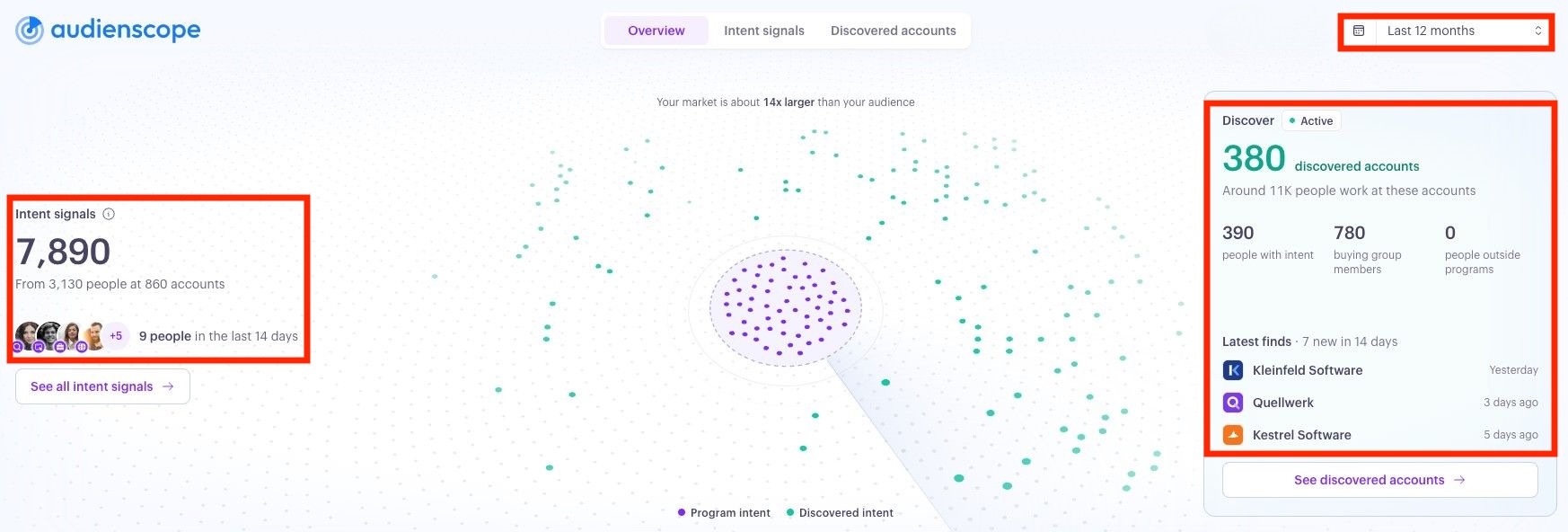
Your market graph — A radar view comparing the accounts currently enrolled in your Influ2 Programs with signal monitoring applied, with the broader target market defined by your criteria. Use it as a directional view of market coverage and scale, not an exact account count.
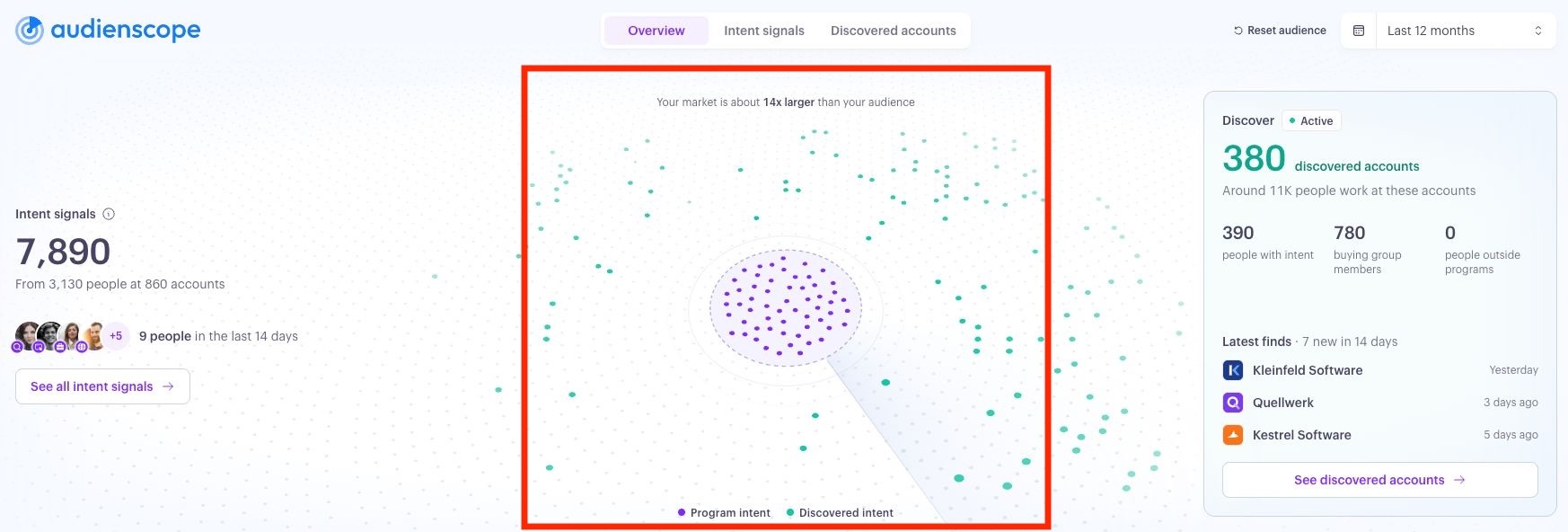
Activation panel — Shows how Sales is following up on intent signals surfaced by Audienscope, breaking activity down into four categories: Acted on, Skipped, Not passed to sales, and Untouched. Use this view to understand how effectively your team is acting on intent and identify gaps in follow-up. A high share of Untouched or Not passed to sales signals may indicate an opportunity to improve sales handoff and engagement.

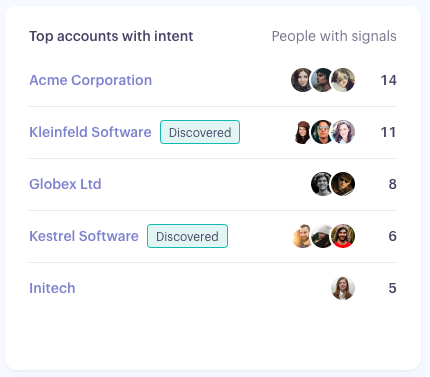
Top accounts with intent — Highlights your top five accounts ranked by the number of people with intent signals. Accounts identified through Audienscope Discover are tagged Discover. Use this view to quickly identify accounts showing the strongest buying interest and prioritize which ones to explore further.
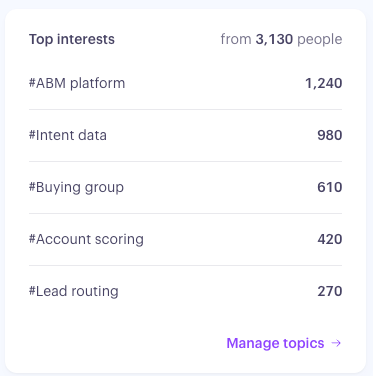
Top Interests — Highlights the top five topics ranked by the number of people showing intent. Use this view to understand which themes are generating the most interest across your market and inform where to focus your content and messaging.
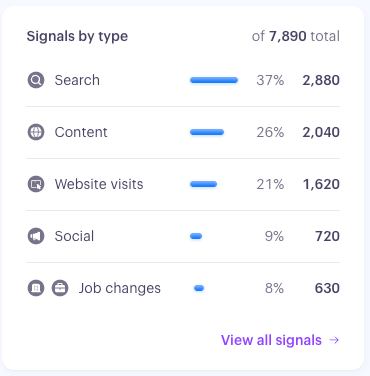
Signals by type — Breaks down intent activity by signal type (Search, Content, Website Visits, Social Posts, and Job Changes). Use this view to understand where and how buyers are researching topics relevant to your market.
Discovered Accounts
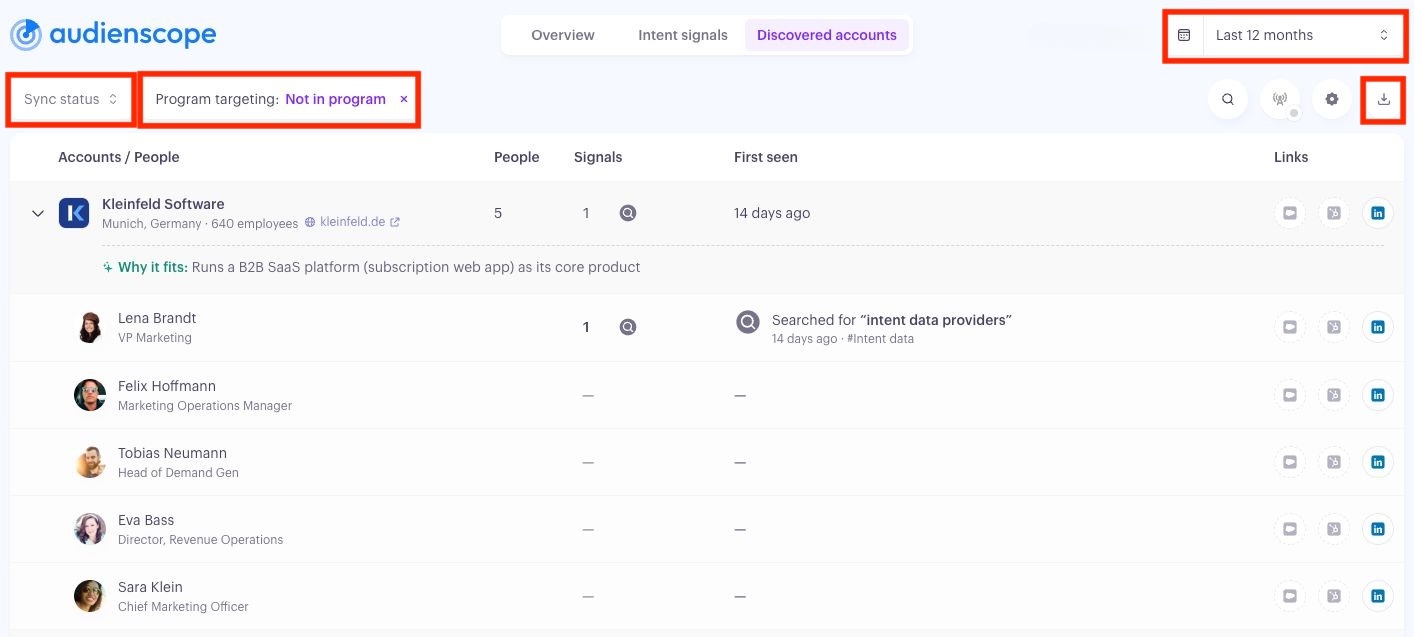
The Discovered Accounts tab shows the accounts and people Audienscope Discover identifies: companies that match your target market and are showing buying intent, including those not previously on your radar. Use this view to review discovered accounts and determine next steps for adding them to an Influ2 Program for deeper monitoring and ad targeting while intent is still fresh.
Here’s what you’ll see:
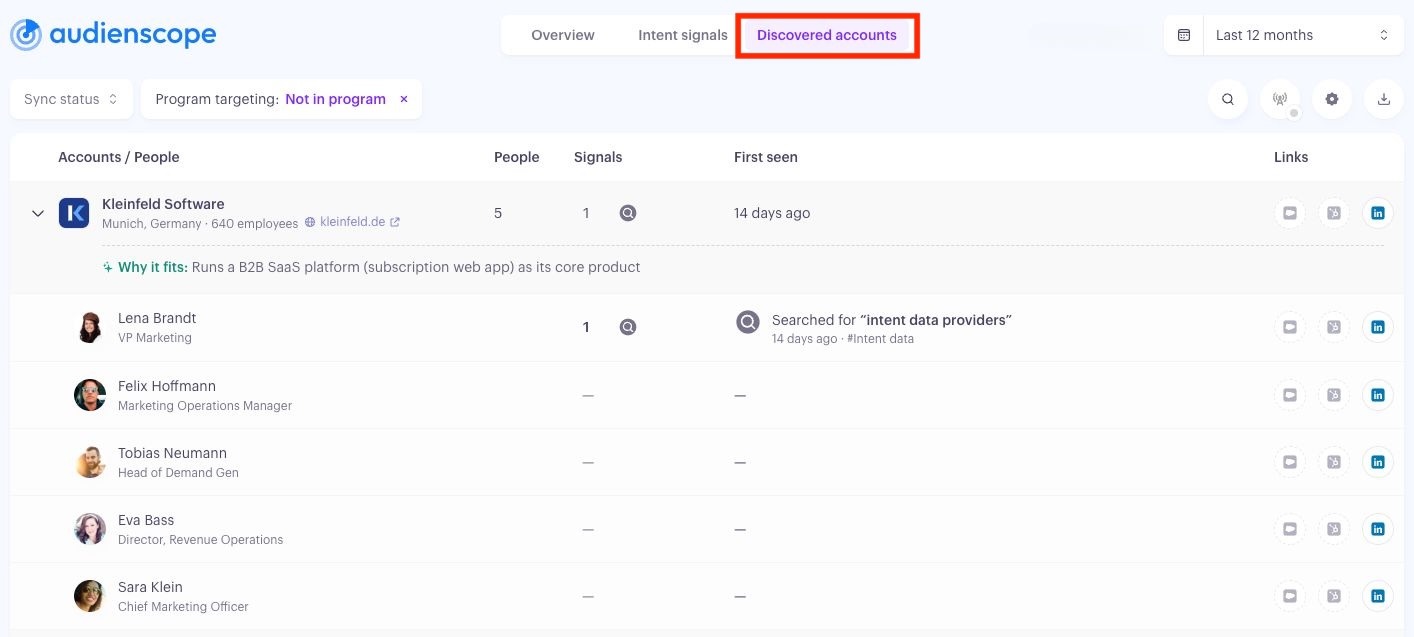
The accounts list — Accounts are sorted by the date they were discovered, newest first. A new signal on an account you've already seen doesn't move it back up the list, so the order reflects when Discover found the account, not when it was last active.
Each account row shows:
Company info — Name and firmographics like location and size.
AI reasoning — A short, plain-language explanation of why this account matches your target market, so you don't have to guess why it's on the list.
People — The total number of people discovered at this account.
Signals — Number of intent signals detected.
Discovered date — When this account was last active, and when Discover first found it.
Links — Links to the matched Salesforce or HubSpot records and the company's LinkedIn page, when Influ2 can match them.
Expand an account to see its people, sorted by latest signal, with people who don't have a signal yet listed last. Each person's row shows their name, title, their signal count, latest signal, and whether they're already in a program.
Additional actions:
Filters — Narrow the account list by Date range (defaults to the last 12 months), CRM sync status, or Program Targeting.
Export to CSV — Export the current filtered view as a CSV, with one row per person and columns covering account and signal details.
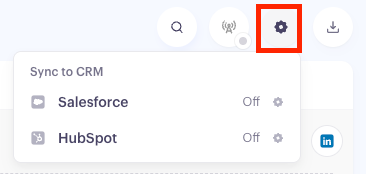
Syncing to your CRM — Sync discovered accounts and contacts to Salesforce or HubSpot by enabling the sync toggle and selecting your automation mode. Influ2 automatically updates your CRM approximately every four hours.
Please note: You can configure default field mappings for exports under Integration Settings. To populate specific fields differently for Discover records (such as setting the Source or tagging records as Discover), use the mapping overrides on this screen.
Syncing only fills empty fields on existing CRM records and never overwrites existing data.
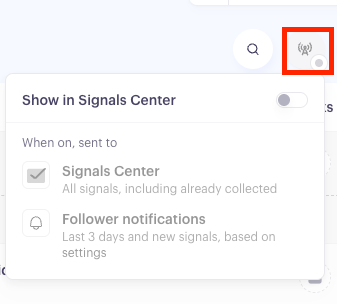
Show in Signals Center — Choose whether to automatically pass early intent signals identified by Discover to Sales for immediate follow-up or continue nurturing those contacts through your Influ2 Programs first. When enabled, signals are automatically sent to Sales as they’re detected, appearing in Signals Center and triggering follower notifications.
Intent Signals
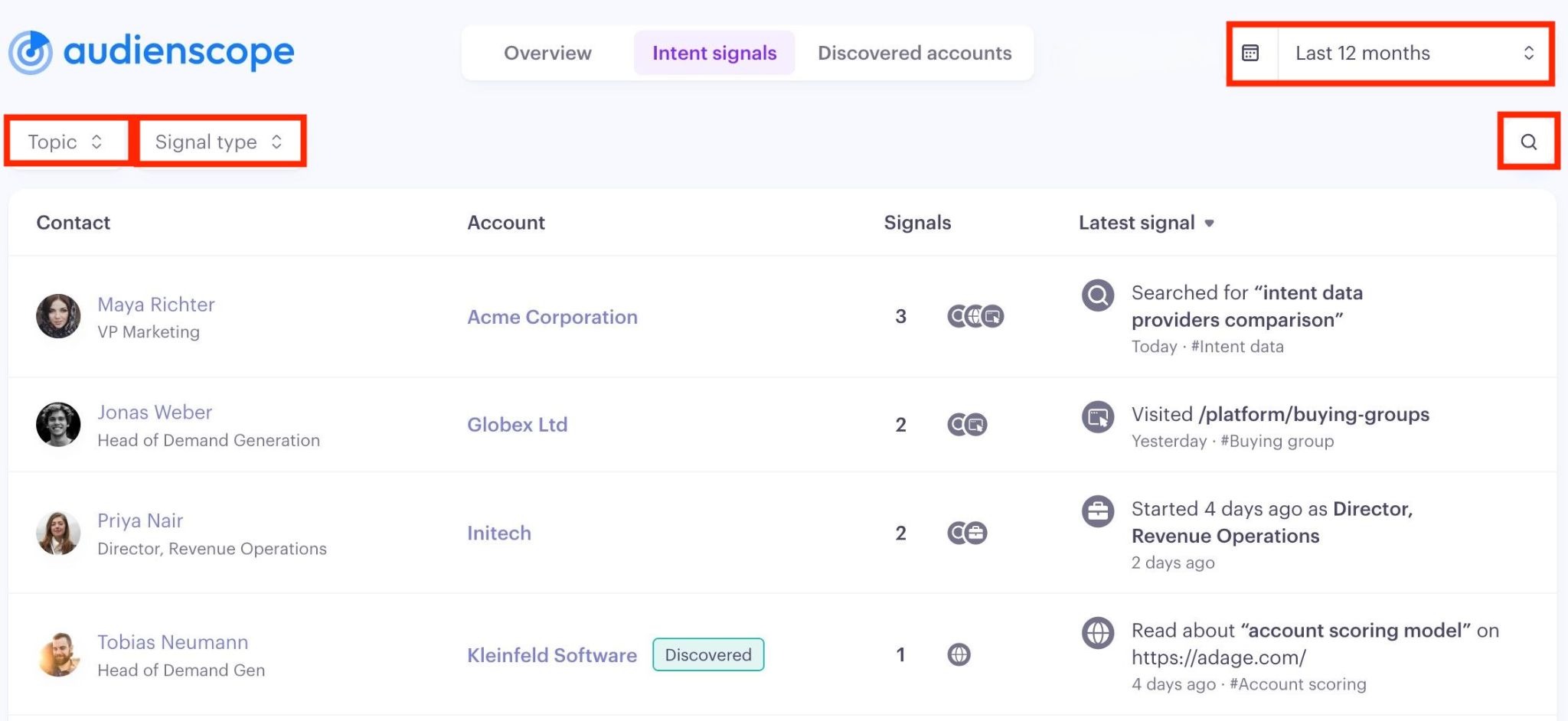
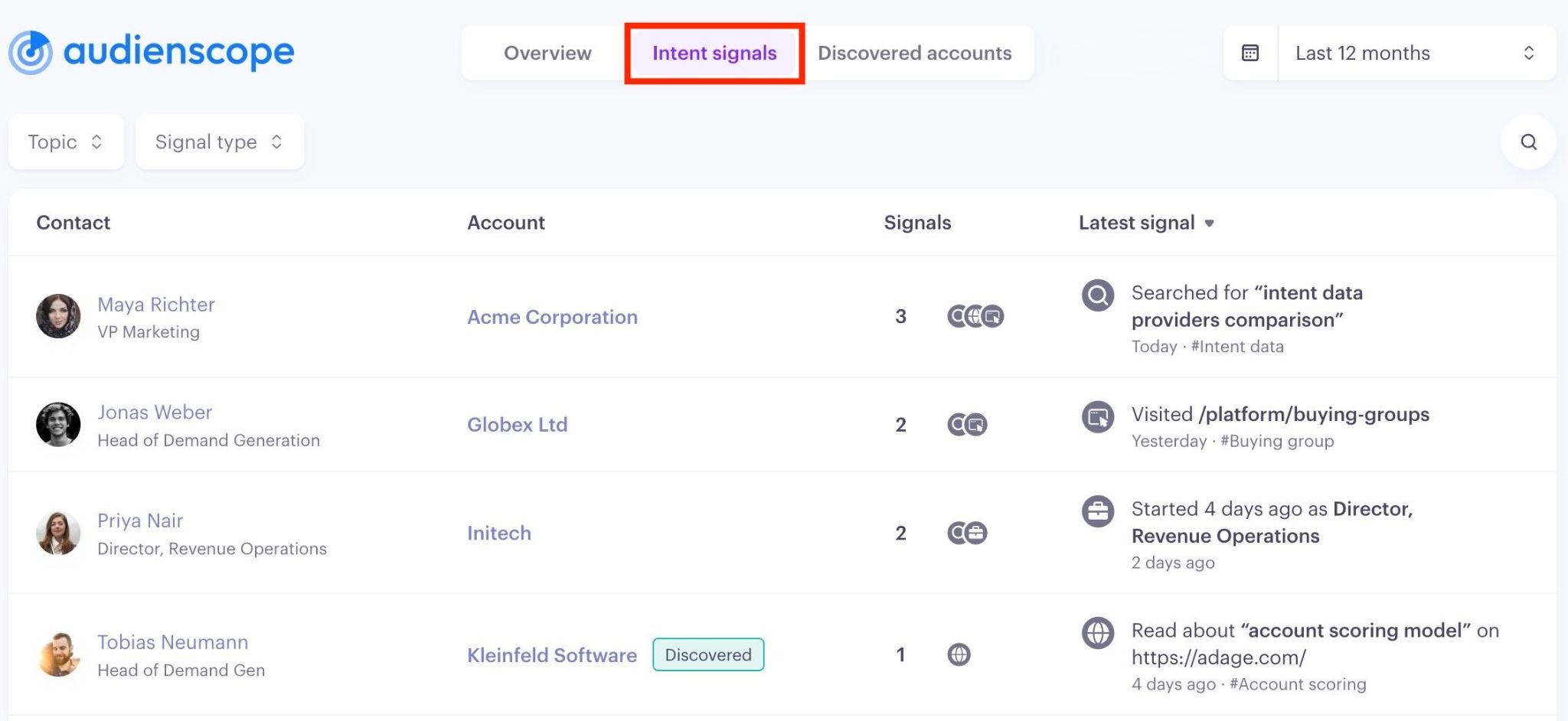
The Intent Signals tab provides a consolidated feed of every intent signal Influ2 tracks, covering both contacts already targeted in your Influ2 Programs and new contacts identified by Audienscope Discover. Unlike the Discover tab, which organizes activity by account, Intent Signals displays one row per person, making it easy to scan individual signal activity or search for a specific contact.
Here’s what you’ll see:
Person and Title — Who the signal belongs to.
Account — Which company they're at, tagged Discovered if this is someone Discover surfaced.
Signals — How many qualifying signals were detected from this person during the selected time period.
Latest signal — The most recent activity, which is what the list sorts by default. You can also sort this list by signal count, or account name.
Additional actions:
Filters — Additional filters are available for date range, topic of interest, signal type, or a free-text search (minimum two characters).